Up next in 10

C# .NET Example to Create PDF Document From Text and Images Using QuestPDF Library in Visual Studio
Jan 9, 2025

Get the full source code of application here:
https://gist.github.com/gauti123456/0900cd9543f09a20aed40f67b161a440
Show More Show Less View Video Transcript
0:00
uh hello guys welcome to this video so
0:02
in this video we will be looking at a
0:05
brand new library in CP in order to
0:09
actually create PDF document from text
0:11
and images the name of this library is
0:15
Quest PDF Quest PDF is a open source
0:18
library and if you just go to
0:21
their website just go to Google and if
0:24
you want to just write c c PDF this is
0:29
actually the name of the library
0:31
K
0:33
pdf and this is the official website of
0:36
this Library it's a modern. net library
0:39
for PDF generation in C and they it's a
0:44
free library open source and we will
0:46
looking at a very simple example in
0:48
Visual Studio
0:50
Cod so you can see I'm running it this
0:53
application if I run this application it
0:55
will open the folder where the PDF file
0:57
will be located it will create this and
0:59
uh if I open this file you will actually
1:01
see the PDF file it contains text images
1:04
it also contains the footer page
1:06
numbering as well this is the first page
1:08
this is the second page and we will be
1:10
uh I will be showing you how to create
1:12
this application from scratch all the
1:14
source code which I will be using in
1:16
this video is given in the description
1:18
link you can go to that link and copy
1:21
paste all the source code so now let's
1:23
get started the name of this Library I
1:25
already told you quest PDF so first of
1:29
all let me me close this and uh you
1:31
should need to have Microsoft
1:34
Visual you can download this software if
1:36
you don't
1:39
have
1:41
so visual studio you can go to their
1:43
Microsoft website and download visual
1:45
studio latest version I already have
1:48
installed so I can open
1:58
this just called as Visual Studio sorry
2:01
Visual Studio I have two 2022 version
2:05
installed so here you can just click on
2:08
this button create a new project and
2:11
here we'll be only be creating a console
2:13
application so you will simply say
2:15
console app so I will simply it will run
2:17
on net on Windows Linux and MC it's
2:22
say click on next just give your name
2:25
and application let me say PDF
2:28
generator click C on next so and then
2:32
click on create so after creating this
2:36
guys
2:37
uh this will be a
2:39
simple console application you will make
2:42
right here in the console hello world is
2:44
written right here so for Quest PDF we
2:47
do need to install a package third party
2:49
package so how to install this in Visual
2:52
Studio it's very simple let me show
2:56
you so here you need to click on the
2:59
tools section section so you need to go
3:01
to tools and here you need to select the
3:04
Nugget package manager so nugget package
3:07
manager is something like third party
3:09
package manager if you want to use thir
3:11
third party packages you need to go to
3:13
manage nugget package for solution just
3:16
click this
3:17
option so go to net package manager
3:20
manage and right here you need to search
3:22
for click on browse option right here
3:26
just click this option and here you can
3:28
search your package so I need to search
3:30
for this package which is Quest PDF this
3:33
is actually the package which comes it
3:35
has 5 million 79,000 weekly downloads so
3:40
this is actually open source PDF
3:42
generation Library click on the this
3:45
project I to install it the latest
3:47
version or you can also specifically
3:49
select any version but I need the latest
3:51
table version click on install so it
3:54
will install this library inside your
3:56
project so click on I accept so once
3:59
once it is installed you can directly
4:01
use this library inside your project now
4:04
you can simply go to your actual project
4:08
and we need to edit this so first of all
4:11
we do need to
4:13
actually uh use the quest PDF so you
4:17
will say you can see now it is
4:19
accessible and it contains this method
4:21
fluent we need to get this and also we
4:24
need this uh Quest PDF
4:28
helper as well we also need Quest
4:33
PDF infrastructure and also we need the
4:37
system module and Diagnostics so these
4:41
four packages we need and we have
4:43
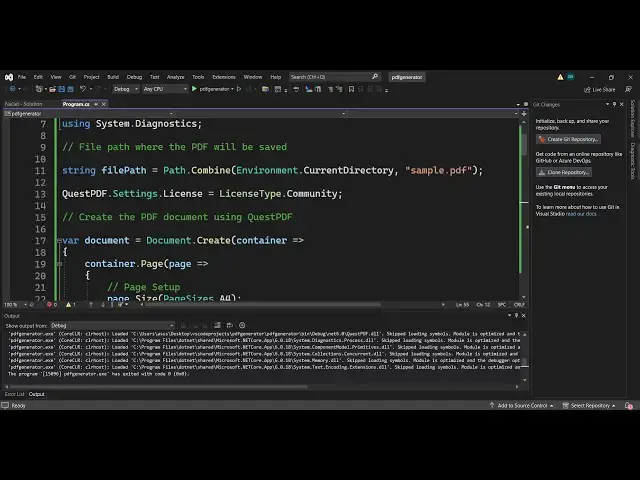
already and here we need to Simply tell
4:46
where the PDF file will be created so it
4:48
will be created in the root directory
4:52
and we will be creating a in order to
4:54
get this we will say environment.
4:56
current directory so it will actually
4:59
get the current directory which is there
5:01
of the project and inside that it will
5:04
create a file called as result. PDF so
5:07
here you can change the file name
5:09
accordingly whichever output file name
5:11
that you want to generate so next guys
5:14
you need to mention the license of quest
5:17
PDF this is a really important step
5:20
because Quest PDF I already told you is
5:22
open source library but uh they have
5:25
their limitations as well if you go to
5:27
the pricing model
5:29
uh it is free for developers which you
5:32
are using it for hobby it's free and if
5:35
you are basically making a profit of $1
5:38
million annually then in in that case it
5:41
is free forever but in that case if you
5:43
are running a company if you are making
5:45
a profit above 1 million and also if you
5:48
have 10 software developers in that case
5:49
you need to pay $6.99 professional
5:51
license and also it has interise license
5:54
as well if you have multiple companies
5:56
for most of the developers we will be
5:58
using the community license
6:00
that's why inside our code we need to
6:02
mention a line which specifically tells
6:04
that that we are actually using the
6:07
community license so just write Quest
6:09
pdf. settings. license here you need to
6:13
mention the license type which is of
6:16
community so this specifically tells in
6:19
the code that we are actually using the
6:20
community license so now it will be able
6:23
to generate the PDF document so now guys
6:26
if you want to create the PDF document
6:28
first of all in quest PDF you do need to
6:31
actually create a container for that so
6:34
for that we'll be creating a new
6:36
variable and inside this we'll be using
6:38
document. Create this is
6:41
actual method it inside request PDF
6:46
infrastructure so inside the create
6:48
method we will actually have a variable
6:52
of
6:53
container so this will be a simple
6:56
function and just put a semicolon right
6:58
here in cide
7:00
we have to put semicolon at the end of
7:02
each line so inside this container we
7:06
can add
7:07
pages inside our PDF document now to add
7:10
a brand new page we'll simply use the
7:12
page method container. page so inside
7:16
this we actually get the page variable
7:19
and here you can set settings for
7:21
individual Pages such as the title page
7:24
background color everything so now to
7:26
set the size we will use the size method
7:29
and here it actually contains this page
7:32
sizes class it has various sizes A4 A5
7:36
so we'll be using the standard A4 size
7:38
of the PDF document and now to set set
7:41
the margin we have the margin method as
7:44
well so you can set this to two unit we
7:48
can select it in
7:51
centimeter and then we also have the
7:54
page color method as well if you want to
7:56
set a specific color so by default white
7:59
will be selected you can even change the
8:01
color as well to Black any color app so
8:05
in this way you can set the color and
8:07
then we actually have the default text
8:10
style as well if you want to change the
8:12
settings of the text font so here you
8:16
can set the phone size this is actual
8:18
method phone size you can control it so
8:21
let me set this phone size to 20 so
8:23
these are some of the settings of the
8:25
PDF document such as the page size
8:28
margin page color text size text fold
8:30
color and now we need to actually add
8:33
some content in the PDF document so now
8:36
to add the content we also use need to
8:39
use the content header method first of
8:41
all header
8:43
actually uses if you want to put any
8:47
text so we'll using the text method we
8:50
will say this is the first
8:52
page of for
8:55
PDF and then we can simply bind this
8:58
chain this methods if you want to make
9:00
it semi-old we can control the phont
9:02
size of it by calling the phont size
9:07
method you can set this specifically to
9:11
36 and then it also has a font color
9:15
method as well if you want to change the
9:16
color of this so we'll be selecting a
9:19
blue color colors. blue.
9:22
medium so this is actually telling the
9:25
quest PDF to actually insert text with
9:27
blue color with semi bold phone size
9:30
will be
9:31
36 and that's all this is a single page
9:34
and now if you want to save this PDF
9:36
document guys it's very simple we need
9:39
to come out of this function which is
9:42
this function of document come out of
9:44
this function now we need to save this
9:46
PDF
9:47
document so now to save this PDF
9:49
document simply say document. generate
9:52
PDF this is actual method which is
9:54
available in quest PDF and then you
9:56
provide the path which we configured
9:58
early on file path it will saved it
10:01
right in the location and now we also
10:04
need to open that path automatically
10:07
when we save this so now to open that
10:10
path automatically you'll be using the
10:11
process class and it contains a start
10:14
method and it will be starting the
10:16
Explorer process explorer.exe and it
10:20
will open that path automatically and
10:22
for this we'll be selecting this regular
10:27
expression and here we need to
10:33
embed so you can find the full source
10:36
code in the description this is actually
10:38
the line so it will actually open the
10:40
path automatically when we run the
10:42
application and then we can simply write
10:44
a simple line in the console that your
10:46
PDF file is has been generated you'll be
10:49
using the console right line function
10:53
PDF
10:56
generated that's all so it's a very
10:59
simple application it will contain a
11:01
single page which will have this heading
11:04
so now if I click this run button so
11:06
once you will see uh you will see
11:09
automatically this will open the
11:10
location so our result. PDF has been
11:14
created and if you see we have contain
11:17
first page of PDF so it actually
11:19
contains a single page in the PDF
11:21
document and it contains this heading of
11:23
first page of PDF and uh now if you want
11:27
to add multiple pages
11:30
what you need to do you need to use this
11:32
same method once again this is will be
11:35
the second page this is the second
11:39
page so again you'll be using the page
11:41
method once
11:45
again like this so it's very easy for
11:49
adding a new page we'll using the page
11:51
method this is the first page this is
11:52
the second page and uh once again you
11:56
can set properties this time different
11:58
properties pleas let me copy this paste
12:01
it so this time we set the page size to
12:03
be
12:05
if uh A1 and uh margin let me change to
12:11
five color will be let's suppose uh
12:16
black and phone size let me change it to
12:19
50 and uh let me put a heading here uh
12:23
let me use the same function header
12:25
function
12:29
let me just change this to second
12:32
page and this time we'll be using the
12:34
pink
12:36
color change the phone color phone size
12:39
to 50 so again run this so if you now
12:41
see it will now contain two
12:45
pages this is the first page and this is
12:47
now the second page you can see the size
12:49
is drastically different this is a wider
12:52
page and the background color is black
12:55
and the text color is pink this is the
12:57
second page this is the first page
12:59
so you can have different sizes of pages
13:01
right here and using this Quest PDF it's
13:04
a very powerful library now if you want
13:06
to add images it's really simple if you
13:09
want to add
13:10
images you will actually use a
13:15
method so for images if you see let
13:24
me uh let me just see Quest PDF
13:34
so let me uh copy this folder which will
13:37
contain two images which we will be
13:39
inserting it
13:42
so let me paste that folder which
13:44
contains the images simply paste the
13:46
folder guys where the images will be
13:49
there so
13:53
my I pasted this folder and this
13:56
contains two images this is a PNG image
13:58
and the second one is a JPG image so now
14:01
if I want to actually insert a image in
14:04
the first page so right here I can write
14:06
a simple line of code so there is also a
14:11
Content method if you want to insert
14:13
content after the header you'll using
14:15
the content method and you'll be using
14:17
the column you can basically style this
14:20
content place it by using these
14:23
formatting methods which are available
14:24
in quest PDF which is column method you
14:27
can place your wigets like a column so
14:30
right here we'll be placing this
14:34
image for first of all we do need to
14:36
read this image in C so for reading it
14:39
we will be using this uh inside bytes so
14:42
file do read all bytes we'll be using
14:45
this function and it'll be providing the
14:48
path so it is actually contained inside
14:51
the images folder images 1
14:54
do
14:56
PNG and then we simply need to say call
14:59
item you need to add this image as an
15:02
item in the PDF document as a image and
15:05
then provide the image bites as the
15:07
argument that's all that's all that you
15:09
need to do guys to actually add image
15:12
use the content method and then place
15:14
this image as a column and we read this
15:16
image as by using the read all bytes
15:18
method providing the path where the
15:20
image is located and then we actually
15:23
place it so if I run this now if you see
15:26
if I open this PDF
15:29
you will actually see uh the image has
15:32
been inserted this is the first
15:35
image and let me just change the size to
15:38
again A4 just
15:40
to A4 that's all now similarly I will do
15:45
this for the second page I will copy
15:47
this code and
15:49
uh here I can just say image second.
15:53
JPEG so this is now it's a JPEG image
15:56
not a PNG you can add all extensions
15:59
Imes PNG jpg gif webp as well so if I
16:05
now run this now you will actually see
16:08
it will add this image in the second
16:10
page this is the first image this is the
16:12
second image so now guys you can see
16:14
that you can add images text you can add
16:17
them change all sort of properties such
16:19
as phone size you can also change the
16:22
text
16:23
size so that Full Source Code full
16:25
example is given guys if you need this
16:28
source code the link is is given in the
16:29
description and do check out this
16:31
Library guys it's a really popular
16:33
Library Quest PDF and uh they really has
16:39
a nice little documentation so go to
16:41
their documentation you will find out
16:43
all the methods which are
16:45
supported so you can change the
16:47
background add images static images so
16:51
page break show if all these things are
16:54
available so one last thing I want to
16:56
show you if you want to add a footer
16:59
so let's suppose uh you want to show
17:02
page numbering so for that we do have
17:06
the footer method as well right here at
17:09
last you'll be using this footer
17:11
method inside the page so you can align
17:16
this at Center bottom any left as well
17:19
but I will be aligning it at the
17:23
center of the page and then you can
17:26
basically write any text in the you can
17:29
add a watermark as well totally depend
17:31
upon you so I just need to add a simple
17:36
page number so we saying x. current page
17:39
number to actually get this x.
17:43
span and then how you can need to do
17:46
this x. total pages so it will actually
17:49
get the total Pages which are there in
17:51
the PDF
17:56
document so I will repeat this on the
17:58
the second page as well so just do it
18:01
paste it for each page you need to use
18:03
the footer method if you want to show
18:04
something at the footer so now if you
18:07
run this
18:08
file you will actually see it is saying
18:13
that the provided document content
18:15
contains conflicted size constraints for
18:18
example some elements may require more
18:19
space than
18:23
available uh let me see guys what is
18:31
uh container
18:34
page I think this footer method is
18:36
creating problem if I remove this and
18:38
again run this I think this exception
18:40
will not take place you can see it is
18:43
running I think it's h just a typo
18:45
mistake which has happened so let me
18:47
just paste
18:49
it so I just simply paste the code guys
18:53
uh you can find this code in the
18:54
description if I try to run this now
18:59
there is some kind of build errors is
19:00
there if you see sorry
19:11
just so now you can see uh these page
19:14
numbers will also be added this is the
19:17
first page and this is a second page so
19:19
it contains all these methods guys we
19:22
are actually using the same method this
19:24
footer if you see you can change this
19:26
position as well so if you don't want to
19:28
align it in the center you can change it
19:30
to left as well align
19:34
left so if you now see the first page
19:38
footer will be in the left position and
19:42
uh so now it will be in the left
19:44
position you will see so you can play
19:45
with this Library guys play with all the
19:47
methods so I just wanted to show a very
19:49
simple example in C in vs code in net to
19:54
actually generate a PDF document using
19:56
text and images and it's really good
19:58
Library open source the main thing about
20:00
this it's not a paid Library it's open
20:02
source so thank you very much please hit
20:05
that like button subscribe the channel
20:07
as well and I will be seeing you in the
20:08
next video
#Programming
#Windows & .NET