Up next in 10


Get the full source code of application here:
https://gist.github.com/gauti123456/a872d64487d92126b48d65f4d5744620
Show More Show Less View Video Transcript
0:00
uh hello guys welcome to this video so
0:02
in this video we'll be looking at a very
0:04
popular PDF generation library of c.net
0:08
which is iron PDF iron PDF guys allows
0:11
you to actually convert your HTML
0:13
template with CSS to PDF document so we
0:16
have this CLE HTML template with CSS
0:21
which contains tables images from
0:23
external websites we have different page
0:25
breaks as well let me show you this uh
0:28
demo of this application so if I run
0:31
this and you will actually see my PDF
0:34
file will be generated once it is
0:36
generated it will open it so it has
0:39
created this file so now you can see it
0:42
has got four
0:44
pages this is actually a first page with
0:47
a sample heading with some text in the
0:49
second page we have a simple nice little
0:51
table right here that you see in the
0:54
third image we are actually fetching a
0:56
image from the internet and displaying
0:58
it in this page and and in the fourth
1:00
page we are displaying a local image
1:02
which is present inside our local file
1:04
system and we have some text out there
1:06
so I will show you this complete example
1:09
the library that we are using is iron
1:11
PDF which is a popular C PDF generation
1:14
Library which allows you to actually do
1:18
a lot of things so it's a paid Library
1:21
it do offers a free license as well you
1:23
can try out this library for completely
1:25
free simply click Start free trial and
1:28
then you need to submit your email
1:30
address they will actually send you the
1:34
trial key simply submit your email
1:36
address the
1:39
name and click on get your trial license
1:42
so once you click this
1:43
option your trial key will be sent to
1:47
your email address so just open your
1:49
email
1:49
address so right
1:52
here the email address that you
1:56
submit they will actually send you this
1:58
30-day trial key can try out this uh
2:02
software which is this API for 30
2:07
days so it will take some time for the
2:10
email to arrive simply
2:13
simply check the spam folder as well uh
2:17
so you will basically see your trial
2:19
license key has arrived so IUN PDF so if
2:24
you basically see this is the license
2:26
key that you need to use inside your
2:28
code so let's get started so inside your
2:30
Visual Studio first of all I will simply
2:33
show you you need to go to this tools
2:35
section you need to install this package
2:38
go to nugget package manager manage
2:40
nugget packager for solution and just
2:43
search for this Library which is iron
2:47
PDF the very first package which comes
2:49
you'll see that so it is almost called
2:52
10 10.6 million download so it's a very
2:55
popular Library I've already installed
2:57
it simply need to click the install
2:59
button and uh I have installed it so now
3:02
in order to actually use this Library
3:05
it's very simple you need to first of
3:07
all include this package by the using
3:11
statements using iron
3:15
PDF all the source code that I'm using
3:18
is given in the description of this
3:19
video you can just copy it and then
3:23
using system.
3:25
Diagnostics and then we have a simple
3:28
class
3:30
program and we will have a simple
3:32
function static void
3:36
main inside this basically guys we need
3:39
to first of all set the license key that
3:42
we sent for uh iron PDF for setting this
3:48
uh license key you simply say iron PDF
3:52
dot iron pdf.
3:55
license. license key and here need you
3:58
need to set your license key that you
4:00
got simply this will be different for
4:03
you so don't copy my license key you can
4:06
use it for 30 days for simply trying all
4:09
the features of it and then you can
4:11
purchase it if you like it we will like
4:14
see this is your license Keys you have
4:17
set this now you can use this library
4:20
inside your code so here you'll be
4:23
having a simple HTML content that we
4:27
will be writing
4:32
so right
4:34
here in multiple lines we can have our
4:38
HTML
4:39
template so this
4:43
template uh will be very I will simply
4:45
paste this template you can take any
4:47
template for your
4:49
choice it's totally dependent upon
4:54
you so I have very simple template so
5:03
this is actually the template guys uh we
5:06
have uh this HTML document it has
5:11
basically a H1 tag and a paragraph then
5:15
we have a page break we have given a div
5:18
which has got a class of page break this
5:20
is useful because we need to split this
5:22
into multiple pages so when this
5:25
hits this will come into a different
5:28
page this will be on the first page this
5:30
will be this table that you see it will
5:32
be on the second page then again we put
5:35
a page break Tiff right here and this
5:38
will be on the page three where we are
5:39
fetching this uh image from internet
5:42
which is with using the image tag right
5:45
here then again we have a page break and
5:47
on the fourth page we are actually
5:49
having a local image that is present in
5:52
the images folder if you see we have we
5:55
are referencing this image which is
5:58
images SL1 PNG we are simply doing it
6:02
and then a paragraph and we also can
6:05
style this by using custom CSS you can
6:07
see we have these custom Styles which
6:09
are there for the body hedge1 paragraph
6:11
table so for the page break tag we are
6:15
using this style page break before
6:18
always so now if you want to render this
6:21
template to PDF convert
6:23
this you can use iron PDF for this so
6:27
now for doing this uh you can basically
6:29
create a new PDF
6:33
document so we can simply
6:36
say HTML to
6:40
PDF new HTML to
6:52
PDF uh let me see if
6:57
I HTML to PDF
7:06
we have included the package if you see
7:09
uh it should have iron PDF this is
7:12
actually the package right here iron
7:19
PDF okay so right here uh we'll be
7:22
having HTML 2
7:31
this is actually a function guys if you
7:32
see we are initializing a new instance
7:35
of HTML to PDF class like this put a
7:40
semicolon and then we will be using PDF
7:48
document and then you'll be using this
7:50
object it contains a method which is
7:53
render HTML as PDF this method that you
7:58
see render HT HML as PDF we have also
8:02
various methods out there you can even
8:04
render HTML file as well if you do have
8:06
external HTML file that you want to
8:08
convert to PDF you can even convert
8:11
markdown files as well but specifically
8:14
we'll be looking at how to
8:16
render the raw HTML that you render HTML
8:20
as PDF and then here we'll be passing
8:23
the HTML
8:25
content that we have
8:29
so now we need to save the PDF file so
8:33
you'll be mentioning the output path so
8:36
here you'll be
8:38
simply saving it iron pdf.pdf
8:44
and
8:45
then we need to save this so you can say
8:49
PDF document. save
8:52
as add that location output
8:57
path so we also need to open this file
9:00
automatically so we need to open the
9:02
file as
9:04
automatically so at the location so we
9:08
can
9:09
simply open the output folder where the
9:12
file has been created by using
9:14
process.st start we'll start the
9:16
Explorer process and here we are passing
9:19
this location output path so once it is
9:21
saved this file it will automatically
9:23
open that location so this is actually
9:25
the program guys very simple if you run
9:28
this now you will see it will open that
9:31
location the HTML will be converted to
9:34
you will see this file is created Iron
9:37
PDF if I open this all that HTML it is
9:41
splited into four pages if you see this
9:43
is the first page the table is on the
9:46
second page this is the external image
9:49
that we are embedding and this is our
9:52
local image that you see right
9:56
here so this is really easy guys you can
10:00
just change the body background color
10:02
let's suppose you want to have a red
10:05
background
10:06
color you can add your custom Styles
10:09
here background color red and the color
10:12
of the text if you want to change the
10:14
text
10:16
color to
10:19
Green so again run this so you will see
10:22
the changes will take place so if you
10:25
want to now see the background color
10:27
will change to red right here you will
10:29
see that you can control each and every
10:32
section right here it's really easy
10:34
using this Library iron
10:38
PDF
10:40
so but uh it's not a free
10:43
library you actually get uh 30
10:48
days where you can actually try this
10:51
library after
10:54
that you can actually purchase the
10:57
license
10:59
by going to iron PDF so they do offer
11:03
30-day try so uh let me show you their
11:07
documentation it's really good they have
11:10
various code samples code examples get
11:13
started as
11:15
well so it's a net you can use to do
11:20
more things about this you can add
11:22
headers Footers encrypt your PDF
11:24
documents merge split extract images
11:27
enable JavaScript PDF
11:29
OCR text extraction so all these things
11:32
you can do it's a complex very powerful
11:35
C PDF Library so the pricing is
11:41
really if you want to see the
11:44
pricing it's good they do offer their
11:47
API reference as
11:50
well they will have all these methods
11:52
available
11:55
so if you do have a file let's suppose
12:01
if you want
12:04
to if you have a file that is available
12:08
you so you if you don't want to have a
12:12
template a raw template that you have if
12:14
you still have a uh instead you have a
12:18
HTML file inside your root directory so
12:22
what you will
12:25
do so instead you can uh use this Chrome
12:29
PDF renderer and let's suppose it uh PDF
12:32
file or sorry HTML file is
12:35
present uh let me create
12:39
uh right here
12:45
uh this is actually a PDF file let me
12:48
just uh sample HTML with CSS
12:59
let
13:06
me you can basically have any template
13:09
you can download it from internet let's
13:12
suppose if I want
13:14
to download this
13:17
template so this template actually
13:19
contains complex CSS complex HTML if I
13:23
need to extract
13:25
it if you do need to convert this to PDF
13:28
it's really really easy let me show you
13:31
so you will actually get all the let's
13:34
suppose this is actually a HTML page you
13:36
will see that this is the actual HTML
13:39
page if you want to now convert this
13:41
into PDF what you will do you will
13:44
simply copy and paste it
13:50
right where your location of the project
13:53
let me paste it so the file name is
13:56
service so I will simply change it in my
14:00
inside this service.
14:03
HTML so here we are using this chrome
14:05
PDF render render HTML file as PDF so it
14:08
will convert all this HTML to PDF and
14:12
save it using this let's
14:15
suppose custom
14:17
template.pdf so this will be created so
14:21
let me now run
14:22
this so now it is successfully I think
14:26
created let me search for it custom
14:28
template if you see it has created the p
14:30
uh PDF file if you now open it you will
14:34
see it will actually convert all this
14:38
uh HTML
14:41
template that you see right
14:43
here the images will not be there
14:46
because it is not
14:49
referenced if you do want to take a
14:51
screenshot of
14:53
a uh let's suppose if you want to take a
14:56
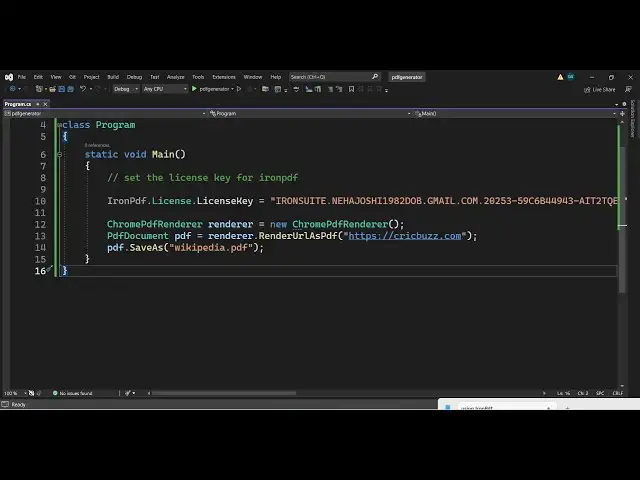
screenshot of a website using iron PDF
15:01
you can even do that as
15:04
well uh it actually contains a method
15:08
for this
15:11
also uh like this so render URL so this
15:15
is actually the method render instead if
15:17
you have a URL you want to take a
15:19
screenshot and convert this into let's
15:22
suppose I want a screenshot
15:25
of facebook.com
15:36
so I think the file name is Wikipedia so
15:39
let me
15:43
search so you will see that it has taken
15:45
the screenshot of Facebook
15:47
website you can take any website it can
15:50
contain multiple Pages let suppose if I
15:55
take crickbuz.com
16:02
for larger website it will take some
16:04
more time because it contain multiple
16:07
Pages now you can see all that website
16:11
criek Buzz is actually having five pages
16:15
because it has multiple so all these
16:17
things you can do guys it's a very
16:19
powerful Library it was just a mini
16:21
crash course I showed you very basic
16:24
things that you can perform inside this
16:25
so it does offer a lot of things as well
16:28
so it's it was just a basic video you
16:31
can add Footers headers as well by
16:34
having all these properties you can
16:35
control
16:36
it you can you can even encrypt your PDF
16:39
document with a password as well you can
16:42
merge split everything you can do this
16:46
extract images from PDF enable
16:49
JavaScript so full examples are given
16:52
guys of each uh how to do one thing so
16:56
you can read their documentation is
16:58
really user friendly thank you very much
17:00
guys for watching this video and I will
17:02
be seeing you guys in the next video
#Business & Productivity Software
#Windows & .NET
#Other