Up next in 10


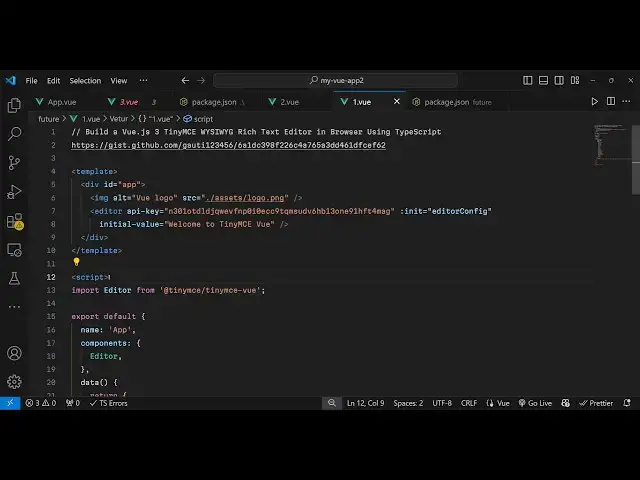
Get the full source code of application here:
https://gist.github.com/gauti123456/6a1dc398f226c4a765a3dd461dfcef62
Show More Show Less View Video Transcript
0:00
uh hello guys welcome to this video so
0:02
in this video I will show you how to
0:04
integrate uh the tiny MCE visic R text
0:09
editor inside your vuejs application and
0:12
we using the latest version of vuejs
0:14
which is three and you can see I I can
0:17
type any text right here and we have all
0:21
these rich controls which are available
0:23
we can format the text we can embed
0:25
images as well so if you want to align
0:29
this text so all these rich controls are
0:32
available you can con convert this into
0:34
a heading and then you can align it in
0:37
the center position so these rich text
0:40
editors are very much helpful if you are
0:42
writing some kind of a Blog on your
0:44
website then it's very much
0:47
helpful it's also available in WordPress
0:50
as
0:51
well so you can select any text let's
0:55
suppose I want to change it to bold here
0:57
or let's suppose I want to change it
1:01
italic you can even change the color as
1:04
well simply select the text and if you
1:06
want to change the color so it will have
1:08
add this nice little green background
1:11
color as
1:13
well alignment you can see all these
1:16
directions Center left rights you can
1:19
select if you want to add bullet points
1:21
you can even add bullet points as well
1:23
like
1:26
this so now let's suppose if you want to
1:29
change it into number number you can
1:30
change it to into number as
1:33
well if you want to add checkboxes you
1:36
can just click this option so if you
1:39
want to indentation decrease it increase
1:42
it indentation you can even control it
1:44
as well if you want to clear the
1:46
formatting if you want to add a table as
1:49
well so there is how many grid of table
1:52
that you want to add so this this will
1:54
add a table you will able to add the
1:56
data in a tblo structure so all these
2:00
controls are available in this Rich
2:02
visic text text editor and you can even
2:06
get the source code as well uh so it
2:08
will convert this into an HTML source
2:11
code you can simply copy this if you
2:12
need this copy to clipboard button you
2:15
can even change the theme to dark mode
2:17
as well so light mode dark mode all
2:19
these uh themes are supported you can
2:22
format your code as well so if you need
2:25
this HTML code you can copy this and you
2:27
can save this as well and one more thing
2:30
you can even embed images so if you want
2:33
to add images uh from a URL so let's
2:37
suppose I want to add a remote image I
2:41
can copy the link here copy image
2:43
address and simply paste the image and
2:47
then I can align this image provide a
2:50
width and height so it will add this
2:52
image so you can align it perfectly
2:55
wherever you need to align this image
2:58
you can change the size as well by
3:00
dragging you can see the size of the
3:02
image so all these things you can
3:04
perform in this Rich Text Editor the
3:08
website is Tiny MCE if you just write it
3:11
on Google uh the very first link which
3:13
appears this is the most trusted feature
3:15
Rich visic Text Editor and they do offer
3:19
a free demo here you will see you need
3:21
to create account here and uh now to get
3:24
your API
3:26
key you can integrate with react CH VI
3:30
angular all these front end Frameworks
3:32
and you need to get your API key so once
3:35
you create the account you will get this
3:36
option so just copy this API key and
3:41
there is a module here which is specific
3:43
to
3:44
vuejs so if you go to npmjs.com and just
3:48
search for this module which is Tiny
3:53
MCE view so if you just write this now
3:57
on this the very first package which
3:59
comes is the official component for
4:02
view3 applications so you just need to
4:04
install this I've already installed it
4:07
it's almost got 30,000 weekly downloads
4:10
so once you install it uh I will show
4:12
you the step by-step
4:15
example so the very first thing you need
4:18
to
4:21
do so inside our app view component we
4:24
will put a template here template
4:28
tag and then in the the script we
4:32
are using
4:35
typescript and here you'll be importing
4:38
the editor by using the import
4:42
statement this is a module
4:45
here so we import this using a simple
4:48
import statement and secondly we
4:53
export this component and we will give
4:57
it a name here app and then components
5:00
here which will be this editor component
5:03
that we
5:04
imported and then the data
5:07
here I have given all the source code in
5:09
the description of this video so if you
5:11
need the full source code you can go to
5:14
the description and this editor now this
5:17
takes an configuration object that you
5:19
need to
5:21
pass and it you need to specify the
5:24
height of your editor I will say 500
5:27
menu bar if you need the menu bar you
5:29
will put it to
5:31
true and then you need to provide the
5:33
plugins so the plugins which will appear
5:37
in the visic editor so let's suppose I
5:41
add I want the support to add images
5:43
then I also want the support to add link
5:47
so this will be an array not an object
5:50
so just change it to an array here so
5:53
array of plugins you can add to your
5:54
viic
5:57
editor and then the second the fourth
6:00
option is the toolbar so what options
6:03
that you need inside your
6:06
toolbar so I will say I need to add the
6:09
support for adding images then we need
6:12
also to see the live preview so there is
6:15
also this preview section so here you
6:18
provide multiple components separated by
6:20
the symbol so here we provided two
6:23
components in the toolbar so if you need
6:25
to now see the actual visic editor you
6:28
need to go to the template here and just
6:32
embed this visic editor I will just give
6:35
it an ID Here app here to the div
6:37
element and then I will embed this
6:41
editor by the editor tag and here you
6:44
need to specify your API key you need to
6:47
paste your API
6:52
key and then you need to provide the
6:56
this parameter which is in it
7:01
here you need to specify this edited
7:03
configuration that we have specified and
7:07
then the initial value you can even
7:08
provide an initial value to the visic
7:11
editor it so you'll say that welcome
7:19
to so just close it so it takes three
7:23
argents first your API key then the
7:25
configuration object then the initial
7:27
value so as I'm haven't provide the API
7:30
key you will get an error if I run this
7:32
application in the
7:36
browser you will see the editor will
7:39
show up but it is saying that a valid
7:41
API key is required to continue using
7:43
tiny MC so you need to paste your API
7:47
key here uh so simply copy this from
7:49
your dashboard and simply paste it so
7:52
once you paste the API
7:54
key now you will see the editor will Now
7:57
function this is your ini I value and
8:00
you will get this water mark here built
8:02
with tiny MC so we get this menu bar you
8:07
will see if you want to create a new
8:09
document and then we have all these
8:11
options in the menu bar you can cut copy
8:13
paste you can view
8:18
this and then you can insert an image as
8:21
well you can see that a link as
8:24
well and if you want to format here you
8:26
will see all these controls will be
8:28
there you
8:30
can change the font here so now the font
8:34
will be changed
8:36
so if you do need to add some more
8:39
options in the toolbar you specify uh
8:42
inside the toolbar or the plugin
8:45
section
8:48
so I will paste all the plugins right
8:51
here so I have given the link in the
8:55
description of this video so if you need
8:58
the full source code you can go to the
9:00
description link so in this way I will
9:02
paste all the
9:04
plugins so once I paste all the plugins
9:07
you will
9:08
see all the options will be
9:11
there and similarly we need to also add
9:15
all these options in the toolbar section
9:17
as well so this is your
9:19
toolbar so this is actually all the
9:22
options now you see all the options
9:24
appearing right here you will able to
9:26
add images you will able to add tables
9:29
and you you will able to add format your
9:31
text here you will see that you can
9:33
change it to heading here and you can
9:35
see that so now it's a a full example
9:39
that I shown you how to integrate tiny
9:41
MCE viic Rich Text Editor so thank you
9:46
very much for watching this video and do
9:47
check out my website as well freem
9:50
mediat tools.com uh which contains
9:53
thousands of tools regarding audio video
9:55
and image and I will be seeing you guys
9:58
in the next video
#Multimedia Software
#Blogging Resources & Services