Up next in 10

Build a Vue.js 3 Search Input Form Field in Browser Using vue-search-input in TS
Jan 13, 2025

Get the full source code of application here:
https://codingshiksha.com/vue/build-a-vue-js-3-search-input-form-field-in-browser-using-vue-search-input-in-ts/
Show More Show Less View Video Transcript
0:00
uh hello guys welcome to this video so
0:02
in this video I will show you how to
0:04
make this awesome looking
0:07
search input field inside your Vue js3
0:10
application so if you want to implement
0:12
search functionality inside your vuejs 3
0:15
there is a specific component where you
0:17
can use this to make this search field
0:21
with this icon right here you can even
0:24
customize the Border as well so there is
0:27
a specific package here we can directly
0:29
use it can render it with two lines of
0:32
code and you can get this awesome
0:34
looking you can also give this cross
0:37
icon as well as soon as the user types
0:39
inside this
0:44
so so there's this package here if you
0:47
go to npmjs.com just search for this
0:50
package
0:51
view- search input so this is actually
0:55
the package
0:58
name so it's say search input field if
1:02
you want to implement it inside vuejs 3
1:06
this is the command is very simple I've
1:09
already installed it it's a fairly new
1:11
package 516 downloads so now to
1:15
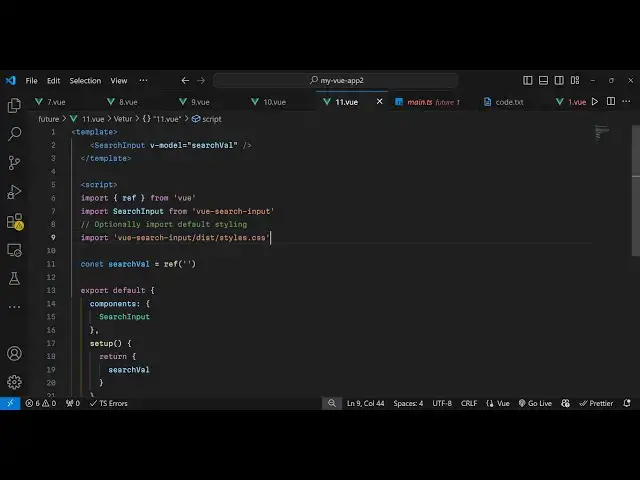
implement this uh you come to your app.
1:19
viw file so first of all inside your
1:23
script inside typescript we import the
1:27
package we simply say import so
1:30
reference from the base package and then
1:33
we import this uh search input package
1:38
from this view search input package so
1:42
you register the component here we
1:44
importing
1:46
it and uh we also need to import it CSS
1:49
file as well for the styling so we
1:53
simply say
1:54
import view search input slis
2:00
slash styles.css we also import it CSS
2:04
file as well so in this way then we
2:08
basically declare a variable for the
2:10
search value so whenever user searches
2:14
something we declare a variable for this
2:16
so we are declaring it
2:18
reference by default it will be nothing
2:21
and then we need to Simply register this
2:23
component so export default and in the
2:25
component
2:27
section we register this third party
2:30
plug-in search
2:32
input and then the setup part setup
2:36
function is also
2:38
there and then here we return this
2:41
variable that we declared search
2:43
value that's all that we need to do in
2:45
the typescript so now we can go to the
2:48
template section where we can render out
2:50
this search input field so here we use
2:55
this component search input that we
2:57
require and it actually take
3:00
the model variable so whatever value
3:04
that you want to bind search value so
3:07
that's all that we need to do we declare
3:09
a variable where the user will store the
3:13
searches and we just bind it by V model
3:16
directive so if you refresh your browser
3:19
you will see this nice little
3:22
little so it is telling me
3:27
that there is some kind of error which
3:29
is there let me see search
3:32
value oh sorry we are missing this
3:35
double quote that why this was a problem
3:38
so just refresh so you will see that
3:41
guys
3:42
now the search input field has been
3:45
successfully
3:46
added and if you want to customize this
3:49
look and feel if you want to change this
3:50
border
3:52
color you can go to their CSS file here
3:57
so as soon as you install this go to
4:00
your node modules
4:02
folder so just search for this module
4:04
view search
4:06
input so they do offer their CSS file
4:10
then you can customize this go to
4:17
this just search V view search
4:27
input just yeah so this is actually the
4:30
module here view search input and they
4:33
do offer their disc inside this you have
4:36
the styles. CSS so here you can
4:38
customize this so this is the default
4:41
styling that they give you if you want
4:43
to change this border color let's
4:44
suppose I change it to this greenish
4:46
color so now if I make this change you
4:49
will see if I
4:53
refresh and if you also want to change
4:57
let's suppose yeah this one so input
5:00
this is actually the color so if you
5:02
want to change it to red color so you
5:05
can easily go to
5:06
this and here you can modify
5:16
this I think this is a color here you
5:19
can change
5:28
to so what I'm talking is that if you
5:31
want to customize it you can go to the
5:33
CSS and then you can
5:36
actually customize your search input
5:38
field so thank you very much guys for
5:40
watching this video and please hit that
5:43
like button subscribe the channel and do
5:45
check out my website as well uh free
5:48
mediat tools.com uh which contains
5:51
thousands of tools regarding audio video
5:53
and image and I will be seeing you guys
5:55
in the next video
#Other