Up next in 10

Build a Vue.js 3 Quill WYSIWYG Rich Text Editor in Browser Using vue-quill in TypeScript
Jan 9, 2025

Get the full source code of application here:
https://gist.github.com/gauti123456/5c07ebbbe5c23149d991da566f3cc33c
Show More Show Less View Video Transcript
0:00
uh Hello friends welcome to this video
0:02
so in this video I will show you how to
0:04
integrate uh Quil viic Rich Text Editor
0:08
inside your vuejs 3 application so on
0:11
your screen right here we have this Quil
0:14
Rich Text Editor viic so here you can
0:17
write uh the text
0:20
here any text and we have all these rich
0:23
controls available you can change it to
0:26
Let's suppose you can align this in the
0:28
center position you can change the
0:31
alignment you can add these bullet
0:34
points as
0:36
well you can change the font as
0:40
well if you want to change it in the
0:43
heading here so we have all these
0:45
options
0:48
available so alignment here if you want
0:51
to center it you can do very easily you
0:54
can do
0:56
this and if you want to embed this a
0:59
link here
1:00
so I can add a link here so whenever you
1:04
someone clicks on that so they will be
1:06
redirected to google.com you'll see that
1:12
so all these controls are there you will
1:16
see you can embed images as
1:25
well the support for adding images is
1:28
also there so
1:31
you can even embed uh videos as well you
1:33
need to paste the link as well so you
1:36
can even paste videos so the library
1:39
name is uh qu k i l so this is actually
1:47
the powerful Rich Text Editor viic this
1:50
is their official website and the
1:52
powerful thing is that it is totally
1:54
free open
1:56
source and this is their official
1:58
website and now to integrate this inside
2:01
vuejs there is a specific module that
2:04
you need to
2:07
install so this if you go to npmjs.com
2:10
and just search for this
2:15
module so just type here uh at
2:20
theate view
2:23
app view Quil so this is actually the
2:26
name of
2:28
the package
2:38
so you just need to install it by
2:39
executing this command I've already
2:41
installed
2:46
it so first of all what you need to do
2:49
you need to go to your main.ts file
2:52
which is in typescript I'm building it
2:54
this project in typescript so just make
2:57
sure that you
3:00
import this by using the import
3:03
statement we simply write import and
3:06
then Quil
3:08
editor and it will be coming from this
3:11
at
3:13
theate this is your package it's almost
3:16
251
3:18
kilobytes and also we need to import the
3:20
CSS file of this package as well visic
3:23
edor so we just need to write like this
3:26
view up and inside this we need to
3:31
import the CSS file here so we have
3:35
various themes about this Vis visib edor
3:38
and we need to import this theme here
3:41
and then we need to add this component
3:43
here by using this method which is app.
3:45
component and here we need to add this
3:48
component which is Quil editor and then
3:50
we need to pass this Quil editor like
3:53
this so this is just the configuration
3:55
process so you need to do this inside
3:57
this file and now you can close this
3:59
file and just move to your app. view
4:02
file and now inside this file we need to
4:06
put the template tyag and here you need
4:09
to embed this editor by Quil editor this
4:12
is the
4:13
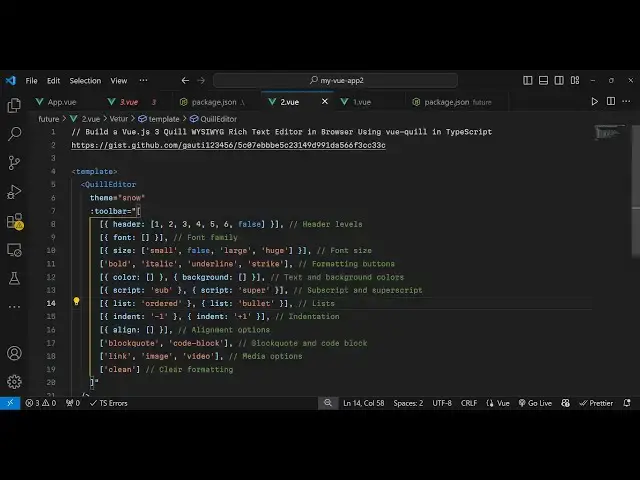
tag and uh it actually take some options
4:16
first of all the theme of the editor and
4:18
here you need to specify the theme which
4:21
is actually
4:23
snow the second option it takes is the
4:26
toolbar
4:27
options the r text editor that you will
4:30
see so here it actually takes an array
4:33
and here you specify all the toolbar
4:36
options that you want to see in the
4:38
visic
4:39
editor so I have given the link in the
4:42
description of this video so if you need
4:43
the full source code that I have used in
4:45
this video you can go to the description
4:47
link so here we specify all these
4:49
options which is this header option font
4:52
size color script list indentation
4:56
[Music]
4:57
alignment the support for adding images
5:00
videos and Link and then for cleaning
5:03
the formatting so if you refresh your
5:05
browser you will see this Rich Text
5:07
Editor appearing
5:10
and now you can align
5:12
it in the center position you can change
5:16
to bold italic underline strike through
5:20
so all these formatting you can
5:23
perform so it's totally free this is the
5:26
major part it's it's not a paid software
5:29
it's totally free so you can directly
5:32
use it inside your VJs application
5:35
so I showed you a complete example guys
5:38
you can add images text everything you
5:41
can add this you can even change the
5:43
color of the text let's suppose you can
5:46
see that so all these options are
5:48
available to
5:49
you so thank you very much for watching
5:52
this video and do check out my website
5:54
as well freem mediat tools.com uh which
5:58
contains the thousands of tools
5:59
regarding audio video and image and I
6:02
will be seeing you guys in the next
6:04
video
#Open Source
#Other