Up next in 10

Build a Vue.js 3 Modal Image Editor to Crop,Zoom & Rotate Images in Browser Using vue-img-cutter
Jan 13, 2025

Get the full source code of application here:
https://codingshiksha.com/vue/build-a-vue-js-3-modal-image-editor-to-cropzoom-rotate-images-in-browser-using-vue-img-cutter-in-ts/
Show More Show Less View Video Transcript
0:00
uh hello guys welcome to this video so
0:02
in this video I will show you a image
0:05
Cropper module inside VJs 3 and it's a
0:09
um specific for vuejs 3 so if you let me
0:13
show you the demo so if I click choose
0:15
image this model window will open popup
0:18
window where you can perform your image
0:20
cropping capabilities and right here as
0:23
you click this choose
0:26
button you will need to select whichever
0:30
image file that you want to select and
0:32
then this Cropper window will open so
0:35
here you can adjust or crop any portion
0:38
that you want to crop cut the portion
0:41
and also we can zoom in rotate as well
0:43
you can see we also have the capability
0:46
to rotate this image at any angle
0:50
so so we all these controls are there
0:53
scaling controls are also there for
0:54
zooming the image if you want to zoom
0:57
this image as well and change the a
1:00
ratio as well you can even do that as
1:02
well so in this way whenever you want to
1:06
click crop
1:08
here or click on cancel you can even do
1:11
that as well so now let's suppose I pick
1:14
this
1:16
image you can rotate this you can even
1:20
flip this image as
1:26
well so whenever you are done you can
1:28
click this crop button
1:30
so now your image will be cropped and
1:32
you can right click save this image
1:34
inside your computer so you can see the
1:36
image is successfully cropped so the
1:39
package name is view image cutter a very
1:42
simple package if you go to npmjs.com
1:48
so the name of this package is view
1:51
image
1:54
cutter so it's a image cropin plug-in
1:57
which supports all these operations so
2:00
I've already installed it this is
2:01
actually the command and it's almost
2:04
it's a fairly new package 348 downloads
2:08
but it can perform all these operations
2:09
so now to get started we just need to go
2:12
to your app. viw file so this file you
2:15
need to Simply edit so for including
2:19
this package now we will first of all
2:21
write our simple
2:24
template the HTML code here we will
2:27
write followed by the typescript code we
2:30
will write it inside the script tag so
2:32
for the
2:33
template we have simply this H2 uh
2:37
simply say image
2:39
Cropper demo and after this we will
2:42
embed this
2:45
component but before that we need
2:49
to actually import this module so using
2:53
the import statement we say image cutter
2:57
and it will be coming from this package
2:59
view image
3:02
cutter and then we say export default
3:05
and we just need to export this
3:07
component so inside your component
3:09
section we use this component image
3:12
cutter and then the second property is
3:14
your data actual data that you will be
3:16
using in this vue.js app so for this we
3:20
will declare one state
3:22
variable which will be the output
3:24
cropped image which will be
3:27
null and then we come to our method
3:30
section so here we'll defining all the
3:32
methods which would be there so we first
3:35
of all import this package then we
3:37
Define our data and the actual method so
3:40
now we come to the template section and
3:43
here we need to render this component
3:45
that we imported which is image
3:49
cutter so we embed this component and it
3:52
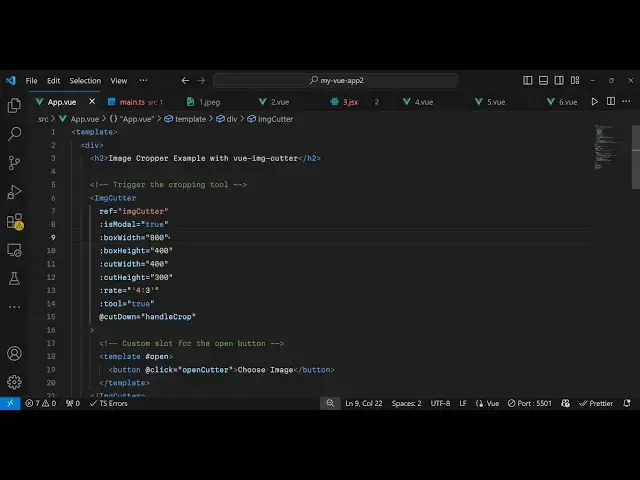
actually takes some options first of all
3:54
the reference so this reference can be
3:57
anything I'm just saying image cutter
4:00
and then these are some series of
4:03
options which is is model so is model
4:07
typically is a Boolean parameter
4:09
signifying that uh this will be a model
4:12
popup window where you can perform the
4:14
propping operations so if you put false
4:16
here then the model window will not open
4:19
but I need the model window support so
4:22
that's why provide true right here after
4:25
this here you can provide the width and
4:27
the height of the window I say 800 width
4:31
and then the height will be around
4:34
400 and then you can
4:37
provide the cut width which is whatever
4:41
you
4:42
cropping I will say 400 and the height
4:44
of that as
4:46
well the Cropper I will say this will be
4:51
300 and the rate of cropping this is
4:55
typically known that as aspect ratio so
4:58
inside your single we say
5:01
4x3 you can even provide any aspect
5:04
ratio which is valid which is 16x
5:08
9 but by default I'm just providing here
5:14
4x3 so then we also have the tool option
5:18
which is a Boolean parameter
5:20
true and
5:24
then let me just refresh here and just
5:26
show to you there will be this button
5:28
appearing if you see select image so
5:30
once you click this button here you will
5:32
select your image so this is your select
5:35
image button will be present in this
5:36
plugin so here you can select your image
5:39
and you will see these controls image
5:41
controls there with this code right here
5:45
you can zoom in rotate flip this image
5:48
as
5:51
well so now there is a property that we
5:54
need to pass so whenever you crop your
5:56
image once you are done you viously need
6:00
to crop the image for this this call
6:02
back function will execute whenever you
6:04
click the crop button cut down so here
6:07
we Define this custom function which is
6:09
handle crop function which will be
6:12
responsible for cropping the image so
6:16
right
6:20
here so we Define this I think
6:31
Yeah so basically this is the cut down
6:34
handle crop
6:37
function so right here in the method
6:39
section right inside this we can uh
6:43
Define this function which will be
6:46
handling the Cropper portion so handle
6:49
crop and here you'll be providing the
6:52
result whatever is the cropped image
6:55
this result will automatically get
6:56
passed to this function so here we will
6:58
say this do cropped image to the actual
7:02
result this result is the actual base 64
7:05
code of the cropped image so we directly
7:07
attaching this to the output cropped
7:09
image variable which is essentially null
7:12
so that's all that we need to do I think
7:15
the application is not
7:17
complete so if you select your image so
7:20
let's suppose you crop this portion and
7:24
you click this sh
7:27
button so once you now click it the
7:30
image is cropped but it is not
7:32
displaying it because we do need to edit
7:34
our HTML code for displaying the so
7:37
inside your template just outside this
7:42
component we will
7:46
have a div
7:49
here so we attach this V if directive so
7:53
here you'll be seeing that if the
7:54
cropped image is available then only
7:57
execute or display this
8:00
code so preview section I will attach
8:02
the CSS class to it and then it will
8:05
display this cropped
8:07
image you use the image tag and you'll
8:10
simply say image
8:14
source so here you'll be saying cropped
8:17
image. data URL so this is your base 64
8:21
code so that's all that we need to do so
8:24
if you refresh your application now uh
8:28
select your image whatever image file
8:30
that you want to select now if you crop
8:32
your
8:33
portion so let me select this portion
8:36
right here it can even rotate this image
8:40
as well so click on sh and now you see
8:45
the image is successfully cropped and
8:48
alongside with the rotation as well so
8:51
you can right click this image and save
8:53
this image inside your computer so in
8:56
this way you can use this package guys
8:58
UJS 3 to zoom rotate and crop your image
9:02
with this nice little editor so thank
9:05
you very much for watching this video
9:06
and do check out my website as well free
9:10
mediat tools.com uh which contains
9:13
thousands of tools regarding audio video
9:15
animage and I will be seeing you guys in
9:18
the next video
#Online Media
#Visual Art & Design
#Photographic & Digital Arts