live_tv
Livestream Starting Soon
00
Hours
:
00
Minutes
:
00
Seconds
Up next in 10


Get the full source code of application here:
https://codingshiksha.com/vue/build-a-vue-js-3-animated-flowcharts-diagrams-using-vue-flow-library-in-js/
Show More Show Less View Video Transcript
0:00
[Music]
0:00
uh Hello friends welcome to this video
0:02
so in this video I will show you a
0:04
module inside vuejs 3 which is able to
0:08
create this complex flowcharts diagrams
0:11
inside your application so if you want
0:13
to create these flowcharts connecting
0:16
with one other nice little animation
0:19
arrows you can use a module inside vuejs
0:24
if you go to npmjs.com uh just search
0:26
for this package which is at theate
0:29
view-
0:32
flow so this is essentially this
0:35
package just wait let me open the zoomit
0:42
tool so simply search this I've already
0:45
installed
0:47
it so the command is very simple uh
0:51
you I've already installed it and it's
0:54
almost having 50,000 weekly downloads so
0:57
they do offer a official website
1:00
view flow
1:01
ddev so they have a nice documentation
1:04
as well so now to integrate this inside
1:08
your vuejs application
1:11
uh so just you need to
1:14
edit your app. view file this is your
1:17
file here app. view just open that and
1:20
uh first of all we need to register this
1:23
module so we'll just write the
1:25
typescript
1:27
code so we'll just import
1:32
this and then import this module view
1:40
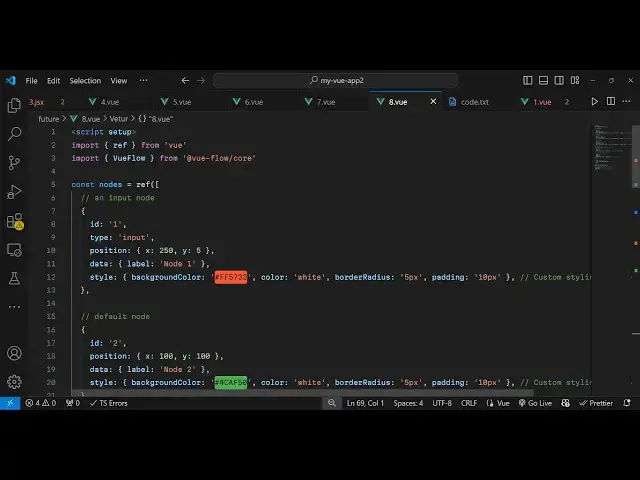
flow and then we need to create the
1:43
reference or the
1:45
notes so it will be an array of objects
1:48
so each object will represents the
1:51
actual item in the flowchart so you can
1:55
give it an ID type here will be of input
2:00
and then you can provide a position as
2:02
well so this will be containing the x
2:05
coordinate and the y coordinate so X
2:07
will be 250 Y is five so this represents
2:10
the position on the page so where
2:14
it displays and then whatever data that
2:17
you want to display in this node so let
2:20
me label this as this is node
2:24
one and then you can even customize it
2:26
by providing the style object which
2:29
contains the CSS
2:31
properties what background color color
2:34
that you want to give right here so you
2:36
will def give it like this so after
2:43
this after you declare everything these
2:46
edges now we need to
2:48
declare
2:50
the edges variable so this will
2:52
represent
2:54
the the relationship between these edges
2:57
so you have declared all these edges
3:00
right
3:02
here this nodes variable let me paste
3:05
all this so in this way you would
3:07
declare more notes so this is ID 1 this
3:11
is
3:13
id2 and this is ID3 so now we have three
3:16
notes and now in the edges how they are
3:19
related the relationship so right here
3:22
we will give it an ID here so
3:25
E1 is related to E2
3:30
so in this way you mention it so
3:35
whatever so like this so here the second
3:38
property is the
3:41
source and then the
3:45
target so here you provide the IDS so
3:48
that's why we give these unique IDs to
3:50
it so we are just targeting these
3:52
elements just putting this relationship
3:54
and then you can provide again a
3:57
stylesheet as well styles of
4:03
object so in this way you can mention
4:06
their relationship so you can see one is
4:08
related to two and then two is related
4:11
to three you can even put animated to
4:14
true as well so it will have this nice
4:16
little animation as well so now we come
4:18
to the template where you need
4:21
to show these flowchart and diagrams and
4:24
you give it a CSS class of flow
4:28
container and then we simply render this
4:30
component and it actually takes two
4:32
parameters first of all the
4:34
notes which is contained inside notes
4:37
and the
4:38
edges so their relationship here how
4:41
they are related so if you just refresh
4:44
your browser you will see this nice
4:46
little flowchart
4:47
diagram you can drag and drop with your
4:50
mouse as well so now to actually include
4:55
the CSS we do need to include the base
4:57
CSS of this package so inside the style
5:01
tag we just need to
5:04
import The View
5:06
flow core package
5:10
SL dis
5:12
[Music]
5:16
style.css so as soon as you do this we
5:19
also need I've attached full source code
5:21
in the description of this
5:27
video so as soon as you past it you will
5:30
see it will be now be
5:33
related you can move it anywhere in the
5:35
Page by your mouse
5:40
so so in this way you can use this
5:42
package to create flowchart and diagrams
5:44
so thank you very much for watching this
5:46
video and do check out my website as
5:48
well uh free mediat tools.com uh which
5:52
contains thousands of tools regarding
5:54
audio video and image and I will be
5:57
seeing you guys in the next video