Up next in 10

Build a React.js Youtube Data API V3 Video Search Using react-bootstrap in Browser
Jan 9, 2025

Get the full source code of application here:
https://gist.github.com/gauti123456/902d755f829cc25e58ae65c42981b038
Show More Show Less View Video Transcript
0:00
uh Hello friends welcome to this video
0:02
so in this video we will look at how to
0:04
build out a simple YouTube video search
0:07
kind of application inside react chair
0:09
so you can see on your screen this is
0:11
actually the demo of the application so
0:13
we have a simple input field where we
0:15
allow the user to Simply search a search
0:18
term they will enter whatever subject
0:21
that they want to search YouTube videos
0:22
on and let me search for JavaScript
0:26
videos so we have a search button as
0:28
well side by side so if you click the
0:30
search button a request will be made to
0:33
YouTube data API version 3 and we will
0:36
fetch the videos the top five videos and
0:39
it will show in the card like structure
0:40
using bootstrap so we actually use
0:43
bootstrap for building this user
0:45
interface that you see in a card like
0:47
structure we have the thumbnail of the
0:49
video we have the title we have the
0:51
description so all these things are
0:53
fetching from the YouTube data API so I
0:55
will show you in this video how to work
0:57
with that API and get these results and
1:00
display it in the browser and when you
1:02
click the button you will be redirected
1:04
to the actual video and where you can
1:05
watch that video so you can actually
1:09
search for any subject right here PHP
1:12
videos and then search you will now see
1:14
the results about PHP so let's start
1:18
building this application so all the
1:20
source code is given in the description
1:22
of this video so now to get
1:24
started uh you need to install two
1:27
packages for this for building this
1:31
first package is react bootstrap and the
1:33
base bootstrap package so in order to
1:36
integrate bootstrap we need to use these
1:38
packages so just install this using this
1:41
command I've already done that so I will
1:44
just start this application npm run dep
1:47
so I will start it from scratch so first
1:52
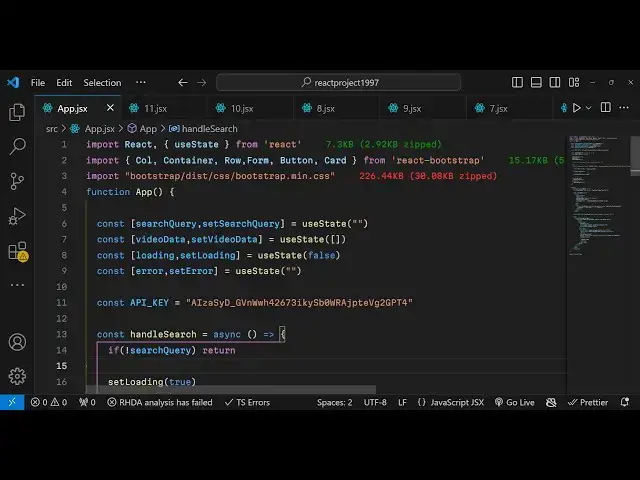
of all we need to build out a simple app
1:54
level component so this is actual
1:57
shortcut key so if you refresh you will
2:00
see it will hot Auto reload and it will
2:03
automatically start whenever I make
2:06
changes so I right here for this
2:09
application first of all we need to
2:11
declare some State variables using the
2:13
UST State hook in react CHS so first of
2:16
all we will have the variable for
2:18
storing the search query so whatever
2:21
user searches in the search field we
2:25
will have this Q State variable initial
2:28
value will be empty and then we will
2:30
have the variable for holding the total
2:34
number of videos that will be fetched
2:36
from the API so this will be an array
2:39
initial value will be an empty array so
2:41
the then the next thing will be a simple
2:44
loading screen that I will show you uh
2:47
show to the user when they click the
2:49
search button so initial value will be a
2:53
Boolean value which will be false it
2:54
will not be
2:55
showing and then for if any sort of
2:58
error take place we will actually uh
3:00
stored these error messages in this uh
3:03
error or set error variable so initial
3:06
value will be again be empty so these
3:08
are the four variables which are
3:09
required for this application the search
3:11
query videos and loading screen and
3:14
error these four state variables are
3:16
required and now as I already told you
3:20
we do need to require an API key because
3:24
you are communicating with the Google
3:25
API so just go to Google Cloud console
3:28
and create if account I've already
3:30
created that and then you need to click
3:33
on create create credentials and uh then
3:36
just create an API key I have already
3:39
created one so what I will
3:41
do I will simply copy this API key so
3:44
don't copy my API key I will delete this
3:47
key after this video so just you need to
3:50
create a variable and just store this
3:52
API key that you will use so just create
3:55
a constant variable API undor key and
3:59
just stor this
4:01
variable and now we need to write the
4:03
actual interface so in the jsx you will
4:07
actually
4:10
have the
4:13
container class which will be imported
4:16
if you see from react bootstrap we have
4:18
installed this package so once these are
4:21
all
4:22
bootstrap widgets which are there in
4:24
this and we need to give it a class name
4:27
of bootstrap margin from the Y Direction
4:30
4 and inside this we will have an
4:32
heading which I will simply say YouTube
4:35
video
4:37
search and we just need to align it in
4:40
the center of the screen so we will
4:42
align a class text
4:43
Center and if you see the bootstrap will
4:48
not be applied we do need to import the
4:50
base bootstrap package the CSS file so
4:53
it is located inside bootstrap dis CSS
4:56
bootstrap m. CSS just need to import
5:00
this CSS file as well and now if you
5:02
import this you will see it is appearing
5:04
in the center of the screen so after you
5:07
do this uh we need to have a simple form
5:11
inside the row
5:17
tag so we will attach this bootstrap
5:20
class and then we will have a simple
5:22
column
5:24
interface inside this we will Define our
5:26
form
5:37
and this field will be of type text
5:40
where the user will
5:43
enter so here the type here will be of
5:51
text we'll be giving a
5:54
placeholder for the user so here the
5:56
user will search for videos
5:59
and the value will be the search query
6:03
we have declared the state variable and
6:06
we also be attaching a onchange event
6:08
handler so when the value is changed
6:10
this inline function will be executed
6:13
and we will use this U State hook
6:15
function set search query and whatever
6:17
is the value entered by the user we will
6:20
simply pass it so here we are simply
6:22
using this hook function that we
6:24
declared a VI State and then we are
6:26
simply setting the state and if you just
6:29
refresh your application there is some
6:31
kind of error is
6:34
there it is saying that form is not
6:36
defined we do need to import the form as
6:39
well just import the form control from
6:43
react bootstrap and you will now see a
6:45
search field and here you can enter
6:47
anything and we also need a button to
6:50
actually submit the form so just after
6:52
this input
6:57
field we will have a button
7:02
the variant of this button will be of
7:05
primary and we will basically attach
7:07
onclick event
7:09
handle which is handle
7:12
search so this function uh will be
7:15
executed when you click the button and
7:17
now we just need to Define this function
7:19
so we will simply say const handle
7:24
search so inside this we will actually
7:29
perform the API request and inside this
7:33
button we will actually give it a
7:34
disabled attribute and this will depend
7:36
upon the value of loading so this button
7:39
will not be
7:41
disabled because the value is comes out
7:43
to be false we also need to have a label
7:47
to this button as well so we will based
7:49
upon the loading
7:52
parameter if the value is true then in
7:56
that case we'll say searching but if the
7:58
value is false then the label will
8:00
simply be
8:02
search so now the value will be search
8:04
because the value of loading here is H
8:08
false if you check we have given this
8:10
value as false and you will see this
8:15
is so
8:17
now as you click this we now need to
8:20
actually write this function which is
8:22
handle search and inside this function
8:25
we need to actually have first of all if
8:28
condition just to check
8:30
that if the search query
8:33
is so here we simply checking if search
8:35
query is not defined then we need to
8:37
Simply return for this from this
8:39
function but now if the search query is
8:43
defined if the user has entered a search
8:45
term first of all we need to show the
8:47
loading screen and for doing this we
8:49
need to change the it from false to true
8:52
so here we using this uh set loading
8:54
function and making it true and if you
8:57
now click the search button you will
8:59
actually see it will change from search
9:01
to searching we are showing a loading
9:04
screen so after this we also need to set
9:08
the error variable so no error is there
9:10
we will set the error to nothing and we
9:13
will basically set the video data as
9:15
well which is an empty array we'll reset
9:17
all these variables once we click the
9:20
button so we are executing all these
9:21
three state variables uh methods one by
9:25
one and now we will actually perform the
9:27
API request to YouTube data API version
9:33
three and inside a TR catch block so if
9:37
any sort of error take place we will set
9:40
that
9:44
error to the actual error so now in the
9:48
TR catch block we just need to make a
9:50
simple request and we'll use a wait
9:53
because we do need to make this function
9:55
as async so just make that function
9:57
async so we are simply using a
10:00
and then you'll use the fetch API which
10:02
is a built-in API
10:04
inside the you can directly use Fetch
10:07
and then we'll make this to the end
10:09
point which is https wwwg googleapis.com
10:14
youtube/ verion 3/ search and then here
10:18
you need to provide a question mark the
10:21
part variable is
10:23
snippet and then C parameters so this is
10:28
actually the structure of this API we
10:31
provide slash search question mark part
10:34
is equal to snippet and then the
10:36
whatever is the C parameter so C is
10:39
equal to and then we will concatenate
10:43
the we will
10:45
simply embed the dynamic search query
10:48
that the user
10:50
submit and then here you need to provide
10:52
the key parameter in the
10:54
key param which is the actual API key
11:03
and here we need to return a video and
11:05
the type variable here will be a
11:09
video that's all this is actually the
11:11
structure of the request if you see we
11:14
are providing the search query we are
11:16
providing the API key and we are
11:18
providing this type variable to video so
11:21
after doing this we will make this
11:24
request and this actually will return a
11:27
promise you first of all need to convert
11:30
this into Json so again we will simply
11:32
say await response. Json and then we
11:36
will set whatever is video data variable
11:39
to whatever is coming so data do items
11:42
so I can even console log the data just
11:45
to she show you whatever is the data
11:47
coming so if you write something here
11:50
and just search the search
11:52
button and uh nothing happens here but
11:56
if you see in the console there is an
11:59
object which will return to you and we
12:01
have this items so by default five
12:04
videos will be returned to you and each
12:06
video has some properties attached to it
12:08
such as the title description publish
12:11
date publish time this is a thumbnail of
12:13
the video so all three thumbnails
12:16
default high medium so we can actually
12:19
display this information on the browser
12:21
very easily so we can Loop through the
12:23
data so for doing this it's very
12:26
easy so after you set this set video
12:29
data
12:35
items and there is also a finely block
12:38
as
12:39
well if nothing is executed then we also
12:42
need
12:43
to hide the loading screen so set
12:45
loading to false so after you do this
12:50
uh right after this
12:54
button we will actually display if any
12:57
sort of error take place so we will
12:59
display this
13:02
error we'll give it a bootstrap class
13:05
alert alert
13:08
danger and inside this we will display
13:11
the error message
13:17
simply and now we will be looping
13:19
through the results so you'll have the
13:21
row tag and we will have this jsx
13:25
condition that if this variable which is
13:27
the video data if that if it has some
13:30
data here we will use the map function
13:33
and for each video we will actually show
13:35
the data inside a
13:39
column we will attach this key here
13:41
which is uh video. id. video
13:47
ID and on medium devices it will be
13:51
four and also be actually be giving a
13:54
bootstrap class margin bottom four and
13:57
inside this we will show the video in a
14:00
card-like structure we have this
14:02
card uh element available in bootstrap
14:05
so we are using that and inside that we
14:08
will display the thumbnail of the video
14:10
by using card
14:11
image and we will actually use the
14:17
variant top
14:20
variant and for showing the actual
14:23
thumbnail The Source property will be it
14:25
is located under video snippet do
14:27
thumbnails will show the medium
14:30
thumbnail
14:32
URL so if you refresh Now search for
14:49
videos so there is some kind
14:55
of uh it is saying that video is not
14:58
defined uh
15:08
uh uh let me just paste this and then
15:11
show to
15:26
you so let me just refresh here and you
15:29
will actually see the videos will
15:30
display it was just a typo
15:33
mistake uh let me just delete everything
15:44
here so you will basically see this is
15:46
actually the thumbnails are showing
15:48
right here so we are showing these
15:50
thumbnails the five thumbnails are
15:52
there so we are using the top variant
15:55
video snipper thumbnails we showing the
15:57
medium thumbnail so after this thumbnail
16:00
what we need to do we need to have the
16:02
card body
16:04
class so inside the body we will
16:07
actually show the information about the
16:08
video which is the title so card
16:11
title will the title will be located
16:14
inside videos. snipp it.
16:19
tile and for the description we will
16:21
actually use the widget which is card.
16:26
text and the description is located
16:28
under vide snippet do
16:34
description so if you refresh now you
16:37
will actually see your title appearing
16:39
description short little description and
16:42
then lastly we need a button so that the
16:45
user can go to that video and watch it
16:48
you have this button and the
16:53
variant will be a primary button and the
16:56
HF property here will be
17:06
slatch question mark V is equal to and
17:09
then we need paste the video ID so
17:11
video. ID do video ID and it should open
17:16
in the new window so Target
17:19
blank and we'll basically have a label
17:22
which is saying watch video so there
17:25
will be this buttons appearing you will
17:27
see if I click the buttons it will open
17:30
the video in a new tab so in this way
17:32
you can communicate with the YouTube
17:34
data version API 3 in react shars to
17:36
build out this YouTube video Search
17:39
application so I've shown you from
17:40
scratch how to do this inside react Chas
17:43
so it's a very simple application it
17:45
uses bootstrap for the user interface
17:47
and if you need the full source code the
17:49
link is given in the description and
17:52
thank you very much for watching this
17:53
video and do check out other videos as
17:56
well and also my website which is free
17:59
mediat tools.com which contains
18:01
thousands of free tools regarding audio
18:03
video and image and I will be seeing you
18:06
in the next video
#Online Video