live_tv
Livestream Starting Soon
00
Hours
:
00
Minutes
:
00
Seconds
Up next in 10

Build a React.js Youtube Analytics & Reporting API With Google OAuth2 Example to Analyze YT Channel
Jan 9, 2025

Get the full source code of application here:
https://gist.github.com/gauti123456/65bd6e4a24fca73e003490527f72cb54
Show More Show Less View Video Transcript
0:00
uh Hello friends welcome to this video
0:02
so in this video we will be using the
0:04
YouTube analytics and Reporting API so
0:07
this is actually in react CH to actually
0:10
find out how many users belong to which
0:13
country which watch my YouTube channel
0:15
so you can see that we are running this
0:17
application on Local Host 5173 in react
0:20
chers so we are getting this data from
0:23
the YouTube analytics and Reporting API
0:25
and we have a list of countries out
0:27
there if you see we have all these
0:29
countries and we are getting the number
0:31
of views from each country and we are
0:33
displaying it inside this TBL structure
0:36
inside bootstrap so in react chairs so
0:39
we will try to build this application
0:41
from scratch in react chairs so now to
0:44
get started first of all this is
0:47
actually the API that we are using which
0:49
is the YouTube analytics and Reporting
0:53
API and uh now to get started I will all
0:57
the source code will be given in the
0:59
description so now to get
1:02
started what you need to do we need to
1:04
create a very basic functional component
1:07
and right here we will basically be
1:11
installing some modules so first of all
1:14
in order to interact with the Google
1:16
apis we will install a module which is
1:19
called as
1:21
Gip
1:25
script so this module basically allows
1:28
you to interact with any Google API in
1:31
react CHS this is a module
1:34
npmi Google API script install it which
1:37
is having 86,000 weekly
1:41
downloads I've already installed this so
1:44
just install this
1:46
module and also react
1:49
bootstrap if you want to work with
1:51
bootstrap inside your react CH
1:53
applications so these are the three
1:54
modules that we need to
1:56
install react bootstrap bootstrap and
1:59
Google API script I've already installed
2:02
all these modules so what I will I will
2:03
start the development
2:08
server so now we will first of all
2:12
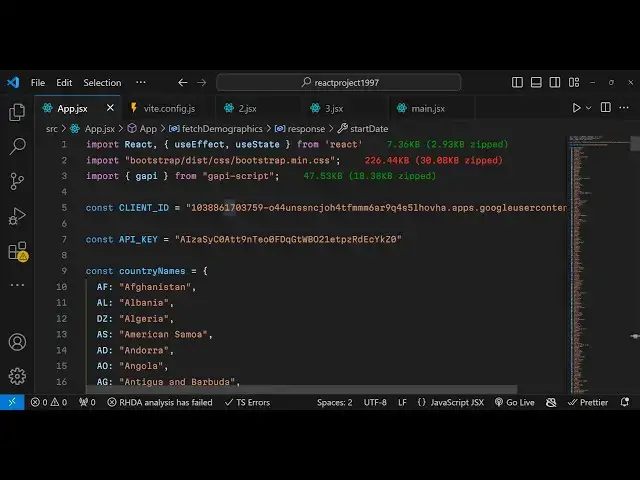
import bootstrap and this module as
2:16
well so you can see we have imported
2:20
this and the bootstrap m. CSS file so
2:24
now we need to make two variables first
2:27
is the client ID and the second one is
2:29
the API key so this do uh these two
2:34
things you will actually get inside your
2:36
Google Cloud console so you need to
2:39
create an account here I have already
2:41
created one so after you go to your
2:44
Google Cloud console you need to first
2:47
of all go to the section enabled apis
2:49
and services and then you need to enable
2:52
this API which we are working with right
2:55
here which is the YouTube Analytics
3:01
API so this is actually the API that you
3:04
need to enable which retrieves your
3:06
YouTube analytics data so just click it
3:09
I have already enabled this so it will
3:11
change to manage so then you need to
3:14
create your
3:16
credentials just go to credentials and
3:20
first of all need to create the API key
3:22
then the O client ID the API key I have
3:25
already created one so I will copy my
3:29
API key
3:30
this will be different for you so just
3:32
create this and paste
3:35
it and then for the O client ID you need
3:40
to select here web application because
3:42
we are building web application and for
3:44
authorized JavaScript origin this will
3:46
be your the homepage of the application
3:49
so just copy this
3:51
URL and paste
3:56
it and then in the authorized redirect
3:59
UR also you need to paste the same URL
4:02
and then you need to click on create so
4:05
this will actually create your client
4:09
ID so it will give you this client ID so
4:12
just simply copy this and paste
4:16
it so now you actually got all these two
4:20
client IDs and now what we need to do uh
4:23
we need to get all the country names
4:25
with their country code so I've just
4:27
created this list what I will do I will
4:29
simply copy all this this will be a
4:32
simple object we are creating a global
4:36
object right here which contains all the
4:38
country names with their short
4:41
little codes you will see AF stands for
4:45
Afghanistan DS so all the source code is
4:48
given in the description so just copy
4:51
that after you do
4:54
this we need to create two variables
4:57
which will keep track of the demo
4:59
demographics which is the countries and
5:01
the token access token and here we will
5:04
create this
5:06
demographics set
5:09
demographics and the initial we use the
5:12
UST State hook initial will be Mt array
5:15
and then for setting the access token we
5:18
will have
5:20
this again a variable to keep track of
5:24
initial value will be nothing so these
5:26
two variables we have
5:27
declared and after this we will need to
5:31
do the authentication first of all to
5:35
allow us to basically use the API for
5:38
that we will be using the use effect
5:40
hook with from react chairs so use
5:43
effect as you all know guys it actually
5:46
executes whenever you load your
5:48
application so here we will do the
5:52
authentication
5:54
so this actually takes a set of empty
5:58
par brackets so it is not dependent upon
6:02
anything so if you just refresh your
6:05
application and just see the console
6:07
lock message you will see here we will
6:09
do the or so it executes whenever you
6:12
load your application and now we can
6:15
here perform the authentication and here
6:17
we can actually write a function which
6:20
will do the authentication for us so I
6:23
will say
6:24
init Google API and this will be a Asing
6:28
function
6:30
and inside this we will actually use
6:33
that
6:35
module Google API that we imported if
6:37
you see right at the top we have this
6:41
function and we are simply using it it
6:44
contains a load function and here we
6:47
need to pass the
6:48
client or
6:51
to and uh it is again Asing function
7:00
and we can use a weight here so we can
7:01
say Google api. client. init and here we
7:05
need to pass an object which will pass
7:07
the API key that we
7:09
set then we need to pass the client ID
7:13
which we have there which
7:16
is and then here we need to pass the
7:18
scope information so what information
7:21
that we are accessing from the API so we
7:23
need to get the full access of the
7:26
YouTube channel of the user Google API
7:30
./ for this application you need to have
7:33
a valid YouTube channel so that's why
7:36
this YouTube analytics is
7:38
there so you should have a YouTube
7:40
channel associated with your Google
7:42
account so we are accessing this read on
7:45
the in
7:47
scope so we should only read the
7:49
information about the YouTube analytics
7:50
of the YouTube channel and then we have
7:53
the fourth property which is Discovery
7:56
Docs
8:00
and here it will be an array here and we
8:03
simply need to access this API version
8:07
which is the YouTube analytics version 2
8:11
so here we are simply providing the
8:17
URL so after you do
8:23
this we will
8:25
get the O using this function function
8:29
or 2. get
8:35
Au instance you will call this
8:39
function and after that we can now get
8:42
the authenticator user by using Au
8:46
instance do current
8:49
user doget and here we can actually
8:52
paste the user which we got and from
8:55
this user we can get the access token
8:58
very easily using this module and it
9:00
contains a
9:01
function to get the access token from
9:04
the currently logged in user so user.
9:07
getet
9:09
Au
9:11
response and it actually contains this
9:14
access token
9:16
property and we can store this access
9:18
token by using the hook function so we
9:22
can store this access token which is
9:26
coming let me also show you the console
9:28
log just to print
9:31
it so if you just refresh your
9:33
application you will actually
9:37
see the access token will be printed
9:41
out but we haven't called called this
9:44
function that's the problem so we need
9:46
to call this function right here in
9:50
it like this so now when we call this
9:53
function
10:06
uh let me just
10:12
see as you can see we are calling this
10:15
function which is in
10:25
it so here we are calling this function
10:28
oh sorry
10:29
we need to this is part of the function
10:33
you can see this is actually the part of
10:35
the
10:36
function so now outside this we need to
10:39
call
10:42
this so now this will
10:47
work so you will B basically see the
10:50
response will come this is actually the
10:53
user
10:55
information you can see my email address
10:58
this is
11:00
this is actually your access token which
11:02
has come so in this
11:05
way now we can
11:11
actually after we get that access token
11:14
we can write a function to fetch the
11:20
information using the analytics
11:23
API so we can write a function which
11:25
will say fetch demographics
11:29
and we can pass this access
11:32
token so now we can write a function
11:35
which is saying that fetch demographics
11:38
and this will be a async
11:41
function and here we are getting this
11:43
access token passed as an argument and
11:46
right here inside TR catch block we will
11:49
actually
11:50
write our code and if any sort of error
11:53
take place we can console log it so now
11:56
in the TR cat block we will make a
11:58
simple fetch API call to the
12:02
API so
12:04
await and it this SDK contains this
12:08
function client and it has this YouTube
12:12
analytics do reports
12:16
function so this reports function takes
12:18
an
12:20
object it has a method of query and it
12:23
takes an object right here IDs you need
12:26
to provide whatever is your channel name
12:29
so I will say channel is equal to
12:33
mine and then the start
12:36
date start date you will do like
12:43
this so
12:45
whatever you are targeting whatever
12:48
start date that you want to Target here
12:51
you will specify the tar start date so
12:54
I'm just providing here 10th of January
12:57
2024 and end
13:00
date in this way you can provide the end
13:03
date so I will
13:05
provide 11th of 26th of November so in
13:09
this way this is the date you provide
13:12
this is a format this is a starting date
13:14
this is the ending date so in between
13:17
these Matrix we want to get the total
13:19
number of views so I will say Matrix is
13:22
equal to
13:24
views and then we have the property
13:26
called as Dimensions so what thing that
13:29
you want to calculate so I want to get
13:31
the total number of views from each
13:33
country so here you're providing the
13:35
dimensions as
13:36
country and then we need to sort the
13:39
data with the views so Dash views so
13:43
which country has the maximum number of
13:45
views which will be displayed first so
13:48
in this way we are sorting this data and
13:50
lastly we need to provide the access
13:52
token as well with the each request so
13:56
we are providing the access token that
13:59
we passed it in this function so now
14:02
after that we can just console log the
14:07
response just to see if it is working or
14:11
not so now if you see guys you will get
14:14
this response
14:16
coming and we get this
14:19
result and if I show you total number of
14:22
80 rows will be return to
14:24
us so you will see from each country
14:28
from India you will see short code India
14:30
we have got the maximum number of views
14:32
which is
14:33
71,000 and then from each country if you
14:37
see we have returned this data so now to
14:42
actually display this information in the
14:45
browser we need to first of all store
14:47
this information in the variables so
14:49
response. result.
14:54
Ross
14:55
[Music]
14:56
so we need to basically process
14:59
processed we declare a function to
15:02
actually Loop through this data and for
15:05
each
15:14
row so we will basically format this
15:18
information using this function and we
15:20
storing the country name plus the number
15:23
of views that we got and we will
15:25
basically write this function to convert
15:27
the views into,
15:29
and billions so now to create this
15:33
function you will simp this is a simple
15:35
utility kind of a function to display
15:38
the views in a nicer way you get the
15:41
views as a
15:43
argument so if the views is greater than
15:47
thousand then we will simply attach K it
15:51
this if they are greater than 10,000
15:54
will show a million here
15:57
so after this
15:59
we will need to Simply store this
16:01
information in the set demographics
16:04
function in the
16:05
hook process
16:08
data so now we just need to Loop through
16:11
in the jsx to display this information
16:13
in the browser and you'll use some
16:15
bootstrap classes for
16:18
this you will say that YouTube
16:22
channel
16:25
demographics and you'll basically show
16:28
this information in the tblo structure
16:30
you will have the table
16:34
tag give some bootstrap classes to
16:44
it so we have two columns
16:51
here first is the country name and the
16:54
second one is the views how many views
16:57
that is got so now in the table body tag
17:01
we will actually Loop through this array
17:04
which is demographics map and for each
17:09
row we'll have the table row tag we
17:12
attach the key parameter which will be
17:17
index so we will first of all display
17:20
the
17:22
country and then the
17:26
views that's all that we need to do and
17:29
if you now refresh you will see the
17:32
total number of views will be displayed
17:34
from India which is maximum 71,000 which
17:37
is attach
17:39
K you can even cross check with your
17:42
YouTube channel as well guys so this
17:44
data is coming from that so this is
17:47
really useful API if you want to analyze
17:49
your data from your YouTube channel so
17:52
we can actually change these options you
17:55
can read the documentation of the API
17:58
which is available
18:00
you can just get all the parameters
18:03
right I'm just shown a very simple
18:05
example how to do this so we can change
18:08
these starting dates and ending dates so
18:11
let's suppose I want to get it from
18:14
217 year this is the data for the seven
18:18
years so now the views will be
18:23
larger so now you can see from in these
18:26
seven years we have got four 4.4 million
18:29
views from India and then you can see
18:33
from each country it is displaying this
18:36
data so you can provide any starting
18:39
date ending date and
18:41
then if you want to get the entirety of
18:44
the views you can change it to channel
18:47
so it will display the total views that
18:50
this channel has got views 11.6 million
18:53
views in toatally this is a channel
18:56
ID so in this way
19:00
you can see the data here you can
19:03
provide starting date ending date this
19:05
will a simple example guys that I showed
19:07
you how to interact with this YouTube
19:09
analytics and Reporting API to get the
19:11
data from your
19:14
channel so thank you very much for
19:16
watching this video all the source code
19:18
is given in the description of this
19:19
video and do check out my website as
19:22
well free mediat tools.com which
19:24
contains thousands of tools regarding
19:27
audio video and image and I will be
19:29
seeing you in the next video
#Online Video
#Web Stats & Analytics
#Computer Education