Up next in 10

Build a React.js Word DOCX Viewer in Browser Using docx-preview Library in Javascript
Jan 9, 2025

Get the full source code of application here:
https://gist.github.com/gauti123456/9ace517d4b7420896206c48bf5ade730
Show More Show Less View Video Transcript
0:00
uh hello guys welcome to this video so
0:02
in this video we will look at how to
0:04
build out a Microsoft Word document uh
0:07
viewer inside browser so this is
0:10
actually the application so here the
0:12
user can select any word document file
0:14
that you want to see in the browser so
0:17
we have a choose file button so we will
0:20
actually select our doc file so it's a
0:24
Word document right here if I select
0:26
this word document you will see it will
0:29
actually show this word document in this
0:31
viewer you can nicely see read your work
0:34
documents online with the help of this
0:36
library that I will show you how to
0:38
integrate this inside react chairs so
0:41
this is actually a doc file if you
0:44
see dot dox Word document file Microsoft
0:49
Word document file and you can see it
0:50
contains tables images text formatted
0:54
text and it is actually showing it in a
0:56
colorful way you can read all these
0:59
things uh online without having Word
1:02
Microsoft Word you can open your word
1:04
document file using
1:06
this application Word document viewer
1:09
and you can just read your documents so
1:12
for having this we are actually using
1:14
docs JS this is actually name of the
1:17
library it has got 29,000 weekly
1:20
downloads so we will be using this
1:22
package to integrated it inside our
1:24
react CH application so let's start
1:28
building this application so so the very
1:30
first thing we need to
1:32
do as I already told you we need to
1:34
install this
1:39
package so the package name is do
1:43
o doc JS so it's a doc rering Library so
1:47
this is a command that you will need
1:48
npmi dox preview so install this module
1:53
so I have already installed it so simply
1:56
npmi
1:58
dox preview
2:01
and you also need the I will also
2:04
install react bootstrap for building the
2:07
UI of the application so you will need
2:09
three packages to follow along do
2:12
preview react bootstrap and bootstrap so
2:15
these three packages I have already
2:19
installed so you will see the now to get
2:23
started we will actually write
2:26
the actual file I will delete everything
2:29
so this is my app main app.jsx
2:35
file so the thing we need to do we need
2:38
to write a very basic functional
2:40
component
2:46
so so this is actually the functional
2:48
component and if you refresh it will you
2:51
will see app is showing so it is
2:53
supporting hot Auto reload so now you
2:57
what you need to do right here you need
2:58
to actually
3:00
write your jsx first of all so inside
3:04
the
3:05
jsx we will actually be having uh the
3:09
container class of bootstrap so I will
3:11
simply require the container from react
3:14
bootstrap so it will get imported inside
3:17
the container we will actually have the
3:19
row as well which will get imported from
3:22
react bootstrap so you need to give a
3:25
class name attribute to
3:27
it these are all bootstrap
3:30
classes margin top
3:34
four so inside this we will have the
3:37
column as well so column will also get
3:39
imported and now inside this we will
3:42
have a H1 tag which will simply say what
3:45
document viewer so we also need to have
3:49
the CSS file of bootstrap so we have
3:51
installed the base bootstrap package so
3:54
bootstrap dis CSS bootstrap min. CS so
3:58
also need to include this file here as
4:00
well and you will see it has it will The
4:03
Heading will
4:05
show so after that what we need to do we
4:08
need to allow the user to
4:11
Simply upload a Word document so for
4:15
that we need a simple input field so
4:18
margin bottom three so right here we
4:21
will
4:22
have a simple form
4:27
element and inside this we will have the
4:30
form
4:33
group and here we will have the form
4:36
label and we will simply say upload a
4:39
Word
4:45
document
4:48
dox so the label will show right here if
4:52
you see this is actually a label and
4:54
then we will have actually
4:57
a input field for the input field we
5:00
need to have the form
5:04
control so we will basically give some
5:07
attributes to this so this will be of
5:09
type file will only accept docs file so
5:17
dox and then we will also be giving an
5:19
on change event handler to this so
5:22
whenever you select a file this function
5:25
will execute this is a custom function
5:27
that we will make handle file change so
5:30
now we just need to Define this
5:34
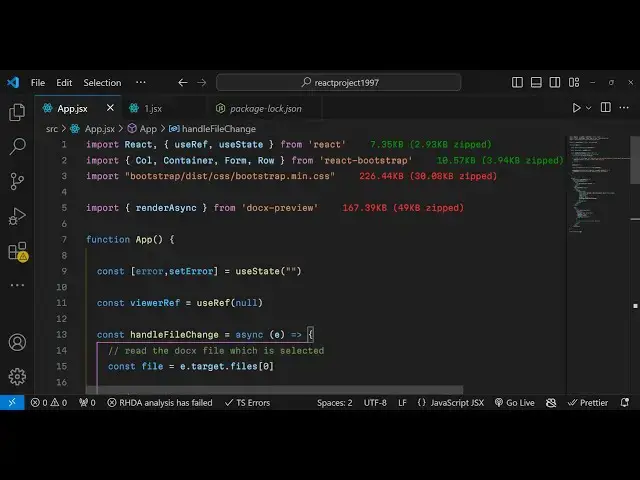
function handle file
5:40
change so inside this function e
5:43
parameter will automatically be
5:46
passed event so just make this function
5:48
async as
5:50
well and right here we will actually
5:53
read the doc file which is
5:58
selected so if you refresh your
6:00
application you will see this choose
6:02
file button here you can actually choose
6:04
your doc file so after that inside this
6:09
we will actually get access to the file
6:12
so we will simply say e. target. files
6:16
zero it will get access to that file and
6:18
then here we'll be comparing if that
6:20
file selected by the
6:23
user if the type is not equal to
6:30
so basically essentially what we are
6:32
doing in this if condition we checking
6:34
that if the selected file is not a word
6:36
document in that
6:39
case we just need to show to the user
6:41
that please upload a valid doc file so
6:44
for showing this error we just need a
6:46
simple State variable for storing this
6:49
error message error set error and we
6:52
will be using the use State hook so
6:55
initial value will be empty so here we
6:57
are simply storing the error message
7:00
error set error and you are using the
7:02
use State initial value will be empty so
7:05
here we are simply using this hook
7:06
function to actually set this error
7:08
message please upload a valid doc
7:11
file so if no error is there then we can
7:14
simply reset the error by again setting
7:17
the hook function to nothing and then we
7:20
will basically convert this to a array
7:24
buffer by using uh actual file and we
7:28
will convert this into to aray buffer
7:31
file. AR buffer this is actually the
7:33
method that you can use so after you
7:35
convert this to a aray buffer we can
7:37
actually use the package that we
7:40
installed so the method responsible for
7:43
that will be so I will just import this
7:46
package so the method is
7:50
render async this is a method which will
7:54
get imported from this package that we
7:56
installed doc preview so this is a word
7:59
document preview library and inside this
8:03
we actually extracting this method
8:05
render async so now we can simply use
8:07
this method to render the doc file in
8:11
the browser so you can simply use this
8:14
function render async and we'll pass
8:16
this aray buffer as a first argument and
8:19
then the second argument will be the
8:22
reference so here you need to pass the
8:24
reference of your word document for
8:26
storing the
8:27
reference we will need a
8:30
to declare a fun uh variable so this
8:33
will
8:34
be viewer
8:36
ref and we will basically say use
8:40
ref and we will use ref is a hook inside
8:44
react Chase it will be imported from uh
8:47
the react and basically in jsx we will
8:51
actually decare a element right here so
8:55
just after the form is ending right here
8:58
uh after this handle file
9:01
change so just after this form is ending
9:05
column
9:13
row just at the bottom here we will
9:16
render the actual doc file so for
9:19
rendering it we need to have an aot
9:22
tag
9:25
call and then you will have a div tag
9:28
inside this tag we will show our Word
9:31
document for this we will attach this
9:34
reference which is the viewer ref so
9:37
here we are attaching this variable here
9:39
viewer ref you can see we are actually
9:42
made this variable with the help of this
9:44
use ref hook we are simply attaching it
9:47
this is actually the location where the
9:49
word document file will show so here we
9:51
are having this viewer
9:52
ref so we just need to give some style
9:56
attributes to this word document viewer
9:58
so that we should style properties so
10:01
double cly bracket and inside this we
10:04
will provide the CSS properties so it
10:06
should have a border of one pixel solid
10:09
gray
10:10
color and then we also need to have some
10:14
padding as well of 16
10:16
pixel you can change all these
10:18
properties height is 500 pixel of the
10:22
one document
10:24
preview and then the Overflow property I
10:27
will set it to scroll so these four CSS
10:30
properties we have set of the viewer and
10:33
now inside this diff section right here
10:36
your selected Word document file will be
10:40
shown so
10:42
here the doc file will
10:51
show so now to render this inside this
10:54
we will use the uh JavaScript code for
10:57
this to show this file
11:02
so we will pass this reference as the
11:04
second argument which is the viewer ref
11:08
and we'll get the current
11:10
reference that's all so if any sort of
11:14
error take place we have this do catch
11:18
function we will show the error we will
11:21
basically set the error that
11:25
is ADD error
11:29
occurred rendering
11:32
the document so if any sort of error
11:35
take place then we are s setting this
11:37
error message so this completes your
11:39
application so if you refresh the
11:41
application Choose Your Word document
11:43
file you will see now the word document
11:46
will definitely show right here in the
11:48
word document preview and you can
11:50
exactly see the word document right here
11:53
with the help of this package and it's a
11:56
pretty damn good word document view Guys
11:59
Without without having to use Microsoft
12:01
Word if you don't have Microsoft work
12:02
you can directly uh open the word
12:05
document files inside react CH
12:08
application and view it in the browser
12:10
so I showed you step by step Way by
12:13
which you can integrate this inside
12:15
react CHS all the source code will be
12:17
given in the description of this video
12:19
so thank you very much for watching this
12:21
video and please hit that like button
12:23
subscribe the channel and do check out
12:25
my website as well freem mediat
12:27
tools.com which contains thousands of
12:29
free tools regarding audio video and
12:31
image and I will be seeing you in the
12:33
next video
#Other