Up next in 10

Build a React.js SVG to PDF Converter in Browser Using PDF-LIB Library in JavaScript
Jan 9, 2025

Get the full source code of application here:
https://gist.github.com/gauti123456/62ece6914c0da13a9dda535998eb17ad
Show More Show Less View Video Transcript
0:00
uh hello guys welcome to this video so
0:02
in this video looking at how to convert
0:04
a scalable vector graphics and insert
0:07
that into a PDF document so we have a
0:10
SVG file and we'll be converting it into
0:12
a PDF we'll build out a simple converter
0:15
svg2 PDF using in react CH using a
0:19
open-source PDF generation Library
0:22
called as PDF lip this is the name of
0:25
the library open source Library it is we
0:28
will be using it inside react and build
0:30
out a simple converter SVG to PDF so
0:34
here you need to Simply select your SVG
0:37
file you be selecting this SVG file you
0:40
can see it is you can open it in the
0:48
browser this is actually the scalable
0:50
vector graphics and now if you want to
0:52
convert this into PDF document so what
0:55
we will do we will simply select this
0:58
SVG file click on the download as PDF
1:02
button and if you click it you will
1:03
actually see a PDF file will get
1:05
downloaded and it will cover entire
1:08
space of the PDF page it will take the
1:11
screenshot and insert this into a PDF
1:13
document and I will show you how to do
1:15
this and uh we'll be using the canvas
1:18
API for this purpose we're actually
1:19
converting it to PDF document in react
1:21
CH so now to get started we do need to
1:24
install this
1:25
package which is npmi PDF lip which
1:29
should be responsible for carrying over
1:31
this conversion npmi PDF lip this is the
1:35
name of the library simply install this
1:37
so once you install this you will be
1:39
able to start your development server
1:41
npm run Dev so I will simply start this
1:44
and start everything from scratch so
1:46
you'll be writing a simple functional
1:49
component and inside
1:52
this the user interface we will be
1:55
actually be
1:57
having a div tag and we'll giving a
2:01
container class inside this you having a
2:04
heading which will say
2:07
svg2 PDF
2:09
converter after this you'll having a
2:11
simple input type file and accepting
2:14
only SVG files and we'll be binding an
2:18
onchange event handle so when we click
2:22
or allow the user to Simply select the
2:25
SVG file this function
2:27
will execute handle file
2:30
upload now we need to Define this
2:32
function so just make it required and
2:36
here we will simply write this function
2:38
handle file upload e parameter will be
2:41
passed
2:42
here so we also be after this input
2:45
field I have a button right here which
2:47
will say download as PDF this button
2:50
will be disabled by
2:56
default and we'll be binding a onclick
2:59
event Handler so when we click this
3:01
button we will simply execute a function
3:03
handle download PDF we just need to
3:06
Define this function as well so handle
3:08
download
3:11
PDF so we have this interface guys if
3:15
you see in the
3:17
browser you'll see this interface by
3:19
default this button will be disabled and
3:21
we have the choose file button so now we
3:25
in the react CHS we do need to create a
3:28
state variable just to keep track of
3:30
which files the user will select so you
3:33
declare a state variable SVG file set
3:37
SVG
3:39
file the method to manipulate that we'll
3:42
be using the UST State hook in react CHS
3:45
so default value will be null so right
3:47
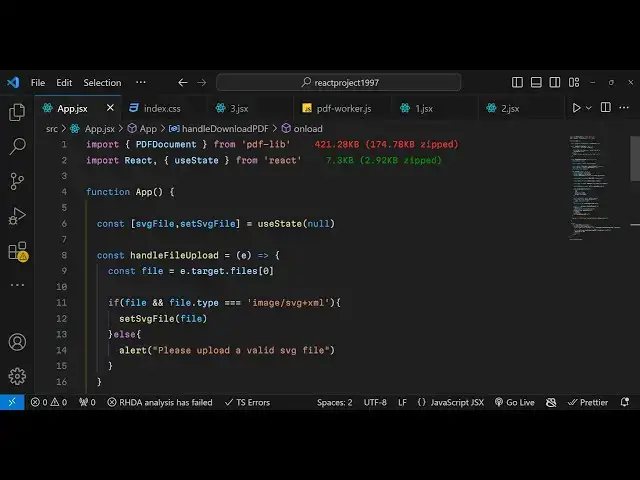
in this function handle file upload we
3:50
will basically read the file which the
3:51
user select by e. Target files zero and
3:56
here we be simply be checking in the if
3:58
condition that if the file has been
4:00
selected and if the file type extension
4:04
is triple equal to the image/ SVG so
4:08
here we are simply checking that if the
4:09
selected file is X SVG or not if this
4:13
file is an SVG then in that case we need
4:16
to set the SVG file to whatever file the
4:20
users select in the use
4:23
state in the else block we can simply
4:27
say that please upload only it
4:32
a valid SVG
4:35
file so is it is keep showing that we
4:38
need to only upload the SVG
4:42
file now we will be in the disabled
4:47
attribute so what it will do you just
4:50
need to make sure that it is only
4:53
disabled until and unless the file is
4:55
not uploaded so you make it
4:58
conditionally because
5:00
if this value becomes false in that case
5:03
this will not be disabled so this SVG
5:06
file that variable that you
5:09
see you just make sure that it is only
5:12
disabled if the file is not uploaded or
5:15
selected so now in the handle download
5:18
PDF button guys what will happen now in
5:22
this function first of all just make
5:25
this function as
5:26
async and inside this first of all we
5:29
will check that if the SVG file variable
5:32
is not uploaded then we simply return
5:35
but if the file is there then we need to
5:37
Simply read the SVG file for that we
5:41
will use the text method we will
5:45
be extracting all the text which is
5:47
available in the SVG file by the text
5:51
method and then we'll be using the
5:53
canvas API to draw this image on the
5:55
canvas for drawing this image we need
5:57
first of all need to create a dynamic
5:59
element of canvas dynamically and then
6:03
using the 2D context you can get the 2D
6:06
context by this method get context
6:09
2D and then we'll draw this image on the
6:12
canvas so New Image
6:15
Constructor this is a very simple way by
6:17
which we can read the SVG file first of
6:20
all drawing it in the canvas so when the
6:23
image is loaded this onload event will
6:27
occur we will simply draw this image on
6:30
the canvas so whatever is the width of
6:31
the canvas you will get this from image.
6:35
width and same for the height as well so
6:38
whatever is the image
6:42
height and then there is a method out
6:45
there which is draw image which draws
6:47
the image on the canvas image 0 0 x
6:50
coordinate y coordinate image width
6:53
image
6:55
height so once you draw this image you
6:57
will get the base 64 code that you need
7:01
so you be creating PNG URL and you'll
7:03
use this nice little method which is
7:05
Canvas 2 Data URL which Returns the base
7:08
64 code of the image image/png
7:12
and then we will simply insert this
7:17
image in the PDF by using PDF lib we'll
7:20
create a new PDF
7:23
document by the create method which is
7:25
available inside create the PDF lip so
7:28
once it will automatically import this
7:31
PDF document from PDF lib if you see it
7:35
is
7:37
imported then to add a page we will use
7:41
the add page
7:43
method inside that we will pass the
7:47
image width and the image
7:50
height and then for the PNG image we
7:54
will use this method embed PNG to
7:58
actually embed the PNG image and we have
8:02
the PNG
8:03
URL and there is a method which is draw
8:06
image which will draw this
8:09
image with the options here x coordinate
8:12
we need to provide the y coordinate as
8:15
well which will be zero it will cover
8:18
the entire page that's F image image
8:21
width and height is image height that's
8:25
all and then we need to save this PDF
8:28
document so that we can open
8:35
it for saving it we will actually
8:45
be a wait there is a function out there
8:48
in this PDF lip which is save function
8:51
it will return the bytes now the bytes
8:53
can be converted to blob very easily we
8:57
will pass these bytes and and the MIM
9:00
type type will be the application SL PDF
9:04
now we can uh convert this this URL they
9:08
have a function create object
9:15
URL we will pass the
9:18
blob now to download The Blob we have if
9:22
to create a anchor element and then we
9:26
can set
9:30
this is a very standard Way by which you
9:32
can download any file by using the
9:33
anchor element Technique we give it a
9:36
file name then we are pend it click it
9:38
remove it and then revoke it so this is
9:41
all done and lastly we just need to
9:43
outside this function this onload
9:46
function that you written image. onload
9:49
you just need to set the image
9:52
source so this needs to be exactly like
9:56
this data image/ SVG
10:00
so here here we are simply setting the
10:04
attribute for the SVG file this is very
10:07
much necessary and then we are simply
10:10
using this function which is
10:12
BTU which is a buil-in function
10:16
which this is required guys you need to
10:18
set this image source like this as it is
10:21
and uh
10:24
now if you select now select your SVG
10:28
file click C on download you will see
10:31
the PDF file the SVG file has been
10:34
successfully inserted you can take any
10:37
SVG file scal vector graphics and
10:39
convert this into a PDF document so in
10:41
this simple Technique we can use we can
10:45
build out spg2 PDF converter using PDF
10:48
lip all the source code will be given in
10:50
the description of this video so thank
10:52
you very much for watching this video
10:53
please hit that like button subscribe
10:55
the channel and also check out my
10:57
website free mediat tools.com which
10:59
contains a variety of tools available so
11:03
you can check out this also thank you
11:05
very much