live_tv
Livestream Starting Soon
00
Hours
:
00
Minutes
:
00
Seconds
Up next in 10

Build a React.js Project to Export Canvas to PNG or JPG Image Using react-sketch-canvas in JSX
Jan 9, 2025

Buy the full source code of application here:
Show More Show Less View Video Transcript
0:00
uh hello guys welcome to this video so
0:02
in this video I will show you a simple
0:04
application where you can export your
0:06
canvas to a simple image
0:09
file so essentially in this application
0:12
inside react Chas application we will
0:14
try to export the canvas to actual image
0:16
file so for this there is a specific
0:19
package out there
0:21
and I will show you this demo
0:23
application which we will be building so
0:25
we have a canvas right here you can draw
0:27
something on it draw your digital
0:30
signature and then you can have a simple
0:32
button to export this canvas to a PNG
0:35
image file so now what happens you will
0:38
see this image file being exported this
0:40
is actually a PNG file and uh this is
0:44
essentially this package which is uh you
0:47
can see the command as well this is
0:49
actually the package name react sketch
0:52
canvas and it is almost got uh 10,000
0:55
weekly downloads and I will show you a
0:58
very simple example uh for this you just
1:01
need to create a simple functional
1:03
component and right here you need to
1:06
import this module using the import
1:08
statement and you simply import the
1:10
module react sketch canvas and it will
1:13
be coming from this
1:15
package you can see 16 kilobytes of size
1:18
of this package and you can simply in
1:21
the jsx simply just embed this component
1:24
react sketch canvas in and it actually
1:28
takes some options so first of first of
1:30
all we need to declare the reference of
1:32
the canvas so we declare a canvas
1:34
variable and we use the use ref hook and
1:37
initial value will be null so here we
1:39
need to attach this reference to this
1:42
canvas tag so it actually takes an
1:44
object which is
1:47
canvas so sorry reference we need to
1:50
attach the reference so we need to
1:52
attach the reference to this by the
1:54
reference tag so we can directly attach
1:57
this variable right here you can see we
1:58
are attaching this variable
2:00
and apart from that it also takes two
2:02
more options which is the color of the
2:04
canvas we can directly attach it using
2:06
this option which is stroke color and
2:09
here we can attach any color of your
2:11
choice it can be black red so I will
2:13
attach it
2:15
black and then you can even control the
2:17
size of the width of the canvas so we
2:20
can attach it here any integer value you
2:23
can choose so I'm just putting here five
2:26
these are the options it takes and if
2:27
you just refresh your browser uh you
2:30
will see the canvas right here and you
2:32
can draw something on the canvas and
2:34
let's suppose I changed the color from
2:36
black to Red now you will see the color
2:39
will change from Red you'll see that so
2:42
you can customize and control every
2:45
parameter of this and now after that we
2:47
will have a simple button to export this
2:50
canver to a image file so we'll simply
2:52
say get image so when you click this
2:55
button what should happen we will bind
2:56
an onclick event handler we will simply
2:59
say handle export image so when you
3:02
click this button we will execute this
3:04
function so we now we just need to
3:06
Define this function so you'll simply
3:08
say handle
3:10
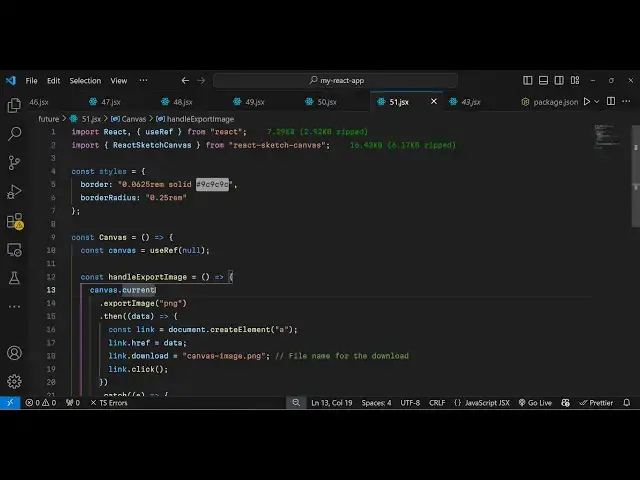
export image so inside this function we
3:16
export the
3:19
canvas as a PNG image so for this we
3:25
simply take the canvas right here
3:28
because we already got the ref refence
3:30
if you see we attached this reference
3:31
using the US ref hook we already got the
3:34
canvas and it actually contains this
3:36
current method and then we have this
3:39
method available to us which is export
3:41
image directly so we can directly export
3:44
this either to PNG or
3:46
jpg and it returns a base 64
3:51
code inside this promise we can handle
3:53
this using dot then and we can console
3:56
log the data so it's a base 64 code and
3:59
we can convert the base 64 code into a
4:02
image by simply creating a link tag so
4:05
we can create a link tag using the
4:08
create element function anchor tag and
4:11
then we attach the HF property to the
4:14
actual base 64 data and we can attach a
4:18
simple file name to the canvas which is
4:20
canvas. PNG and then we can directly
4:23
download this file by clicking onto it
4:27
dynamically so this completes your
4:29
application so if I execute the
4:32
application in the browser so if I type
4:34
anything in the canvas or digitally sign
4:37
the document click on you will see the
4:40
canvas has been exported to a PNG image
4:43
file and you can see your desired result
4:46
so in this way you can use this package
4:49
very simply inside react Che and uh it's
4:52
specifically used to convert your canvas
4:54
to image file so thank you very much
4:57
guys for watching this video essentially
4:59
in the background it is using fabricjs
5:02
which is essentially a open- source
5:04
JavaScript library for exporting your
5:08
canvas so do check out my website as
5:12
well free mediat tools.com uh which
5:14
contains thousands of tools regarding
5:16
audio video and image and I will be
5:19
seeing you in the next video
#Other
#Other