Up next in 10

Build a React.js PDF-LIB PDF Viewer & Editor to Add Watermark Using Html2Canvas in Javascript
Jan 9, 2025

Buy the full source code of the application here:
https://procodestore.com/index.php/product/build-a-react-js-pdf-lib-pdf-viewer-editor-to-add-watermark-using-html2canvas-in-javascript/
Hi Join the official discord server to resolve doubts here:
https://discord.gg/cRnjhk6nzW
Visit my Online Free Media Tool Website
https://freemediatools.com/
Buy Premium Scripts and Apps Here:
https://procodestore.com/
Show More Show Less View Video Transcript
0:00
uh hello guys welcome to this video so
0:02
in this video I basically build out
0:04
application where you can actually
0:06
actually add these watermarks visually
0:09
using a PDF editor where you can
0:11
actually add watermarks to your PDF
0:13
documents using a PDF editor and viewer
0:16
inside the browser using react CHS so I
0:19
actually use jspdf and PDF lib for this
0:22
process which are both open source
0:25
libraries for building PDF applications
0:27
so I built out this application in react
0:29
chairs in the browser itself and the
0:31
application interface will look
0:32
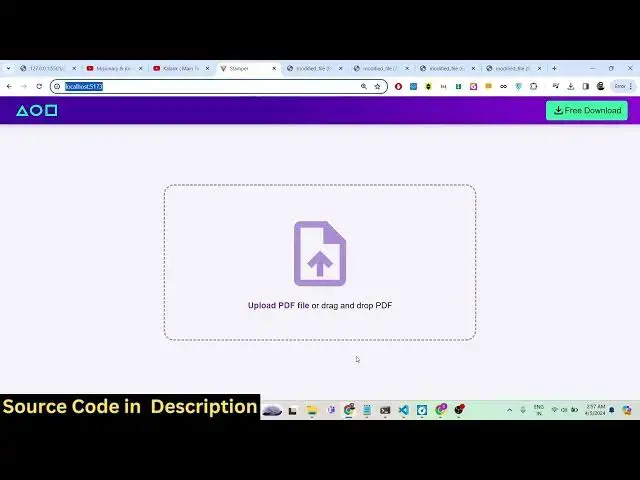
something like this whenever you launch
0:34
this application so you will see I'm
0:35
running this application on Local
0:38
Host
0:40
5173 and here you need to select your
0:42
PDF document whichever PDF document that
0:44
you want to select uh let me select
0:48
uh this PDF document so as I select this
0:51
PDF document guys you will see it will
0:53
contain two pages out there and on the
0:56
right hand side you can navigate to
0:58
first page second page and uh also we
1:03
can zoom in we can zoom out so all these
1:06
functionalities are there and there is
1:09
this option guys where you can add the
1:13
watermark your watermark text or image
1:17
you just need to select this and a drop
1:19
a window will open and here you can
1:21
actually select your watermark let me
1:23
place this Watermark as you will see two
1:26
pages are watermarked or stamped in one
1:30
second you will see both the pages have
1:31
got this Watermark and now you can with
1:34
the help of the mouse you can basically
1:35
place anywhere you want to do you can
1:39
increase the size or you can rotate it
1:42
we have the opacity option as well you
1:44
can select how much opacity you want to
1:46
select for the watermark if you select
1:48
50% 90% you will see all this percentage
1:51
are available to you you can
1:54
10% so it will look something like this
1:57
beautifully looking and you can also
1:58
rotate it so anticlockwise Direction all
2:02
this so once you place it it will
2:04
automatically place in all the pages
2:06
automatically you don't you just need to
2:08
do it once for a single page and
2:10
automatically it will do it for the
2:12
second page itself and then
2:14
automatically free download and just
2:16
click on the download button and
2:17
download so your PDF file will get
2:19
downloaded guys and it will actually
2:22
contain the watermark you will see that
2:24
now it will actually contain the
2:26
watermark in both the pages this is the
2:28
watermark that you can see right here
2:30
draft in the background so you have seen
2:33
the PDF documents having Watermark guys
2:35
in this way the P Watermark is added and
2:38
we are not using any SPID software we
2:40
are simply using a free application that
2:42
I developed in react shs which actually
2:43
allows you to uh visually add a
2:46
watermark we can basically remove it as
2:49
well by clicking this option click on
2:51
remove and it will remove are you sure I
2:54
can guess so Watermark is deleted you
2:56
will see that and now you can even
2:58
select your custom images as well let's
3:00
suppose you want to add image you can
3:03
add any sort of image you want to add
3:05
this image you will see that you can add
3:07
images as well totally depends upon you
3:09
which Watermark image that you want to
3:11
use so I can rotate this image like this
3:16
place it anywhere else and automatically
3:19
the second page will also have this
3:21
click on download and now you will see
3:23
that the watermark image will get added
3:26
automatically so you will see that
3:30
this is first page this is second
3:32
page so in this way guys The Watermark
3:36
you can see it is added and one more
3:39
thing let me show
3:41
you can have with different watermarks
3:43
available for
3:49
you this is you can see
3:56
that this is first page this is second
3:58
page so if you need this application
4:01
guys the link is given in the
4:02
description you can directly purchase
4:04
the full source code I coded this inside
4:06
react Chas and if you go just go to the
4:09
description you will find the payment
4:10
link and where you can pay that and
4:12
after that you will get a zip file where
4:14
you can actually extract the zip file
4:17
and you will get this directory
4:18
structure which will have the source
4:20
code and basically you can decrease the
4:24
opacity here like this let me select 30%
4:28
place it you can rot rotate it like this
4:32
and uh click on free uh uh download that
4:36
and your watermark will get added it's a
4:39
PDF designer or you must say PDF
4:43
editor you can see that the watermark is
4:45
added in both the pages and you can
4:48
basically take page PDF files which
4:51
contains lots of pages and it will add
4:54
the watermark for you so let's suppose
4:56
you take a PDF file which contains a lot
4:58
of pages it will work for all the pages
5:01
there is no limit that uh which file you
5:04
can upload it the PDF file can contain a
5:07
lot of pages you will see now it contain
5:09
10 pages so now I will show you if you
5:12
want to add Watermark how you can easily
5:14
do that I just need to select my image
5:18
just place it once you just need to
5:20
place it once just pick the position
5:23
pick the opacity so once you added the
5:26
watermark it will automatically get
5:28
added in all the pages you will see that
5:29
that you don't need to repeat and all
5:32
the pages The Watermark will get
5:34
added you just need to select one time
5:37
only just select one time select your
5:40
opacity everything click on download it
5:44
will take some time depending upon your
5:46
PDF file size how many pages it contains
5:48
so it takes the processing time and it
5:51
is happening all on the client side guys
5:54
there is no server s side code is
5:55
involved inside this it is all happening
5:58
inside Java JavaScript in the browser
6:01
itself so you don't need any server side
6:03
code so once you have this project guys
6:06
you can directly build this project so
6:08
once you download the source code guys
6:11
after the payment is done you can
6:16
actually start this
6:19
project so you just need to Simply npmi
6:23
after you do this you just need to
6:25
install the modules I've already done
6:27
that so if you're running it for the
6:30
very first time after you make the
6:32
payment you will actually land in the
6:34
zip folder you need to extract the
6:35
content and then invoke this command
6:37
which is npmi so it will install all the
6:40
modules which are mentioned in the
6:41
package.json file and it will install
6:44
all those modules I've already done that
6:46
and then you just need to Simply run the
6:47
project by invoking this command which
6:49
is npm run Dev this will start our
6:52
development server on Local Host
6:54
5173 and now you will see
6:57
that your file will get download it and
7:00
now it will actually contain the
7:02
watermark in all the 10 pages that we
7:04
done this is the third page this is the
7:06
fourth page fifth page sixth page
7:10
7eventh page eighth page you can see
7:13
that at the same location The Watermark
7:16
is added in all the pages so let's
7:18
suppose if you have ebook if you want to
7:21
add Watermark your own logo Watermark
7:25
anything any text you just need that
7:27
image and then you can place it use with
7:30
this awesome tool visual visual
7:32
tool and uh I basically developed this
7:35
using two open-source libraries guys
7:37
first as you all know which is jspdf
7:39
which is a open- source library for
7:42
building PDF related applications inside
7:45
browser it has its own nodejs package as
7:48
well we are actually using it we just
7:50
need to npmi GS PDF this is actual
7:53
package documentation and the other
7:55
package that we using guys which is PDF
7:58
lip this is also a library which allows
8:02
you to build out if you just search PDF
8:07
lip this is their official documentation
8:10
it's again a PDF generation library of
8:13
JavaScript it's also available in nodejs
8:17
Deno JS and also in react native so we
8:20
are actually using these two libraries
8:22
in conjunctions to actually build out
8:24
this awesome application which allows
8:26
you to uh
8:33
just put stamps automatically watermarks
8:36
I've shown you the demo guys and now let
8:38
me walk you through some of the code
8:40
right here basically it's a complete
8:42
react Chas project guys
8:44
and right in the source directory we are
8:48
actually having different components out
8:50
there we are also using hooks for this
8:52
purpose drag and drop so if you see
8:57
right
8:58
here res size Hook is also there scroll
9:01
hook it's a complete application and
9:07
uh so this this is actual CSS code that
9:10
we are
9:11
using that you see the CSS for every
9:15
component there is a CSS code PDF viewer
9:17
toolbar editor left left navigation bar
9:22
image component and then we have this
9:24
GSX code so this contain every component
9:27
code which is required image toolbar PDF
9:30
viewer PDF input
9:34
workspace so image toolbar basically
9:36
contain the code for different kinds of
9:38
functionalities that you
9:41
see
9:43
so basically it's a very Advanced code
9:46
guys if you need this source code I will
9:48
highly recommend that you purchase and
9:51
then you can have this awesome
9:53
application and uh if you still have
9:56
some problems you can contact me if you
9:58
face any problems after payment if your
10:00
codee doesn't work you can do that so
10:02
this is the actual image component which
10:05
actually basically have all these things
10:08
which is index image number visible
10:11
image page scale
10:13
stamp PDF data it's all coming inside
10:18
the PDF lib library and
10:22
uh PDF
10:24
input so you can see
10:27
that we also using sweet alert to which
10:30
is basically a library for showing
10:33
beautiful alert boxes so I'm just
10:35
showing you the libraries that are
10:38
required for making this project it's
10:42
a this is a set of libraries that we
10:45
used and uh we also using react Redux
10:49
for the state management for inside our
10:51
application for managing the state we
10:53
are using Redux which is a state
10:56
management tool in react CH applications
10:58
and PDF viewer
10:59
we are actually using react PDF package
11:04
if you don't know about react PDF guys
11:06
it's a package which is responsible for
11:08
displaying PDF documents inside react us
11:11
applications so it's a react renderer
11:14
for creating PDF files in the browser
11:16
and server so we are actually using this
11:18
package also for doing this and
11:22
uh you can see for displaying the PDF
11:25
document when the user select the PDF
11:27
document we are displaying it inside
11:29
using this package and also we
11:35
are uh like this react toasttify we are
11:38
also using that
11:40
also so if you are interested guys we uh
11:45
I have given the link in the
11:47
description you can directly go to the
11:49
link and purchase the full source code
11:52
and I will be seeing you guys in the
11:54
next video Until then thank you very
11:57
much
#Multimedia Software