live_tv
Livestream Starting Soon
00
Hours
:
00
Minutes
:
00
Seconds
Up next in 10

Build a React.js HTML2PDF.js Example to Export Dynamic HTML to PDF & Print in Browser
Jan 9, 2025

Buy the full source code of application here:
Show More Show Less View Video Transcript
0:00
uh hello guys welcome to this video so
0:02
in this video I will show you how to
0:04
convert your HTML to PDF and also you
0:07
can print your PDF as well directly in
0:10
your application in react Chas and
0:12
you'll be using a module which is html2
0:15
pdf.js this is actually a very famous
0:17
Library which allows you to convert your
0:19
HTML to
0:21
PDF so we have this application running
0:23
on Local Host and inside this
0:25
application we have two buttons to
0:28
generate the PDF or you can print your
0:30
PDF we have a textt area you can
0:33
basically write anything right
0:40
here you can paste any text right here
0:43
and click on the
0:45
button so your PDF will get generated
0:48
you will see that so we have static
0:51
heading right here coded and then we
0:53
whatever that we typed is converted so
0:56
we have this HTML that we have this s to
1:00
tag it converted and we have then we
1:03
have the
1:04
paragraph and then we also have the
1:06
print button as well if you want to
1:08
print your PDF you can also do this as
1:10
well so the printing video window will
1:12
open here you can select the options how
1:15
many pages that you layout more settings
1:18
you can paper size so all these settings
1:20
you can control simply if you have a
1:23
printer you can print your
1:25
PDF so the package that we are using is
1:28
html2 pdf.js so if you just go to npmjs
1:32
just search for this
1:35
package so this is actually your package
1:38
here it has got almost 195 weekly th000
1:42
weekly downloads this is a command here
1:44
npmi html2 PDF GS just go to your
1:48
command
1:49
line so just install this package and
1:52
also react bootstrap as
1:54
well so for building the user interface
1:57
we are using these three packages simply
2:00
install this I've already installed
2:01
these packages so I will start the
2:04
development
2:05
server then I will simply make a
2:07
functional
2:10
component so for now we will include all
2:13
these packages one by one at the
2:16
top and also your bootstrap file as well
2:19
so bootstrap
2:22
this you can see we have included all
2:25
these packages using the import
2:26
statement and then inside your react
2:29
chairs we'll have two State variables
2:31
first is the reference you'll use the US
2:34
ref
2:36
hook just initial value will be
2:39
null and then we just need to have the
2:43
HTML content to keep track of what the
2:46
user has typed the HTML so initial value
2:50
will be we use the UST State
2:53
hook so initial value you can provide
2:56
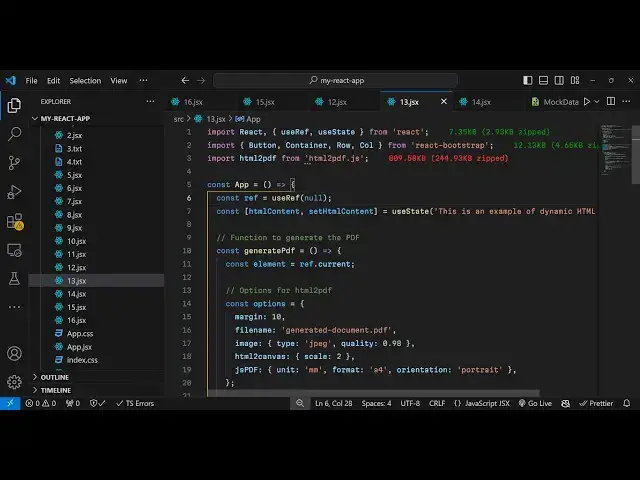
anything this is an example of dynamic
3:00
HTML content that's
3:05
all so after this we will actually con
3:09
construct the jsx part so right
3:13
here we will use some bootstrap so
3:18
container so inside this we'll basically
3:21
give a class name margin top five and
3:25
inside this you will have the row tag
3:31
so you would be aligning it in the
3:32
center position so justify
3:35
content Center
3:41
and we will have the column here so I
3:44
will say medium to six and class name
3:48
here will be text
3:51
Center and we will actually have here
3:54
the actual heading we'll give which is
3:56
html2
3:58
PDF which HTML to PDF JS in
4:06
react we just need to align it perfectly
4:10
so we'll give it a class
4:14
name so if you just refresh your
4:16
application it will look something like
4:20
this so after this we will
4:23
have the buttons
4:26
for we will have a bootstrap button
4:32
this button will simply say generate PDF
4:36
and this button will be of color variant
4:39
will be blue
4:41
primary b a on click listener so when we
4:43
click this button we'll generate this
4:46
PDF so we'll write this
4:48
function and we give it a class name of
4:52
margin bottom
4:55
three and same thing we will have one
4:57
more button this one for print
5:00
so so we have these two buttons
5:05
appearing so we just need to Define both
5:08
these functions for generating the
5:16
PDF and then the second function for
5:19
printing the
5:30
so we have these two buttons and
5:34
uh so right here uh we also will be
5:39
having
5:40
a text area where we allow the user to
5:44
enter the text so WR
5:46
here so you'll be giving this div a ref
5:50
attribute so we have this reference
5:53
variable declared early on by using use
5:56
ref so in react CH you can assign a
5:58
reference using this user F hook and
6:02
you'll be giving a border to this border
6:05
P4 padding
6:09
for so this will be displayed as inline
6:13
block just giving some custom styles to
6:17
it so inside this you will convert your
6:21
whatever HTML what is have so you have
6:23
H2 heading which will say Dynamic HTML
6:27
content so here you can write any H
6:30
valid HTML that you want to convert to
6:32
PDF and again you be dynamically be
6:35
putting your D HTML content
6:39
variable so we have this HTML
6:43
content we dynamically putting it right
6:46
here and just below it we will simply
6:49
have a text
6:53
area where we allow the user to
7:11
so so this will be simple text area
7:15
so where the user can
7:18
write so you can see we are binding and
7:22
on change here set HTML content to
7:24
whatever is the value so the value is
7:26
your HTML content
7:31
so we have this now
7:33
and if you click the button generate PDF
7:36
nothing will happen we just need to
7:38
write the function for this so for now
7:41
generating the PDF we will use your HTML
7:45
to PDF JS Library so first of all get
7:48
the element by using ref. current so we
7:52
have given this ref if you see we are
7:55
using the current property so the
7:58
current reference of the element that
8:00
you want to convert and then we can set
8:03
some options for conversion so the
8:07
margin of the PDF will be 10 and the
8:10
file name will be given as output.pdf
8:14
so the image quality I will say type
8:18
will
8:19
be jpg and the quality will be
8:27
0.98 and then we have the another
8:30
property which will be for HTML to
8:33
Canvas the scaling property here will be
8:36
two and then we have the JS
8:40
PDF here you can set the unit of the
8:43
paper millimeter
8:46
format which will be A4 size and the
8:49
orientation you can set either to
8:51
landscape or portrait I will set it to
8:58
Portrait so these are all the options
9:00
you can set and then you can use this
9:02
html2 PDF package simply call it and
9:06
then you need to provide the from
9:08
function and you need to pass whatever
9:10
element that you want to convert and
9:13
then you can set these
9:15
options and then save it so we have
9:18
these three functions in HTML to PDF
9:21
from set save so if you now click so
9:26
your PDF file will get downloaded and
9:28
you will see
9:30
all the HTML that we have is converted
9:33
so I'm just showing you very simple
9:34
example you can have a lot of lot more
9:36
HTML right here so which can be
9:39
converted it can have images videos
9:43
anything and lastly for printing
9:47
purposes we have a function in html2 PDF
9:51
again we need to get the element so ref.
9:54
current so once you get the element we
9:56
can construct the PDF window. open
10:06
and so
10:08
width here we just need are constructing
10:11
the printing window width 800 height is
10:17
600 this PDF window
10:21
and like this you can do
10:26
this so we have a function
10:33
so this print function available and in
10:36
this way you can print your file as
10:40
well so the printing window will open
10:42
right here you'll see
10:44
that you can
10:52
control so in this way you can also do
10:54
the printing operation as well so this
10:56
was a short little video explaining
10:58
about how how to do this process in HTML
11:01
to PDF in react CH so thank you very
11:04
much for watching this video and do
11:06
check out my website as well free mediat
11:08
tools.com which contains thousands of
11:10
free tools regarding audio video and
11:12
image and I will be seeing you in the
11:14
next video
#Other
#Other