live_tv
Livestream Starting Soon
00
Hours
:
00
Minutes
:
00
Seconds
Up next in 10


Buy the full source code of application here:
Show More Show Less View Video Transcript
0:00
uh hello guys welcome to this video so
0:02
in this video we will look at how to
0:04
build out a Google Books search app
0:07
using the Google Books API inside your
0:10
reactjs application using the AIO
0:13
library and this is actually the
0:15
interface that we built using bootstrap
0:18
using react bootstrap so we have a
0:20
search field where we can enter the
0:22
title of the book so let's suppose you
0:24
want to search books related to
0:26
JavaScript so if I write this click on
0:28
the search button you will see will
0:30
fetch the books from the Google Books
0:33
API and it will display these books
0:34
related to JavaScript so you can click
0:38
you can see the title what is the author
0:40
of the book and you can even see the
0:41
thumbnail of the book as well so
0:43
appearing and if you want to get more
0:46
information about this book you can
0:47
click the title and it will redirect you
0:49
to the actual link of the book where you
0:51
can read more about the book so it's a
0:54
simple book Search application which we
0:56
use the Google Books API for building it
1:01
you can change it let's suppose PHP so
1:03
now it will search books related to PHP
1:07
a very simple application you will get
1:09
to know about how to use the Google
1:11
Books API so first of all you do need to
1:14
create a Google Cloud console account
1:16
I've already created one so right here
1:19
you do need to create first of all
1:22
enable apis and services go to the
1:25
section and just search for the API
1:27
called as Google Books API and in enable
1:30
that
1:31
API so just search for this API Google
1:34
Books
1:36
API and this API will come you need to
1:39
click on enable buttons so I've already
1:41
enabled this and then you need to create
1:43
your own API key so just go to
1:45
credentials and just create the API key
1:49
which will be required so right here you
1:52
need to create this API key I've already
1:55
created one so I will just store this
1:58
this is my API key so now now coming to
2:00
the project we just need to actually
2:03
install some modules which we are using
2:06
right here let me show you we are using
2:08
react bootstrap we are also using the
2:10
xos package so you need to go to your
2:13
command
2:15
line and install these modules so just
2:18
I've already created this brand new
2:20
react CH project npmi xos react
2:25
bootstrap and bootstrap so these three
2:28
packages are required just install this
2:31
so I've already installed it so
2:34
now we will build out this application
2:37
from scratch so I will delete everything
2:40
all the source code is given in the
2:42
description so I will just make a simple
2:45
functional component and uh I will
2:48
require all the modules one by
2:53
one so we need to include the react
2:56
bootstrap and XO package using the
2:59
import state stat M so I will just
3:01
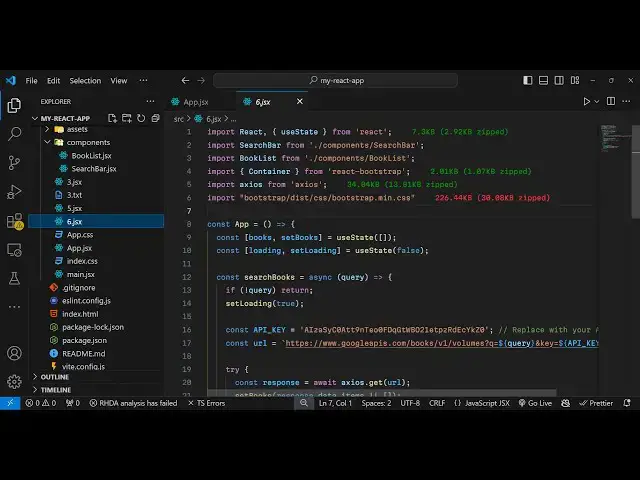
import this you will see
3:04
xos bootstrap CSS file and the container
3:07
class from react bootstrap and for this
3:10
application we need to declare two State
3:12
variables first is to keep track of the
3:16
books books set
3:18
books we'll use the UST State hook
3:20
initial value will be an empty array and
3:23
then for showing a simple loading
3:25
progress bar we just need to declare
3:28
this Boolean param loading set loading
3:31
and the initial value will be
3:35
false so these two variables we have
3:37
declared and now coming to the jsx we
3:41
will use the container component of
3:45
bootstrap and right here I'll be giving
3:48
a bootstrap class of
3:51
margin four and right here in this H1
3:54
heading we'll say book search app
4:01
and I will divide this application into
4:03
multiple
4:04
component so we need to we will be
4:07
having two components first is a search
4:10
bar so I will declare this component
4:12
search bar the second one will be book
4:15
list so here these two components in the
4:18
search bar you will have a search field
4:20
and the book list will be book books
4:23
which will be returned from the API so
4:25
now we just need to create in the source
4:27
directory a components folder
4:30
and just declare these two components
4:32
which is search
4:33
bar jsx and uh book
4:39
list so one by one just make this
4:42
functional
4:46
component and now we can include this
4:49
simply by typing search part V Visual
4:52
Studio will automatically include
4:55
that so now in these two components we
4:58
just need to pass some attribut some
5:00
props so we are passing this on search
5:03
function I will Define this function
5:06
right here which is search books so
5:08
whenever someone searches for any book
5:12
this function will get execute and right
5:14
here we will Define this function which
5:17
is used for searching the books from the
5:21
books API so I will make this function
5:24
as async the cury will be passed as an
5:28
argument so right here inside your
5:31
search bar I will go to this
5:34
component and inside this search bar
5:36
component as you can see we are
5:38
receiving an argument which is we are
5:41
passing this prop which is on
5:46
search and now we need to declare the
5:50
state variable for this component which
5:52
is the query set
5:58
query and we'll use use the UST State
6:00
hook initial value will be nothing so
6:02
this is specifically declared for
6:04
keeping track of which search the user
6:06
searches for the
6:09
book and now you'll have a simple react
6:12
bootstrap form you'll use the form
6:14
component from react bootstrap and we'll
6:17
bind and onsubmit event handler so
6:19
whenever you submit the form we'll
6:20
execute this function uh give it a
6:23
bootstrap class
6:26
of and then we'll have a row and inside
6:30
the column component and will be
6:37
giving inside this you'll have the form
6:44
control it actually takes the type
6:46
parameter to be text we'll give it a
6:49
placeholder which will say search for
6:54
books the value will be equal to the
6:57
query that the variable that we defined
6:59
and then we'll be binding an on change
7:01
so whenever you write something in the
7:03
search field we will execute this
7:05
function that we passed which is set
7:08
query which is a hook function and
7:10
whatever is the target value entered we
7:13
can get easily by using this e parameter
7:16
which is automatically passed so e.
7:18
target. value so we are using this hook
7:21
function to actually get the value which
7:23
is entered by the user so we can do like
7:26
this don't have the closing tag
7:30
so if you refresh your application go to
7:32
Local Host 5173 you will actually
7:35
see uh if I open
7:45
this I think we haven't started the
7:47
application npm run Dev so just refresh
7:51
your
7:54
application you can't see the search
7:56
field uh I think it is saying that the
7:59
handle submit is not defined in the
8:01
search bar component so we do have
8:03
defined this function so we just need to
8:05
Define this handle submit e parameter
8:09
will be passed so whenever you submit
8:10
your
8:13
form so now you'll see this bootstrap
8:16
search field and you will see so this
8:20
component is almost ready now whatever
8:23
we type whenever we submit the
8:27
form we do need a button as well
8:30
so right here we'll have the call
8:33
component again
8:37
so so this is for just for alignment
8:40
purpose we are using react bootstrap
8:42
this is not mandatory for this tutorial
8:44
so button type will be submit and I will
8:47
use a primary button which is a blue
8:49
color block element and simply the label
8:53
will be search if you refresh your
8:55
application you'll find this button is
8:57
added side by side
9:00
so whenever you submit your form now
9:02
inside handle submit what I will do
9:05
first of all e do prevent default to
9:07
prevent the auto submission of the form
9:09
and then we will call this function that
9:11
we passed as a prop on search and pass
9:16
the value which is the query actual
9:19
query so now we just need to Define this
9:21
function
9:23
searching so right
9:27
here we will console the cury which is
9:31
and then you will make a simple get
9:33
request to the books API so first of all
9:37
you will be setting the loading to be
9:38
true we will show the progress bar and
9:40
then here you need to configure your API
9:43
key from your Google Cloud console so I
9:46
have already created this API key so
9:48
this will be different for you just
9:50
create your own API key and replace it
9:52
here and then we will have this end
9:55
point we'll make this get request to
9:57
this rest API w
10:00
www.googleapis.com
10:02
books SLV one SL
10:08
volumes question mark and C is equal to
10:11
and here you need to replace your query
10:13
so I will just make this a back te
10:15
symbol so that I can replace the dynamic
10:18
value
10:20
so you can see we are replacing this
10:22
Dynamic query and then also need to
10:25
replace the API key so key is equal to
10:33
this is
10:34
your url constructed so we passing the
10:37
cury and the API key in the URL and
10:40
then we need to make use of exio
10:45
Library we imported at the top inside
10:48
this TR catch block if any sort of error
10:51
take place we can console log
10:54
this so right here we'll make use of the
10:57
exos package and just make a simple get
11:01
request it actually contains this get
11:03
function and pass this URL as an
11:06
argument so whatever the response is
11:08
returning we will actually store it in
11:13
this hook
11:14
function and we can even console log it
11:17
just to see on the browser
11:30
so if you now search for something let's
11:33
suppose JavaScript and submit the
11:38
form you'll see uh it will receive an
11:42
object from the API and the data will be
11:45
returned so this data it's an array here
11:47
you can see it is returning the 10 books
11:49
which are closely related to your search
11:52
query so each book has some properties
11:54
right here access info ID of the book
11:57
search info which contains more
11:59
information text snipp
12:01
it so this is the thumbnail of the book
12:04
volume info which contains description
12:07
image links info link language of the
12:09
book page count so all sort of this
12:11
information is returning from the book's
12:13
API so we just now need to display this
12:16
information so we are storing it and
12:19
after we do this
12:22
uh
12:23
we just need to hide the progress bar so
12:27
set loading again to false so now inside
12:30
this book list component we are
12:33
rendering it so we need to actually pass
12:36
this books as an prop this is a and also
12:40
the loading whatever is the value you
12:42
need to pass so we are passing these two
12:44
props to this component book list so in
12:47
this book list component uh now we are
12:50
re receiving these arguments so we need
12:52
to destructure it books comma
12:57
loading so now in the Js X depending
12:59
upon this Vari uh value we will actually
13:04
conditionally render it so if the value
13:06
of loading is true in that case we need
13:08
to show the progress bar so in that case
13:11
we need to return a progress
13:13
bar we'll use a simple bootstrap
13:16
progress bar aligning it in the center
13:19
position and we'll be using the spinner
13:22
component coming from react
13:24
bootstrap and don't need the closing
13:28
deck we can simply simply
13:32
say spinner and put an animation here to
13:42
border so in this way so if the loading
13:46
is true then we show this progress part
13:49
so right here
13:52
inside if the books length is zero in
13:55
that case you will show no books is
13:57
returned to us so you'll simply say no
13:59
books found try another search so now we
14:02
will show the jsx if the books have been
14:06
there in that case we will
14:10
return we need to display the books in a
14:13
gridlike structure we'll first of all
14:15
Loop through this array map function we
14:18
have passed it as a prop and for each
14:24
book first of be extracting the
14:27
information which is the ID the volume
14:29
info which is from this book and then we
14:33
again need to extract the title the
14:37
author
14:38
information the image links and the
14:41
preview link all this will be
14:43
destructuring it from this volume info
14:46
object so now we just need to display
14:49
this
14:53
uh so you'll be having the return here
14:56
and then we'll be showing inside this
14:58
call you'll just mention medium to
15:02
four giving a key parameter to ID and
15:06
giving a class name
15:13
to and you'll be showing it in a card
15:19
structure first of all be showing this
15:23
image and inside the body so we'll just
15:28
show you
15:38
so in this way you can display all this
15:40
information all the source code is given
15:42
in the description so we are showing the
15:44
preview of the image preview of the book
15:47
so we have this image links it contains
15:49
the thumbnail property and then we are
15:52
showing the title of the book so we are
15:56
showing the title and then we showing
15:58
the author information
16:01
everything so this we are just using
16:03
some bootstrap to align it perfectly so
16:06
now you'll see your loading progress for
16:09
appearing you just need to search for
16:11
JavaScript now click on the search
16:15
button it is saying that no books is fin
16:19
it is saying cannot read properties of
16:23
uh undefined in
16:27
app respond on sorry we have made a
16:30
spelling mistake this needs to be small
16:35
R inside here yeah this needs to be
16:44
response so if you just write something
16:46
like PHP uh click on
16:52
search it is saying that row is not
16:55
defined so sorry we haven't imported all
16:58
the
17:13
components so now you'll see all these
17:15
books will show related to PHP top 10
17:18
books and you can see the title
17:20
description preview thumbnail of the
17:22
book you can click on any of these
17:23
titles to show to get to the book it's a
17:27
simple book search app using the Google
17:29
books apis inside react CH and we have
17:32
used the AOS package and react bootstrap
17:35
for building the user interface so you
17:37
can search for any book that's suppose
17:39
related to coding so you can see so
17:43
thank you very much for watching this
17:44
video and do check out my website as
17:46
well freem mediat tools.com which
17:48
contains thousand tools regarding audio
17:50
video and image and I will be seeing you
17:53
in the next video
#Books & Literature
#E-Books
#Other