live_tv
Livestream Starting Soon
00
Hours
:
00
Minutes
:
00
Seconds
Up next in 10

Build a React.js FFMPEG WASM GIF Editor to Change Speed & Rotate GIF in Browser Using Javascript
Jan 9, 2025

Buy the full source code of application here:
https://procodestore.com/index.php/product/build-a-react-js-ffmpeg-wasm-gif-editor-to-change-speed-rotate-gif-in-browser-using-javascript/
Official Website:
https://freemediatools.com
Show More Show Less View Video Transcript
0:00
uh hello guys welcome to this uh video so in this video we will actually be coding a reactjs application which uh
0:09
allows you to actually edit your uh GI files so I basically developed this tool
0:17
on my website I've deployed this tool on freem mediat tools.com so this is actually the YouTube channel of this uh
0:24
uh website so I have this website freemed tools.com so if you go to it so the latest tool that I added on my
0:30
website this is the GIF speed and rotation editor so with the help of which you can be able to change the
0:36
speed of your GIF files or you can even rotate them also so let me just take an
0:41
example right here and you can see I deployed this you can check out the live demo as well so here this is actually
0:48
the interface which I developed this using Tailwind CSS and you basically see a choose file button so here you need to
0:55
Simply select your GIF animation file right here guys so GIF animation if you don't know about GIF animations are
1:02
special images which are simply made of animations you can see it's a animation
1:09
file of GIF animation and we have two sliders available right here to actually
1:14
uh increase the speed so as you basically increase or decrease the slider you will see the label will increase here you will see it will tell
1:22
you exactly which is the speed right here so if I increase the slider or decrease the slider the value will
1:27
change right here so let's suppose I want want to increase the speed of this GIF animation I will increase the value
1:33
so the speed is 4.4 and now you can even change the rotation angle as well so you just need
1:42
to change the value here so if you are happy with this value now you have this
1:48
button right here process so you will simply click this button and now as you click this button the processing will
1:55
start and after that you will basically see your GIF animation has been
2:00
successfully rotated at an angle of 133° and speed has been increased to 4.4 so
2:07
you can take any GIF animation of your favorite just change the rotation angle click on and you will basically see a
2:15
model window will appear simply telling that it is processing so after processing it it will show the output
2:21
file in a gif animation and there will be a download GIF button so if you
2:26
are satisfied with the result you can simply export this to a gif animation
2:31
simply click this button so as you click this button your file will be saved in a gif file you will basically see your
2:38
simply your GI file has been rotated and the speed is also changed it has been rotated at an angle that you choosen
2:45
right here which is 306° and the speed is also being increased so similarly if
2:51
you want to decrease the speed you can just uh decrease the value of the slider
2:56
so now it the speed is 0.5x so now the speed as you can see it is
3:02
decreased if you see right here the size of the GIF animation will increase right here and if you play the GIF animation
3:09
file you will see the speed of the GIF animation will be decreased right here so you can play with this
3:16
application I have successfully deployed this on my website freem mediat tools.com and we will be building this
3:23
application from scratch in this video so let me first of all tell you what
3:28
what technologies we will use for this first of all we will be using react chers which is the number one UI library
3:36
for building user interfaces and we will be using react chers for building this application and the second technology we
3:43
will be using is fmpg web assembly fmpg as you all know it's open source video
3:49
and audio processing library but fmpg do web assembly enables you to use this
3:56
very popular library in the browser so you can directly use this in the browser
4:03
to actually edit your media files so we will be using this Library so these
4:10
two uh packages we will use so first of all react for actually building it in
4:15
the browser and then the fmpg web assembly you will also be using Tailwind
4:21
CSS for actually designing the UI so if you don't know about Tailwind CSS
4:29
it's a very good UI library for building user
4:34
interfaces uh for this you don't need to write external CSS you it has premade
4:40
classes that you can attach to the HTML so these three packages we will use guys for building this application so you can
4:47
directly purchase the full source code at the end of this video if you need the Full Source Code full directory
4:52
structure you can go to my website I have I am selling this source code so
4:58
you can go to Pro Cod store and purchase the full source code after you purchase it you will be redirected
5:03
to Google Drive where you will actually get the full directory structure full zip file automatically after the payment
5:10
you will be redirected to Google Drive and you will get the zip file you just need to extract the zip file and you
5:16
will see I'm running this application on Local Host 3000 and simply you need to
5:22
first of all npmi so this will install all the modules and then you just need
5:27
to start your server by invoking a very simple command which is npm Run start so if you need the full
5:34
source code the link is given you can directly purchase it after purchasing it you just need to extract the content of
5:41
the zip file and simply execute this command which is npmi so this will exec
5:47
install all the nodejs modules and simply type npm Run start so this will actually start your
5:55
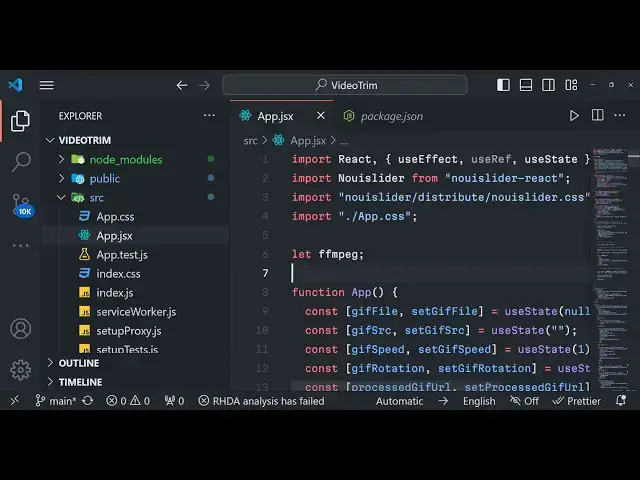
application on the local development server which will be Local Host 300 ,000 by default all react CH applications
6:03
start on Local Host 3000 so in this way so in the next section we
6:11
will try to build this application from scratch so I will be seeing you in the next
6:19
section uh now guys we will start building this application so I'm there on my project directory so I will simply
6:26
open command line and for building this we will be using a development engine
6:32
which is vit so if you don't know about V it's a popular development environment
6:38
where you can actually build out react chairs view chairs all these popular Frameworks applications so it is really
6:45
fast so it's a front end tooling system uh similar to webpack so it's really
6:51
fast so we will be using it so there is a simple Command right here in vit which
6:57
you can npx create react app or we Sorry create Das v v t-
7:07
app and then you need to Simply name your application let me name it as GIF
7:12
editor project and then you need to Simply type dash dash template so we are
7:18
developing react Chase application so I will simply write here react this is actually the command guys you will see
7:24
that npx then is the create re vtab and this is actually your project name so we
7:31
have GIF editor project-- template and this is actually the react CH
7:36
application so this is the overall command so if you just execute this
7:41
command and you will basically see you will get this message now you can CD
7:46
into this npm install and npm runev to actually start the development server so
7:53
I will simply go to the project directory give editor project and then I will install
7:59
all the modules by invoking this command which is npmi so this will actually
8:04
install the basic react CH packages which are required for actually building
8:10
a react Chas application so this will hardly Take 5 to 10 seconds so V it is
8:16
really powerful and it is really fast in building your react is bundling the
8:22
dependencies if you are basically building it using react JS command line
8:27
it's really fast so that's why we are using it so it takes less time in
8:34
running projects and building also so once it is done we will
8:40
start to actually install two packages which are required
8:46
for building this application so one such package I I'm
8:51
talking about is this package which is if you go to npmjs.com you just need to
8:58
search for this pack package the name of the package is no UI
9:04
slider D react this is actually the package we will use guys for actually uh
9:10
setting the start and the this package for this
9:17
application you need to require this is a slider package if you want to
9:22
integrate sliders inside your react Chase application so this is specifically made for react Chas
9:28
applications so there is a simple command which we need to invoke which is npmi no UI slider - react so you can see
9:37
that now it has installed it if I open this you will simply get this directory
9:42
structure this will be your jsx file very simple react Chase project right
9:48
here and we just need to in npmi install this
9:55
package no UI slider Das react so now we can run this development server npm run
10:02
Dev so this will actually start your development
10:07
server so it is bundling all the libraries so just wait you will see
10:14
Local Host 3000 so if you just open the address Local Host
10:20
3000 this is a basic react Chase project you will see
10:25
that now we just need to edit this file app.jsx if you see there is this file
10:31
present simply I will replace everything here with a simple heading hello world
10:40
so it will automatically refresh hello world will be printed out so that's all
10:45
and now we don't need the logo we will eliminate this we don't need this also
10:51
so you can remove this from here so this is actually the directory
10:58
structure very simple and you can see inside package.json we have installed this package which is no UI slider react
11:07
so this is a package We Are One external package that we are using apart from the
11:13
web assembly library of fmpg now guys for the very first time we go need to go
11:19
to the public folder this index.html file right here so in in this file we
11:25
need to include the CDN for Tailwind CSS as I already told you we are actually
11:31
using Tailwind CSS for the UI purpose we just need to include the CDN for
11:37
Tailwind so just go to their official website copy the CDN and after the title
11:42
paste it and apart from that we will also be using a sweet alert to which is
11:49
actually a alert based Library so sweet alert if you don't know
11:56
they have their own official website so it customizable alert boxes so it looks
12:02
really good that's why we are using it inside this project so they have
12:08
installation if you see you need to include the CDN for this just copy the CDN and paste
12:14
it so that you can use it inside your react Chase
12:24
application and I think we also need to include the CSS part as well
12:30
so just after the title paste all these C so if you purchase it you will
12:36
automatically get all this set up you don't need to manually set up you will get all the project files if you
12:41
purchase it the link is given in the description of the video so coming back to
12:47
app.jsx now we just need to make some changes in the UI instead of this hello
12:52
world we need to show to the user we will be using these Tailwind classes
12:59
we need to set [Music] here P6 P SS for
13:07
padding and BG stands for background color BG gray 100 is the shade and then
13:14
minimum height screen so these are all Tailwind classes guys as you see we are
13:20
adding multiple classes here and then items Center so we have
13:28
basically given in a div right here and attached all these classes and inside this we will be having a heading so
13:36
text you will set the size 3 XEL the size it will be bold margin bottom six
13:44
text Gray text will be in gray color
13:50
800 and uh you will basically set the title to be give speed and rotation
13:56
editor so if you just refresh your
14:02
application you will basically see it will appear like this give speed and rotation
14:08
editor so after
14:18
this sorry this needs to be Flex I basically made a spelling mistake so now
14:24
it will appear right in the right full position at the center of the screen at the top center of the screen so after
14:31
this we will actually be having a input field where we will ask the user to
14:37
actually upload or select a gif file we will only be accepting gifs file so we'll be giving an accept parameter
14:44
right here we will only be accepting GIF animation files and this will be
14:51
required and we will be giving a class name these are all Tailwind classes we
14:56
will give here margin bottom four padding to we'll give it an
15:03
border of gray 300 and it will be rounded on medium devices and it will
15:11
also be having a shadow on small
15:16
devices so that's all if you refresh there will be this uh input file added
15:23
right here where you can select your GIF animation files if you try to select any other file you will basically get a
15:36
error so after doing this guys we need to declare our state variables
15:45
for our react Chas application so for every react Chas application if you are working with data data is called as
15:53
state in react CH application if you don't know so we need to declare some variables here
15:59
so first variable we will declare is the gift source so this variable will be
16:05
responsible for storing the input file GIF
16:10
animation such that if the user selects this using the input field we will be
16:16
storing the file using in the in this variable the actual file which is selected by the user will be saved
16:22
inside this variable and the second one will be the actual speed so whatever speed is
16:30
selected by the user which will be stored inside this variable so if you
16:35
don't know about use State UST state is actually a hook if you don't know about react Chas hooks you can search react
16:43
hooks where there are various types of hooks available one such Hook is UST state which is required to
16:51
actually uh which is responsible to actually manipulate with the data and
16:56
the state of the application so this is the actual variable and this is actually the method to actually manipulate the
17:03
state to actually set values this is meant by these two variables and again
17:09
the initial value here we need to provide the initial value so this will be empty similar to this the speed will
17:16
be one by default and similarly we need to set the rotation as well GI rotation
17:24
we will call this you can call this anything set GI rot ration so this is
17:30
actual method name and again initial value of it will be 0° by
17:36
default whenever you load the application for the very first time so the next variable will be the
17:45
output URL you will be storing this I will call this as processed GIF URL and
17:53
the function will be set processed GIF URL and then
18:00
initial value will be nothing again and here this variable will be
18:05
responsible for actually loading the fmpg web assembly Library this will be a
18:11
boodan parameter and basically is script loaded and set is script loaded this is
18:17
actual method the initial value will be false because we haven't loaded the fmpg
18:22
web assembly library in the browser so this variable will be useful
18:28
to keep track whether the fmpg is loaded in the browser or not we will change
18:33
from false to True when it loaded the last but not least is the processing so
18:39
we will be basically be showing a alert message to the user whenever the
18:45
processing is taking place this is again a Boolean parameter set is processing
18:51
initial value will be false once again because the file is not processing
18:56
that's why it is false so we can see we have declared all the state variables
19:01
which are needed for this uh application now we just need to declare our sweet
19:08
alert variable so this is required guys you just need to write this comment so
19:14
that we can use it as a global variable because we are actually
19:19
including suet alert to library in the CDN if you see in the public index.html
19:25
we have included it the CDN right here for the CSS the JavaScript that's why we
19:30
do need to include this comment right here to actually enable site alert
19:36
library to actually use it inside this component so just write this comment
19:42
right here as it is if you don't write this comment you will get
19:48
error so we need to declare this Global variable Global swell and just close
19:56
this comment that's all so now you will be able to use sweet Alert 2 library inside your react Chase application so
20:03
after this guys what we need to do we now need to once again use another hook
20:08
here in react chers which is called as use effect so
20:14
use effect guys is typically used let's suppose your application is
20:19
loading for the very first time so this hook only execute once so here you can
20:26
actually load any external library that you we are using so we will be loading our library
20:33
which is fmpg web assembly this will be only be loaded for the very first time
20:38
when the application is loaded so here you need to provide square
20:45
brackets so inside this we will be writing a simple function which will be
20:50
responsible for loading this I will call this as load script and I will need to
20:56
provide a URL here from which which the library will be loaded so this will be
21:01
the
21:07
URL npm at the rate
21:12
fmpg fmpg at theate this is actually the full URL
21:18
guys of the CDN Library which is hosted you can also cross verify as well
21:26
if you open this URL in the browser you will actually get the actual library of
21:33
fmpg web assembly so we need to actually fetch this library in the browser and load this now we need to Define this
21:41
function which will actually return a promise to us we can handle this Promise
21:46
by do then and inside
21:52
this we will actually be loading this if type of window is uh
22:04
so here we can simply say we need to declare a global variable right here at the very top fmpg we'll be storing the
22:13
reference of fmpg in this variable we can simply say fmpg is equal to
22:19
window. fmpg do create FM this is actually a
22:25
method which is available in fmpg web assembly Library and here log is it to true so basically
22:34
all the log statements will be available in the inspect element of the browser console if you set it to true and uh
22:42
there is a method which is fmpg do load so it will actually load the library in the application and then we can set this
22:50
variable from false to True which is the hook set is script loaded to true you
22:57
can see we have declared this hook method we are calling it to actually manipulate this state from change this
23:02
value from false to true we are doing it so now we just need to Define this function which is load script which will
23:09
be responsible for actually loading the script so you will Define this function
23:16
load script which will actually be taking a source parameter as an argument you're passing the full URL as it is you
23:23
can see that so right here inside this here we need to return
23:29
a promise from this because it's a Asing function so either the promise can
23:34
resolve or reject so here we are basically creating a script
23:42
element by using document. Create element if you if you know about Dom you will note
23:49
this method which is responsible for creating Dynamic elements so we are creating a
23:55
script element we are actually saying script. async to true because it will be
24:02
async async must be loaded script. defer is also be equal to
24:10
true and script. Source will be equal to the Past Source property which is passed
24:15
right here it's a very simple function just doing its task and we are basically
24:21
onload so when the library is loaded we will actually resolve the promise and
24:27
pass the script if any sort of error take
24:34
place we will actually reject This Promise call the reject function and
24:40
passing a error and we can simply say that script load error
24:47
for fmpg web ass that's all and now we just need to add this to
24:54
the Dom so we can simply say to the Head element document. head append script
25:00
that's all in this function very simple function we create an script element we add the source we add these two
25:07
parameters async defer and then Define this onload when the script is loaded we
25:12
will resolve the promise and if it has some error we will reject it passing
25:18
this error message and lastly we will add this script element to the Head element in the index. HTML so this will
25:25
be automatically dynamically be added so using this function which is load
25:31
script this will be executed whenever you load this use effect this will automatically be called if I basically
25:38
add a alert statement here you will basically see this alert statement will be
25:44
executed so if I go to the browser now you will see that if I go to my react
25:50
CHS application refresh so you just need to refresh your
25:56
application for this
26:06
so it is running Here Local Host 30001 so here we need to change the
26:13
port number here you will see it this alert message will print out hi hello and if I go to
26:21
the inspect element go to console you will basically see here
26:30
uh you can see this loading fmpg dashcore and you will basically see this
26:37
error right here guys this is very common error in fmpg web assembly Library shared aray buffer is not
26:43
defined and if you are building it using vit there is
26:49
a config file which will be available to you which is VC config.js file and here
26:55
we need to add two headers to actually counter this error if you're developing it on
27:02
local environments you will get this error shared array is not defined so to resolve this error you need to add two
27:09
headers right here V config.js so I will simply go to chat GPT and
27:15
actually get my answer so I will simply write a simple
27:21
prompt please uh
27:28
provide the headers to here to resolve shared array buter not
27:36
defined for fmpg web assmbly it will automatically add the errors headers
27:43
which are required so in this way you can use chat GPT for your advantage simply copy it paste it so what it will
27:51
do it will add these two headers right here cross origin opener policy to same or and
27:58
cross origin embedder policy to require cop these are the two headers we need to write guys if you just refresh your
28:06
application you will basically see that error will go away if you once again go
28:12
to inspect
28:19
element this error will you can see that it is using this version number version
28:25
0.112 it is loading it
28:30
just need to refresh your application one more
28:38
time so it is saying that uh V defined config is not a
28:44
function so what you will do control C just ask go to chat GPT
28:52
and paste is simply type
29:01
so it will give you this simply copy this so whenever you
29:06
make changes inside your V config.js you need to actually restart your
29:22
application so if you see yeah so we have the server block right here we need
29:27
to add this this just put a
29:39
comma uh sorry guys the problem was really simple and V basically has a
29:46
latest version which is four version I was using the outdated version simply update the package.json file and uh
29:53
inside your Dev dependencies change the V version to 4.0 Z this is the latest
30:00
version of vat and change this to 4.00 and simply again npmi this will
30:08
actually update your V version so after you update it simply run your development server it will start this
30:14
development 5173 in the latest version of v it basically start your application at Port
30:22
number 5173 so if you just now see this alert message will open and you'll see the
30:29
fmpg web assembly Library will be successfully loaded and you will not see
30:34
that message shared AR not defined that error message is gone and we have successfully loaded the fmpg web
30:41
assembly library now our task is very simple we now now need to
30:47
actually uh bind a method right here to this input element whenever we change
30:54
whenever we select our GI file there will be this method which will be automatically be triggered once we
31:01
select our file so right here what we need to do right
31:07
here if you see we now need to actually bind a
31:14
onclick listener so whenever we select any file right here we will call this as on
31:22
change this event will this will automatically trigger this function when whenever you select
31:28
your uh gif file this function handle file upload you can basically call this
31:34
anything I will call this like this handle file upload now we just need to Define this
31:41
function right here we can Define it right here so just say const handle file
31:48
upload and here e parameter will be automatically be passed to this function
31:54
and here we will get to the file which is selected by the user so we will say e. Target
32:00
dot files zero this is the actual Way by we get to the file we can console log
32:07
the file and if I actually let me just delete this alert message which is
32:14
coming just delete it just refresh now and once we actually
32:21
select any file if you go to the inspect element go to console you will be basically see
32:28
this file will be having all these properties the name size type we'll get
32:34
all this access to all these properties using this file object now we just need
32:40
to access this uh object that we got which is a
32:45
file and now we just need to actually set all the state variables so we'll set
32:52
the GI file
32:59
set the GIF uh file I think I declared sorry
33:06
this needs to be uh let me see I call this
33:12
wrong set there is also a GI
33:22
Source okay okay set okay let me also declare this GI
33:29
file as well set GI file and initial value will
33:37
be nothing so right here now we will be uh setting our GI file
33:46
we'll call this function set GI file to the actual file which is
33:52
selected by the user and also set give
33:58
source to the for this we need to actually convert
34:04
this into a blob URL so right here we will actually be having a if condition if file
34:11
and if the file type is equal to condition if it's a GI file then only
34:18
execute this code like this simply format like this
34:26
so after this we will actually be calculating our blob we will convert
34:31
this into blob URL so URL
34:36
do create object URL and we will simply pass the file it will actually convert
34:43
your file to a blob here and we set it to a blob URL like
34:50
this and also we will set the processed GIF URL to be
34:58
nothing because we are not processing it so the output file will be nothing here
35:05
we just starting to Pro process this file so this is all that we it will go inside this
35:10
function so if this is not a GI file we will actually be showing a alert message
35:15
to the user because it's not a give file also close this and there will be
35:24
this else block and here we will simply be showing a sweet alert message to the
35:30
user that inv valid file you need to select uh please upload or please
35:37
select a valid this will be error message please select a valid gift file
35:43
and this will be error message the third argument to this uh Library function
35:48
fire will actually open the alert message so if you go to your application try to actually select any different
35:54
file let's suppose by by default it will only show GI files so by chance if you select a
36:02
mp4 file you will SE see this awesome little validation message please only
36:07
select a valid GI file so this makes it very much easy for the user to actually select only GI files so after you do
36:15
this guys we will actually be writing some uh
36:20
jsx conditional HTML inside of a react CH application just go to right here and
36:26
we will actually writing a simple curly bracket and write here gift source so
36:33
if the input file is selected by the user then only this code will execute
36:39
inside parentheses like this and here inside this we will actually be
36:45
writing our div class
36:53
name give source
37:04
uh uh let me see what is actually it is having
37:14
error let me see I declared this give
37:20
Source yeah this is the set gift gift source is there we are basically using
37:26
this variable right here
37:34
okay this parent div needs to be right here because we Clos this application right here so it needs to be inside this
37:43
so your react Chase application must only contain one parent if so we have this one parent if so all the jsx will
37:50
go inside it so that's why so give
37:56
Source uh if this variable exist then
38:01
only we will need to write some here uh
38:08
div we'll basically give it a class name here of relative margin bottom for these
38:14
are all Tailwind classes we will actually be showing this in the image tag the gif file the input image file
38:21
which is selected by the user this will be in Co bracket GI source
38:28
this will be a blob URL and we'll give it a original this is the original GI
38:34
file and we'll give it a class name W full Max W on medium devices and it will
38:41
be rounded on large devices it will also have a shadow on large devices that's
38:49
all so if you just uh see guys uh your GI file will be displayed if you
38:55
see if I try to select select this gift file and uh let me
39:06
see W full maxed W medium
39:16
rounded should display
39:23
but let me just select
39:30
so why it is not displaying let me see guys why it is not displaying it should display this GI
39:39
file uh guys there was just internet connection problem so all the code was
39:45
correct if I basically select my GIF animation file you will see that now it is displaying right here in the
39:52
application so you can see that now the GIF animation is displaying this is actually ual input file we are showing
39:58
the live preview to the user whichever GIF animation file that they have selected the GIF animation will play now
40:05
we need to add the sliders for changing the speed and the rotation angle of the
40:11
GIF animation now going back to the GSX right here you will see we have written this much code so after this guys we
40:18
will be actually be the div tag we will be adding some Break Tag
40:29
so after this Break Tag we will be having another diff so this
40:36
time this will be for the sliders MD margin bottom four these are all
40:43
Tailwind classes and uh right here we will give it a label as well for better
40:50
understanding for the user what to do here so it will be a block Tel element
40:56
margin bottom two two text will be in gray color of 700 shade and it will
41:02
simply say speed and here the user must select the speed and we will be using
41:10
that uh no UI slider guys it will automatically imported right here at the very top no UI
41:17
slider and uh you can see that so we also need to import the CSS file CSS
41:23
will also be imported from the distrib vs code will automatically import all
41:31
the things we need for this package these two lines will automatically get added now we can use the slider Library
41:38
so this makes it uh easy for making sliders inside react Chase application
41:46
so this basically contains uh property here first is behavior and this will be
41:53
tap and drag you can drag the slider or you can tap it step parameter is 0.1 you
42:02
can set this to any value range here we need to provide the
42:07
minimum and the maximum so minimum will be 0.1 x maximum will be five and
42:14
starting value will be 0 one so I'm am setting one right
42:23
here this needs to be square brackets not
42:29
and this is connect and on just close
42:34
it and if you just see guys there will be this slider which will be added you
42:39
can see that nice little slider and you can basically control the speed with it
42:45
and we also need to show there will be this method which will be there on update whenever you
42:52
change the slider this function will automatically execute I am calling this as handle speed change now we need to
43:00
Define this function and also guys uh we also need
43:07
to uh show the preview which value the user has selected for the speed and the
43:14
same thing we will do this for the rotation as well so I will simply copy
43:20
this one more time just to save some time I will paste it and this time it
43:27
will be for the rotation rotation
43:34
angle and once again the minimum will be zero and the maximum will be 360 because
43:42
360 is the maximum angle you can rotate starting will be
43:47
zero and this will I will change this to handle rotation change this function
43:59
and apart from that the step value here will be one like this that's all and uh we now
44:07
need to Define these two methods it will give me error so we just need to Define these two methods right here handle
44:15
speed change and also our handle
44:22
rotation change
44:28
so if you just refresh now there will be two sliders which as you select your GIF animation this is a speed and this is
44:35
the rotation so one problem is there if I change the slider I'm not seeing any value right here so now to see the value
44:43
being updated you now need to go to your jsx just after this give it a Break Tag
44:49
and uh we need to add a div here right here where we can
44:55
actually SE which value the user has selected in the slider you will show the
45:01
speed here so it will be directly here give
45:07
speed we have declared a state variable of GI speed X and comma for the rotation
45:15
as well we will directly be embedding this inside Cy brackets give rotation these
45:22
are state level variables we are doing it so I will simply copy this symbol for
45:29
the degree just paste it right
45:34
here so initial value gift speed gift rotation if you check in the UST State hook we have declared these two
45:41
variables which we are using uh give rotation and GI speed now
45:49
in these two methods we now need to set these so we will get actually get the
45:54
speed which is selected by the user we will use the this method pars float to actually change the value from string to
46:03
zero to string string to integer we will use this method and then we'll set this
46:10
set GIF speed to the speed which is selected by
46:16
the user and also set processed GIF URL will also be changed to
46:22
nothing same thing for the rotation as well you will get the rotation value in the
46:30
slider by using pars for this we will use parent values
46:37
zero and 10 set GIF rotation to the actual
46:43
rotation and set processed give URL to nothing that's all so now if you see uh
46:51
if you reload your application it is saying that values is not defined
47:08
uh sorry guys because values will be automatically coming right here in this
47:14
it will be coming right here as an argument to these functions in the slider if you see on update it
47:21
automatically triggers this function and it will automatically send this value as an argument right here so we need to
47:27
catch this right here so if you refresh now there will be no
47:32
error now you can see that the value will change right here 2.4x as you
47:38
increase the speed if you change the rotation angle it will automatically show the live
47:43
preview to the user that they are changing the slider value now we need to
47:48
Simply a button is required right here to
47:54
actually just after this in the Js
47:59
six two Brak TXS after this we will have a button right here Flex space X4 margin bottom 4
48:10
and right here we will have a simple button which will simply say process give and this button will have some
48:17
classes attached to it so PX4 py2 padding to in the
48:24
X Y Direction sorry background will be green BG green
48:32
500 and uh text will be in white white color text white it will be
48:39
rounded you can see Tailwind CSS makes it very much easy to Shadow medium
48:45
devices when we hover onto it so this is actually a pseudo class we don't need to
48:50
write additional CSS for this so if you just see there will be this button added
48:56
you can see that a green button and nice little interface is ready now we just need to bind a on
49:03
click to it so when we click this button of process GIF this function we need to
49:09
write which is handle process GIF this is the main business logic of this
49:14
application so whenever you click this function uh sorry button this function will automatically trigger we need to
49:21
now Define this function handle process GI
49:28
so inside this we will actually be using fmpg web assembly commands to
49:34
actually change the speed and rotate the GIF so for doing
49:42
this guys it's a lengthy function it's very complicated somewhat but try to
49:48
understand it step by step I will just show you how it works please hit that
49:55
like button guys subscribe the channel as well if you are watching it for the very first time and now we will simply
50:02
have a if condition right here first of all we will check that if the script is loaded and also if the input file is
50:08
selected by the user if it is both these scenarios are correct then only we will
50:13
execute and first of all we will make this value set is processing from false to true because we are processing the
50:19
file so now we need to show a pro sorry alert box to the user that the file is
50:25
processing so we will use use the sweet alert function right here fire and right here we'll pass some options the title
50:32
of the window will be simply saying to the user that the file is processing please wait so processing dot dot dot
50:41
and the next thing will be the text right here simply please wait while we
50:46
process our your
50:53
GIF the third parameter the user we don't want the user to close
51:01
this so we'll say allow outside click to false so the user can't close this window they need to wait for the
51:08
processing to finish and automatically this alert window will go away so this
51:14
function is very important the user will not able to close this did open it's a
51:20
simple call function it will simply show the
51:26
show the loading procress file so now if you try to select input
51:32
file change the slider value and click on this button you will simply see this processing alert window please wait
51:40
while we process our give now we need to now actually process the GIF and then
51:46
hide this once we are done so right
51:52
here we will now be using the fmpg web assembly Library it's a complete project
51:58
guys step by step I'm telling you please hit that like button share this video with your friends as well so we will
52:06
basically fetch the name and the type from the gif file input gif file will fetch the name
52:13
and the type so here we will use the fmpg variable and it contains this file
52:19
system module automatically in web assembly so FS stands for file system
52:27
and it has its own internal memory in which it can read write files so we will
52:32
first of all need to write this input file in the memory the name of the file
52:37
and it will be a Asing function we will use it a wait keyword so window. fmpg do
52:45
fetch file it's it contains this method fetch file and uh we will fetch this
52:50
file which is GI file you will see this error right here so just make this
52:55
function as async right here just make it async
53:00
because we are using a weight keyword right here first of all guys we are actually
53:07
fetching and writing this file in the memory using uh fmpg web assembly this
53:15
line meant by this you're writing the file and fetching the file in the memory storing it so after doing this now we
53:24
need to Simply set the out output file name so the output file name will be
53:32
output underscore GI
53:41
speed cross and you can set this to any name I'm just uh
53:47
dynamically making the name here GI rotation degree GIF you can name your
53:54
own name as well it's not that important then comes the major part now we will
54:00
run this Command right here fmpg do run it basically contains a run function so
54:06
this will actually run this command dynamically in the memory
54:11
so- I stands for in giving input file comma you will give the input file name
54:18
which is the actual name of the file so name we are actually you can see we are
54:23
providing it as an argument right here then then we will actually be saying uh
54:29
Dash filter Dash
54:37
filter complex underscore complex and
54:43
here this is actual command guys which uh I will copy this and then explain to
54:49
you that is little bit complicated so try to understand line by line so we are
54:54
providing the name of the input file we are providing filter complex in fmpg if you want to provide a
55:02
complex animation you basically write here Dash filter complex then we are
55:08
setting we using these Dynamic parameters whatever the speed and whatever is the rotation angle we are
55:15
dynamically changing the speed in the rotation dividing it by pi 180 it is
55:21
little bit mathematics going on and then the output file name right here so whatever we set this output file in so
55:28
it will do the magic as MPG guys will process your file and it will actually write the output file name right here so
55:36
just copy the command right here that's all now we just need to convert this
55:42
uh output file name to blob so that we can show it in the browser so it's very
55:49
easy we have a function inside fmpg files assembly now we we need to read
55:56
the file so we will simply say read file and we will simply say output file there
56:03
and then we will simply convert this into a blob URL again we'll use this function create object URL and then
56:10
we'll simply say new blob you will say data do
56:20
buffer and this will be type that's so
56:31
and that's all guys and then we will again reset this value to set processing set processed give URL to be
56:40
the actual URL which we got and then set is processing again we
56:45
will set it to false and we will close the this alert window which is
56:52
processing window so in order to close it in order to hide did we use the close
56:57
function this will close it if you see right here it will act change the values it
57:06
will do the processing and the window will disappear now we need to display that output GI file in the jsx so right
57:14
here just go to your at the bottom right here right
57:20
here we will once again have
57:26
a qu bracket and right here you will say process GI URL if the in output file is
57:33
there then only in that case it will execute
58:03
uh this is actually the button right here right here you can see
58:18
that lastly we just need to show this uh we'll have this condition process GI
58:31
URL give it a class name here of margin top
58:37
4
58:43
H2 Excel font semi bold margin bottom
58:51
two text Center sorry text
58:56
gray 800 and the title will be processed GIF
59:03
so you showing the processed give to the user so again we'll use the image tag
59:10
image source and this time it will be processed GIF
59:17
URL just give it a class name Tailwind class which is fth full Max wmd
59:26
it will be rounded LG Shadow
59:31
LG margin bottom
59:38
4 so if you just refresh try to select your GI file change the
59:47
values you can now see the output file is displaying right here guys if you try to open it in the new window it will see
59:54
now we also need to display a download button so that we can download the GI file automatically as an attachment
1:00:01
we'll have an anchor tag HF will be equal to processed GI
1:00:07
URL and it should download as a file called as processed GIF I'll give it a
1:00:15
class name which is PX4 these are all Tailwind classes py
1:00:21
two background will be blue 500 text will be in white color it will be
1:00:28
rounded and uh we'll give it a shadow and when we hover onto this BG blue
1:00:37
600 it will say to the user simply download
1:00:48
gu uh that's all guys and the application is complete if I try to
1:00:55
increase the speed change the rotation angle you can see that so if I click
1:01:01
download GIF your file is downloaded with the modified changes that you have done so it's a complete web application
1:01:08
guys that we developed in react CH using fmpg web assembly it's say GIF animation
1:01:13
speed and rotation editor by which you can actually speed up
1:01:18
or change the rotation angle of your GIF animation at the same time and uh I have
1:01:24
also deployed this app application on my website freem mediat tools.com you can purchase the full source code of this
1:01:30
project you will get full documentation after purchase you will get full commercial right to actually modify this
1:01:36
code or deploy this code on your own website as well so the link is given you can go to proc Cod store.com and
1:01:43
purchase the full source code and you will actually before that you can try the full demo the demo is deployed on my
1:01:49
website freem mediat tools.com you can check out the live demo of this tool before purchasing it and just upload
1:01:56
your GI file simply select it and it all the processing is doing in the background using fmpg web assembly the
1:02:04
nice thing about this Library guys it works in the browser no need of backend it works really in the front end and uh
1:02:12
it makes really things really easier for developing these kinds of applications
1:02:18
so please hit that like button subscribe the channel and share this video with with your friends and also my channel as
1:02:25
well thank thank you very much for watching this video and I will be seeing you in the next video
#Fun & Trivia
#Flash-Based Entertainment
#Movies
#Multimedia Software
#Online Goodies
#Clip Art & Animated GIFs
#Animated Films
#Other