Up next in 10

Build a React.js Canvas Export to PNG,SVG & JPG Image and Take Screenshot Using html-to-image
Jan 9, 2025

Buy the full source code of application here:
Show More Show Less View Video Transcript
0:00
uh hello guys welcome to this video so
0:02
in this video I will actually show you
0:04
how to take screenshot of any HTML
0:07
element and Export this as a PNG image
0:10
or SVG image or jpg image so this is
0:13
actually the demo of the application we
0:15
have a reactjs application and we have
0:18
actually this uh section that we will
0:21
take the
0:22
screenshot this is actually an HTML
0:25
element and we have this button of take
0:27
screenshot so if I click this button
0:29
what you will see it will take the
0:31
screenshot and now you can download this
0:33
image so if I download this image you
0:36
will see it has converted into a PNG
0:38
image file and you can see it has taken
0:40
the screenshot and converted this to a
0:43
PNG file and we can even download this
0:46
as a SVG image as well so there is a
0:49
method available in this Library which
0:52
is 2
0:57
SVG so the name of this module is uh if
1:01
you go to npmjs.com and just search for
1:04
this uh module which is HTML 2
1:13
image so this is actually the command
1:16
here and it has got almost 3 360,000
1:20
weekly
1:21
downloads so I will show you how to use
1:23
this step by step so just create a
1:26
functional component of react CHS
1:30
so I will just create this shortcut and
1:34
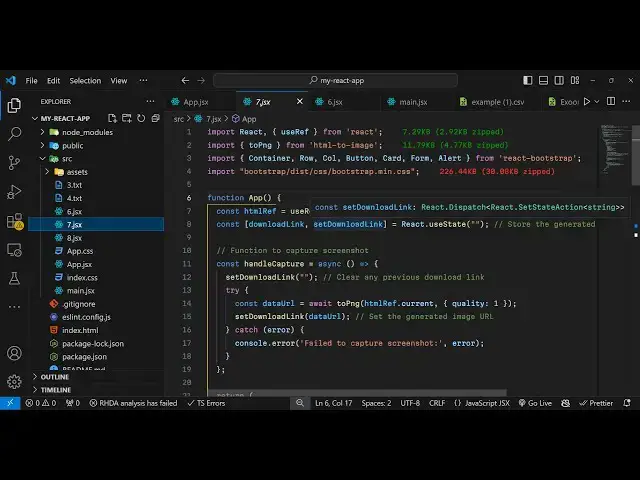
here we need to import the actual
1:37
Library so there is two methods out
1:39
there two PNG and two SVG and it's all
1:43
coming from this module which is html2
1:46
image this is actually the module we
1:49
have two methods if you want to export
1:51
this to PNG or SVG you can even export
1:55
this to jpg as well so here we will
1:57
declaring a state variable a
2:00
reference using the USF hook of
2:04
reactjs and by default it will be null
2:07
so it'll be attaching it to a specific
2:09
HTML element that you want to take the
2:11
screenshot and secondly we need to take
2:14
declare a variable for getting the
2:17
reference of the download link so once
2:19
we take the
2:20
screenshot we need to show the download
2:24
link to the user so that they can
2:25
download the image file so this is that
2:28
variable now coming back to the jsx we
2:31
will just write very
2:34
basic jsx will have a H2 heading we'll
2:38
simply say capture HTML to image
2:41
example and after this we will have
2:44
basically a div section and inside this
2:46
div
2:48
section we will basically give some
2:50
properties a style parameter to it a
2:54
background of
2:56
white and I will give it a width of
3:00
of 500 pixel and height of also 500
3:06
pixel so if you refresh
3:10
your browser just go to you will see
3:14
you'll have a div which will actually
3:16
have a width and height of 500 pixel and
3:19
you'll basically be attaching this
3:20
reference attribute to
3:23
it so we have this we have declared this
3:26
you will see we are simply attaching it
3:27
right here to this div element so we
3:29
need to take the screenshot of this div
3:31
element so here you can write any valid
3:33
HTML it can create it can contain images
3:37
or any valid HTML tag so we'll have this
3:41
H3
3:42
tag and then we will simply have some
3:53
paragraph so let me also have a strong
3:56
tag
4:02
so we have some valid HTML right here so
4:06
we need to take the screenshot of this
4:08
so what we will do we will after this we
4:11
will actually have a button as well just
4:14
to this is a sample
4:17
button and then after this
4:20
div we will actually have a button right
4:23
here which will say
4:25
that take screenshot
4:30
and basically we'll b a onclick listener
4:32
to this button so when we click this
4:34
button we will execute this function
4:36
which is handle
4:40
capture so now we need to Define this
4:43
function right here which is
4:48
handle capture so it's a call back
4:52
function which will execute whenever you
4:54
click the button so inside this function
4:56
just make this function as async
5:00
so now we just need to take the
5:02
screenshot so first of all we will set
5:03
the download link to nothing we will
5:06
reset this and then in this TR catch
5:08
block we will actually take the
5:09
screenshot if any sort of error take
5:11
place we can console log it and then in
5:14
the TR catch block we will
5:16
convert this HTML to a screenshot so for
5:20
taking the screenshot we have this
5:22
built-in method 2 PNG and here we need
5:25
to pass the HTML reference so we have
5:28
the current you will pass the reference
5:30
like this and secondly it takes the
5:32
quality of the screenshot so I will set
5:34
it to one and then it has converted this
5:37
to have base 64 code so the screenshot
5:41
now we can display this by setting the
5:43
download link to the data URL that we
5:46
are
5:57
getting so now we just need to show this
6:00
data URL in the web page in the jsx
6:05
right after this button we'll have a
6:06
condition that if the download link is
6:08
available in that case we need to
6:11
display the screenshot in the anchor tag
6:15
so in the HF tag we can display this by
6:17
using download link and then we will put
6:20
a download attribute so whenever you
6:22
click the download button screenshot.png
6:24
file will get
6:26
downloaded because it's a PNG file so
6:28
that's why screenshot.png
6:30
and then we can have a simple label
6:33
click here to download the
6:38
screenshot so now let me test it out
6:41
here uh if you see you if you click the
6:43
button it will take the screenshot and
6:45
you will see the PNG file will get
6:48
downloaded so this is exactly the
6:51
heading the paragraph and the
6:53
button and you can even change it to SVG
6:57
as well so instead of
7:00
uh this uh we can use this function to
7:03
SVG so now it will be having screenshot
7:08
do SVG
7:14
so so it's SVG file now it opens in the
7:17
browser so SVG scalable vector graphics
7:20
so it has all these methods available we
7:23
also have the 2 jpg as well two canvas
7:26
two blob pixel data so you can export
7:29
your your canvas to any PNG SVG any sort
7:33
of image file this is a very handy
7:35
library inside react CH html2 image so
7:39
thank you very much for watching this
7:40
video and do check out my website as
7:42
well freem mediat tools.com which
7:44
contains thousands of free tools
7:46
regarding audio video and image and I
7:48
will be seeing you in the next video