live_tv
Livestream Starting Soon
00
Hours
:
00
Minutes
:
00
Seconds
Up next in 10

Build a QRCode Scanner Web App in Browser Using qr scanner.js Library in Javascript
Jan 9, 2025

Get the full source code of application here:
https://gist.github.com/gauti123456/7f91825ec427842c411bd099cf48360f
Show More Show Less View Video Transcript
0:00
uh Hello friends welcome to this video
0:02
so in this video we will look at how to
0:04
actually build a q QR code scanner kind
0:07
of an application in
0:09
JavaScript and uh we'll be building it
0:11
right in the browser itself no server s
0:13
side code will be
0:14
involved and we'll be using a library QR
0:18
Scanner so let me show you the demo
0:21
right here it will this you can see on
0:23
your screen this is the actual
0:25
application where you are
0:27
actually select an image file QR code
0:30
image and from that image when we click
0:33
that button all the text extracted will
0:35
be present in this text area so first of
0:38
all we do need to create a QR code so
0:40
you can visit my tool uh freem mediat
0:42
tools.com which contains a lot of tools
0:45
one such tool is QR code generator as
0:48
well let me enter free mediat tools.com
0:52
and one 100 by 100 let me create a QR
0:57
code and click on download
1:01
so a QR code has been generated if you
1:04
see now we will input this QR code in
1:08
this tool QR code scanner
1:12
so you will see that so if I now click
1:15
that button scan QR code from image you
1:18
will see QR code result whatever we
1:20
provided free medat tools.com so in this
1:23
way uh this application works very
1:25
simple we upload the image whatever QR
1:28
code image and then it analyze the image
1:32
and whatever is the QR code value it
1:34
gives you in the text area so if you
1:38
need the full source code of this tool
1:39
the link is given in the description and
1:42
uh now let's get started so we are using
1:45
this Library QR
1:50
Scanner if you just type QR Scanner uh
1:56
GitHub so you can just see it's a
1:59
lightweight JavaScript QR code scanner
2:02
open source this is their GitHub repo
2:04
and uh they also have examples right
2:08
here you can scan from file you can even
2:11
scan from a camera as well but I will in
2:13
this video I will show you how to scan
2:15
um how to extract the QR code text from
2:20
an image file you can in also install it
2:23
using npm as well but we will be using
2:27
the
2:28
CDN that they provide
2:30
so let's get started so what I will do I
2:35
will write each line of code and explain
2:38
to you in detail how to build this
2:48
application copy
2:51
this past
2:53
it so just make a new index. HTML file
2:57
and uh this is my template right here
3:01
JavaScript QR
3:04
code
3:07
scanner and then we are also using
3:09
Tailwind CSS for this uh UI so what I
3:13
will do after the title paste the CDN of
3:15
Tailwind
3:16
CSS and then we will have a bunch of
3:19
classes for the positioning of the UI so
3:23
right in the center itself we will be
3:25
using these classes of tail vent
3:33
Flex Flex calls
3:38
items this will be item
3:41
Center justify Center minimum
3:46
height
3:48
screen so after this we'll have an
3:51
heading right here which will say QR
3:54
code scanner from image
4:09
then we will have
4:11
a input file where we will be allowing
4:14
the user to actually upload a image file
4:18
we'll give it an ID here to this element
4:21
image input we will only be accepting
4:23
image
4:25
file and it should be required
4:36
uh then we will have a simple image tag
4:39
where we'll be showing the live preview
4:41
of the image whatever image which the
4:44
user has selected we'll give it an ID
4:46
here or
4:48
preview so that we can see
4:53
it then we'll be giving a classes to
4:56
this which is tail whe if you want to
4:58
control the
5:00
width and the
5:04
height width
5:06
46 height will also be
5:10
46 object
5:12
contain border
5:16
for color of the Border will be gray
5:20
300
5:22
rounded overflow
5:27
hidden so if you just open this now it
5:30
will look something like this we have
5:32
this input element and then we have the
5:34
short little
5:39
preview then we will have uh the button
5:43
for
5:45
scanning QR
5:48
code from
5:53
image so once you click this button
5:57
uh the scanning part will start so we
6:00
will have
6:05
a padding
6:08
uh the background color will be blue BG
6:11
blue 500 the text color will be
6:24
white you'll see that so now just below
6:27
this button we will have a text
6:33
area read only because we we need to
6:37
allow the user to see the text which the
6:41
QR code has been
6:51
scanned these will be the Tailwind
6:53
classes and we will be giving an ID to
6:56
it of result text area
7:00
so that we can Target in
7:06
JavaScript rows here will be
7:16
four so that's all it will be a short
7:19
text area that's why we only need to
7:21
show the text this is the full interface
7:24
which is made now we just need
7:26
to write the JavaScript code for before
7:29
that we do need to include the library
7:31
as well script type module because it's
7:34
a es6 module that's why we do need to
7:37
add this type
7:39
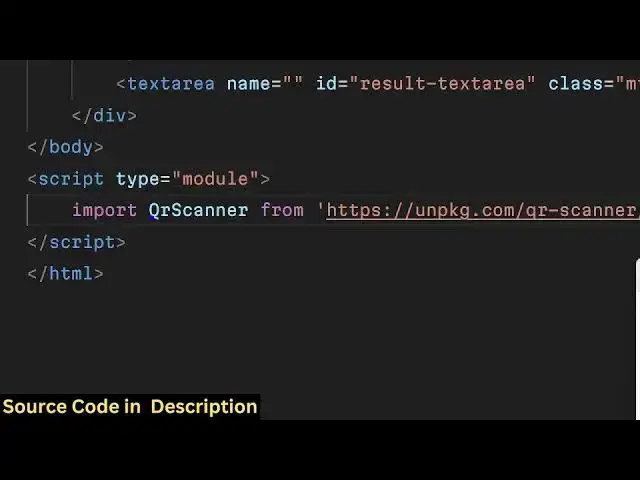
parameter because we'll be using the
7:41
import
7:43
statement QR
7:46
Scanner and we need to import this from
7:48
the CDM https uh
7:54
unpackage
7:56
docq scanner
7:59
QR scanner.
8:02
min.js so this will import that QR
8:05
Scanner so that we can use it in our
8:10
application so after this we can simply
8:12
say we can get references to all the
8:16
elements we've given an ID
8:19
so first of all we are getting reference
8:21
to the image
8:23
input then for showing the preview of
8:27
the image you'll be getting references
8:29
to the preview element by its ID then
8:33
the scan
8:35
button so we have given an ID here to
8:38
that also scan button lastly the text
8:42
area where the result will be shown
8:44
result text
8:52
area so after getting references of all
8:55
all these elements now we just need to
8:58
initialize when we we select the image
9:01
this event will be
9:05
added which is on change will occur
9:08
whenever you select any image and here
9:10
we just need to select the image which
9:14
is selected so it will be simply be
9:16
saying event. target. files zero we only
9:20
need to select the first
9:24
file like
9:26
this and here we need to Simply check if
9:29
the file is valid if the file is valid
9:32
then in that case uh preview. Source
9:35
will be equal
9:36
to url. create object URL and whatever
9:40
is the
9:46
file so if you now select a file uh the
9:50
live preview of the image will be shown
9:52
right here if you see this is meant by
9:54
this code we initialize the on change
9:56
event handler and we basically showing
9:58
the live to view of the image in the
10:00
image tag now if I click the scan QR
10:03
code button nothing will happen because
10:05
we haven't initialized the event handler
10:07
for that so we'll simply write the code
10:09
scan
10:10
button so when we
10:12
click this button this call back
10:15
function will
10:17
execute and here you'll again get the
10:20
file which image input
10:23
files like
10:25
this whatever is the we have get getting
10:29
the file right
10:31
here by this image input element once
10:36
again now once again we'll be checking
10:39
this in the F condition the file is
10:41
valid then we will initialize the qord
10:45
scanner that we imported early on if you
10:48
see we using this QR code scanner
10:51
library and this contains a method which
10:53
is scan image and this simply means that
10:56
we are scanning the QR code from a image
10:59
and we'll be providing the file as the
11:01
first argument this returns a promise we
11:04
can handle the promise using dot then
11:07
and then the result will come and here
11:09
we can simply
11:11
compare what is contained inside the
11:14
result let me console log the value just
11:17
to cross check if it is working or not
11:21
so if I scan this QR code click this
11:24
button and go to
11:27
console you will see reference error
11:30
text is not
11:35
defined sorry this needs to be result
11:37
not
11:44
text so you will actually see uh
11:47
actually the value will come whatever is
11:50
the scanning of that QR code so free
11:53
mediat tools.com
11:55
so exactly the value is coming so what
11:59
we you need to do uh inside the text
12:02
area result text area value is equal
12:08
to here we can simply say
12:14
uh QR code
12:21
result and then we can dynamically put
12:24
the result right here
12:34
so now you can see
12:36
that QR code code result is free medat
12:40
tools.com so in this way guys you can
12:43
build out a very simple QR code scanner
12:46
from a image in JavaScript using this
12:49
open source library that I showed you
12:52
which is QR
12:53
Scanner and
12:56
uh all the source code will be present
12:58
in the description if you need it you
13:01
can go to that and uh thank you very
13:05
much for watching this
13:07
video I will be seeing you in the next
13:10
one