live_tv
Livestream Starting Soon
00
Hours
:
00
Minutes
:
00
Seconds
Up next in 10

Build a Node.js Express Google Search Console API With OAuth2 to Fetch Website SEO Data in Browser
Jan 9, 2025

Get the full source code of application here:
https://gist.github.com/gauti123456/d26ae6a1ed48b4f04b4cf33e0880ad2d
Show More Show Less View Video Transcript
0:00
uh Hello friends welcome to this video so in this video we will look at the Google search console API and we will
0:07
interact with it inside nodejs and express and we will actually fetch the data which you see in the search console
0:14
so you can see we have this website listed out there and we have this data right here so we need to fetch this data
0:20
inside our own application so we have this authentication built in login with Google so if you click this button you
0:27
will be redirected to the login page where you need to choose your Google account in which once you select the
0:34
Google account you need to allow the permission so you need to click continue and then you will see the list of
0:40
websites which your Gmail account has so we have all these websites listed and I
0:47
can select any of these website and then I can select the data from the start
0:52
date and the end date so let's suppose I want all the data to be coming from 1 January 2024 to the end date and here I
1:00
can select today's date which is 27th of November so we have this date picker
1:06
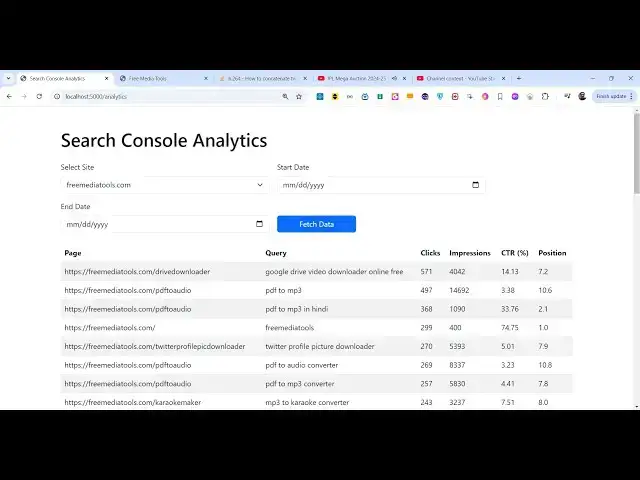
available and now if I click the button fetch data you will see it will fetch all the data the clicks The Impressions
1:14
CTR position that you see in the Google search console so this is a individual page right here this is a search query
1:21
and this is a number of clicks Impressions CTR and the position so you will see we will fetch the top 50 pages
1:28
that has the most website traffic and you can just match right here if I open
1:34
this in the pages tab right here in the so all this data that you see we are
1:41
fetching it and displaying it in the browser so you can
1:46
change the using this date picker you can change the start date if I pick
1:53
Let's suppose this 2022 so now the date I will change you
2:00
will see this is actually the top 50 pages from this time period and it is displaying all this the page actual page
2:07
the actual cery the clicks impression CTR position so we will be using this
2:13
and displaying this and this will be a complete example uh the full source code is given in the description so this is
2:20
we are using ejs nodejs Express and let me show you the modules
2:25
that we are using so we are using as I already told you Google search console
2:32
API for interacting with it we are using this module which is Google API so it's
2:38
a Google API client specifically for nodejs so we are using this module it
2:44
has got over 1 million weekly download so this is a simple command so we are using this and if you just search for
2:51
this API which is Google search console API this is actually the
2:57
thing we using this so you can read more about it by going to this so we using it
3:04
inside nodejs and express and apart from that we are also
3:09
using ejs which is actually a template engine where we actually
3:15
render JavaScript templates inside HTML so it's a template engine inside Express
3:20
so this is a command and last but not least we are using the express server in nodejs which is used
3:28
to make the rest API so these are the three technologies that we using to build this application so I
3:35
will now see you in the next section where we will start developing this application uh now to get started guys
3:42
we will start building the application so I will be there in my project
3:48
directory so I will simply open this the command line so I will make a new folder
3:54
I will simply say here make a new folder which I will call this Google search
4:01
console clone I will CD into
4:07
this and open inside vs code and we will simply make a package.json file to
4:14
initialize a nodejs project npm in-
4:19
y so this will actually create the package.json file with the default
4:25
options so now we need to install the modules so
4:33
npmi Google apis Express which is will be the web server
4:39
and EGS template engine so these are the three modules which are required you simply install
4:45
them so using this command so it will install
4:51
this it will create this node modules folder and in the dependency sections
4:57
you will find out these three modules listed out we are using the
5:04
latest version and for starting your application we using this tool which is
5:09
node one which automatically starts your application once you make any sort of changes so install them globally now we
5:16
can start just make a index.js file which will be the starting point of the
5:24
application so first of all we can simply make a simple Express app
5:30
requiring Express and just starting this
5:36
application on Local Host
5:47
5,000 so if you now want to run this application you will simply say node
5:53
mode and then index rojs the file and it will start this
6:00
and you will see you will see this console lock message that is app is listening on Port
6:06
5000 and now we need to Simply set the view engine as well which we installed
6:12
which is EGS in this way we can set the view engine by using the set method and
6:18
here we can simply make a simple file when we go to the homepage we need to
6:24
load a template so we use this render function and inside this we mention the file name so in this case we are loading
6:31
the index template we don't write the extension so for actually storing the
6:37
templates we do need to make a view directory and here you need to store the
6:44
templates so we have naming this index. ejs which is actually the extension
6:50
name so this will be a simple HTML I will simply say Google search console
7:01
we simply have a simple heading so if you go to
7:08
the Local Host 5,000 you will see now this is loading that
7:14
template so instead of this now we need to design the actual page where we will
7:20
be accepting first of all we doing the authentication for doing the
7:25
authentication we need to basically import that that module from Google aps
7:33
so we are actually in including this module Google apis which will do the
7:40
authentication and now for actually doing the authentication we do need to go to Google Cloud
7:48
console and get our client ID and client secret and for using any Google API you
7:54
do need to create account in here Google Cloud console I've already created one
7:59
after that you need to enable the apis by going to the section enabled apis and services and you need to enable the
8:07
Google search console API so just search for this API Google search
8:12
console and the very first result which comes this is the API that you need to
8:17
enable simply click the enable button I've already done that so then you need
8:23
to create the credentials by clicking this button manage
8:31
and you need to click this create credentials and you need to select the
8:37
second option here o or client ID and from the application type this will be
8:42
building a web application simply select that and here you need to paste your
8:48
homepage URL so I am running this on Local Host
8:53
5,000 so this will be the authorized JavaScript origin and then for the
8:59
redirect URI we will actually be having this URI we will make this route
9:06
which will be the call back Ur So just write o or2 call back this can be
9:11
anything but I'm just calling this as o or2 call back you can call this
9:17
anything and then after you do this simply click the create
9:22
button so this will create your client ID so now you can download the Json file
9:29
by click this button so now this will download everything inside this Json
9:35
file so you can open this file using vs code
9:44
and it will give you this information that you see and I will simply copy
9:50
this and create a file here which I will call this as
9:55
credentials. Json and I will paste all this information that we copied from Google Cloud console simply transfer
10:03
that file inside your project you'll be using this simply close that after we
10:09
get get this file now we can use this file by loading it for loading this we
10:14
do need to have the file system module in nodejs we will include this module
10:20
and uh then we need to load these credentials load the Au Au credentials
10:28
using using this file so we can simply load this credentials by first of all converting this to Json
10:36
so json. pass and then we'll be reading this using this function in file system
10:42
module read file sync and we will be providing the path here which is
10:49
credentials. Json and then here in the second argument it takes
10:55
actually the encoding type so here it will be tf8 so it will read everything and store
11:02
them inside this variable credentials so after that we will basically make the
11:10
O client O2 client for making this we'll create an actual variable and we'll be
11:19
instantiating Google and it contains this function Au and it contains this
11:25
O2 and it actually takes three options the client ID client secret and the redirect
11:32
URI so we can load everything inside web. client ID so if you open
11:39
this credentials Json file you will see there is a web property it's a web object inside this we have the client ID
11:47
redirect URI and the client secret as well so these three things we are loading right
11:53
here we simply here we need to Lo load the
12:00
client secret and thirdly we need to load the
12:06
redirect URI so we loading these three things to
12:14
create this o to client now we can actually use this to create the
12:23
URL so this contains a function right here generate Au URL and here we can
12:29
pass two things which access type we need to set this as offline the second option is scope scope is nothing but
12:37
what information that you are accessing from the Google so here you need to provide exactly the information that we
12:44
want to accept googleapis.com web Masters read only scope that we want
12:51
from the Google search console API so here we are providing the scope so then we'll be declaring a
12:59
tokens variable which will be null so here we'll be storing the access token which will be coming after you do after
13:05
user do the authentication and now in this get
13:11
route we will actually pass some information to this template here is a second argument which will be an object
13:19
so we'll be passing this Au URL and then the error variable we'll
13:24
set it to null so we are passing these two things to this temp template index
13:29
template this authentication URL that we constructed right here so now going to
13:35
this template index. J ejs we now we'll be having a simple
13:40
button which will be responsible for redirecting the user so here we'll be
13:46
using some bootstrap so just include the CDN right here after the title so we using bootstrap and then we
13:55
will be using a simple container class
14:03
bootstrap we having a simple heading which is Google search cons so mini
14:12
clone so here we'll be embedding some EGS so the
14:17
square if any sort of error is there in that case this is just the syntax of EGS
14:33
so essentially what we are doing we are checking for if any sort of error is there we displaying the error
14:40
message and just below that we will have a simple button in the anchor
14:46
tag so here we are embedding that variable that we got Au URL that we passed like this we can embed this using
14:55
EGS giving a bootstrap class to make it a as a button simply say login with
15:04
Google so here this is actually these two variables that we are embedding
15:09
first is the error and this is the Au URL so we are passing these two things
15:16
to this template if you see so now if you refresh you will see a button will
15:22
be present login with Google if you press that button you will be redirected to
15:27
your account you need to select the account and then you need to Grant the
15:33
permission click on continue and you will see it will show
15:38
you this error message that this authentication call back URL that you mentioned is not defined we haven't
15:45
Define this URL so we do need to Define this URL and exchange this authorization code
15:52
that you see in the URL with the access token so now we need just need to Define
15:57
this redirect URL so what I will do I will
16:04
simply Define this just below this you can Define the redirect
16:12
URL this will be a get request so
16:18
app.get so this needs to match in the Google Cloud console whatever that you
16:23
provide you need to provide the same here both things things should match and
16:30
now inside this we will write the code in try catch block so if any sort of error take place we can console log the
16:35
error message and now in the tri block we will basically extract authorization
16:41
code from the URL so we can do this request or
16:46
query we can extract the authorization code after doing that we need to
16:52
exchange this for Access token you can easily do this using this
16:58
Library you can use a weight here so o client it contains a function to get the access
17:05
token we have this function of get token so this will return your access
17:11
token and here you just need to pass the code authorization code as an argument
17:17
so this will return your access token so now we can store this access token in the variable that we had earlier so you
17:24
can say access tokens so you can see earlier we declared a global variable which which is tokens right here so we
17:31
are just using this variable to store the access token so after we actually set the access token
17:39
we just need to set the credentials and pass this access
17:47
token so after we do the authentication now we can easily call our search console API to fetch the website data so
17:57
first of all we do need to get the list of websites that goog uh user has for
18:02
automatically populating those websites we can use a function right here which is google.
18:08
webms and here you need to specify two things first is the which version of the
18:14
API that you're using so I'm using the datest version which is version three the second option that we need to tell
18:20
is the O client so we are need to pass the O client that we are using so
18:27
o we simply passing the client so after setting this now you can call the
18:34
API so first of all we will fetch the list of websites that the user has so
18:40
for fetching that we have a
18:46
function we can use this object it contains a function which is do sites do
18:53
list so it will list all the websites that the user has
18:58
and uh we can store this inside this variable site list
19:05
response dot data and inside that we have site
19:13
entry if no sites are returned then we would be equal to empty array so if user has
19:21
no sites then empt array will be assigned so now I can just console log
19:30
this information just to show you these information has been returned let me also console log that
19:39
just you can see in the browser that the information is
19:45
returning so this is your access
19:53
token so now if you refresh if I go to Local Host
19:59
5,000 if I repeat the same process again clicking the button again you need to Grant you just
20:06
need to do this for the very first time after that it will store that access toen in the you don't need to do this
20:13
again and again so once you grant the permission
20:18
it will give you their access token
20:40
so now you can see that guys if I click this button you will see in the console we
20:45
will return the list of websites that the user own you will see all these websites will be returned to me in the
20:51
Json response so now we can Loop through all these websites and display it in the
20:57
browser in the select Fe field so that the user can select which website to select so right here
21:04
uh inside this redirect URL we need to actually show a
21:10
template let me call this as dashboard so once the user is authenticated we need to redirect the
21:17
user so we can use the redirect function and redirect to the/ dashboard route I'm
21:24
just calling it/ dashboard and now we just need to make this route SL
21:31
dashboard and inside this we will be say async
21:37
function and here you'll be checking that if the access token is not defined then we just need to return to the
21:44
homepage essentially the user is not authen authenticated if the access token is not
21:50
present so now assuming that you have the access token then we can
21:56
fetch actually the information that we want to display so we can
22:02
again use the same thing again pass the version that we are using version three
22:08
the second one is that your authentication client so o or
22:15
client so then we can repeat the same process to fetch the
22:23
sites so in the TR catch blog we can write the code
22:40
so you'll set return the sites and you make a variable selected site
22:48
and this site will be pre selected when you load the page so the very first site
22:55
so site entry. site URL
23:02
so then we need to load a template so we'll call this template as results or I
23:08
can call this as dashboard you can call this anything extension is not written and here we'll
23:15
be passing this information first is the array of sites response. data. site
23:21
entry the second is your selected site the third information is your
23:26
performance data which will be by now it will be null error will also be null so
23:32
we are passing these four things to this template now we need to create this
23:37
template in the views folder so you can call this as
23:43
dashboard so this is your dashboard page
23:52
so right here we again need to use bootstrap so just include the CDM after
23:58
the title and right here uh we will use the container class of
24:03
bootstrap and simply say here search
24:09
console analytics if you just refresh your
24:18
browser just go to click on this button we already will
24:24
be authenticated and redirected to the dashboard page if you see now this is your dashboard page now we need to show
24:30
the list of websites so we will have the form right here and the method here will
24:36
be post and we will be making a simple post request to/
24:43
analytics so we will submit the information and make the post request to get the data
24:52
and here we will have some bootstrap classes
25:01
so here you'll be having a simple label where we allow the user to Simply have
25:07
the select list so we will simply say uh this will be for your site URL I'll be
25:14
giving a bootstrap class of form label and here will be simply saying that
25:20
select site and then we'll be having a select tag we giving an
25:29
name parameter which is required we give it site
25:34
URL and we giving a bootstrap class of form select and it should be
25:41
required and inside the select list we will be dynamically be looping through all the
25:49
sites so you'll be using some ejs right here so here we can use JavaScript code
25:56
and we have this array we can Loop through we can use the for each Loop and
26:02
for each site we can simply you need to wrap everything in
26:08
these TXS this is uh EGS embedded JavaScript
26:15
template so in between these we can create your options for the select
26:21
Tex and for the value here we need to embed the dynamic variable which will be side site
26:31
URL
26:36
and all the source code that I'm using here is given in the description so you'll have the set of
26:46
options so here if you refresh now you will see the
26:52
set of websites prepopulated you will see the website owners that owns
26:59
so this will be different for you if you have some websites it will be populated here so in this way you can show the
27:05
series of websites set you own so after this select
27:11
list we will have two date Pickers where we allow the user to pick the from date
27:18
and to date so here it'll be having two date Pickers so I will simply paste the code for
27:24
that so you will see if I refresh now we have we have two date Pickers where we
27:29
allow the starting date and the ending date [Music]
27:36
so if you see we just have given these name parameters start date and this is
27:42
for the end date so name parameters important you
27:47
need to give them in order to get access to the values in
27:54
Express and lastly we will have a simple button
28:00
a bootstrap button let me just format so we have the button to fetch
28:09
the data so now this is your dashboard page completed so once you select the dates
28:15
and submit the form it should display the data but if you do this now it is telling that it cannot find the route so
28:24
we do need to make this route in the index.js file so just make this route
28:29
app. poost SL analytics and it will be Asing
28:37
function so here we do need to get the things that we submitted through this
28:44
form so first of all we will again check if no access token is there in that case
28:49
we just need to return to the
28:56
homepage so then we'll be extracting all the things which will be starting
29:03
date and the end date and the actual site
29:09
URL and you'll be extracting it using the request or body headers you will see
29:15
request. body and then after we get all this
29:20
information uh let me just console log it just to check if it is submitting or not
29:38
so if you select your website and then you provide the starting
29:45
date and the ending date click on fetch data and if you see the
29:55
console it is studing cannot D structure property uh here you will get error
30:01
because I think we haven't set the body head uh body passer middleware so for doing this we do need
30:08
to set our body passs and middleware so we need to include a line
30:15
here app. use Express dot URL encoded extended to
30:23
false and express. Json so these two middle lines we do need to add because
30:31
we are transferring information from the HTML file to the Json file so we do need
30:36
to give these name parameters as I already mentioned to each input field so
30:41
that we can get their value so we have given these name
30:48
paramet this is for the site URL so if you try this now hopefully it should
30:53
work
31:13
so now you will see all these three things have been captured and it has been transferred to the server side
31:20
Express Now using these three things we can actually fetch our
31:25
data so just include these two middleware lines after we get this we
31:31
can make a simple rest API call to the Google search console
31:37
API so we can simply here say con
31:42
const Google dot again we need to mention the which API that we are calling so
31:51
right here we need to mention the version number and the pass also pass
31:56
the o or client after doing this we will make a simple
32:02
TR catch block so right here uh we will make the
32:09
call to the API we say search console dot search analytics. query this is the
32:16
method that we have and here we need to pass an object first it takes the site URL that we are targeting secondly it
32:24
takes the request body object here we need to pass the starting date the end
32:29
date and here it takes the dimensions it will be an array so Dimensions refers to
32:36
which properties you are targeting so we need to get get the latest the top pages
32:42
of the website so provide the first property as page the second is the top queries top search queries that we need
32:50
these two information the page and query and lastly it has the property of row
32:56
limit so how many pages that you want to show I need to find out the top 50 pages of my website which has the maximum
33:04
amount of traffic so it is exactly meant by this and after
33:09
this we get the row back so response. dat.
33:15
rows so we can just console log
33:20
this console log the response so
33:29
after that we need to construct using these rows variable this would be an array here we
33:36
can map each row and right here we can
33:47
simply inside this we will have different properties first is the page number so row. Keys
33:55
zero and actually the query which will be equal to row. keys this will be the
34:03
second property and number of clicks we can get this using row.
34:10
clicks if nothing is there then we put zero and we get our impressions as
34:17
well so this will be row.
34:22
Impressions and then we click through rate so we can say row Dot
34:32
CTR so you will basically convert into a whole number we can use this tary
34:41
operator we will divide multiplied with by 100 to get the click through rate in
34:46
a decimal number to convert the percentage and then we lastly we get the
34:52
position of the website so we can have the property row position again will
34:58
be converting this to fixed value so two fixed
35:08
one so now we constructed this uh whole thing which is your performance data
35:14
which will be an object which have these six properties
35:19
the page number query clicks impression CTR position so we have these six
35:25
properties now we need to rent ENT the the template once again which will be
35:31
our dashboard template and here we need to pass all
35:37
these things so we need pass the sites so be basically making a function
35:44
right here which I will call this as get
35:50
sites which will actually get our sites the total SES so
35:58
this will be a simple Asing function I will just Define here so the sole
36:04
process of this function is to return the number of sites that user has so we
36:10
are just calling this function right here the second property that we need to
36:16
pass right here is the selected site is our site URL the third thing is
36:25
our performance data
36:30
this will be we are directly passing it so we can
36:36
directly write like this and error will be
36:44
null so if any sort of error take place in that case also we can rerender the template
36:57
so now we need to go to the template which is dashboard EGS and we need to Loop through the
37:06
object that we are passing to this template which is your performance
37:11
data so just go to this file right
37:16
here and just after the form is ending right here after the form
37:23
tag so once again we'll be checking first of all for the error if any error
37:29
has there in that case we can display simple alert
37:42
message so after this we will actually have to display the information in the
37:47
tblo structure so we will have a simple table but before that we will check this
37:53
in the if condition that if the performance data is available
37:58
and if the length is greater than zero in that case only we need to display
38:04
this
38:09
information so just make sure that you close all these brackets this is valid ejs code so after you do this we have
38:17
the table tag where we display the information so we'll have the bootstrap classes attached to it so we give it a
38:25
table class table striped
38:31
then we will have the table head tag so then we will have these six
38:39
columns first is your page number second column will be for the
38:44
cury third column is number of clicks fourth one is for the
38:53
Impressions then we have the CTR click through date and lastly we have the
39:02
position so now this T after table head tag we have the table body
39:09
tag so inside this we will write the EGS and we will looping through this
39:14
performance data variable and we'll use the for each Loop and for each
39:22
row just make sure that you close all these brackets
39:30
so in between these we will make a simple table row tag inside table data
39:36
we will embed the variable which is row.
39:43
page so in the similar way we will print out all these
39:53
variables so if I go to the browser and uh
40:01
it is saying that unexpected token else in that dashboard EGS temp while
40:08
compiling EGS so I think we haven't closed the
40:16
bracket just make sure that you close all the
40:22
brackets so let me re reexecute
40:28
it is saying that or URL is not
40:37
defined uh let me check
41:01
is saying all
41:21
URL oh sorry we pasted I think the wrong
41:28
okay we need to paste only this we pasted
41:35
the only the HTML
41:42
code so yeah this is now correct and if I again
41:49
refresh so now if you see you will have your select list here you can select
41:55
your website that you want to Target so let me select this free mediat tools.com website and let me pick a date so 27
42:04
January 2024 and the ending date is today 27 November
42:09
2024 in between that we need to fetch the data as I click the button you will see it will fetch all the statistics in
42:16
between the starting date and the ending date we have the top pages of the website listed out we have the queries
42:23
we have the number of clicks Impressions CTR position all this data that you see
42:29
the top 50 pages of the website is listed out so we are fetching all this information from the Google search
42:35
console API so it's a free full web app that we developed from scratch
42:43
so this data will be different for you if you have the website you can analyze
42:50
it so you can change if you want more pages uh we are fetching the top 50
42:57
Pages if you want top 100 Pages you can change this value and uh in this way you can use
43:05
this API to fetch the results and display it in the browser so thank you very much for watching this video and do
43:11
check out my website as well free mediat tools.com which contains thousands of free tools regarding audio video and
43:18
image and I will be seeing you in the next video
#Web Services
#Web Stats & Analytics
#Search Engines