0:00
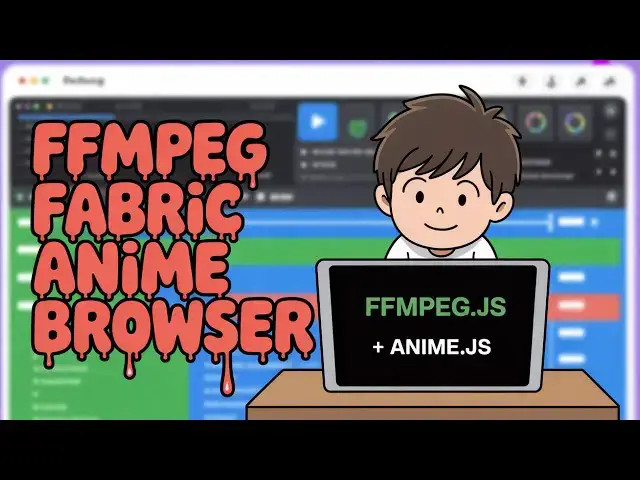
a Canva clone timeline video editor that
0:02
I made inside NexJS which directly
0:05
executes it in the browser. All the
0:06
processing happens directly in the
0:08
browser. This is the actual demo. As you
0:11
can see, you can add multiple videos.
0:12
It's a timeline page editor.
0:14
Hello guys, welcome to this.
0:15
You can add animations of image, text,
0:18
everything. Then you can export your
0:19
video. This is the overall project coded
0:22
inside NexJS. So quite a number of third
0:24
party libraries we are using. You can
0:26
directly purchase the source code. The
0:28
link is given in the description
0:31
and after you purchase it, you will get
0:33
the source code from Google drive. So
0:35
all the components of the project are
0:37
coded inside its own TypeScript files
0:39
right here. As you can see right here,
0:41
if I show you package.json file, we are
0:43
using third party libraries, animjs,
0:47
canvas, fabricjs. We are also using the
0:49
latest version of next react. And now to
0:53
run this project, we go to the command
0:55
line. Simply run npm rundev. So this
0:57
will start the local development server
0:59
at HTTP localhost 3000. And now if I go
1:03
through all the features once you go to
1:05
the editor, you go to video section and
1:08
upload the video file that you want to
1:10
edit. Simply add this to the canvas
1:12
section right here and uh just place it
1:17
and then it will be added in the
1:19
timeline as well. And now you can play
1:21
the video. Then if you want to add the
1:25
background color, you go to the fill
1:26
section, add your own background color.
1:32
And then after adding it, you go to the
1:34
text section. If you want to add a
1:40
just place it accordingly. You can
1:45
Now select after selecting the text
1:47
right here. Go to animation. And if you
1:50
want to add any sort of animations,
1:52
slide in animation, control the
1:54
direction and the duration
1:58
for 6 seconds. I want this animation to
2:00
happen. So when I once I play this,
2:02
hello guys, welcome to the animation
2:04
will start the sliding animation. Same
2:07
thing you can do for images as well. If
2:09
you're adding images,
2:14
basically select your image file, select
2:17
it, add this to the canvas.
2:22
So this time if you want to apply a
2:24
different kind of animation. Let's
2:25
suppose the fade in animation. You again
2:28
control the duration. And now if you see
2:32
Hello guys, welcome to this video. So in
2:34
this video I will show you a Canva
2:36
clone. So now if you're happy after that
2:39
go to the export button click how much
2:43
export let's suppose I only want to
2:45
export the first 5 seconds again click
2:48
export video and now the processing will
2:51
happen the video will play for 5 seconds
2:54
and automatically the video will get
2:56
downloaded. So now you will see the end
2:59
result having all the features such as
3:01
the animation of text image built in
3:04
inside the output video. So this is a
3:06
very awesome software guys without using
3:08
a professionallook video editor you have
3:11
got this free open-source uh video
3:14
editor built in nextjs having all the
3:16
features so you can purchase this script
3:19
if you have knowledge you can add
3:21
additional features on top of it as well
3:24
so it has all the source code built in
3:28
so directly purchase it the link is
3:30
given in the description