Up next in 10

Build a Image Zoom & Magnifier With Live Preview in Browser Using js-image-zoom Library in JS
Jan 17, 2025

Get the full source code of application here:
https://codingshiksha.com/javascript/build-a-image-zoom-magnifier-with-live-preview-in-browser-using-js-image-zoom-library-in-js/
Show More Show Less View Video Transcript
0:01
uh hello guys welcome to this video so
0:03
in this video I will show you a zoom
0:06
magnifier how to build that entirely in
0:08
the browser so as you select your image
0:11
so this zoom level will be there you can
0:13
zoom your images and as you hover onto
0:17
the section this will be zoomed in so
0:20
there is a specific open source
0:22
JavaScript pack library for this you can
0:25
use the CDN this app is entirely built
0:28
in HTML CSS and JavaScript script using
0:30
the CDM so you can see as I'm hovering
0:33
you can directly Zoom your images like
0:36
this so the name of the package is
0:40
JS
0:46
Zoom so if you just uh I have given all
0:50
the source code in the description of
0:52
this
0:54
video so sorry this is JS image Zoom
1:00
this is actually the name of the package
1:01
if you search it on
1:03
Google this will come
1:06
so it also have a nodejs package as well
1:10
but we will be using it as a CDM so they
1:13
have given this for
1:16
example it's a it's a simple basic
1:18
example where you include the
1:22
CDM so you can directly copy this and
1:25
run this
1:27
so but I will just customize it
1:33
accordingly so I have given all the
1:35
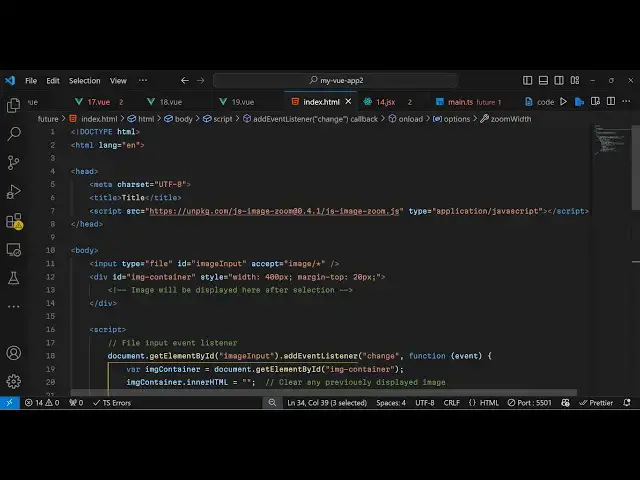
source code in the description so now to
1:38
get started you first of all need to
1:40
include the CDN of this package so we
1:44
include the script after the title so we
1:47
include the CDM like
1:49
this and here we allow the user to
1:52
select image from their computer so
1:54
input type file and we'll give it an ID
1:56
image input we'll only be accepting
1:59
image files image star and then we'll be
2:03
having a container where we will show
2:06
the live preview of the image image
2:09
container and just give it a style a
2:12
width of 400 pixel and a margin from the
2:15
top 20 pixels so the image will be
2:19
displayed here that's all that we need
2:21
to do in the
2:22
HTML and now we need to write the
2:24
JavaScript code so we'll create a
2:28
script.js file
2:31
so right here we will bind an onclick on
2:36
change event handler we have given this
2:39
ID to
2:42
the which will be
2:48
change so we just binding this on change
2:52
event handler to
2:54
this you given this ID to this input
2:57
field so whenever you select a image
3:02
so now display you also need to get the
3:04
reference of that as well so image
3:07
container so after getting the reference
3:10
now this image container inner HTML I
3:14
will just declare a variable to nothing
3:17
now we need to read the image we need to
3:20
get access to the file
3:22
so simply say e. Target do file0 and
3:28
then we'll be using the file reader API
3:30
to actually read the
3:35
file so declare a new instance of file
3:40
reader and it contains a function read
3:43
as data URL which reads the Bas 64
3:49
file B 64 code of the file
3:53
so then it will trigger this function
3:56
which will be reader onload
4:01
and here we get the base 64 code of the
4:04
image by
4:06
using document create element create
4:09
this image image. source is equal to e.
4:12
target.
4:18
result so then we also need to style
4:23
this we need to give it a fixed width of
4:28
100% And then we need to now
4:31
initialize the image Zoom plugin so
4:33
first of all we need to add this image
4:35
to the append
4:38
child so now what happens as soon as you
4:41
select your image the image will be
4:47
shown
4:49
so read as data parameter one is of type
4:53
blob let me just see what is the problem
4:56
read as data URL
5:00
sorry this is not reader this is
5:04
files so as you select your image the
5:07
image is not displaying now to
5:10
initialize this Zoom plug-in now we will
5:12
add the code for that so after you do
5:16
this you will initialize the zoom plugin
5:19
and just create an options object you
5:22
can initialize the width here 400 this
5:25
is your
5:26
zoom and say Zoom width to be 500
5:31
and the position you can give
5:33
offset vertical to be zero and
5:36
horizontal to be also
5:39
10 this is just the position that I'm
5:41
just
5:42
giving and then after providing this
5:45
options now we can create a new instance
5:48
of image Zoom plug-in and then pass your
5:52
image container and the
5:57
options so that's all that we need to do
5:59
and now if you select your image you can
6:02
zoom your image you can
6:08
see so in this way you can zoom your
6:11
image in entirely in the browser using
6:14
this package using the CDN I've have
6:15
shown you you can change the size of the
6:18
zoom level if I change the width to be
6:21
800 and this as well
6:24
800 so now the size of the zoom level
6:27
will increase so you can see
6:32
so this is the tutorial so thank you
6:35
very much for watching this video and
6:37
also check out my website as well free
6:39
mediat tools.com uh which contains
6:42
thousands of tools regarding audio video
6:45
and MH and I will be seeing you guys in
6:47
the next video
#Online Image Galleries
#Photographic & Digital Arts
#Clip Art & Animated GIFs
#Open Source