Up next in 10

Build a Image to Base64 Converter & Vice Versa Web App in Browser Using JavaScript
Jan 9, 2025

Get the full source code of application here:
https://gist.github.com/gauti123456/bfe9f70db08984ba14ce908c0ca4b648
Show More Show Less View Video Transcript
0:00
uh Hello friends welcome to this video
0:02
so in this video we'll be looking at how
0:04
to build a base 64 code to image or
0:08
image to base 64 converter inside web
0:11
application in JavaScript in HTML CSS
0:15
and Tailwind CSS so it works in the
0:18
browser so it's a complete client side
0:21
application you can see on your screen
0:23
the live demo we have two section either
0:25
you can convert from base 64 code to an
0:28
actual image or you can convert the
0:30
image to Bas 64 code so first of all let
0:33
me show you uh the image if I select a
0:37
JPG PNG any kind of image click this
0:41
button encode this image to base 64 it
0:44
will give you this code right here and
0:47
then you can copy this code copy to
0:50
clipboard go to base 64 code to image
0:53
paste this base 64 code and click on
0:56
convert to image you will see that
0:58
converted image you can simply save this
1:01
image on your computer like
1:05
this so it's a very simple tool which
1:09
does both the things either you can
1:12
Convert base 64 to image or image to
1:14
base 64 code so we will be building this
1:17
application uh all the source code that
1:20
I will use in is given in the
1:22
description of this video so now let's
1:24
get started
1:28
so so you'll give it an ID or
1:32
title which is base 64 code image
1:43
converter do need to include the tailent
1:46
CSS CDN as well simply after the title
1:49
paste
1:54
it we need to give it a gray color to
1:58
the body DG
2:00
100
2:04
P4 then we will have this uh all these
2:08
Tailwind
2:10
classes so Tailwind is not necessary for
2:13
this tutorial I'm just styling this app
2:17
just it looks
2:19
good so if you don't want to use
2:21
Tailwinds it's perfectly fine
2:30
we given these classes and inside this
2:33
you will have the H1
2:44
tag text to excel phone board margin
2:49
bottom
2:50
4 so if you refresh now it will look
2:52
something like
2:54
this and now you'll be having two tabs
2:57
two different tabs for doing the
3:00
First Step will be
3:03
for base 64 code to
3:07
image so here you'll be using Justified
3:10
around just to create these two tabs so
3:14
one tab we'll give it an button right
3:17
here ID to the button image to base
3:21
64
3:24
button give it a class as well
3:36
we paste the Styles here
3:39
uh don't want to waste time in Tailwind
3:41
CSS
3:44
because this tutorial is not about
3:47
Tailwind so we have given all these
3:49
classes so for background color text
3:51
color phone bold it is
3:55
rounded so the label will be simply
3:58
image 2 base 64
4:00
it will look something like this so what
4:03
we can do we can copy this button one
4:06
more
4:18
time so this time this Buton will have
4:21
an
4:23
ID base
4:28
64 2 in image
4:33
button this time this will be green
4:37
button so now you will see
4:46
that so these are two different apps two
4:49
different buttons for switching
4:52
sections and now we need to define the
4:54
sections here so the first section right
4:57
here
5:01
which will be
5:04
for image to base 64
5:15
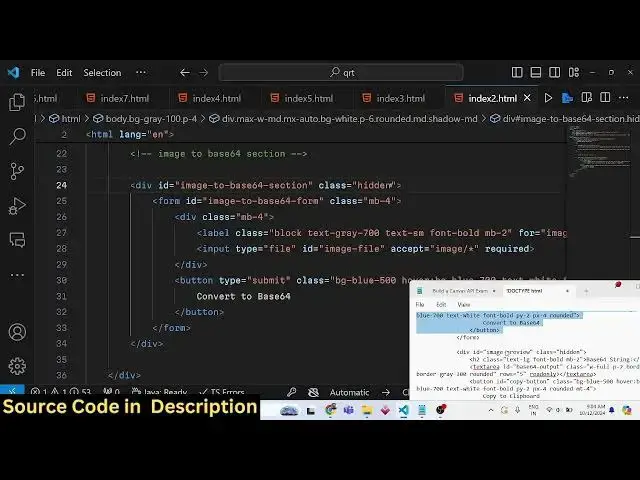
section so we'll have an div right here
5:18
we'll give it an ID here of image to
5:23
base
5:27
64 and by default it will be hidden we
5:30
giving a Tailwind class of hidden it
5:33
will not be shown inside this we will
5:36
have
5:37
an ID image
5:43
to base 64
5:49
form giving a class mb4
5:58
and we'll have an label right here
6:02
uh let me paste the classes
6:09
here so it will it will not be shown
6:13
because we have given this hidden class
6:15
let me remove
6:16
it it will look something like
6:24
this and then we will have input type
6:27
file
6:29
give it an ID right here image
6:39
file you will only be accepting images
6:46
files and it should be
6:57
required so this is the
7:01
one div and after this we will have a
7:04
button to submit the form so you will
7:07
simply say the button right here it will
7:11
say convert to base
7:20
64 so you will give all these Tailwind
7:23
classes to it as
7:26
well will look something like this
7:29
so just let me make it as hidden it is
7:32
not
7:34
shown now it is not showing so same
7:37
thing we need to do this for
7:43
the so after this we do need to have a
7:46
section where we
7:53
actually give it an ID here which is
7:56
image
7:58
preview this will also be
8:01
hidden so in this
8:05
section this will be the second section
8:08
this is image to base 64 code this is
8:11
will be base 64 code to actual image so
8:15
this one will be base 64 string we need
8:19
to provide
8:34
so then we will have an text area where
8:38
you'll be asking the user to provide the
8:40
base 64 code we given an ID here which
8:44
is base
8:46
64
8:54
output it will only be read
8:57
only the user can only read the text not
9:01
modify
9:03
it then we will give all these
9:07
uh Tailwind classes let me copy
9:18
this the rows will be five so just make
9:22
it five
9:34
it will look something like this base 64
9:37
string and then we will have a text
9:47
area and just outside this just below
9:51
this text area we will also be having a
9:53
copy to clipboard
9:56
button we'll give it an ID here of copy
10:02
button copy to
10:19
clipboard so it will look something like
10:22
this
10:35
so now we have one section ready so for
10:38
that we will write the JavaScript code
10:43
so script.js we will write the
10:48
JavaScript code in this file so first of
10:51
all we do need to get all the references
10:54
image
10:57
to base 64 but
11:05
or we can directly bind The Listener
11:08
without storing the variable so you can
11:10
simply say uh
11:14
image 2 base
11:16
64
11:19
button and we need
11:22
to
11:24
bind add event listener
11:39
so first of all we what we will do we
11:41
will
11:43
simply
11:46
uh remove the hidden parameter from that
11:49
so for this we need
11:55
to store the image to basic 64
12:10
section so first of all we do need to
12:13
remove
12:17
the hidden parameter from
12:20
that so as I click this button it will
12:23
be shown to the user whenever you click
12:25
this button so after you do this we also
12:29
need
12:37
to
12:42
bind whenever the form is submitted
12:44
image to base 64
12:50
form submit when the form is submitted
12:53
this call back function will execute we
12:55
need to prevent the auto submission of
12:57
the form and then we need to get access
13:00
to the image file which is selected by
13:03
the ID that we have given image file do
13:07
files get access to the actual image
13:10
file which is selected and then here you
13:12
will be checking if condition that if
13:14
the image selected is not defined in
13:18
that case we can simply say that uh
13:20
please select an image
13:27
file and then we using again the file
13:30
reader API which is available in every
13:41
browser so it has an onload event and uh
13:47
it has this call back function which
13:50
contains information one such
13:52
information is the base 64 string so we
13:55
can easily get the base 64 string using
13:57
event. Target do
14:01
result so if you console log this value
14:03
you will see it will return the Bas 64
14:07
code in the
14:10
console so this function which is read
14:13
as data
14:15
URL this function that we are calling
14:17
right here this Returns the base 64 code
14:20
of an actual
14:21
image and here we need to pass the
14:24
actual selected image file so if you
14:26
check in the console if I select a image
14:30
file click on this
14:33
button so you will see all this code
14:36
that you return dataor image after this
14:38
all this this is the base 64 code of the
14:45
image so now we need to
14:49
display the actual image
15:09
we need to display this base 64
15:20
string so right here uh after we get
15:23
this base 64 string we will create a
15:26
custom function which will simply say
15:28
display base 64
15:31
string and we'll pass this base 64
15:34
string as an argument so now we need to
15:37
make this
15:38
function display base 64
15:46
string and then base 64 output we need
15:50
to get reference to the text area we
15:53
have given an ID to it of Base 64
15:57
output and then
16:01
image preview as well
16:03
we given an ID to it of image
16:08
preview and the copy to clipboard button
16:11
we are also given an ID to that button
16:13
as well which is copy
16:19
button so the base 64 output the text
16:24
area value will be equal to the base 64
16:28
code string value so we'll be Simply Be
16:31
equaling it
16:34
to and then we also need to remove the
16:37
hidden class that we have given to the
16:38
image preview element so you'll simply
16:41
use the class lid.
16:47
remove so if you refresh your
16:49
application now uh simply select the
16:53
image file click on convert to base 64
16:56
code and now you will see your base 64
16:58
string will be shown in the text area
17:01
and if you want to click copy to
17:02
clipboard let me assign a event listener
17:05
to it copy button add evit listener
17:09
click so whenever you click this
17:14
button we'll use the Navigator API which
17:17
is available in every browser navig do
17:21
clipboard do right
17:24
text base 64 output Dot
17:43
value and this actually returns a
17:45
promise so we can handle this dot
17:52
then and we can show a alert message to
17:55
the user your base 64 string is called
17:58
copy to
18:03
clipboard so if I just refresh the
18:05
application
18:09
uh so now you will see this alert
18:11
message so one section is done which is
18:14
image to base 64 code now we move to the
18:16
next section which is uh if we take this
18:21
base 64 code we need to get the actual
18:23
image so we will now tackle the second
18:26
section so we do need to make the HTML
18:30
code for that
18:35
so this was image to base 64
18:39
section this one will
18:43
be base 64 to image
18:48
section again you'll be having a
18:52
diff with an ID this time of Base 64 to
18:56
image section
18:59
it will also be having a hidden
19:06
class it will have a form right here
19:09
which will have this
19:24
ID so after this once again we'll be
19:27
having the
19:29
same thing right here
19:33
uh inside this
19:37
form we will have a label uh we have the
19:40
text area where we allow the user to
19:43
paste the base 64 code then we have a
19:47
button which says convert to
19:51
image so after this form we also have a
19:54
section where we show the image which is
20:00
will be hidden by
20:03
default we'll simply say converted
20:19
image and this image
20:24
tag given an ID here of output image
20:28
give it a class of preview
20:33
image so now the HTML this is all the
20:36
HTML which is there for this section now
20:38
coming back to the JavaScript
20:45
code when we click the image to base 64
20:48
button we also need
20:52
to first of all we let me get the
20:55
section
21:01
base 64 code to
21:24
image need to add this hidden
21:33
class and also we need to get access to
21:38
the image
21:41
to get this base 64 code to image
21:49
button we need to bind a listener to it
21:52
B 64 code to image
21:54
button so whenever we click this button
22:04
so we need
22:11
to uh show the base 64
22:14
section class
22:16
list. remove hidden and we need to
22:20
hide because if you don't uh hide that
22:25
if I click this it will create a error
22:29
we do need to
22:33
also hide the previous section which was
22:40
uh first of all we do need
22:45
to this one image
22:48
2 sorry base
22:52
64 to image section
23:00
it is showing but we also need to hide
23:03
that section of image to base 64
23:14
section and then we will also be
23:17
having the form which we have given if
23:20
you see uh
23:29
this will be this time base
23:33
64 to MH
23:43
form and here again we'll do the same
23:45
process that we done earlier this time
23:47
we'll
23:50
be getting the Bas 64 input which is uh
23:55
submitted by the user
24:09
we also need to trim the value as well
24:11
trim it remove the white space and
24:15
uh if the input is not proper in that
24:20
case we will show to the user alert
24:23
message that please enter a
24:27
valid a64
24:30
string then we need to return from the
24:33
program and
24:39
uh and then we'll be calling a custom
24:42
function which will
24:44
be
24:49
display converted
24:52
image providing this base 64
24:55
input so this function
24:59
display converted
25:05
image we take the base 64 code AS
25:13
input and we'll be calculating the
25:16
output based upon this so image output
25:29
get element by ID image
25:35
output and also the output image where
25:38
we need to actually show the
25:48
image so output image do Source will be
25:52
equal to the base 64
25:54
string very simple and then image
26:02
output we need to remove the hidden
26:05
attribute from it so image class list.
26:08
remove
26:10
hidden that's all this needs to be sorry
26:14
just call this base 64
26:19
string this completes your application
26:22
if I now test
26:25
this let me first all convert a to base
26:30
64 copy
26:32
this
26:34
clipboard now come here
26:45
paste uh you can see if I click this
26:48
button it is already also showing so
26:50
what we need to do
26:54
uh you need to add the hidden class
26:59
first just make sure that you do
27:04
this hide this section first and then
27:07
remove the hidden class from it just
27:10
change the ordering and
27:19
the paste the base 64
27:24
stram now you will see converted image
27:26
is there
27:35
I think some ordering mistake has
27:37
happened all the source code that I have
27:39
used in this video is given in the
27:44
description so don't worry about it you
27:47
can go to the description and get all
27:49
the source
27:51
code I think some type of mistake has
27:53
happened so
28:05
I think uh JavaScript code is correct I
28:08
think
28:10
some that's why if you click the image
28:12
to Bas
28:13
it but the overall functionality is
28:15
working if you see converted image we
28:17
are getting this image it was just uh
28:21
the ordering issue in the UI so all the
28:23
source code is given in the
28:25
description and do check out my website
28:28
free mediat tools.com where I have this
28:31
all these tools base 64 code image to
28:35
base 64 so I add the tools on a daily
28:38
basis so do check out this
28:41
website you will see that you can try
28:44
this tool here
28:46
also so thank you very much for watching
28:48
this video and I will be seeing you in
28:50
the next video
#Web Design & Development
#Skins, Themes & Wallpapers
#Scripting Languages