Up next in 10

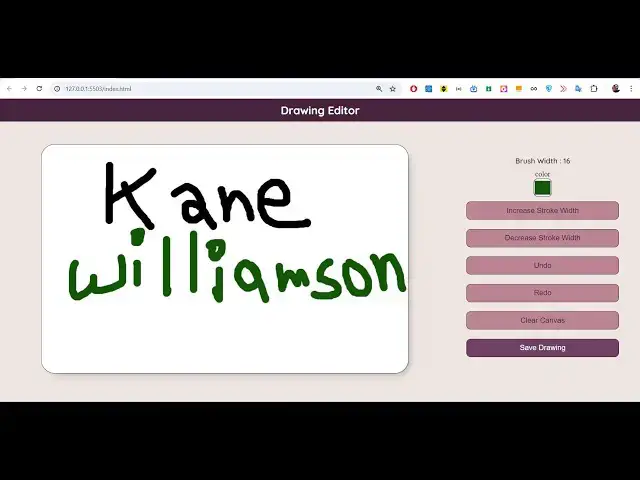
Build a Drawing Canvas API Graphics Editor to Export HTML as PNG Image Using HTML5 & Javascript
Jan 9, 2025

Buy the full source code of the application here:
https://procodestore.com/index.php/product/build-a-drawing-canvas-api-graphics-editor-to-export-html-as-png-image-using-html5-javascript/
Buy Premium Scripts and Apps Here:
https://procodestore.com/
Show More Show Less View Video Transcript
0:03
uh hello guys welcome to this video so
0:05
in this video I will basically talk
0:07
about how I developed this uh drawing
0:10
canvas API editor and it basically
0:13
allows you to actually draw your
0:15
drawings and with the help of pencil
0:17
brushes you can change your the color of
0:20
the canvas using Color Picker you can
0:23
increase the stroke width basically you
0:25
can draw like this anything you can
0:27
write inside this uh paint graphics
0:30
editor can canvas you can anything you
0:34
can just write it with this
0:37
pencil you can change the color here any
0:40
color you can highlight and uh then you
0:44
can basically save your drawing as a PNG
0:46
image guys you can export all the HTML
0:49
canvas content as a PNG image so there
0:53
is a button out there save drawing so if
0:55
you click this button the image will be
0:57
downloaded as a PNG so all this stuff
1:00
that you done if you open this image you
1:02
will actually see all the things that we
1:04
done right here it is exported to a PNG
1:06
image so we basically uh I will show you
1:09
how I build this application it is built
1:12
entirely in HTML CSS and JavaScript and
1:15
we actually use the canvas API canvas
1:18
API allows us to actually Draw Something
1:21
in the canvas and then export this as a
1:23
base 64 URL and we basically converted
1:27
this canvas content to an PNG image so
1:30
whenever we click this button this all
1:32
this stuff is exported to a PNG image
1:34
and all the uh modifications that we
1:37
done using the paint brush you can see
1:40
we can increase the for stroke width so
1:44
it will get thicker and thicker you can
1:47
change the color accordingly using this
1:49
Color Picker and you can make your
1:52
awesome little drawings and Export them
1:53
to a PNG image file using this nice
1:57
little canvas API editor and uh if you
2:01
are interested in buying this project
2:02
guys the link is given in the
2:03
description and you will actually get a
2:06
zip file after you purchase it from my
2:08
website you will be automatically be
2:11
redirected to Google Drive where you can
2:13
actually download the zip file which
2:15
will actually contain this directory
2:17
structure which will actually contain
2:18
the HTML CSS and JavaScript code and
2:21
here we are actually using the canvas
2:23
API if you don't know about canvas API
2:25
guys it is built in inside every browser
2:28
Firefox Chrome
2:30
so if you just write canvas API on
2:34
Mozilla documentation you will see
2:36
canvas API provides some means for
2:38
drawing Graphics in 2D context in
2:41
JavaScript and the HTML element so we if
2:45
you don't know about canvas element guys
2:47
in every HTML document if you if I just
2:50
make this index. HTML document let me
2:53
just make it uh index
2:56
dot index. 2 let me just just show the
3:00
functionality of this application there
3:03
is a canvas element if you don't all
3:05
know guys we can basically provide a ID
3:08
to it and give it a height of 200 pixel
3:12
and a width of also 200 pixel and here
3:15
we can actually Target this element we
3:18
have given an ID
3:20
here and
3:22
uh if I just open this now we can give
3:25
it a
3:28
border to pixel solid black so if you
3:33
just open this with live server you will
3:35
actually see this canvas so inside this
3:38
canvas guys so whatever this is also a
3:42
canvas right here where we can actually
3:43
draw something so this is meant by
3:46
canvas guys we can increase the stroke
3:49
width we can draw something on the
3:51
canvas so similarly this is also a
3:53
canvas we have a fixed width for it
3:55
which is 200 pixel 200 pixel and we have
3:58
given a border to it so similarly in
4:00
this code if you see we have a canvas we
4:03
have given an ID to this canvas and in
4:05
the stylesheet style. CSS if you search
4:09
for the canvas here we have given again
4:11
border 1 pixel solid black border radius
4:14
30 pixel background color white and box
4:16
Shadow so we are using the same concept
4:19
here as well guys you can see that just
4:22
the edges around and these are different
4:25
buttons which are there so this is all
4:27
happening in the canvas API guys you can
4:30
read more about it in the Mozilla
4:32
documentation I just use these
4:33
documentation to actually make this
4:35
awesome little project of drawing editor
4:37
if you are interested the link is given
4:39
in the description you can go to my
4:41
website and purchase the full source
4:43
code you will get a zip file which will
4:45
actually contain these three files the
4:47
JavaScript code HTML code and the
4:49
stylesheet code and uh these are the
4:51
content of it this is the index.html
4:54
file this is the JavaScript code so we
4:57
actually use the concept of canvas a pi
5:00
and one such concept is
5:03
a basic usage of drawing something you
5:06
can draw all the shapes using this
5:08
canvas
5:11
API so you can draw a current stock
5:15
price you can just see rendering context
5:19
you just need to first of all get the
5:21
context here canvas. getet context the
5:23
2D context and then you can draw
5:26
anything on the screen so if I take this
5:29
example
5:31
you will see what I'm talking
5:39
about this is a very simple example
5:42
which will understand you what is
5:44
actually canvas
5:50
API if you see in every canvas we have
5:53
given ID to it width of 150 150 and then
5:57
we actually targeted this canvas element
6:00
by its ID that we have given which is
6:01
tutorial and then we are getting this 2D
6:04
context and then we are basically
6:07
drawing something on the screen if you
6:09
do it nothing will be drawn on the
6:11
screen because we haven't defined this
6:13
function which is draw so now we need to
6:17
Define this function which will execute
6:19
automatically when the canvas is drawn
6:22
on the screen so inside this draw
6:25
function we can basically
6:32
execute
6:35
here so here we are actually getting the
6:38
reference to the canvas we have
6:40
given you can say tutorial here change
6:44
the ID and we are getting the 2D context
6:47
and basically we're defining this fi
6:49
style fi rectangle fi so this is used
6:53
for actually drawing rectangle on the
6:55
canvas you will see so two rectangles
6:57
are drawn first rectangle
7:00
uh background color is red which you
7:02
basically provided these red green blue
7:05
colors and second one is blue so in this
7:07
way guys we are using the same concept
7:10
here also to actually make this
7:11
application you will see we are getting
7:13
the Color Picker save button brush bit
7:17
you we are using actually the same
7:19
concept if you are interested the link
7:21
is given in the description we are
7:23
actually using this canvas API you can
7:25
read more about it in the Mozilla
7:27
documentation you can draw more shapes
7:30
right here you can draw circles
7:32
rectangles lines arrows everything you
7:35
can draw and you can control the color
7:38
of it the canvas uh brush width the
7:42
stroke and the size of the stroke you
7:45
can all control you can see drawing
7:49
path these are all the methods which
7:52
which are supported in the canvas
7:54
elements so you can also do animations
7:56
as well if you
7:57
see all the defined methods are
8:00
available for animating the stuff as
8:02
well in the
8:03
canvas you can see you can basically
8:06
have this animated clock all these
8:09
examples are given guys you can draw all
8:12
this using canvas API so similarly we
8:15
are actually using this same concept to
8:18
actually build this awesome drawing
8:20
editor where you can actually
8:22
export the drawing as an image so if you
8:25
click this it all all be exported as a
8:28
PNG image
8:30
so if you are interested guys the link
8:32
is given you can directly purchase it so
8:35
whatever you draw whatever you can see
8:37
that you can increase the brush width so
8:41
the stroke will be you can decrease it
8:44
you can see that you can change the
8:45
color all these things you can perform
8:48
guys you can undo we can redo undo redo
8:52
buttons are also very much helpful guys
8:54
if you are basically making a drawing
8:57
and you accidentally done something
8:59
wrong you can undo or
9:01
redo and there is also a button of
9:03
clearing the canvas if you don't want
9:06
anything you can simply click this
9:07
button everything will go away so it
9:09
will be reset so you can see that so now
9:12
you can draw again clear
9:19
canvas so it's very helpful guys in
9:22
those situation if you want to take a
9:24
screenshot of your signature let's
9:26
suppose if you want to embed your
9:28
digital signature in inside PDF document
9:30
so what you can do you can make your
9:32
signature like
9:36
this and then export this as a PNG image
9:39
so now you can export this
9:41
signature so background color is you can
9:44
see the background color has changed to
9:48
Black so you can do your
9:57
signature now you can see that you can
9:59
do signature and Export this as a PNG
10:17
image so this is the drawing editor guys
10:20
if you are interested uh the link is
10:23
given abishek saying nice thank you very
10:26
much for watching this live stream and I
10:28
will be seeing you guys in the next live
10:30
stream
#Painting