live_tv
Livestream Starting Soon
00
Hours
:
00
Minutes
:
00
Seconds
Up next in 10

Build a Canvas Editor to Export Text as PNG Image & PDF Using Fabric.js & PDF-LIB in Browser
Jan 9, 2025

Get the full source code of application here:
https://gist.github.com/gauti123456/5398767f8f3543fdd029b3ddf8b610e6
Show More Show Less View Video Transcript
0:00
uh hello guys welcome to this video so
0:02
in this video we will look at how to
0:06
actually make a text and PDF editor
0:10
right in the browser itself using
0:12
fabricjs and PDF lib Library so you can
0:15
just see this is actually a canvas
0:17
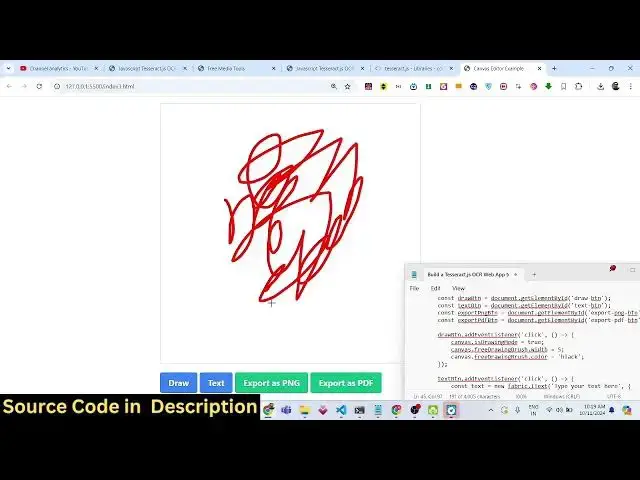
editor where you can simply draw
0:19
something on the canvas we have a lot of
0:22
controls out there we have a button for
0:25
drawing so you can just draw anything on
0:28
the canvas
0:31
and we can export this as a PNG image if
0:34
I click this you will see that it will
0:37
be downloaded as a PNG image and it will
0:41
have this white background you can
0:42
change the background in the code you
0:45
can change it to any background
0:47
similarly we can click on export to PDF
0:50
and then it will export this canvas to
0:53
PDF you will see that everything will be
0:56
exported plus whatever you have drawn s
1:00
similar thing goes with the if you want
1:01
to uh instead of drawing if you want to
1:04
write it in the canvas you need to click
1:06
the text button and now you will
1:08
actually see the controls will be added
1:12
so here you can simply write anything
1:31
so you can place this text any in any
1:33
location and you can control the sizing
1:36
as well this is all coming using fabric
1:39
JS all these controls that you see
1:41
inside so you can place this text and
1:43
then you can export this as a PNG
1:47
file you can see that how beautifully
1:50
the image has been
1:52
exported and similarly you can export
1:55
this to PDF as well so we are using a
1:58
PDF lib for expor it to
2:01
PDF and uh this is it runs in the
2:04
browser no need of server side code and
2:09
uh now to start this building this
2:11
application let me show you the
2:13
libraries that we are using so first of
2:15
all at already told you we are using
2:18
fabric JS which is a canvas library of
2:22
JavaScript open source this is their
2:26
official website
2:33
so lot of documentation is
2:35
available but we looking at this
2:37
tutorial how to actually use this
2:40
library to build these awesome editor so
2:43
then we are actually using PDF lip which
2:46
is a
2:48
JavaScript PDF Library which can be used
2:51
to creating PDF modifying it all sort of
2:55
operations you can perform using PDF FP
2:58
this is their official
3:01
website you can read more about it so
3:03
now to get started uh we have this code
3:06
right here if you need the source code
3:08
you can go to description of this
3:13
video so we are also using Tailwind CSS
3:16
for building the UI of the application
3:18
so what I will do I will simply make a
3:21
simple index. HTML file simply I will
3:24
write
3:27
here canvas editor EX
3:33
example and for this we do need to
3:35
include the CDN link for Tailwind CSS
3:39
just after the title paste
3:45
it and after this we'll be having these
3:49
classes Flex Flex justify Center item
3:54
Center just to make everything in the
3:56
center of the screen
4:00
and we will have an ID here of canvas
4:03
container so this will be the actual
4:05
canvas which we will be targeting in
4:07
JavaScript so for that we have given an
4:09
ID here if you see canvas container to
4:12
this div
4:14
element so width here will be
4:19
1/2 inside this we'll have the canvas
4:22
tag we'll give it an ID here of
4:24
canvas you can see that so we will give
4:29
it a class here border border create
4:41
300 then we have a set of
4:44
buttons uh this button will be used for
4:47
drawing the second button will be there
4:53
for if you want to write something so
4:57
text
5:01
the next button will be for exporting as
5:04
PNG export
5:07
as PNG and then last button will be
5:10
there for export as
5:13
PDF so these four buttons are there and
5:16
we can actually give them classes as
5:18
well if you look right here it will look
5:21
something like this but we do need to
5:23
style this so we can give it
5:26
an first of all an ID here draw
5:33
button this one will be for text
5:39
button this one will be export PNG
5:45
button this will be
5:47
export PDF
5:53
button and then for the classes we
5:56
actually using Tailwind classes BG blue
6:00
500 it will change the background color
6:02
to Blue when we hover onto
6:07
this text will be here
6:12
white phone bolt
6:16
py2
6:18
PX4
6:19
rounded so what I will do I will copy
6:22
all these Styles just the color I will
6:25
change it will be repeating right here
6:29
using the same
6:30
Styles this time the color will change
6:33
from Blue to uh
6:44
green so you will see it will look
6:46
something like this
7:00
and then for this button
7:11
uh just make it here
7:14
blue blue the first two buttons are blue
7:18
color and then we have green
7:33
so now you can see we have four buttons
7:35
and this is our canvas if you can
7:40
see and uh that's all that we need to do
7:44
in the HTML I
7:48
think Flex justify Center item Center
7:52
horizontal
7:56
screen yeah that's all that we need to
7:58
do right here uh uh after this we do
8:01
need to
8:02
include the fabric JS and the PDF lip
8:05
CDN as well so just after the body you
8:08
can paste it you can easily get uh all
8:12
the source codes the link is given in
8:13
the description and then for writing the
8:16
custom
8:20
JavaScript we making a new file
8:23
script.js so right here first of all we
8:26
need to get the reference of the canvas
8:28
by using uh
8:30
new fabric so here we are initializing
8:34
the fabric JS library and it contains a
8:37
canvas method here we need to pass uh
8:41
the reference of the canvas
8:44
element if you see we have given an ID
8:47
to
8:48
this in the HTML we have given an ID
8:52
here to the canvas so we are directly
8:54
passing this ID here and the
8:58
second argument is an object which
9:01
contains the width of the canvas 500 the
9:04
height of the canvas you can control
9:06
this right here and then you can even
9:08
control the background color as well so
9:11
we will be setting the background color
9:13
to white so if you see automatically
9:16
when you refresh the page automatically
9:18
the width and height of the canvas has
9:20
been
9:21
adjusted and the background color white
9:23
has been applied you can change this
9:25
color from white to any color you can
9:28
provide hexad value if you
9:30
see you can control everything from here
9:34
or you can initialize a Color Picker
9:36
where you allow the user to select their
9:39
favorite color uh so you can may you may
9:41
extend this
9:43
application but uh I will stick by
9:46
providing color right in this scode you
9:48
can make it dynamic as well
9:50
so after this we will get references of
9:54
all the four buttons uh
10:01
so we can get references right
10:05
here let me copy this three more
10:09
times so this button here will be for
10:13
text
10:18
button this button will be for export
10:22
PNG button
10:29
and this button will be for export PDF
10:38
button so you can just see we have given
10:41
all these classes right here to these
10:44
buttons right
10:48
here I think this
10:52
is we have given like
10:56
this export dbm
11:05
G just make sure whichever ID that you
11:08
give you references in
11:12
JavaScript so now it is correct we have
11:16
got all the four references so first of
11:19
all when we click the draw button uh we
11:22
will initialize on click
11:24
listener so here we do need to add a
11:27
mode to the canvas which is is drawing
11:31
mode in fabric J there is a property
11:33
called as is drawing mode that you can
11:35
activate just make it true so that uh
11:38
the drawing mode is enabled then there
11:40
is another property called as free
11:43
drawing
11:45
brush dot width you can initialize the
11:48
brush
11:50
width so let me initialize it to five
11:54
and then here you can control the
11:57
color of the brush free dry brush do
12:02
color and I will set this color to Black
12:05
you can set it to any color and make it
12:08
dynamic as
12:10
well so if you click the draw button you
12:13
will actually see now you can draw
12:14
something in the canvas really easily
12:16
fabric JS makes it really easy to
12:19
actually implement this feature and uh
12:22
here you can change this color to red
12:24
color so if you click it now the bres
12:29
will be now be red you can basically
12:32
control all these Min not properties
12:34
with fabric JS with a lot of
12:37
ease and uh you can make all these
12:40
properties dynamic as well by asking the
12:43
user for these properties such as the
12:45
brush color background color the width
12:47
of the brush you can make it a full
12:50
paint editor or canvas editor but in
12:52
this video I just showing you the basic
12:55
usage of fabric JS then we have the
12:58
second button which is for the text so
13:01
when you click that button again you'll
13:03
be initializing a event
13:09
handler so here you'll be initializing a
13:11
new fabric
13:15
dot text method this
13:19
time high
13:23
text this basically a default value here
13:26
will be type your text here
13:30
and the second argument which which will
13:32
be an object just describing much more
13:35
information about the text the
13:37
positioning the left 100 top
13:40
100 this will be the default positioning
13:43
where it will be placed in the canvas
13:45
then you can adjust it phone size you
13:47
can control the text color you can even
13:49
control which is black
13:51
color and then we need to add this to
13:54
the canvas really easy you can see the
13:56
methods names as well canvas. add and
14:00
then we will add this text to the
14:02
canvas so if you now click the text
14:05
button you will see
14:06
that you can adjust it just adjust the
14:10
position scaling everything you can
14:13
control if I change this color to red
14:16
color phone size let me change to
14:19
45 and now you can see
14:22
that here you can control the default
14:24
styling whenever you add the text to the
14:28
canvas you can control all these
14:30
positions and properties this is done
14:33
for the text button and then we have the
14:36
export PNG button so when you want to
14:40
export it to a image
14:44
file you will click this button and uh
14:48
here for converting it to a image we
14:51
will be converting this canvas to base
14:54
64 code by using this function which is
14:56
two data URL which is present in every
15:00
browser which is a buil-in function and
15:02
here you'll be providing the format
15:04
which is
15:06
PNG and then to download this image
15:09
you'll be creating an anchor
15:13
element link.
15:15
HF data
15:17
URL link.
15:20
download canvas. PNG and link. click it
15:24
will actually download the image
15:26
automatically using this anchor element
15:29
so the base the main method is this two
15:32
data URL which converts your image to
15:34
base 64 code this format can be jpg as
15:38
well but we are sticking with the PNG
15:40
image so if you now see if you draw
15:43
something right here if you add a
15:47
text click on export as
15:50
PNG so you will see that everything that
15:53
you have drawn text everything has been
15:55
exported to a image file
16:00
the main thing is that this background
16:03
color you can change to red as
16:06
well then if you draw
16:10
something it is not limited to white
16:12
background only all the backgrounds will
16:15
be exported to image file so it is not
16:20
limited to only white
16:22
color and then we have similarly for the
16:25
PDF as
16:27
well export PD
16:32
PDF and for this we need to initialize
16:36
uh the PDF lib
16:39
library and this function we need to
16:42
change from
16:45
async and we'll be using AIT keyword
16:48
that's F so PDF
16:51
live. PDF document we need to create a
16:53
new PDF document and uh
16:59
we need to add the page so now for
17:01
adding the page we using the add page
17:03
method so here we need to provide the
17:06
canvas width the canvas height so
17:08
whatever is the canvas width and height
17:10
it will be the PDF page width and
17:16
height so after this we will export the
17:20
image of the canvas so we basically what
17:22
we are doing we're taking a screenshot
17:24
of the canvas and exporting it to PDF
17:26
document using PDF Li for taking the
17:29
screenshot you'll simply say PDF
17:32
doc. Ed
17:36
PNG so again you'll be using the same
17:38
method Canvas 2 Data URL this will
17:41
convert this to a base 64 code and then
17:45
it will embed using this function embed
17:48
PNG which is present in PDF lip so again
17:52
here we are providing the format here is
17:55
PNG so we are using two data URL in both
17:58
the situations if you want to export to
18:01
image and Export to PDF as well so this
18:05
is a very handy
18:08
method and then we need to extract the
18:12
width and the height from the canvas
18:17
image you can set it the scaling part
18:20
0.5 you can change all these
18:23
values and now to draw the image you'll
18:25
be using the draw image method
18:31
then the positioning x coordinate 0 y
18:34
coordinate is
18:38
0o width and height so X here will be
18:41
zero just make
18:43
it and now to export this to a PDF uh we
18:48
will P use the save
18:53
method then we need to convert this to a
18:56
blob and uh download it as an ATT
18:58
attachment
19:06
so like this we can do that the second
19:09
parameter will be for the MIM type which
19:12
is a PDF so application SL PDF and the
19:17
same same logic we'll repeat here we'll
19:19
again be creating a anchor
19:25
element. HF
19:29
url. create object URL
19:37
blog result. PDF and click
19:43
it so that's all this was the
19:45
application you can see that for PDF we
19:48
I have used this canvas to data URL once
19:50
again for getting the base 64 code of
19:53
the canvas and then embedding it using
19:56
this function embed PNG and then we can
19:59
set all these properties scaling
20:01
properties and for drawing the image we
20:03
are using draw image method and for
20:05
saving it we are using the save method
20:07
lastly we convert this output PDF file
20:10
to a blob and download it as an
20:12
attachment so if you see
20:15
now if
20:17
I want to add a
20:20
text you can add multiple text as well
20:23
there is not limited to only single text
20:26
you can have multiple text added in the
20:28
C
20:32
canvas now you can click the export as
20:35
PNG button to export this canvas to a
20:38
image and then you can simply do it for
20:41
the PDF as well so now if you
20:46
see positioning of the text you can
20:48
control everything by extending this
20:50
code uh for the PDF it is appearing
20:53
right at the bottom position but you can
20:55
adjust the position as well once you get
20:57
the code you can actually analyze
20:59
yourself and uh just place the text use
21:04
by reading some of the PDF like
21:06
documentation they have various methods
21:09
for positioning as well so the link will
21:12
be given if you need the full source
21:14
code of this canvas
21:16
editor and please hit that like button
21:18
subscribe the channel as well and I will
21:20
be seeing you in the next video
#Design
#Multimedia Software