live_tv
Livestream Starting Soon
00
Hours
:
00
Minutes
:
00
Seconds
Up next in 10

Build a Angular Video Cutter & Trimmer Editor Using FFMPEG WASM in Browser Using TypeScript
Jan 9, 2025

Buy the full source code of the application here:
https://procodestore.com/index.php/product/build-a-angular-video-cutter-trimmer-editor-using-ffmpeg-wasm-in-browser-using-typescript/
Buy Premium Scripts and Apps Here:
https://procodestore.com/
Show More Show Less View Video Transcript
0:01
uh hello guys welcome to this uh live
0:04
stream so in this live stream we will
0:06
actually be looking how forward on how I
0:09
developed this angular video trimmer and
0:13
video cutter project in the browser and
0:16
you can basically see I'm running this
0:18
on Local Host
0:20
3000 and it's very simple and I have
0:23
also deployed this project on my website
0:25
as well you can check out the live demo
0:28
it is currently live just go to video
0:31
cutter editor this is actual tool
0:33
website uh which I deployed here so same
0:36
functionality I deployed this to the
0:38
website you can also check out the live
0:40
demo so if you basically choose here you
0:43
need to choose the video file Whatever
0:45
video file that you have so now that you
0:49
you selected the video file you can
0:52
basically inside using the sliders right
0:54
here you can actually control which
0:58
portion which portion of the video you
1:00
want to trim or cut first of all we have
1:03
the starting slider and this is the
1:05
ending slider you can control so let's
1:08
suppose I want to trim this portion from
1:10
8th second to the 14th second click on
1:13
trim video so it will do the processing
1:15
and now you can see that your video is
1:17
successfully trimmed and now you can
1:20
play the video you can see
1:22
that so we can simply download this
1:25
video right here inside my machine as a
1:27
local
1:28
MP45 you can see see
1:31
that so the length of the video is 6
1:34
seconds so from 8 second to 14 second
1:37
total length is 6 seconds so it has
1:39
successfully trimmed and cut the video
1:42
and we are actually using fmpg web
1:44
assembly Library if you don't know about
1:46
uh this actually it allows you to
1:49
actually use fmpg right in the browser
1:51
itself and uh this is their official
1:55
website which allows you can read the
1:58
documentation and we are using the
2:00
latest version of angular so angular is
2:03
a typescript based framework and a
2:06
single page web application framework to
2:09
run as nodejs so we are using this
2:12
technology angular and this is actually
2:14
the overall project if I show you uh if
2:18
you are interested in purchasing the
2:20
project guys you can go to the
2:21
description of the live stream the link
2:23
is given in the description of this live
2:25
stream and you can purchase it from
2:27
procot store.com before purchasing it on
2:31
the product page you will find the live
2:32
demo link of my website of this uh
2:35
product you can basically just see the
2:38
live demo before purchasing it this will
2:40
be the project that you will get you
2:42
need to choose the file here whatever
2:44
file that you want to select and uh then
2:47
you can simply using these sliders you
2:50
can actually control which portion that
2:52
you want
2:54
to cut so as you basically select your
2:57
starting duration and the ending
2:58
duration click on trim video it will do
3:01
the process it will trim the portion 7
3:04
to 16 so it comes out to be 9sec so it's
3:07
really fast guys it doesn't require any
3:10
desktop software it works in the browser
3:12
it's blazingly fast it is very efficient
3:15
as well and it's a single page video
3:17
editor and prer using fmpg web assembly
3:21
and we are using angular framework for
3:23
doing this so coming back to the code
3:25
guys if you go to the package.json file
3:28
we are actually using uh
3:31
angular 16 version it is compatible with
3:34
all the datest and the older versions as
3:36
well so no need to worry about that if
3:38
it is it it will be compatible or not it
3:41
will be compatible with all the versions
3:43
so we are using specifically 16 version
3:47
so you will get the zip file after you
3:48
make the payment guys you will actually
3:50
get the zip file from Google Drive
3:52
automatically whenever you make the
3:54
payment and you will actually get all
3:57
this configuration all the directory
4:01
which will holding the project source
4:03
code you will get inside that zip file
4:05
you just need to extract it after you
4:07
extract it uh you just need to go to
4:10
this folder which is this folder disc
4:13
folder if you go to the if I show you
4:15
basically the application structure so
4:19
we are actually having this uh disc
4:22
folder if you see inside the disc folder
4:25
we have angular video trimmer and this
4:27
is actually the express ser server which
4:30
is running right here to actually load
4:32
this angular application so we are
4:34
actually starting our server on Local
4:37
Host 3000 you can change this port
4:39
number as well so we are actually
4:42
loading this angular application using
4:44
our Express server so you can see that
4:46
so so now if you want to run this
4:49
application on Euro Machine you need to
4:51
go to the disc folder and simply go to
4:53
this folder and just type this command
4:55
which is node more index.js that's all
4:58
so now this will start your server you
5:00
will see this message server is lisening
5:03
on Port 3,000 so you will actually get
5:05
this message and uh that's
5:10
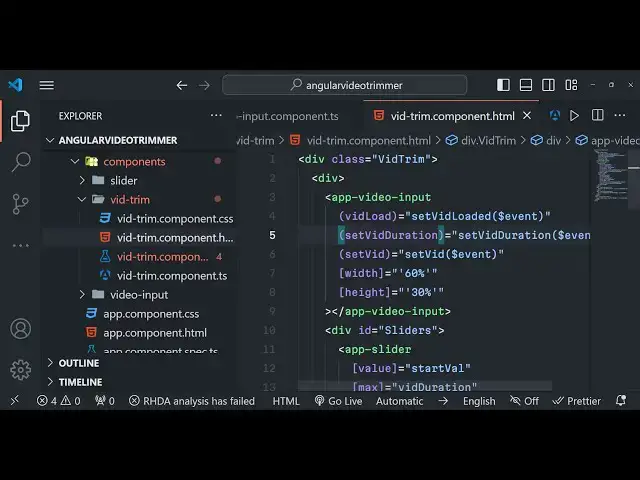
all and coming back to the structure of
5:13
the code guys if you see this is our
5:15
base component app. component. HTML so
5:18
whatever that you see right here so this
5:21
is our base component components folder
5:24
there are three components mainly first
5:26
is the slider then is the video trimmer
5:29
component which actually does the main
5:31
job for trimming the video and video
5:33
input for actually allowing the user to
5:36
uh select the files so if you reload the
5:38
application there is this uh uh
5:42
component if I reload this there is a
5:45
choose file button right here so this
5:47
choose file button is coming right here
5:50
this input field right here if you see
5:52
we have given this reference of input
5:53
ref we have given a class of it to as
5:56
input type is file and this is actually
5:59
the change event handler so whenever you
6:02
the user selects any file this event
6:04
will fire handle file change and we are
6:06
passing the event it only accept video
6:09
file and style display
6:11
none so by default it will not be
6:14
displayed whenever you reload the
6:16
application so you will see nothing
6:18
selected you just need to choose the
6:20
file first of
6:22
all as you choose the file basically the
6:26
file will
6:27
show there is a button right here of
6:29
choose button right here if you see that
6:31
and then we have this video so here we
6:33
are actually loading the video If you
6:35
see the video is displaying in this
6:37
video player so we have this video tag
6:40
NG if Source these are all the angular
6:43
classes we have given this is NG if
6:45
selector attribute width attribute
6:48
height control source is equal to Source
6:50
can play and J this is actually the
6:54
video input component that you see right
6:56
here this is this component that you are
6:58
seeing right here
7:00
after doing this we also write specific
7:03
CSS for all specific component so this
7:06
is actual CSS file for that and coming
7:09
to the T typescript as you all know guys
7:12
angular applications are generally coded
7:14
in typescript which is a super set of
7:16
JavaScript so we have made this project
7:18
in typescript so typescript involves
7:22
higher checks validations so we are
7:25
inside this component we are taking the
7:27
width height Source video load set video
7:30
duration set video all these variables
7:31
we are taking it this is actually the
7:34
typescript code right here handle file
7:36
change this is all the thing so when we
7:39
change the file here we are actually
7:40
loading this file in the memory so that
7:42
we can process it using fmpg web
7:44
assembly Library this is actually the
7:46
typescript code coming back to the
7:49
slider code slider basically uh here
7:53
this involves this input field right
7:55
here so this is a starting trimmer and
7:57
the ending trimmer you can select the
8:00
ation six and click on trim video this
8:04
is slider component is responsible for
8:06
having this input here you can see that
8:09
so whenever you change the value of the
8:12
slider it this value is this function is
8:16
called here update value so whenever you
8:18
change the slider value this value will
8:21
automatically change so this value is
8:23
responsible update value so inside the
8:28
slider you have this function right here
8:30
which gets executed whenever you change
8:33
the slider right here and this is
8:35
actually the main component which is
8:37
video trimmer which holds all the you
8:40
can see that it's a h HTML and this is a
8:43
CSS and this is a
8:45
typescript code right here first of
8:48
all we are basically loading the fmpg
8:52
web assembly Library we are writing the
8:54
file here we are fetching the file from
8:56
the memory and then we are running a
8:58
very simple command right here we are
9:00
converting it to the seconds right here
9:03
we are trimming this to the second slide
9:06
this is actually the logic of the code
9:08
we are not re-encoding the video that's
9:11
why we are passing here- C copy so it
9:15
basically speeds up the process it
9:17
doesn't reod the video and that's why it
9:19
took very little time to actually cut
9:22
the video so if you just see
9:25
here it doesn't take a lot of time
9:28
because we are not read encoding the
9:30
video that's
9:34
why so trim video it doesn't take a lot
9:37
of
9:39
time so this is actually the full
9:42
project guys you will get it's very
9:44
useful if you are a beginner if you are
9:46
a college going or schoolo student then
9:49
it will be a very good project to
9:51
actually show and also understand how
9:54
fmpg is used in modern web applications
9:57
how you can make a very good video
9:59
editor right in the browser itself it
10:01
doesn't require any third party website
10:03
or to edit your videos you can
10:06
directly first of all before purchasing
10:08
it you can go to my website it is
10:11
successfully deployed here you can check
10:13
here before purchasing it you can try
10:16
out and then if you are like it you can
10:19
then purchase it I will provide you full
10:21
support if you have any sort of errors
10:23
after purchasing it you can have your my
10:26
email address which is also given on my
10:29
website site as well so if you're
10:32
interested the link is given and thank
10:34
you very much guys for watching this
10:36
video please hit that like button
10:38
subscribe the channel as well and I will
10:40
be seeing you in the next live stream
#Online Video
#Multimedia Software
#Clip Art & Animated GIFs
#Video Sharing