Up next in 10

Angular ngx-signature-pad to Build HTML Canvas Signature Pad Editor and Export as Image in Browser
Jan 30, 2025

Get the full source code of application here:
https://codingshiksha.com/angular/angular-ngx-signature-pad-example-to-build-html-canvas-signature-pad-editor-in-browser-using-ts/
Hi Join the official discord server to resolve doubts here:
https://discord.gg/cRnjhk6nzW
Visit my Online Free Media Tool Website
https://freemediatools.com/
Buy Premium Scripts and Apps Here:
https://procodestore.com/
Show More Show Less View Video Transcript
0:00
uh Hello friends welcome to this video
0:02
so in this video I will show you how to
0:05
capture your screen signature digital
0:08
signature if you do it on a digital
0:10
canvas here you see HTML canvas so after
0:13
doing the signature you will you can
0:16
save this as an image file so you can
0:18
export this as a PNG file here so
0:20
automatically takes the screenshot of
0:22
whatever you have done so you can see it
0:25
exports
0:26
it so if you click the get image button
0:29
it will it we convert this into image
0:31
you can change the config here you can
0:33
change the color here accordingly so
0:36
whenever you press it so there is a
0:39
package in angular which allows you to
0:41
do this it's a redimed component which
0:44
is called as ngx signature
0:48
pad so from the name itself it's a
0:51
package which allows you to draw your
0:53
signature and Export this into a PNG
0:57
file so this is actually the name of the
0:59
package which the command is very
1:01
simple you execute this command to
1:04
install this it's a fairly new package
1:07
and it can be done on mobile devices or
1:09
PC as well so if you're running your
1:11
application so it's very easy to
1:13
integrate this so I have written a
1:15
complete step bystep blog post on my
1:17
website with full source code of this
1:19
example project so you can go to the
1:21
description link so the very first thing
1:24
you need to do you need to go to your
1:26
app. module. typescript file and just
1:29
import this module so we already added
1:32
this import line if you see that and
1:34
then added this inside the Imports are
1:37
so this is just the configuration that
1:39
you need and then I will show
1:41
you how to get started here so let me
1:46
delete everything and start from
1:54
scratch so here first of all we have uh
1:58
four buttons out there this is clear
2:01
button get image change configuration
2:03
and force reload so we have all these
2:05
four buttons so now in the we need to
2:09
actually declare the directive here
2:11
which is
2:12
ngx
2:15
signature pad and it's a opening and
2:18
closing tab so as soon as you do this
2:20
you see this HTML canvas presenting out
2:23
there and it actually takes some
2:25
properties here which you can control it
2:27
so you can directly pass it so it takes
2:29
a meter of config so here you need to
2:32
pass your configuration object so and
2:35
also we can give it an ID here test pad
2:38
so by hash symbol we are giving this
2:40
unique ID to this element so that we can
2:42
Target in typescript code now we need to
2:44
declare this configuration object right
2:47
here so for targeting it by the ID we
2:51
can use view child and this ID that we
2:54
have given which is test pad and the
2:57
second parameter is static to true so in
2:59
in this way we target this element that
3:02
we given this ID here test pad in the
3:05
typescript
3:07
code which is of the type here
3:12
signature pad and is of the type here
3:16
ngx signature pad
3:20
component so this signature pad
3:22
component we are importing it if you see
3:24
at the top here from this
3:26
module so after we do this we can at
3:29
attach the configuration object right
3:31
here which will be of the type signature
3:33
pad
3:35
options and here you can
3:37
control the width and the size of the
3:40
canvas we are giving a minimum width of
3:44
one and a maximum width of 10 and here
3:48
you can control the color of the pen so
3:50
I'm just putting it to
3:55
Blue so we have set these options with
4:00
maximum hit pen
4:10
color and now to see
4:16
this we need to just move this inside
4:20
the
4:21
div which have the class of container so
4:25
I will just move this signature pad
4:28
component in this
4:30
so that we can clearly see right here if
4:32
you see
4:34
that we can't draw on the canvas if I
4:37
drag my mouse here so for drawing the on
4:40
the canvas here we just need to
4:43
attach this we need to bind this change
4:46
configuration method right here
4:49
which changes your configuration
4:52
whenever you click that button so here
4:55
you can change this pen
4:57
color and we can give it a Rand
5:09
color so what I can do I can simply
5:12
attach all these four methods which are
5:27
there so you can see the pen color will
5:30
be blue color and here you can change it
5:33
to any color so let's suppose I change
5:35
it to
5:36
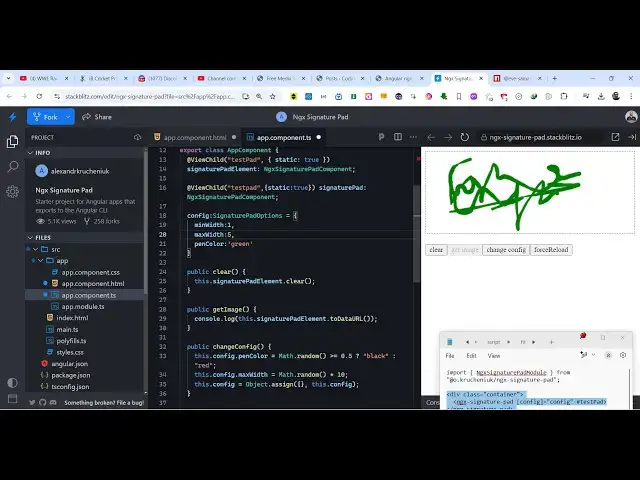
Green so you will make your signature
5:40
and you can even change the width of the
5:41
pen right here
5:43
so uh let me make it maximum WID to five
5:48
here so you can control all these
5:50
experts and
5:52
uh then you can export this as a image
5:56
file as well so
6:01
so it will export this canvas whatever
6:03
signature that you have
6:05
done so this is actually the module
6:08
inside angular if you need the full
6:10
source code the link is given in the
6:11
description where I shown you step
6:13
by-step example code so this is actually
6:16
the module ngx signature pad which
6:18
allows you to export your HTML canvas
6:21
and Export this as a PNG image file you
6:23
can draw
6:24
anything with this pen right here and
6:26
you can change the properties so thank
6:28
you very much for watching watching this
6:30
video and also check out my website as
6:32
well free mediat tools.com which
6:35
contains thousands of tools regarding
6:37
audio video and image and I will be
6:40
seeing you guys in the next video
#Programming