Up next in 10


Get the full source code of application here:
Show More Show Less View Video Transcript
0:00
Uh hello guys, welcome to this video. So
0:02
in this video, I'll show you a VS code
0:04
extension which allows you to open your
0:07
HTML file, CSS file and JavaScript file
0:10
directly in the browser.
0:13
So this is the extension that I'm
0:15
talking about. If you see it's got
0:18
almost 302 installs, thousand installs.
0:22
If you just write open in browser in the
0:25
extensions tab, this extension will come
0:27
right here.
0:36
So just click the install button to
0:38
install this extension.
0:42
So after installing it go to your HTML
0:44
file and right here in the
0:48
it will add this
0:50
option here. If you see, if you right
0:52
click
0:54
open in other brow browser or preview in
0:58
default browser, it will add this option
1:00
right here. As soon as you do this,
1:02
automatically you will see the file will
1:05
be opened. So it adds this option right
1:08
in the context menu.
1:11
You can basically select from a series
1:13
of browser here. It can be Google
1:14
Chrome, Mozilla, Firefox, Oprah,
1:17
Microsoft Edge.
1:19
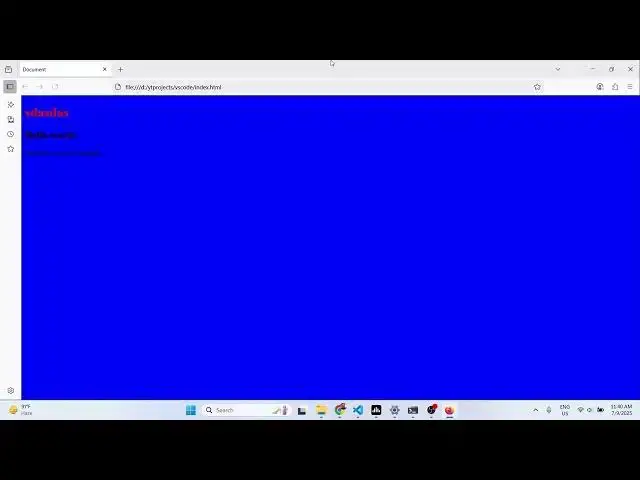
If I select Firefox, so now it opens the
1:23
same application in the Firefox browser.
1:28
So basically it adds all this option
1:30
right here also in the status bar as
1:33
well. So you'll see it adds this option
1:36
right in the status bar as well. You can
1:38
directly click on the status bar to
1:43
simply go to the file in the browser.
1:47
So this is a app uh extension. It's used
1:50
by almost 12 million developers. So it
1:53
basically opens the current file in your
1:55
default browser application. It can be
1:58
JavaScript, HTML, CSS. You can see all
2:00
the code is there.
2:03
So thank you very much for watching this
2:05
video and also check out my website
2:07
freemediatools.com
2:09
uh which contains uh thousands of tools.
#Web Design & Development
#Development Tools