Up next in 10


Get the full source code of application here:
Show More Show Less View Video Transcript
0:00
Uh hello guys, welcome to this videos.
0:02
In this video, I'll show you a VS Code
0:04
extension which allows you to get the
0:06
colors information. When you hover onto
0:09
them, it will display the information
0:11
about the color in a pop-up window.
0:13
Simply go to the extensions tab. Just
0:15
type this C CSS info and this extension
0:19
will right here come color info. It's
0:22
almost got 1 million installs and it
0:25
basically provides quick information
0:27
about the CSS colors that you're
0:29
hovering. So inside your CSS code. So
0:32
once you activate this extension by
0:35
default if you go to style.css if you
0:38
hover onto any color here.
0:40
So only this information shows which is
0:42
the what is the hexadimal code of this
0:47
not nothing else no other additional
0:50
information shows by default. But now
0:52
when you activate this extension, it
0:55
also shows you some other useful
0:57
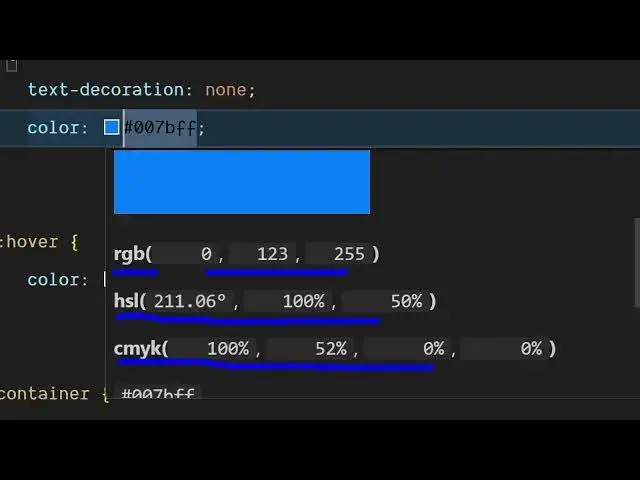
information about that color. So once
0:59
you activate this again click on this
1:01
color. So now what happens? You will see
1:04
if you drag down you will see additional
1:06
information about this color which is
1:09
your RGB value red green blue. What is
1:12
the code? HSL value here. CM Y value as
1:17
well. And then what is can see that so
1:20
these three codes information are shown
1:23
here.
1:29
So just click on that individual color
1:32
and then additional information will
1:34
also be shown right here in this pop-up
1:36
window. So this is through this
1:39
extension. So once you install this
1:41
extension it will basically provide this
1:43
extension uh information right here.
1:45
Whenever you click on the individual
1:47
color in the CSS code, it will display
1:49
this information right here.
1:52
So you can definitely use this and also
1:56
check out my website freemediatools.com
1:59
uh which contains thousands of tools.
#Software