0:00
uh hello guys welcome to this video so
0:02
in this video I will show you how to
0:05
manually live preview your HTML
0:07
documents directly in vs code so there
0:11
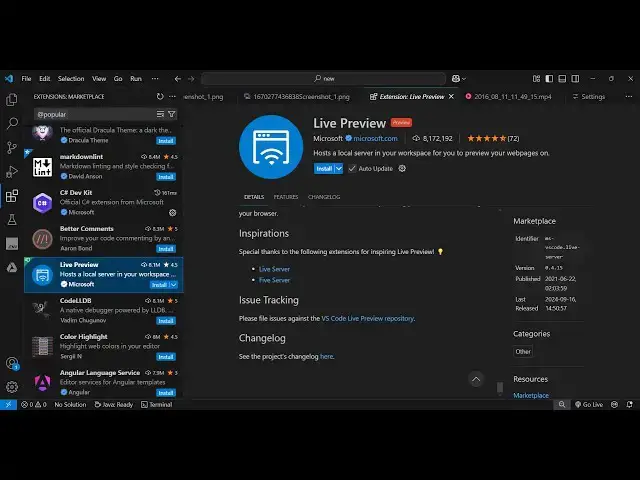
is an extension that you need to install
0:12
which is live preview just go to the
0:14
extensions tab just type live preview
0:17
and this is the extension which is
0:18
developed by Microsoft it's almost got
0:21
8.1 million installs so it actually host
0:25
a local server in your workspace to
0:27
preview your web pages locally or
0:30
externally so just click the install
0:32
button and as soon as it activates now
0:35
it will go to your index.html document
0:39
and right here you right click either
0:43
and you will see this option appearing
0:47
preview so either you can click this and
0:50
it will show you the live preview so
0:52
just make sure that you are in a valid
0:54
HTML let me just click Show preview
1:00
and you will see the live preview and as
1:02
soon as you make any sort of changes it
1:05
will automatically reflect this is
1:08
really useful because it doesn't open
1:10
any external browser it shows live side
1:13
by side as you are coding right here it
1:15
is automatically refreshing and it's
1:18
very much useful if you are developing
1:21
some kind of a tutorial and recording it
1:24
on YouTube you can side by side use this
1:26
extension and record your tutorial
1:29
without leaving your vs code and you can
1:32
see it also works with CSS as well so
1:34
let's suppose I change the color you'll
1:40
automatically change the Styles
1:48
here so as we are coding here you will
1:52
will automatically live preview and even
1:55
there is a shortcut key on the keyboard
1:58
control shift p to open the command line
2:01
command pallet and just type here live
2:04
preview and if you want to open a
2:09
browser you can also select this option
2:12
as well so let's suppose to close it
2:15
simply click the close button and now
2:17
you can either right click command
2:19
pallet and say live preview and then
2:22
again it will open and if you want the
2:26
external browser simply select the
2:30
and now it will open external browser
2:32
this is actually the address it
2:35
opens and it also does the same thing
2:45
so it's a good extension I personally
2:48
use this extension a lot so it's
2:51
developed by Microsoft so it's a very
2:53
popular extension so simply install this
2:55
and start using this and also visit my
2:59
website free mediat tools.com which
3:01
contains thousands of tools regarding
3:03
audio video and image and I will be
3:06
seeing you in the next video