Up next in 10

This Open Source Nanobot DESTROYS OpenClaw Code Full Stack Apps From Prompts For FREE
Apr 17, 2026

💡 Try it here: : https://groq.com/
Show More Show Less View Video Transcript
0:02
Uh, hello guys in this live stream I
0:03
will actually show you yet another AI
0:06
bot which is released which is called as
0:08
Nano bot. It's completely open source.
0:11
So, if you go to GitHub, you need to
0:13
simply type for this Nano bot.
0:18
So, it is completely open source
0:20
developed by a bunch of developers and
0:22
it's actually similar to open claw.
0:25
If you simply write this, this is
0:26
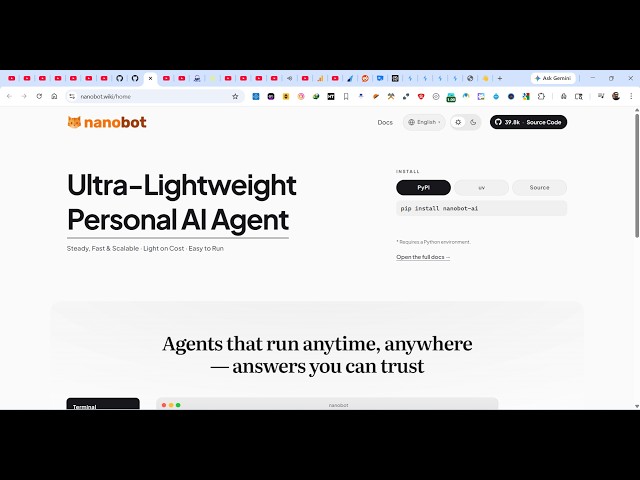
actually the ultra weight lightweight
0:28
personal AI agent. It's called as Nano
0:31
bot. It's developed entirely inside
0:33
Python and it's similar to
0:38
the open claw.
0:40
As you can see, it's inspired by open
0:42
claw. It can automate everything inside
0:44
your computer. It can build out
0:46
applications. It can automate anything.
0:48
So, it's an ultra weight personal AI
0:50
agent.
0:51
So, this is their GitHub repo. Almost
0:54
40,000 stars are there.
0:56
So, you can check check this GitHub repo
0:59
out.
1:00
Support this GitHub repo and just clone
1:02
this directly to get started. It's
1:05
really good GitHub repo.
1:09
And now to actually install this,
1:13
if
1:15
it's
1:18
It's very easy for you to install this.
1:20
Step-by-step instructions are given. You
1:21
can also install from source as well.
1:25
Or you can install with UV.
1:28
So, just go to your command line
1:30
and
1:31
simply install this
1:34
by executing this command.
1:38
This will install this Nano bot AI
1:41
directly inside your machine as a bot.
1:45
You can also install this from pip
1:47
install Nano bot AI as well. So, once it
1:50
get installed, you will get a
1:51
notification and then after that you can
1:53
build out full stack coding applications
1:56
directly from single prompts.
1:59
So, now it is installing the necessary
2:01
packages which are required for building
2:03
this bot.
2:07
So, once it get installed, you can
2:08
actually connect different applications
2:11
such as WhatsApp,
2:13
login into it, Nano bot channels, login
2:16
WhatsApp.
2:32
You can get API keys from open router
2:35
and configure this inside Nano bot
2:38
config.json file
2:40
for other LLM providers.
2:43
It has its own provider section as well.
2:47
So, here you can also connect different
2:49
applications such as Telegram, Discord,
2:52
WhatsApp, WeChat
2:54
inside this Nano bot.
3:02
So, it's
3:03
a very good alternative open source
3:05
alternative to open claw.
3:08
This Nano bot. Simply install this.
3:10
After installing it,
3:15
you need to configure this config.json
3:18
file. So, right here you provide your
3:20
API key.
3:22
Set your model optionally.
3:24
With this,
3:28
if you simply type this,
3:32
Nano bot off.
3:36
So, Nano bot dash dash version, so it
3:38
will exactly tell you which version of
3:40
Nano bot you're using. After installing
3:43
it,
3:48
So, you can see we are using the latest
3:50
version of Nano bot as you see.
4:11
So, now to initialize it, this is
4:12
actually the command Nano bot on board.
4:16
So, you just need to execute this
4:18
command Nano bot on board
4:21
to initialize this
4:23
coding bot or coding agent. So, it's
4:26
actually created this
4:29
config.json file for you automatically
4:31
as you can see that.
4:40
So, if you want a
4:42
wizard to open, then you add this option
4:45
dash dash wizard.
4:47
This will actually show you all the
4:50
steps visually.
4:52
It will ask you all the questions. Would
4:54
you like to configure LLM provider, chat
4:58
agent settings, everything.
5:00
So, from here you select any of the
5:03
provider.
5:04
Let's suppose you want to use deep seek
5:06
open AI anthropic.
5:08
So, simply select your provider, then
5:10
provide the API key. Let's suppose I
5:13
select open router.
5:16
And
5:17
right here I need to select the API key
5:20
section. So, right here,
5:22
you go to open router, simply paste your
5:24
API key
5:25
and paste it.
5:27
After setting your API key,
5:30
click on done.
6:02
You simply say
6:04
can also save and exit.
6:08
Config saved at config.json.
6:14
So, after setting the API key, now you
6:17
can actually ask any question to the
6:19
bot,
6:20
Nano bot.
6:22
So, you actually Nano bot agent, this is
6:24
actually the agent mode
6:27
which works.
6:29
Once it is installed, it create the
6:31
necessary files.
6:33
Simply type Nano bot agent.
6:36
And now it will
6:38
uh, start the agent mode for you.
6:42
So, right here you simply ask anything.
6:44
Let's suppose hi.
6:46
Now the Nano bot will respond.
6:49
Just make sure that your API key is
6:51
correct.
6:56
So, it's actually using this
6:58
anthropic cloud opus 4.5.
7:05
So,
7:07
you need to
7:09
I think open router credits are paid to
7:12
a paid account. So, you will get this
7:14
warning. Make sure that you actually
7:17
have enough credits inside your account.
7:19
Unfortunately, in in my scenario, the
7:22
credits are not there.
7:25
So, you need to top up credits. So, as
7:27
you see that you need to add credits
7:31
so
7:33
to actually use it.