0:02
Uh hello guys in this live stream I will
0:04
show you yet another coding AI assistant
0:06
or agent which loves to create coding
0:10
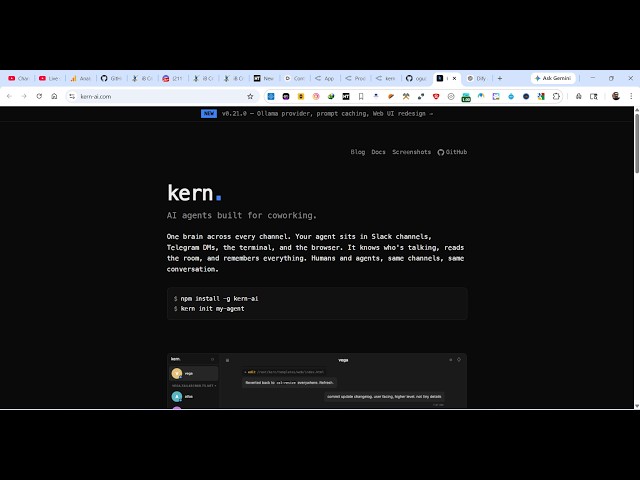
application. If you simply type co AI K
0:13
E R N AI the very first website which
0:16
comes this is actually a coding agent
0:19
where you can create multiple coding
0:24
So it's a PI platform.
0:33
Uh I think let me see the actual coding.
0:39
Con sorry this is not the website.
0:46
This is the website here. So con-ai
0:52
So I've also given the link in the
0:53
description of this live stream. This
0:55
actually is open source. It's also
0:57
available on GitHub as well. As you see
1:01
it's actually a coding agent.
1:11
The command is simple. npm install-g. So
1:15
just copy this command. You should have
1:17
NodeJS installed. Just open your
1:29
just open the command line and make sure
1:32
that you have NodeJS installed and then
1:43
Then you can initialize your first agent
2:11
So once it is installed you simply say
2:24
so you can connect different
2:26
applications as well.
2:29
So that this agent can actually interact
2:32
with different applications such as
2:34
telegram, Facebook. So you give it a
2:38
name whatever coding. So I will say
2:42
and then you will select your provider
2:45
just paste the API key open router and
2:48
tropic openai orma if you have a local
2:51
AI provider. So from here you just need
2:54
to paste the API key. So if the best way
2:58
to actually get the API key just go to
3:03
from here you select your your account I
3:07
already have one simply sign up uh go to
3:27
So just copy this API, configure it,
3:30
paste it. Now you will have all the AI
3:33
models right here. You can navigate
3:36
whichever AI model you want to use.
3:40
So there are some free ones also
3:42
available. So just select the free one.
4:14
So from here you can also connect your
4:16
telegram as well. Get telegram bot token
4:19
or slack any application.
4:22
It will create this agent here. And now
4:25
to start this coding bot started. Uh now
4:28
to you can even start it as a web
4:30
application as well or terminal chat
4:36
So if you want it to be at web so
4:42
this will start this.
4:57
So this is your agent which has started
4:59
right here. So as you can see that I can
5:02
ask any question build a image to PDF
5:10
So right here as you can see it's
5:12
building out the application for us.
5:16
You can configure any model change any
5:19
model at any point of time. So this is a
5:21
step-by-step procedure how to actually
5:35
You can also attach images as well. So
5:38
there is also this option available.