Up next in 10

React.js Project to Integrate Paypal Payment Gateway Button inside Browser Using JSX & Javascript
Dec 22, 2025

Buy the full source code of application here:
https://procodestore.com/index.php/product/react-js-project-to-integrate-paypal-payment-gateway-button-inside-browser-using-jsx-javascript/
Show More Show Less View Video Transcript
0:08
Uh hello friends today in this tutorial
0:09
I'll be telling you that how to
0:11
integrate uh the PayPal payment gateway
0:14
inside your ReactJS application.
0:16
So if you see here PayPal is a very old
0:19
payment gateway which is very well
0:21
popular worldwide. So if you just search
0:24
on Google, it was founded in 1998
0:27
and basically if you want to integrate
0:29
the PayPal button inside your website to
0:31
collect payments from visitors,
0:33
you can watch this tutorial. So I will
0:37
be doing this inside ReactJS
0:39
application.
0:40
So right here if I load this application
0:42
here, you will see that it is running on
0:44
localhost 3001 and we have a simple buy
0:47
now button here and it is $20 here. This
0:51
is the item here which is written here
0:54
and there is a buy buy now more button.
0:56
So basically if I click this button I
0:58
will be having this PayPal button here.
1:00
So when people is watching the stream.
1:03
So we are building a PayPal integration
1:05
inside ReactJS. So basically we have
1:08
some items here with the price here $20.
1:11
So if I click the buy now button we will
1:13
have this either we can pay through
1:16
debit card or credit card or we can
1:17
through pay it through PayPal. So
1:21
if I click PayPal here, you will see
1:23
that the pop-up window will appear and
1:25
then it will ask for the account to
1:28
login here. So we can select our test
1:31
account for PayPal and we can login with
1:35
the username and password and inside it
1:37
we can create a new account here inside
1:40
a PayPal dashboard. We can create a
1:42
personal account here. We can select the
1:44
country. Let's suppose I select here
1:46
India and click on create.
1:50
And now you can see it will create this
1:52
account here. The sandbox account
1:54
created successfully.
1:58
So basically if I view the account here.
2:03
So basically this is the
2:06
email address and this is the password.
2:10
So let me write it. Let me write the
2:13
email and then I will write the password
2:16
which is generated by system password.
2:19
So if I
2:22
paste this click on login. So basically
2:25
it will login inside my sandbox sandbox
2:28
account here. So it is just processing
2:30
it and it will make the payment. After
2:33
making the payment it will return the
2:34
response back to the ReactJS
2:37
application.
2:39
So now you can see that
2:44
The payment has been successfully made
2:46
here
2:50
and in this way you can integrate the
2:51
PayPal button to collect payments from a
2:54
visitors inside your ReactJS
2:56
application. So we will be looking step
2:58
by step how to do this process from
3:00
scratch. So now let's get started for
3:04
building this application. We are using
3:06
a NodeJS module here to build this
3:08
application. So if you go to npmjs.com
3:11
you will just use this module here which
3:14
is just right here pay react and the
3:17
very first module which comes in you
3:19
need to click this module and this is
3:21
the actual module which contains you can
3:23
see 36,144
3:25
weekly downloads are there
3:28
and uh if you're watching it for the
3:30
very first time guys please subscribe
3:31
the channel hit the like button and also
3:33
hit the notification bell icon to
3:35
receive all the notifications regarding
3:37
this channel and this is the actual
3:40
module guys. So you can see that it has
3:42
got a great documentation. All the
3:44
examples are there. You can also have a
3:46
donate button
3:48
embedded inside your website to collect
3:50
donations from your visitors. Then we
3:52
have all these sorts of examples.
3:54
Subscription payments. Also if you run a
3:57
course website if you want to subscribe
4:00
to the crow courses you can also do it.
4:03
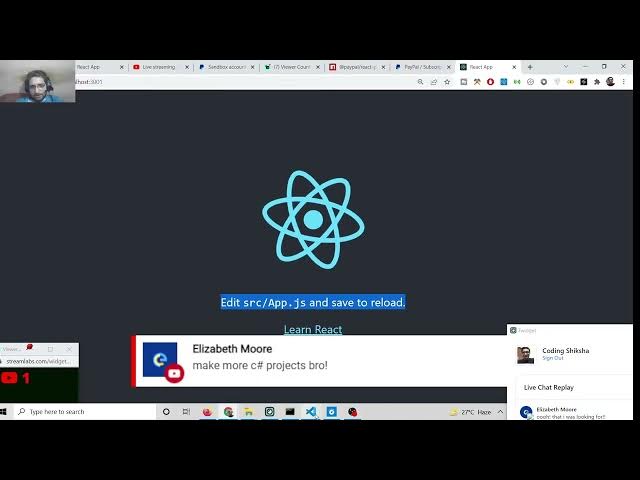
Some comments are there. That was like I
4:06
was looking for. Nice. Good job. Keep it
4:08
make more C s projects pro definitely in
4:12
the future I will make it. So [snorts]
4:14
if you watch it I will definitely make
4:16
it. So these are subscription based
4:18
payments. So all these examples are
4:20
there
4:22
and we will be need to build this. So
4:25
first of all guys what you need to do is
4:27
that we will create a brand new ReactJS
4:29
project.
4:34
So I will
4:37
come back to the projects directory and
4:40
I will create a new directory here which
4:42
will be react pay project.
4:48
I will be cd into this directory.
4:53
And now the very first thing we will
4:55
create the project by npx create react
4:58
app. And then we will make our project.
5:00
We will give a project name react
5:02
project.
5:04
You can call this anything. So now you
5:06
can see it will create a brand new
5:08
ReactJS application inside this
5:10
directory. So it will hardly take five
5:13
to 10 seconds to make this. So just wait
5:17
here and after that we will install the
5:20
module which is necessary.
5:25
So this is actual module we will use it
5:29
paper at the rate react pays.
5:33
So it is just
5:37
installing the module here.
5:51
So after it installs guys I will install
5:54
the dependency. So now first of all we
5:57
will move to the project folder by going
6:00
to cd react project and then we need to
6:04
install npmi.
6:07
This is the module we need to install
6:08
here which is simply add the rate pay
6:14
/ react-lejs.
6:21
So this is a module that you need to
6:23
install here guys. So after installation
6:26
completes
6:33
we can open this folder inside Visual
6:35
Studio Code text editor. So now we will
6:38
have a brand new ReactJS project. So
6:42
inside the app dot js file you will see
6:45
the hello world program as usual the
6:49
hello world program. So if I want to run
6:51
this reacts project, I will in uh
6:54
instantiate this command which is npm
6:57
start. So basically this will start the
6:59
project at a particular port number. So
7:03
it will automatically hot reload. So
7:06
whenever you make any sort of changes
7:07
you will see localhost 3000.
7:10
So it is just
7:14
making the project here. So just wait
7:17
for some time.
7:23
So now you can see this is your hello
7:25
world project. So now inside this guys
7:28
we need to delete all the stuff which is
7:30
there inside it. We need to delete all
7:31
the stuff.
7:33
And inside this we just need to
7:38
simply say here first of all we will
7:43
uh inside this
7:47
we will have a simple button.
7:52
So the button would be simply if you see
7:55
here
7:59
this will be PayPal
8:05
script provider. I think this is the
8:06
element PayPal script provider. So if
8:09
you do this automatically this will be
8:11
included from this module which is at
8:13
the rate pay/reactpay.js.
8:17
So basically this module
8:20
take some options here.
8:27
So we have this options.
8:30
So the first option it takes is the
8:32
client ID.
8:35
So client ID is nothing but the client
8:38
ID of your uh account which is there.
8:44
So basically we need to copy paste it
8:47
from our sandbox account. We have this
8:49
client ID.
8:51
So go to my apps and credentials inside
8:54
your PayPal dashboard. You will find
8:56
this information right here inside your
8:59
developer.
9:00
Just go to it and login with your
9:03
account. And then you need to create a
9:05
new app here. Simply create a new app
9:09
and then just name your app anything. I
9:12
will name it as test app 123. So just
9:17
select the merchant account. That's it.
9:20
And click on create app. So basically it
9:22
will create the new application and it
9:25
will give you the client ID that you
9:27
want. So
9:30
so this is the client ID that you need
9:32
here. Simply copy this client ID and
9:35
simply paste it here.
9:39
So that's all that you need here inside
9:40
this options.
9:42
So that's completed.
9:51
So after this guys what we need to do is
9:53
that if you just we need to have a
9:57
simple button
10:00
after this dip we will have a simple
10:03
heading
10:06
H1 heading. We can say
10:10
we can just have a simple book.
10:15
You can give any heading of your choice.
10:17
Then we have a simple button to buy the
10:19
stuff. So we will have a simple
10:25
we can just have a simple span tag where
10:27
we can mention the price. So this will
10:29
be for $20.
10:31
We will say this
10:35
and after this you will have a simple
10:37
button.
10:40
So button and this will be of type
10:42
submit
10:43
and the label here simply will be buy
10:46
now. So the label will be simply buy
10:50
now.
10:56
And now when we click this button you
10:58
will see on click.
11:05
So when we click this button guys. So
11:07
[snorts] we need to execute a callback
11:09
function which will execute. This is the
11:11
arrow function.
11:14
So here we need to write here at the
11:16
very top we need to declare some
11:18
variables which is for hooks. So we will
11:21
be using the hooks here.
11:23
So in order to show the button there
11:25
will be a hook which will be show and
11:28
the method will be set show and we will
11:30
be using the use state hook. This will
11:33
be automatically imported
11:36
and the current value will be false. the
11:37
button will not be shown to the user.
11:41
And the second one is for the success
11:43
message which will be success and set
11:46
success is the method.
11:49
And uh the again the we will use the use
11:54
state and this will be false.
11:57
And then we have the error message
12:08
set
12:11
error message
12:14
and this will be empty for now. And now
12:17
after this we have the order ID.
12:20
So whenever you purchase the product you
12:23
will get your order ID. So we will set
12:26
this order id like this. So inside this
12:29
we will have the again we will use state
12:32
and the current value will be false. So
12:35
now basically when you want to purchase
12:37
it when you click on this button we will
12:40
show the button PayPal button. So we
12:42
will set set show to true. That's it.
12:47
That's all you need to do. And uh after
12:49
pressing the button PayPal button will
12:51
show.
12:54
And now to show the PayPal button it is
12:56
very easy. If you write here after this
12:59
div simply you will need to
13:05
uh after you see that after this button
13:07
we will simply check for the condition
13:09
if the value is uh of this hook function
13:12
is set to true or false. If it is true
13:14
then we will write this as a condition
13:17
here. If the value is true, we will use
13:20
a turnary operator. If the value is
13:22
true, then we will show the PayPal
13:25
button which is simply here. We can use
13:28
the PayPal
13:31
I think PayPal buttons module. This will
13:34
get automatically imported here. You
13:36
will see from this dependency. After
13:38
this, we have to have a simple style.
13:44
We can style our button. We can provide
13:46
a layout property
13:48
which can be either horizontal or
13:50
vertical.
13:51
You can give it accordingly. I will
13:53
provide it vertical.
13:57
And then you will create a special
13:58
function which will actually create the
14:00
order when you click it. So we will bind
14:04
a function special function we will
14:06
create which is create order. We will
14:08
create it.
14:10
And once again this also has on approve
14:14
all these function it has on click on
14:16
error on on it on sipping charge on
14:20
cancel. So when you approve the payment
14:22
we will again make this function which
14:25
will be on approve. That's it. So once
14:29
again close this
14:31
and uh
14:33
when the button is when the show value
14:36
is false in that case we does need to
14:39
provide a another value for else. So
14:42
this will be null that's it. So we have
14:46
written the condition. Now we need to
14:47
create these two methods here which is
14:49
create order and on approve. If you just
14:51
see the you can see that create order
14:54
and on approve is
14:58
not defined. So we need to create these
15:00
two functions here. So for the error to
15:03
go away. So right here we will at the
15:05
very top we will define these functions.
15:08
So for the first function you will see
15:12
that we need to define these functions.
15:16
Some comments are there. Let me read the
15:19
comments which are coming. If you're
15:21
watching it for the very first time then
15:22
please hit the like button and subscribe
15:25
the channel as well.
15:27
So now we need to define these fun uh
15:29
functions at the very top.
15:32
So right here we will define it. The
15:35
first function we will define it is
15:38
create order. So which is used to create
15:41
the order. So we will simply say const
15:43
create order. So this will be a function
15:47
and this will get the data
15:50
and also it will have the actions.
15:55
This will be a arrow function and right
15:58
here
16:00
the second function we will also define
16:02
it which is on approve when we approve
16:04
the payment on approve.
16:11
So inside this function also guys we
16:13
will have the data and the actions
16:17
attached to it automatically. So now if
16:20
you see error will go away. And now if
16:22
you see it if I launch this application
16:25
we have a simple button here of buy now.
16:28
And if I click this button you will see
16:29
that
16:33
something happened here. Um
16:37
if you see here
16:42
it is saying that use paper script
16:44
reducer must be used within a paper
16:46
script provider. The error occurred in
16:48
the PayPal button component.
16:56
If you see here let me see the error
16:58
which is there.
17:08
So I need to surround this right here.
17:11
Sorry guys. So just do it. So this needs
17:14
to be surrounded inside the PayPal
17:16
script provider. So we will
17:19
just define this. So this needs to be
17:22
right here. So we will click close the
17:25
tag here. Pay script provider. That's
17:28
it. So if you now do it, click the buy
17:31
now button. you will see the PayPal
17:32
button appearing here. And if you click
17:35
the PayPal button, nothing will happen
17:36
because we need to write the create
17:39
order method. So right here. So you just
17:43
need to surround this using PayPal
17:44
script provider. That's it.
17:48
And the button will show. Now we need to
17:50
write these two functions guys which is
17:52
actually create order. So now to create
17:54
the order we will return the
17:57
return actions dot create
18:04
sorry react actions dot order dotcreate.
18:08
So basically this will create a object
18:10
to
18:13
purchase the item. Two people are
18:15
watching the stream guys. So we are
18:16
integrating the purchase uh sorry PayPal
18:20
gateway inside ReactJS. So this will
18:23
have purchase units. How many
18:26
units you have purchased? The customer
18:29
has purchased. This will be a array.
18:34
If I write this properly, this will be a
18:37
colon
18:39
and inside this array we will provide
18:41
the description of each object. So
18:44
basically what the user has bought. So
18:47
we can provide this we can say book. You
18:51
can provide any description. Then we
18:52
have the second property is the amount.
18:55
How many amount the currency code you
18:58
can provide here which will be very much
19:00
useful. Currency underscore code
19:05
which is set to USD which is quite
19:07
normal in all the worldwide USD is
19:10
accepted. So if you want a native
19:12
currency you can also provide it. And
19:14
then comes the value. How much value? I
19:17
will say 20 US. That's it. So put a
19:20
comma and the second and again put a
19:23
comma
19:27
put a comma here also
19:31
and this object sorry array is complete
19:34
here. So after this what we need to
19:38
provide here is the application context.
19:41
So put a comma and the next property is
19:44
application
19:46
context
19:47
and inside this guys here we will simply
19:51
say that shipping
19:55
preference is set to so we don't need to
19:58
ship the project we are just buying it
20:00
online. So for this we will say no
20:03
shipping. So no shipping.
20:08
So we don't need the shipping here. So
20:10
this needs to be no underscore shipping.
20:15
Uh that's it guys. So after this
20:19
this returns a promise. So this returns
20:22
the order ID. So we will have our order
20:25
id like this. So inside this uh den so
20:30
we can console log the order ID.
20:34
So [snorts] order ID we can set the
20:37
order id by the hook function. We can
20:41
pass the order ID like this
20:44
and we can return the order ID. That's
20:46
it. Order ID that's it.
20:51
This is all which is required inside
20:53
this function guys. So basically we are
20:55
providing the details of the product
20:57
description amount currency code all
20:59
this you can change it accordingly. Then
21:01
we providing whether we want to ship
21:03
this product. So we are saying no
21:05
shipping and then we are getting the
21:07
order ID after the purchase is done. Now
21:09
we need to approve this purchase in
21:12
order to actually
21:14
uh do the transaction. So this is a very
21:17
important function. So inside this we
21:19
need to write again this code here which
21:21
is return
21:27
actions
21:30
dot order.
21:33
We need to capture this order. So we
21:36
will use the capture method which PayPal
21:38
provides you.
21:41
So this again returns a promise. So we
21:44
will say dot then uh this will have the
21:47
details of the purchase that the user
21:50
have done in the inside this callback
21:53
function. So we can extract the payer
21:57
details using like this inside details
22:00
all the details will be there about the
22:03
and then we can set the success message
22:06
to true. So we can here display the
22:09
success message that uh the payment has
22:11
been done.
22:14
And if any sort of error take place in
22:17
this scenario let's suppose
22:20
we can also define this
22:23
that's all that you need to do inside
22:24
this function guys we will simply get
22:27
the order we will capture it and then
22:30
after that we can suet just set the
22:32
success measures to true.
22:35
So after that you can just
22:38
say
22:40
after this guys you can also have a
22:42
error message. So if any sort of error
22:45
take place you can also display error
22:47
message on error. So this is a callback
22:50
function.
22:53
So basically it also has the data
22:57
and the actions.
23:00
So if any sort of error take place that
23:03
then also we will set the error message.
23:06
Set error
23:10
error message.
23:12
So basically this is the hook message.
23:15
You can see set error message. We are
23:17
calling this and we are initializing it
23:19
to any string. You can say that uh an
23:22
error occurred
23:24
with your payment
23:28
like this just to alert the user that
23:30
some error some error has taken place.
23:32
That's it guys. So I think now the
23:35
application is almost complete. Now we
23:37
can check it. We have the purchase
23:39
button. So if I click this button, this
23:42
PayPal button will show here. This is we
23:43
are purchasing $20 book here. And here
23:47
we can also assign our on error error.
23:50
So we can assign this function which we
23:52
have written which is on error.
23:57
We have written this function here guys.
24:00
You can see that on error
24:03
on error that's it.
24:09
And also we can have the
24:13
all this on init on click on cancel all
24:16
these methods which are there. So that's
24:18
it guys. So now let me launch this
24:20
application. Let me test it whether it
24:22
is working or not.
24:25
So this is let me refresh it. If I click
24:28
the buy now button you will see that if
24:30
I click it PayPal button will show
24:32
inside your website. Either you can pay
24:33
it through debit card. If I click debit
24:36
card or PayPal. If I click PayPal, the
24:38
window will appear here. And then it
24:40
will ask for your username password. And
24:43
here you can select uh for the very
24:46
first time you need to create a
24:47
dashboard account. For this you can go
24:49
to developer.pal.com
24:52
and you need to enter your PayPal
24:56
email address and password to go to your
24:58
dashboard. So I will simply login it
25:00
with my username and password. So this
25:03
is just a security check. So I will be
25:05
receiving a security code inside my
25:07
mobile number. So I will just enter
25:09
this. So security code is 93
25:15
2
25:19
0 28. Click on continue. So now you will
25:24
see that inside this first of all what
25:26
we need to do is that
25:30
so we need to go to account section. We
25:32
need to create a sandbox account for
25:33
this. So to purchase the product, this
25:37
is just a test account that PayPal
25:39
provide you. Simply click on create
25:41
account and then you need to click
25:44
personal or business. This will be a
25:45
personal account and set the location to
25:48
United States of America. So simply
25:50
click on create. So then it will uh
25:53
create your sandbox sandbox account here
25:56
and then simply click on view
26:00
and five people are watching the stream
26:02
guys. So we are simply copy this email
26:04
that it provides you and write here
26:06
inside this application.
26:09
I will paste this email and then the
26:12
password that it provides you system
26:13
generated password. This will be
26:15
different for you. So not do don't copy
26:18
mine.
26:20
try to
26:23
build your own. So click on login. So
26:27
now it will make the payment using $20.
26:30
You will see.
26:35
So it is saying that how you want to
26:38
make the payment. If you want to do it
26:40
through your PayPal account, I will say
26:42
PayPal balance. So I will simply click
26:44
PayPal balance. Click on pay now. So now
26:47
it is saying processing now. So
26:49
basically it will do the payment and
26:53
then inside inspect element you will see
26:55
that inside this
26:58
the payment has been done.
27:03
And if I check our sandbox account here
27:07
basically if you want to login inside
27:08
your sandbox account what you need to do
27:10
is that go to sandbox.
27:14
And after this you need to simply log
27:18
out first of all
27:20
and login with your email address which
27:22
is
27:24
I think this one.
27:26
I have currently saved these details. So
27:32
let me log out. I think we need to use
27:36
this sandbox account here. Click on
27:39
login.
27:42
Paste it and this is a system generated
27:46
password
27:48
and paste it. Click login. And now you
27:52
can see that guys we have made a payment
27:55
here which is right now $20 John Doe.
27:58
And from the PayPal balance here you can
28:00
see the PayPal balance is deducted. So
28:03
this is all fake money that PayPal
28:05
provides you for testing purposes for
28:07
your applications. So you will see John
28:09
Doe and this is a receipt that it has
28:12
generated paid with balance transaction
28:14
ID March 15, 2022. This is to today date
28:19
and you can also print out this detail
28:21
also if you want to.
28:24
So this is a great thing that about
28:26
PayPal it does provide you with the
28:28
sandbox accounts that you can do it.
28:32
So if you want to just have a success
28:34
message. So basically we are setting
28:37
this success to true here. So here we
28:40
can simply say
28:42
we can do this like this simply for
28:46
showing the success message. So simply
28:48
we will say
28:51
success if the success is true then we
28:54
will show the success message to the
28:57
user that uh in the H1 heading that your
29:01
payment
29:02
has been done successfully.
29:06
Please check
29:08
account.
29:11
Please check email as this. And in the
29:15
else one we will simply say
29:19
uh payment
29:23
has not been done
29:30
or I will say that payment is pending.
29:33
Payment is pending. That's it. So, six
29:36
people are watching the stream guys. So,
29:38
once again, if I launch the application,
29:40
if I go to my application, you will see
29:45
uh let me have the you can see payment
29:48
is pending right now. So, if I click the
29:49
buy now button, if I choose my PayPal
29:52
account and uh after doing this, you
29:56
will see that it will say deducted from
29:58
your PayPal balance. Uh so, I will say
30:00
accept and click on pay now. After
30:04
processing it, you will see that it will
30:06
say your payment has been done
30:08
successfully. Please check email. And
30:10
now if I check my account here, the
30:12
balance will be deducted here. You will
30:14
see $49600.
30:16
Again, we have purchased it for $20. You
30:19
can change this value accordingly. If I
30:21
want to change this value, let's suppose
30:23
I want to purchase it for $100. I can
30:26
change here $100. And I will deduct
30:29
accordingly using this code here like
30:32
this. I will make this value as $100.
30:35
$100.
30:37
I will also change the book. This is the
30:40
book worth $100.
30:44
$100. So you will see that $100
30:48
and uh and and and simple book of worth
30:56
$100. So basically I can now make a $100
31:00
transaction. So once again if I go to my
31:03
application simple book worth 100,000 if
31:05
I buy now click you can also use your
31:09
debit card also if you want to. If you
31:11
click debit card, you just need to
31:12
provide the test card details that
31:14
PayPal provides you. So it uses the
31:17
guest checkout method and you can also
31:20
do it like this also. But the preferred
31:22
way is to use the PayPal one. So if you
31:25
do this, you will see that it will say
31:27
that it will deduct it from your PayPal
31:29
balance. Click on pay now. And once
31:31
again, it will show you that uh your
31:33
payment has been done successfully. And
31:36
if I check my account, you will see that
31:38
$100 has been deducted. Here you will
31:40
see John Doe
31:42
and the payment has been done
31:44
successfully.
31:46
So like this. So if you want to deploy
31:50
this application, if you want to build
31:51
it for production purposes, then you
31:53
obviously need to
31:55
uh apply for the production account for
31:57
PayPal.
32:00
So this is obviously it is a sandbox
32:02
account. So basically guys, if you're
32:04
watching the uh video for the very first
32:06
time, then please hit the like button,
32:07
subscribe the channel as well. This is a
32:09
way by which you can embed the PayPal
32:11
button inside your ReactJS application
32:13
for transaction purposes or any purposes
32:16
that you want to. Let me take uh a
32:20
screenshot of this so that I can give
32:22
the source code in the video
32:23
description. So if you want to download
32:25
all the source code guys, I will give
32:27
this source code in the video
32:28
description so that you can download the
32:30
source code. Let me take a screenshot of
32:32
this.
32:34
And let me now also take the screenshot
32:37
like this also. Payment is pending.
32:42
Click the buy now button. So if I click
32:45
it now.
32:49
So I will write the blog post right here
32:51
only. So to give to give all the source
32:54
code regarding this application. This is
32:55
very simple to integrate the PayPal
32:58
button. We are using this dependency
33:00
which has got almost 36,144
33:03
weekly downloads and this is actual
33:05
command which is done to actually
33:08
install this module which is npmi at the
33:10
rate pay react pays. So now guys let me
33:15
write this application for you. So first
33:19
of all please hit the like button
33:20
subscribe the channel and let me click
33:23
the add new button and give the source
33:25
code in the video description. So simply
33:28
we will simply copy the
33:32
we will simply copy
33:35
the title of the video. Simply paste it
33:38
here. And here we will simply paste the
33:42
screenshot that we have.
33:45
So we will apply sorry paste the
33:47
screenshot that we taken right here. So
33:51
when you purchase it,
33:55
so you will see that let me embed this
33:57
screenshot.
34:03
So you can see that all these
34:04
screenshots will be there. You can see
34:07
this is a second screenshot. This is the
34:09
third screenshot.
34:11
And now for building this we will simply
34:14
say that uh you need to create a first
34:16
of all react JS project by invoking this
34:19
command which is create react app and
34:23
then followed by your react project
34:25
name. After this you need to install
34:28
this module which I showed you which is
34:32
uh this module. Let me paste this
34:34
command.
34:37
So paste it
34:46
npmi
34:50
add the rate paper
34:52
slash this is a module react- people pay
34:57
react-aple
35:00
dashjs
35:02
so this is a module guys so after this
35:04
what we need to do is that you need to
35:07
go to your app.js file of the project
35:11
and you need to simply paste your this
35:15
code. I have given all the source code
35:18
in the video description. So let me
35:21
paste it
35:24
and I will remove this client ID guys.
35:26
So you need to get this client ID of
35:29
your own. So I will say
35:32
replace this with your own
35:38
client ID.
35:42
So now to get the client ID guys, so
35:44
this is very simple. I have explained
35:46
you. Now in the above code
35:52
you need to
35:55
paste the
35:58
client ID of the PayPal
36:05
sandbox account
36:08
as shown below.
36:13
So I will just give a screenshot to you.
36:15
Basically this client ID is present
36:17
inside this uh right here. If you go to
36:20
your PayPal dashboard. So if you see
36:24
this is present inside your my apps and
36:27
credentials.
36:29
So if you go to it there will be your
36:31
client ID present here. If you see this
36:35
will be the client ID. You just need to
36:37
create a new application here. Simply
36:39
create on create new app
36:43
here. Simply create a new app.
36:49
If you click it
36:51
then you give have to give a
36:54
app name. So simple name you can give
36:57
test app 1 2 3 4 5 6 any name of your
37:01
choice and uh after that you simply need
37:04
to click the create button
37:07
create app and after that it will give
37:10
you your client ID, client secret all
37:12
the stuff that you need. This will be
37:14
different for you. So this is the client
37:17
ID that you want.
37:23
So simply you need to paste it.
37:26
So I will now give the screenshot.
37:30
So inside the document section here we
37:32
will give all the screenshot here. If we
37:34
have captured
37:36
1 2 3 4 click open.
37:42
So it will be embedded here. So just
37:44
wait.
37:51
So I will give this blog post in the
37:53
video description guys. So just wait.
37:56
Let me publish it.
38:02
So category here will be I will give it
38:05
as react and that's it. Copy and paste
38:10
it inside here.
38:14
Click on publish. So now this blog post
38:17
is ready guys. So if you want to
38:18
download the source code just after the
38:20
live stream ends, you can download the
38:24
full source code and replace your client
38:25
ID inside this to create the PayPal
38:28
project. Let me give the source code in
38:31
the video description. Let me write it.
38:34
Download the full source code.
38:38
of application here.
38:43
Paste it. Click on save. That's it.
38:47
And uh some questions. This was really
38:51
great. Thank you. And uh I'm glad that
38:53
ReactJS is getting more documentation.
38:55
When I was first learning hooks, it was
38:57
almost impossible. Yeah, definitely
39:01
a lot more documentation is given inside
39:03
ReactJS and uh
39:07
so that's more and more projects, more
39:09
and more developers are there inside
39:11
YouTube and definitely the craze for
39:13
ReactJS is increasing day by day. Will
39:16
the full video be available on your
39:18
channel? Yeah. Yeah, definitely. After
39:19
the live stream ends, the full video
39:21
will be there for lifetime. So you can
39:24
anytime watch this video anytime watch
39:26
this full live stream anytime. So this
39:29
will be available on YouTube. So that's
39:31
why I told you guys subscribe the
39:33
channel and uh just come whenever I come
39:36
live because I come multiple times live
39:40
every day. I make quality videos like
39:42
this so that you don't want to miss out
39:44
when I come live.
39:46
So
39:49
if you want if you have any sort of
39:50
doubts and if you want to see more
39:52
videos any suggestions you can tell me
39:55
in the comment section if you want to
39:57
see any more videos on any more topics I
40:00
will definitely try to make on those
40:02
topics and based upon that I will
40:05
definitely make the videos. So if you
40:07
want to just have any topics that you
40:10
have in mind, you can definitely tell
40:12
me. I will definitely try to make those
40:16
applications.
40:26
So if you don't have any questions guys,
40:28
let me end this.
40:31
Great work. Appreciate your time. So,
40:33
thank you bro for appreciating the work
40:35
and I will be seeing you in the next
40:37
stream.