Up next in 10


Get the full source code of application here:
Show More Show Less View Video Transcript
0:00
uh hello guys welcome to this video so
0:02
in this video I'll show you how to build
0:04
out a very simple
0:07
uh Python graphical user interface kind
0:10
of an application where you can search
0:12
your Windows applications very easily
0:16
let me run this application and show to
0:18
you so the application looks something
0:21
like this
0:23
so we have this input field you can
0:26
search for any sort of program which is
0:29
installed on your computer so as soon as
0:31
you do this it will display information
0:33
regarding that program such as the what
0:36
is the name of that software
0:38
version when that software was installed
0:41
it will give you the date publisher and
0:45
it will give you the complete path where
0:47
it is installed so this is the input
0:49
field here so here you will write the
0:51
name of the software so let's suppose I
0:53
say OBS studio which is actually a
0:57
software which is installed on my
0:59
machine so if I enter it and click on
1:02
the show
1:04
button now you will see it will search
1:07
my entire system and then as soon as you
1:10
can see it is showing the details here
1:13
obs studio what is the version here
1:16
installed it who is the publisher and
1:20
the complete path
1:23
so if I copy this path
1:27
here it is located inside C program
1:30
files OBS Studio so I know it is correct
1:33
because I can cross check go to C and go
1:38
to program files it has a folder OBS
1:41
studio you will see
1:43
that so in this easy way you can uh
1:46
locate any program
1:48
inside your Windows machine by typing
1:51
any right here so if I write here Java
1:55
so you will see once again it will show
1:59
me Java is installed this version is
2:03
installed installed it publisher
2:07
everything so this will be the
2:10
application that I will be building a
2:12
very simple application uh inside token
2:17
framework of
2:20
python so all the source code is given
2:22
in the description of the video so first
2:24
of all we first we require all the
2:28
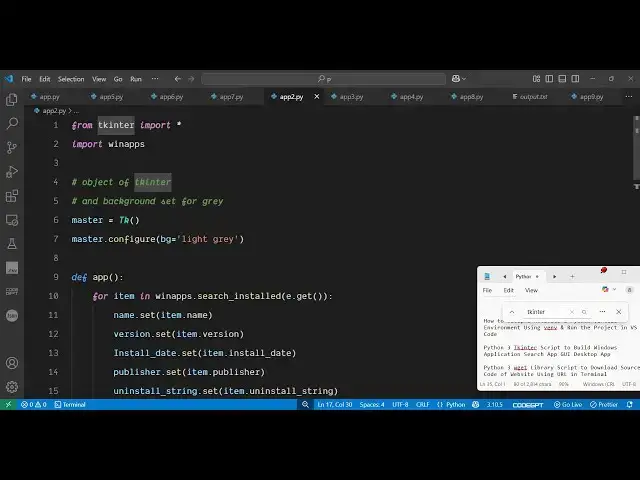
necessary packages so we simply say from
2:31
tupinter we need to import
2:33
everything and then we need to import
2:37
the vin apps package which is
2:41
specifically related to windows machine
2:43
so if you're working if you want to work
2:45
with windows you need to use this
2:47
package inside this
2:49
python and then we define the actual
2:52
graphical user interface of using trick
2:55
enter we initialize the window like this
2:59
by the TK TK
3:01
constructor and then we configure the
3:04
background color of the window by using
3:08
this property bg and here we can put any
3:11
color let's suppose I say light
3:15
gray and then we can put uh various
3:20
variables for holding information such
3:23
as name version installed update
3:26
publisher uninstalled string so we
3:28
declared these five variables of string
3:31
type after that we simply create a label
3:34
for storing each
3:37
location for each
3:40
uh information we create these widgets
3:45
one by one so you can see we have six
3:48
widgets namely for first of all we have
3:53
a input field where we allow the user to
3:55
enter the app name then we display these
3:59
the details inside each label
4:04
widget
4:07
so if you just want to run this
4:09
application and see what is happening so
4:11
you can simply root dot main
4:17
loop don't need simply execute main loop
4:22
so if you just execute this the
4:25
interface looks something like this we
4:27
simply have these six
4:31
labels five labels and this is actually
4:34
will be the input field so now for
4:36
having the input field inside to enter
4:38
we
4:40
simply after we declared this we simply
4:48
uh have the label here
5:07
so after we declare this this is
5:10
actually your label all these labels and
5:14
now we just need to
5:21
have a widget for collecting data so
5:25
these are all widgets let me just
5:29
Copy the
5:40
ser so all the source code will be given
5:43
in the description of the video so don't
5:45
need to worry about it so as you can see
5:47
this is the overall
5:48
interface if I restart the application
5:52
that is saying app is not defined
6:09
so I think yeah so this will be the
6:11
function that we put yeah so command is
6:15
equal to app so when we uh hit this
6:17
button right here of show so it is
6:20
saying that this function doesn't exist
6:23
so we just need to define this function
6:25
right here so we simply say define
6:32
app and inside this function
6:35
uh we simply loop through all the
6:38
windows apps which are installed inside
6:40
your machine by using this function uh
6:43
module here which is vin apps that we
6:46
are importing it contains a function
6:48
called as
6:49
search installed so it will uh search
6:53
all your installed apps which are
6:54
installed on your laptop or
6:57
PC and then we will loop through
7:00
it like
7:05
this so name dot
7:10
set item name so in this way we can
7:14
search
7:15
it then we can put which version is
7:22
installed and then the install date as
7:25
well install
7:30
date so it has all this information so
7:34
we are just showing this information
7:36
next we can even set the publisher
7:39
uninstall like this
7:44
so all this information comes from this
7:47
third party package so name version
7:50
installed date publisher uninstalled so
7:52
if I start this application now you will
7:54
see
7:57
that you can just search for any module
8:01
or any software which is there click on
8:03
that button so you will see now the work
8:07
the app will perfectly work so if you
8:10
need the full source code of this
8:11
application the link is given in the
8:13
description of this video uh you can
8:15
just get this uh thank you very much for
8:18
watching this video and also check out
8:21
my website freemediattools.com
8:24
uh which contains uh thousands of tools
#Software
#Scripting Languages