Up next in 10

Python 3 Tkinter Project to Build Digital Alarm Clock With Custom Sound and Message GUI Desktop App
Jun 3, 2025

Get the full source code of application here:
https://codingshiksha.com/python/python-3-tkinter-project-to-build-digital-alarm-clock-with-custom-sound-and-message-gui-desktop-app/
Show More Show Less View Video Transcript
0:00
uh hello guys welcome to this video so
0:02
in this video i will show you how to
0:04
make a digital alarm clock with custom
0:07
sound and message go an application
0:10
inside tokinter in python so here it's a
0:13
digital alarm clock here you can set
0:16
alarms very easily using you can set it
0:19
specific time and then set this alarm so
0:23
i've given all the source code of this
0:24
application in the description of the
0:26
video so here we can set the time here
0:29
so
0:32
uh let me set this time here
0:41
73 and just click on set alarm so as
0:44
soon as you click the set alarm you will
0:46
see it will display the current time
0:48
which is
0:49
7220 and the alarm time is 7322 so as
0:53
soon as the time target time comes it
0:56
will give you a slight little
0:58
notification of the message and also a
1:01
specific sound as well so that way you
1:04
will be notified whenever your time
1:08
comes so you can just do open this
1:12
application in the background and then
1:15
just let this run as soon as the target
1:18
time comes right here you'll you'll be
1:21
notified with a custom sound and a
1:24
message so let me just wait for the
1:26
target time to
1:28
appear so if you are in a different tab
1:31
as well then also it will notify you so
1:34
that way you will
1:37
be notified when the target time comes
1:40
so it's a very useful kind of an
1:42
application you will see
1:43
that now it will make a slight you will
1:47
see it has make the slight sound and
1:50
also there's this time to wake up you
1:53
can customize this message
1:55
accordingly
1:57
so let me
1:59
just stop
2:02
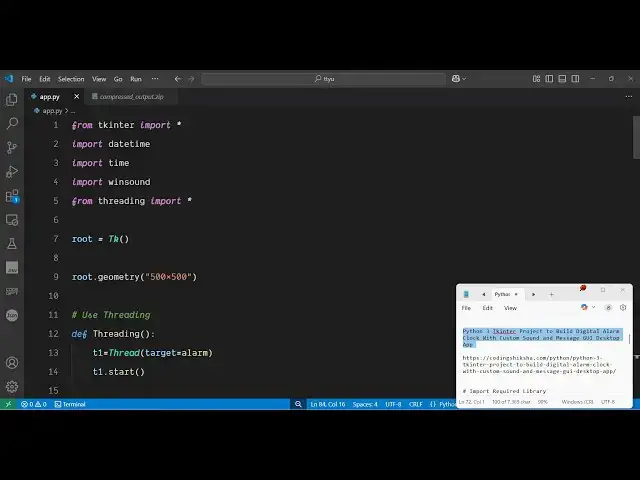
this so this is the overall script if
2:05
you're using the trinenter framework
2:09
so from trickter you need to import
2:12
everything and then you also need to
2:14
import the datetime
2:19
module the time module as well the wind
2:22
sound module and then from the threading
2:26
module we need to import
2:30
everything so these are the necessary
2:32
packages now we just need to initialize
2:35
the
2:39
window you can set the size of the
2:42
window width and the height and
2:47
then these are series of functions you
2:50
can define here for the alarm kind of
2:53
application so first function is the
2:55
threading function so here we start a
2:58
new
2:58
thread as you set the alarm here so
3:01
you'll be making use of multiple threads
3:04
inside python multi-threading construct
3:07
and secondly you'll be calling this uh
3:10
alarm function which will run
3:20
so as you can see we are calling this
3:23
alarm function and here we are putting
3:25
this while loop and whatever is the
3:28
alarm time we are getting it in this
3:30
format hour minute and second and then
3:33
we are sleeping for 1 second and then
3:37
currently getting the current time and
3:40
just comparing it the current time and
3:42
the alarm time and then if the two times
3:47
make is equal to one another then we
3:51
simply print out the statement that uh
3:53
time to wake up or we play a specific
3:56
sound so this sound is present here in
4:00
our operating system so you can play any
4:03
sound of your choice and then we
4:06
basically set a labels on the
4:11
screen so we basically accept this input
4:14
from the user so we
4:24
are so this is the overall interface
4:27
here uh i've given all the source code
4:29
in the description of the video so we
4:30
are accepting the minute input then we
4:34
also accepting the second input as well
4:37
and the hour input
4:40
and then we have a simple button
4:47
to submit and let me just call the main
4:50
loop function to actually start the
4:52
application
4:54
so again if you execute this the
4:56
interface will look something like this
4:58
and then you can set the alarm
5:05
the target time you can set and then it
5:08
the alarm will be set and you can just
5:12
let this application open in the
5:14
background and then as the target time
5:16
will come it will wake you up so this is
5:19
essentially this application and
5:22
uh thank you very much for watching this
5:24
and also check out my website
5:26
freemediattools.com
5:28
uh which contains uh thousands of tools
#Scripting Languages
#Home Alarm & Security Systems
#Computer Education