Up next in 10

Python 3 Tkinter Google Maps API Example to Display Maps & Markers Using TkinterMapView Library
Dec 11, 2025

Buy the full source code of application here
https://buy.stripe.com/cN2eYe7Jf68E57q1wo
Show More Show Less View Video Transcript
0:00
Uh hello friends today in this tutorial
0:02
I'll be showing you that how to display
0:05
Google maps inside your tinter
0:07
application. So basically this is a demo
0:09
of the application we will be building
0:10
here. You can see we can display Google
0:13
maps inside our twe application. So it's
0:16
a Google map here. So you can use Google
0:19
maps API which is integrated. So it is
0:22
completely free. You don't need to get
0:25
any sort of API key. You can able to
0:28
display Google maps here. So you can
0:30
also zoom in. You can see that at a
0:32
specific location here. You can see that
0:34
if you want to there are also controls
0:36
out there which uh
0:40
which aables to
0:43
which helps you to zoom or zoom out at a
0:46
particular location. You can also drag
0:48
and to a particular location here like
0:51
this.
0:55
like this here. You can see that.
1:01
So these are uh different controls out
1:03
there which is zoom and zoom out. And
1:05
also guys you can also place markers on
1:08
the map as well. You can see this is a
1:09
red marker which is placed here. This is
1:11
the location Wington Wellington city New
1:14
Zealand. You can see that this is a
1:15
marker here.
1:17
If you want to go on to that location,
1:19
you can see that.
1:27
So you can go to into this location.
1:30
Zoom in here. You can see that. So
1:35
it is showing all the locations here
1:37
inside your tokin application. So this
1:40
will be the application guys that we
1:41
will be building a try to build. So it
1:44
requires uh 10 to 12 lines of code in
1:47
Python. So
1:50
I have given all the source code in the
1:52
video description. I have written a
1:53
complete blog post where you can copy
1:55
paste the source code. So for building
1:57
this guys we are using a dependency
2:00
which is called as trickinter map view.
2:04
So basically it's a component library
2:06
which ables to embed Google maps inside
2:09
your uh tricker application. Basically,
2:12
it's a kind of a widget. You can see
2:14
it's open source. It is made by a
2:17
specific person here. And uh it has got
2:20
a great documentation. But in this
2:22
example, I will just show you a very
2:24
basic overview on how to use this
2:27
library inside your Twinter application.
2:29
So now if you have Python installed
2:31
guys, you need to first of all install
2:34
Python on your machine. So if you have
2:37
Python installed, make a app. py file
2:40
and right here inside your root
2:41
directory just install this dependency
2:43
which is twin map view. This is the
2:47
package which is required for this
2:48
dependency cls. Uh so after do uh after
2:53
this guys what we need to do is that
2:57
uh let me copy this inside here.
3:04
Let me write this code step by step how
3:06
to do this.
3:09
So first of all guys after you install
3:11
it you need to
3:14
import the tweer library at the very
3:16
top.
3:18
So after importing the tweer library we
3:21
will import this library which is from
3:24
tweer map view. We need to import tweer
3:29
map view. This line signifies that we
3:32
are importing this library here. So
3:35
after that guys we need to initialize
3:38
our window. Click enter window. We can
3:43
give
3:46
a width of 500 by 500
3:51
and also we can give a title to it of
3:56
Google maps.
4:00
And now guys we need to display the map
4:03
inside window. So now to display the
4:07
Google map it's very easy. We will
4:10
declare the widget here. So we will now
4:12
use twin map view. And here we need to
4:16
display it inside of a root window. Put
4:18
a comma. And this is the width of the
4:21
map. This is 600. And the second one is
4:24
height. You can control all these
4:27
parameters guys. This is the width of
4:28
the map. This is the height of the map.
4:31
The third parameter is uh
4:35
the corner radius. You can also control
4:37
the corner radius as well. This time I
4:40
will just give it zero. And then
4:42
basically I will pack it on the screen.
4:47
I will fill it from both locations. So
4:50
this needs to be in double quotes.
4:54
And expand parameter to be true.
4:59
So now if you run this application you
5:02
will now see some kind of map displayed
5:04
on your machine.
5:07
Uh oh I haven't uh
5:11
uh initialized the window. So root t
5:15
main loop so this will have the trick
5:18
inter window initialized. So now guys
5:21
you have these controls out there plus
5:23
minus. So all these controls are there.
5:26
So our map is not showing. So now to
5:28
show the map it is very easy. We need to
5:31
first of all set the
5:34
Google URL.
5:37
So this will be
5:39
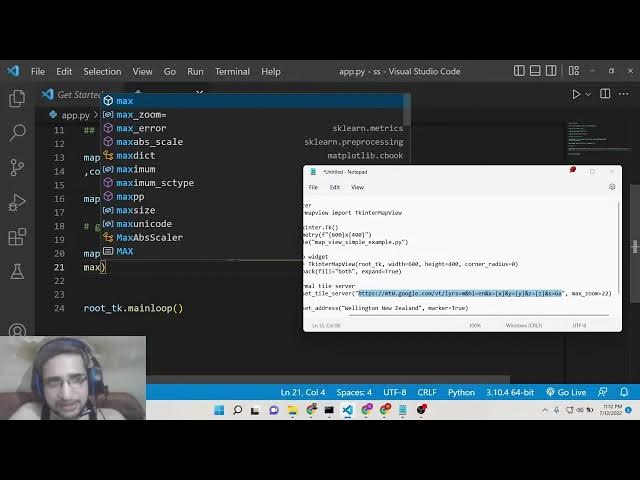
map widget dot set
5:44
tile server. This is the method we will
5:46
need to call. And here you need to paste
5:49
this address which is for the Google
5:52
map.
5:54
Let me paste this address.
6:02
So this is the address guys that you
6:04
need to paste. In the uh web uh video
6:07
description you will find out all the
6:08
source code. And the second parameter it
6:11
takes is the zoom level maximum zoom. So
6:15
here you can provide any value. I will
6:17
provide 22. And lastly guys uh if you
6:21
now uh look
6:24
here
6:26
now you will see the Google map is
6:28
showing here. You can see that
6:33
you can zoom out of the Google map.
6:39
This is a Google map here. You can see
6:40
that. So now to place the marker at a
6:43
specific location guys at a specific
6:45
country it is very easy to do. You don't
6:48
need to require any sort of coordinates
6:50
such as latitude, longitude. So you just
6:53
need to type the address. Let's suppose
6:55
I want to uh place a marker on India
6:59
country in a particular state. So
7:02
basically what I will write here
7:05
uh there is a method out there uh in
7:07
which you can set the location map
7:10
vidget.
7:12
So set underscore
7:15
uh address here you need to simply pass
7:19
the full location. So location can be
7:22
anything. This can be uh Uttar Pradesh.
7:26
There is a city in India which is Uttar
7:28
Pradesh. Sorry this is a state India.
7:32
That's it. So if you type like this also
7:35
then it will also recognize the
7:37
location. That's the beauty of it. So
7:40
you don't need to uh
7:43
uh provide the latitude longitude of a
7:46
particular location. You can just type
7:47
the name and then it will automatically
7:49
recognize the address. And now if you
7:52
run this application,
7:54
it will exactly pinpoint. You can see
7:57
Lucknau is the capital of Uttar Pradesh.
8:00
So it is
8:02
pinpointing the location which is it is
8:05
there inside India. You can see that
8:07
right here. Similarly, you can have any
8:11
state or city inside the world. Let me
8:15
take Tokyo, Japan.
8:18
So once again if I now run this. So now
8:21
it will place exactly
8:24
you can see at Japan here you can see
8:27
that where it is Japan. So it makes it
8:29
very much easy guys to display Google
8:32
maps and place markers on the exact
8:34
location. So if you have exact location
8:38
let me put
8:41
uh
8:44
Lakshmi Delhi this is
8:48
let me I think it's a full address here
8:51
you can see that how it is taking the
8:54
full address you can see Lakmina Vikas
8:56
mark you can see you can also write uh
9:00
very detailed addresses as well so if
9:02
you don't want to write city name you
9:04
even write uh full address and it will
9:07
pinpoint the address. You can see that
9:09
how it is.
9:12
So I think it's a great application. You
9:14
will definitely enjoy it by building it.
9:18
So I think uh you can see how much less
9:21
code is required. Only 10 12 lines of
9:24
code is there and you will be able to
9:25
make your own Google maps inside your
9:27
tokinter application. you can see here.
9:34
So if you like this video guys then
9:36
please hit the like button, subscribe
9:38
the channel as well and uh I will be
9:41
seeing you in the next video. Thank you
9:44
very much.