Up next in 10

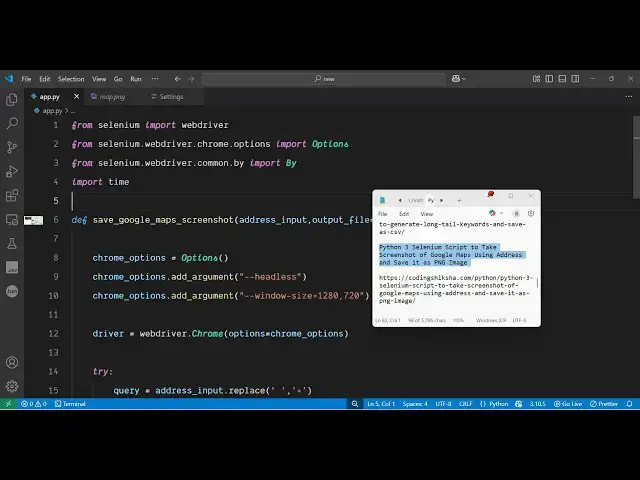
Python 3 Selenium Script to Take Screenshot of Google Maps Using Address and Save it as PNG Image
Jun 3, 2025

Get the full source code of application here:
https://codingshiksha.com/python/python-3-selenium-script-to-take-screenshot-of-google-maps-using-address-and-save-it-as-png-image/
Show More Show Less View Video Transcript
0:00
uh hello guys welcome to this video so
0:02
in this video I will show you a Python
0:06
script which will actually take the
0:08
screenshot of a Google map and you will
0:12
actually enter the location which
0:14
location you want to take the screenshot
0:17
and uh it it will use selenium library
0:20
which is automation library inside the
0:22
browser it will open the browser in the
0:24
background it will take the screenshot
0:26
and save it as a image file so quite a
0:29
number of things this Python script does
0:31
so now let's suppose I execute this
0:33
Python script so python app py so it
0:37
asks you to enter the
0:39
address so here you can enter your
0:42
address so let me just
0:48
write I say Delhi and
0:52
then India and then now what happens you
0:55
will see the browser will open in the
0:58
background and it will go to this
1:01
URL and it will take the screenshot and
1:04
save it inside your machine you will see
1:06
PNG image
1:09
is so you can see it has taken the
1:12
screenshot of this Delhi address you
1:15
will see the photo is also there
1:18
alongside with the information about
1:21
this address we see the overall map as
1:24
well
1:26
and uh let me remove this option of
1:29
headless once again if I execute this
1:32
Python script uh now let's suppose I
1:35
enter any other
1:41
address so you will see the browser will
1:44
open it will navigate to Google maps and
1:47
take the screenshot and close
1:49
automatically so I am not doing anything
1:51
it is automatically doing this
1:54
everything for me so you can see
1:56
everything it has gone to that specific
1:59
address that I mentioned open the URL
2:02
taken the screenshot and close so this
2:05
is actually the Python script and uh
2:07
first of all you need this module which
2:09
is selenium simply install this and so
2:13
command is very simple uh just search
2:15
for
2:17
this simply execute this by using pip
2:20
install selenium
2:22
so after installing it now let me show
2:26
you the script here uh the full script
2:28
is given in the description of this
2:30
video so first of all you need to uh
2:33
require the necessary packages so let me
2:36
import all the necessary packages so in
2:38
this way you can import this packages
2:41
and then we will ask the user to specify
2:45
which address they want to take the
2:48
screenshot so using the input function
2:51
we will say enter the
2:55
address and then we will basically call
2:58
the custom function which will take the
3:02
screenshot pass the address input so
3:05
here we just need to define this
3:17
function so address input it takes as an
3:20
argument and also we can pass the second
3:23
argument which will be the output file
3:25
which will be generated so let me call
3:27
this give it a initial value of
3:31
map.png so here we just need to again
3:34
set up the default options for Selenium
3:38
so these options actually tell Selenium
3:41
how to set up your application so
3:44
headless is actually the option where
3:47
you can't see the browser window opening
3:49
everything will be in the background
3:51
then we set the window size 1280 by 720
3:55
so these are normal options then we
3:57
initialize the driver web driver chrome
4:02
and we initialize these
4:04
options after that we write the code in
4:07
try catch block so here we
4:10
specify the address
4:13
input we replace it
4:16
by plus and then we construct the URL
4:20
that will be opened in the browser
4:22
automatically
4:25
so so like this http
4:31
google.com/maps/place / query so
4:34
whatever address that you mention it
4:36
will go to that address
4:39
automatically and now we just need
4:41
to open this URL so for opening this URL
4:45
we call this method driver.get pass the
4:47
URL and then we just need to sleep for 5
4:51
seconds so it will pause on that web
4:54
page for 5 seconds it will take the
4:57
screenshot so now for taking the
5:00
screenshot we find this element again we
5:04
write the code in try block here like
5:10
this we click on that and then we need
5:13
to take the screenshot for taking the
5:15
screenshot inside Selenium we have this
5:17
function save
5:18
screenshot and we specify the location
5:21
where we need to save the screenshot
5:24
after that we can simply print out that
5:26
your screenshot has been
5:28
saved so like this and after that we
5:32
need to
5:34
finally quit the driver so
5:37
driver.quit so this is actually the
5:39
script here and if I launch this
5:41
application
5:44
uh once again you will see it will ask
5:46
you the location so let me fill out any
5:50
sort of location
6:00
so once again in the background the
6:03
browser will open take the
6:05
screenshot and automatically close your
6:09
file will be created
6:11
map.png if you open this file here you
6:13
will see the actual screenshot of that
6:15
Google map at that specific location we
6:18
see the picture of that uh place we see
6:23
small little
6:24
description the temperature everything
6:27
you can see inside this Google map so
6:30
this is a really useful application
6:32
because
6:33
uh you can actually take the screenshot
6:36
of a Google map at a specific location
6:38
and the nice thing is that we are not
6:41
using any sort of API and not any sort
6:43
of API key it's this method is
6:45
completely free and uh you can do this
6:48
method unlimited number of times so
6:50
there is no such restriction and also
6:53
check out my website freemediatools.com
6:56
uh which contains thousands of tools