Up next in 10

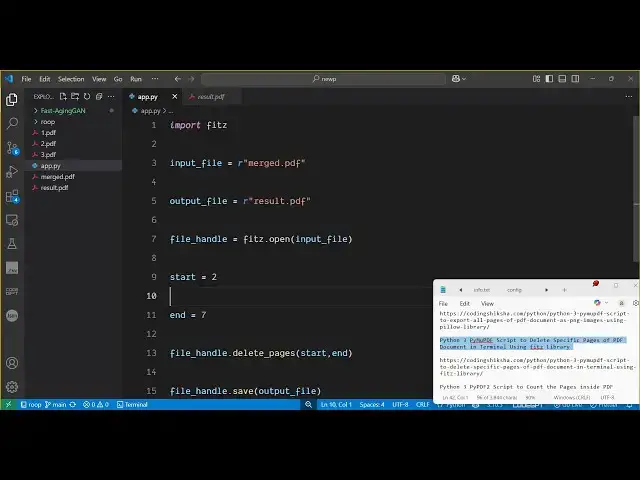
Python 3 PyMuPDF Script to Delete Specific Pages of PDF Document in Terminal Using fitz Library
Jun 3, 2025

Get the full source code of application here:
https://codingshiksha.com/python/python-3-pymupdf-script-to-delete-specific-pages-of-pdf-document-in-terminal-using-fitz-library/
Show More Show Less View Video Transcript
0:00
uh hello guys uh welcome to this video
0:02
so in this video I will show you a
0:03
Python script which will allow us to
0:06
delete specific pages of your PDF uh
0:10
file directly in the terminal so there
0:12
is a open-source package inside Python
0:15
that you can use which is called as fits
0:17
uh so first of
0:19
all you will need to install some
0:22
packages so simply go to the website
0:25
just search for this package py mu
0:29
pdf so this is essentially the library
0:32
so simply you need to install this pip
0:35
install py mu pdf and uh so there
0:41
basically it's a pdf processing library
0:43
where you can perform all the operations
0:45
so here we'll be deleting the specific
0:48
pages so first of all after installing
0:52
it first of all import this module like
0:55
this
0:57
fittz and then here you will provide
0:59
your input
1:05
file so you'll be reading the file here
1:08
which is merged PDF so you'll be working
1:10
with this file here which is having this
1:14
28 pages so I will be deleting some
1:17
specific pages from this PDF file so
1:20
here you just need to specify the output
1:22
file here so what I will say I will say
1:25
result dot PDF so this will be your
1:27
output file and here you just need to
1:30
mention first of all you need to open
1:32
this file here with this module so it
1:35
contains a open function and here you
1:37
will pass your input
1:40
file after opening it we need to specify
1:44
which pages you want to delete so here I
1:47
will just specify a range starting from
1:50
the second page till the seventh page we
1:54
need to delete all these pages which
1:56
comes within this range so 2 3 4 5 6 7
1:59
so from 2 to 7 page we need to delete
2:02
these pages so now we just need to call
2:05
a simple method uh to this object here
2:09
file handle it contains a function right
2:13
here which is delete
2:15
pages so here we just need to specify
2:18
the range here from the starting index
2:20
to the end we need to delete all these
2:23
pages and then we need to save the
2:24
output file so we simply say file
2:29
handle dot save so this will save the
2:32
output
2:33
file so that's all the
2:36
script we simply import the module then
2:40
we simply open it then we provide the
2:43
range of pages that you want to delete
2:46
so we simply provide this we call the
2:48
delete pages method and then save the
2:50
output file so if I execute this Python
2:53
script you will see it will create a
2:55
output file here which is result PDF if
2:58
I try to open this file here you will
3:00
see those pages will get deleted a total
3:04
of six pages from 2 to 7 2 3 4 5 6 7 so
3:11
this was the input file containing 28
3:14
pages but now if you see the result six
3:17
pages have been deleted so now the
3:19
result is only having 22 pages those
3:22
specific pages that I mentioned is
3:24
successfully deleted here you could see
3:26
that so this is actually by which you
3:30
can delete specific pages from your PDF
3:32
file very easily using this Python
3:35
package uh simply first of all install
3:38
this module that I mentioned like
3:41
this this is
3:44
necessary and this is the script thank
3:47
you very much for watching this video
3:49
and please hit that like button
3:51
subscribe channel and also check out my
3:54
website uh freemediattools.com
3:57
uh which contains thousands of tools
#Software
#Scripting Languages