Up next in 10

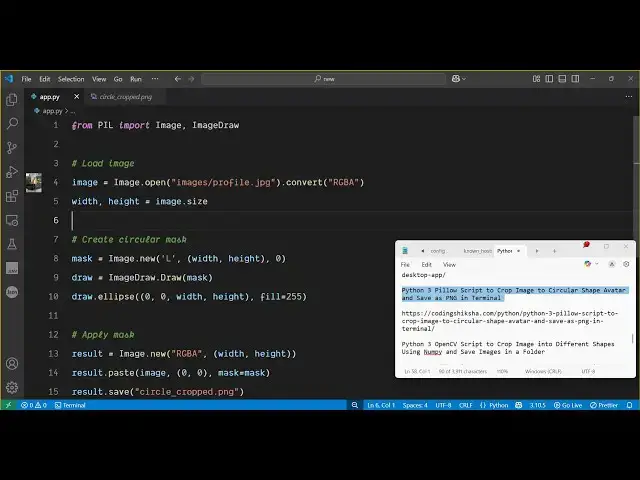
Python 3 Pillow Script to Crop Image to Circular Shape Avatar and Save as PNG in Terminal
Jun 3, 2025

Get the full source code of application here:
https://codingshiksha.com/python/python-3-pillow-script-to-crop-image-to-circular-shape-avatar-and-save-as-png-in-terminal/
Show More Show Less View Video Transcript
0:00
uh hello guys uh welcome to this video
0:02
so in this video I will show you how to
0:05
crop your image in a circular shape
0:08
circular
0:09
avatar uh so let me take a very simple
0:12
example so we have this input image so
0:14
what we need to do we need to draw a
0:15
circular avatar we need to crop this
0:18
image in a circular shape so we have
0:20
this Python script which we are using
0:23
pillow library which is a image
0:25
processing library if I apply this you
0:27
will see it will create a new file here
0:29
circular
0:30
cropped.png so it will change this image
0:33
into a circular shape so this we can do
0:37
this with any image let's suppose I say
0:40
this
0:44
one again it will
0:48
create like this the circular image this
0:51
was this image
0:54
basically cropped into a
0:56
circle so this is a very simple script
0:59
uh the link is given in the description
1:02
if you want the full script so first of
1:04
all you just need to install this pillow
1:08
package by executing this command pip
1:12
install pillow so which is a image
1:15
processing library inside Python so I've
1:17
already installed it so what we need to
1:20
do we simply need to say we need to
1:23
import this package so from pil we need
1:26
to import the image and the image draw
1:30
module after that we need to load the
1:32
image for loading the image we use the
1:34
open function and here we
1:40
specify the image here and then first of
1:44
all convert this image into
1:47
RGBA and then we set the width and the
1:50
height of the image to the whatever is
1:52
the size of the image so after that we
1:56
create the circular shape by executing
1:58
image dot
2:00
new and l is equal to
2:04
uh width comma
2:06
height comma 0 and then we will draw
2:09
this circular shape by using this image
2:12
draw module it contains the draw
2:14
function and here we simply pass the
2:16
mass and then then we draw this ellipse
2:20
we use this ellipse function 0 comma
2:25
0 and the width and whatever is the
2:30
height of the original image then we
2:33
fill
2:35
out 255s this means that the borders
2:38
will have white color you can even
2:40
change this as well if I put zero it
2:42
will have black color uh after that we
2:47
simply apply the mask for applying the
2:50
mask we simply
2:53
say image dot new and then we simply say
3:00
RGBA width and the
3:03
height and then we paste result.pe paste
3:07
the image 0 comma 0 and then we apply
3:11
the
3:16
mask and then we simply save this image
3:19
so we save this image which will be
3:25
circularpng so this is our script and if
3:28
I execute
3:31
now you'll see the new image will be
3:34
created and
3:36
now I think I made some kind of typo
3:41
mistake the full script guys is given in
3:44
the description of the video so what I
3:46
will do I will simply paste this full
3:50
script once again do
3:53
this it
3:55
is
4:02
sorry I just need to say
4:06
images/ profile do jpg so once again run
4:09
the
4:13
script so it will change this into a
4:15
circular avatar image so this is a
4:18
script guys the link is given in the
4:20
description which is a pillow library of
4:22
Python to crop the image into a circular
4:24
shape and also check out my website
4:28
freemediatools.com uh which contains
4:30
thousands of tools
#Clip Art & Animated GIFs