Up next in 10

Python 3 OpenCV Script to Detect Face in Live Webcam Video Feed & Save it as PNG Image Frames App
Jun 3, 2025

Get the full source code of application here:
https://gist.github.com/gauti123456/f33023c3b1ce8a7d3d1e595200f87521
Show More Show Less View Video Transcript
0:00
uh hello guys uh welcome to this video
0:02
so in this video I will show you a open
0:05
CV Python script which allows you to
0:09
face detect inside uh your window let me
0:13
show you what it if I launch this
0:17
application so what it will do this
0:19
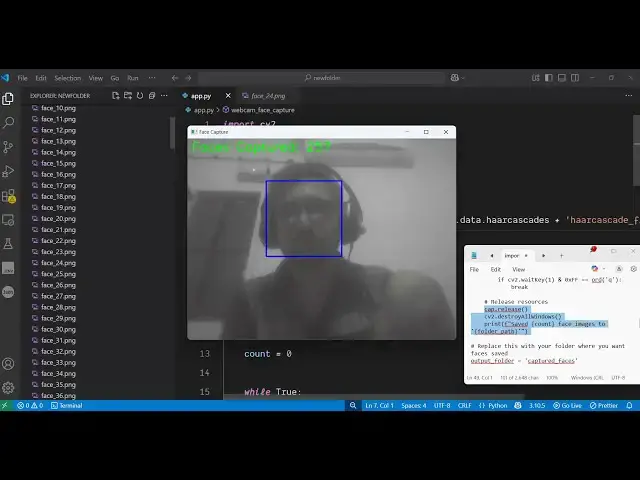
Python script it will show the window
0:22
right here and now you just need to look
0:24
at the camera your web camera which will
0:26
start so as I look here you will see it
0:29
will capture it it will detect my face
0:33
uh by these boundaries and
0:35
the frames will be captured you'll see
0:39
the frames will be captured and it will
0:40
be saved as a PNG image as you can see
0:44
it has captured these images
0:49
so it basically starts your web camera
0:52
and then as you look inside the camera
0:54
it will detect your face and it will
0:57
capture the
0:59
selfie and save it inside the location
1:02
so all the frames that it's a very good
1:06
application uh let me show you how to
1:10
build this all the script is given in
1:12
the description of this video so you can
1:15
find the
1:17
script so let me just stop this
1:22
application so you just need a module
1:25
open CV
1:27
module so if you just search for this
1:30
module which is open
1:33
cvash python so this is actually the py
1:37
uh package that you will need the
1:39
command is simple simply execute this
1:41
command to install this package and now
1:44
just create a simple app py file so we
1:47
will start it from scratch so the first
1:50
thing you need to do you need to import
1:52
the package so we simply write here
1:54
import cv2 this will import the open cv
1:57
package and then we simply import the
2:00
operating operating system
2:02
module and then we
2:05
simply declare in which folder all the
2:08
images will be taken the frames so let
2:12
me
2:13
just this will be the folder which will
2:16
create automatically captured image and
2:19
then we need to declare a custom
2:22
function webcam face
2:26
capture and here we'll simply pass the
2:29
location output folder location so now
2:31
we just need to define this function
2:34
this is your webcam face
2:38
capture which will take the output
2:40
folder as its argument so this is the
2:43
main function so right here first of all
2:46
we need to load the model which will be
2:50
required for loading your web camera
2:55
so first thing we need to do we need to
2:58
declare a variable
3:00
face cascade and this open CV library
3:04
contains this function which is cascade
3:07
classifier and basically we are loading
3:09
this
3:10
model this AI model to actually do the
3:14
face
3:16
detection after we do this we actually
3:18
open the web camera for opening the web
3:21
camera we actually have this function
3:23
video capture inside open CV you pass
3:28
the video capture which is the actual
3:32
web camera
3:34
source sorry this will be
3:37
CV2 and
3:40
uh so if you run this application it
3:43
will actually say sorry this will be
3:51
CV2 if you run this application you will
3:54
see your camera will
3:57
start but the application is not showing
4:01
so for a showing the application first
4:03
of all we just need
4:05
to create this this let me simply say
4:09
window dot main loop
4:12
sorry yeah so after that we just need
4:15
to create this folder if this folder
4:18
doesn't
4:20
exist so so we first of all create this
4:23
folder make directory using this
4:25
function and then we simply declare a
4:28
variable of count this will take the
4:31
screenshot of each frame so inside this
4:35
while loop we will actually run
4:37
this we'll declare this we read the web
4:40
camera and then we simply take the
4:43
screenshot of each
4:47
frame so if the screenshot is not taken
4:50
then we actually write this print
4:52
statement that failed to grab the
4:55
frame then the next step is gray the
4:58
open CV CVT color and then we actually
5:01
detect the face detection technique so
5:03
we are initializing this model here that
5:05
we imported from open CV so detect
5:08
multiscale we are providing this so the
5:11
next step is to actually
5:15
uh after this we detect our
5:20
faces so write here this function here
5:23
detect multiscale we provide gray the
5:28
first argument and then we also provide
5:32
the scale factor which will you can set
5:34
to
5:35
1.1.1 min neighbors and min size the
5:40
face size so let me say 60 by 60 you can
5:45
change all these
5:46
values and then we will show a small
5:49
little rectangle to the face detection
5:52
technique for this we will just write
5:55
this code here for drawing that
5:57
rectangle that you
6:02
see so this is the for loop here we're
6:06
detecting the face and drawing that uh
6:09
blue
6:09
rectangle and then we will simply put
6:16
that after that we draw
6:19
this and we show
6:24
this and then we start this
6:30
application so that's all this is
6:33
function which is doing right here so
6:35
let me just
6:38
format so if you need initialize your
6:40
application so what it will do it will
6:43
start your
6:48
application so now if you look at the
6:52
camera it is saying that folder path is
6:55
not defined sorry I
6:57
think let me just make it folder path
7:20
so if I run this application you will
7:22
see it will start your web camera first
7:25
of all and then if you look at the
7:27
camera it will detect the face by draw
7:31
this rectangle that you
7:33
see and then it will capture each frame
7:37
and you can see all these images are
7:40
been
7:41
taken you can adjust the size how much
7:44
area it captures as well by modifying
7:46
the code
7:47
here how much area it captures it can
7:50
you can even modify that as well by
7:53
adjusting the coordinates so once you
7:55
get the code the link is given in the
7:57
description you will get the full
7:59
script so it's a very fun little
8:01
application face detection how to do it
8:04
in live webcam video feed and open CV in
8:08
Python so thank you very much guys for
8:10
watching this video please hit that like
8:12
button and also check out my website
8:16
freemediattools.com which contains
8:18
thousands of tools
#TV & Video
#Online Video
#Scripting Languages