Up next in 10

Python 3 OpenCV Script to Cartoonify Image & Export a Pencil Sketch as Image in Terminal
Jun 3, 2025

Get the full source code of application here:
https://codingshiksha.com/python/python-3-opencv-script-to-cartoonify-image-export-a-pencil-sketch-as-image-in-terminal/
Show More Show Less View Video Transcript
0:00
uh hello guys welcome to this video so
0:02
in this video I will show you a Python
0:06
script which will generate a pencil
0:08
sketch of your input image or you can
0:12
say that it's a it will generate a
0:13
cartoon version of your image uh very
0:16
simply OpenCV is a very popular package
0:19
inside Python and uh let me show you a
0:22
very simple example so let's suppose we
0:24
are taking this image as an example we
0:26
have this input image and I am applying
0:30
this Python script to it so once I
0:32
execute this you will see it will
0:34
generate a simple pencil version of this
0:39
image on the left hand side you will see
0:42
pencil sketch dot jpg so if I try to
0:46
open this you will see this is actually
0:48
drawn a pencil sketch of this image a
0:51
cartoon version of this image so you can
0:54
take any image for example let's suppose
0:57
I take this image for example I pass
1:02
this and execute the same
1:06
script so now you can see this looks
1:09
something like this you can see how
1:10
beautiful the image is looking uh this
1:12
is the pencil sketch of the image
1:16
so it is looking like someone has drawn
1:19
this pencil sketch of the original image
1:22
so in this way you can use the open cv
1:25
module uh let me show you the package
1:27
name
1:29
uh which is open cv- python so this is
1:33
the package name uh simply install this
1:35
by executing this pip command here i've
1:38
already installed it so after this you
1:41
just need
1:42
to I've given the script in the
1:44
description of this video so if you need
1:47
the script all the source code is given
1:49
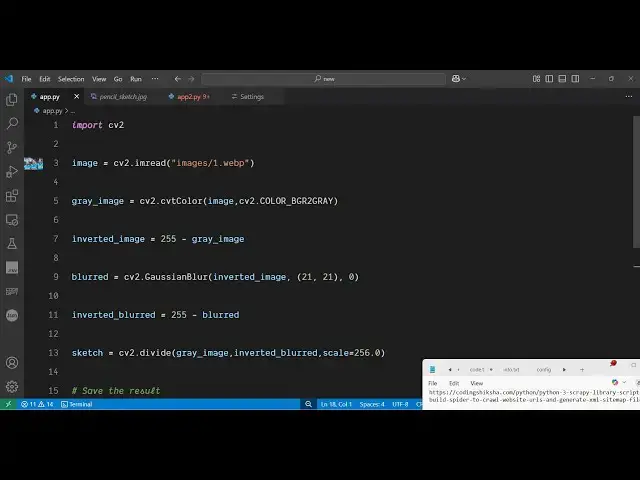
so first of all you import the OpenCV
1:52
package then we load the input image by
1:55
using the image read
1:57
function here we specify the address of
2:00
the image like this after that we now
2:04
need to the first step is that we need
2:06
to convert this image to grayscale the
2:09
black and white version of the image for
2:11
this open C we have this method here
2:14
which is CVT
2:17
color and here we pass your input image
2:20
and then we convert this into the black
2:23
and white image version the second step
2:27
is to invert this
2:29
image so we create another variable
2:32
inverted
2:33
image 255 minus the gray
2:39
image the third step you need to blur
2:42
this image for blurring this image Open
2:45
CV again has a method for this which is
2:48
gshian
2:52
blur after blurring this image we again
2:55
need to invert this image once
3:01
again and uh the last step is to
3:04
generate the pencil sketch by blending
3:06
it
3:07
so it contains a function which is
3:11
cv2
3:13
divide and here we pass
3:17
our black and white image and the
3:21
inverted and then here you can provide
3:23
the scaling value so the best value I
3:27
found is 256 so just provide this and
3:30
after that we simply save this output
3:33
image write
3:38
function so you save your pencil sketch
3:42
image that's all so this completes your
3:45
script very simple script and if I once
3:49
again delete this and once again run
3:51
this you will see it will generate the
3:53
pencil
3:55
sketch so you will see that this pencil
3:58
sketch looks something like this you
4:00
will see
4:02
that it's a cool little effect that you
4:05
can generate inside
4:07
Python uh thank you very much for
4:09
watching this video and also check out
4:12
my website
4:13
freemediatools.com uh which contains
4:15
thousands of tools
#Clip Art & Animated GIFs