Up next in 10


Watch My Visual Studio Code IDE Setup Video For Fonts,Themes & Extensions
https://youtu.be/Bon8Pm1gbX8
Hi Join the official discord server to resolve doubts here:
https://discord.gg/cRnjhk6nzW
Visit my Online Free Media Tool Website
https://freemediatools.com/
Buy Premium Scripts and Apps Here:
https://procodestore.com/
Show More Show Less View Video Transcript
0:02
Hello guys, in this live stream I will
0:04
actually show you Nvidia company is
0:07
giving you free API keys for calling 200
0:09
plus AI models. So Nvidia, as you all
0:13
know, it's a very famous company for
0:15
building GPUs.
0:17
So they also have their own
0:19
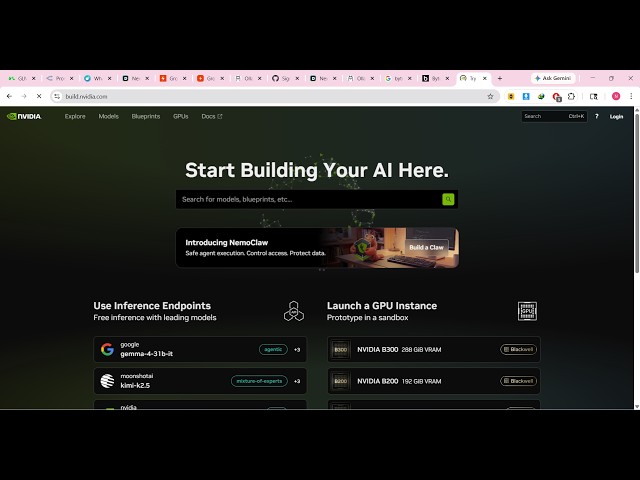
build section as well. If you simply
0:21
type Nvidia, the very first website
0:23
which comes, this is the try Nvidia name
0:26
APIs. So they provide free API keys to
0:29
try out different AI models. If you go
0:31
to build.nvidia.com,
0:34
you will actually see
0:36
uh
0:37
this section. So here you will find out
0:39
all the AI models directly.
0:44
Or you can simply go to model section as
0:46
well.
0:47
So it's actually a playground section.
0:49
Almost 227 AI models are there.
0:53
So all the popular models are there.
0:56
When, as you can see here, When 3.5,
0:59
it's a very famous model.
1:02
And from here you can even search
1:05
for your favorite model as well.
1:11
Some are free, as you can see it is
1:14
listed as free end points. Some are
1:16
paid.
1:18
So now if you want to try out any kind
1:20
of model,
1:25
some models are downloadable as well. So
1:28
you can download them inside your
1:29
machine.
1:31
So now if you want to try out any kind
1:32
of model,
1:34
accept the permission.
1:37
So right here online you can try out
1:39
this model. So
1:46
you basically send out a message,
1:48
automatically directly the model will
1:50
reply to you.
1:56
So as you can see that as I asked a
1:59
question, "Hi, how are you?"
2:01
So the model is thinking about this, it
2:03
is
2:04
just replying to me
2:06
my my message.
2:10
So now to first of all get started, you
2:12
can see the model has successfully
2:14
replied replied to me.
2:16
And there is now the login button as
2:18
well. You can click the login button to
2:20
actually get started for completely
2:22
free. Just
2:24
put a email address
2:28
to actually login.
2:30
You can also login with your Google
2:32
account as well.
2:40
So after you login, you simply
3:05
click on create account
3:07
submit and
3:12
you will be redirected to this screen
3:13
here
3:18
So you just need to provide a account
3:20
name
3:21
and click on this.
3:28
So once you're authenticated, you will
3:30
see that please verify your account to
3:32
get API access. So once they sign up,
3:35
you get redirected
3:38
they
3:39
simply sent to you this
3:44
confirmation email. So simply
3:47
click on that.
3:50
So once you verify this, so
4:18
So you can see that now
4:33
you just need to complete your profile.
4:36
After you complete your profile, you
4:38
will get access to the
4:43
developer area where you will be
4:45
actually be able to create
4:49
API. So click on go to account here
4:52
right here.
5:01
Just refresh this.
5:10
Uh validate your phone number with the
5:11
one-time password as well. So you do
5:13
need to authenticate your number as
5:15
well.
5:19
So after they authenticate your number,
5:21
you will get unlimited API requests
5:23
without daily limits, launch GPU clouds,
5:26
sandboxes,
5:28
everything. So right here you specify
5:35
your valid number so that they can
5:37
authenticate.
5:42
So this will only happen for the very
5:44
first time
5:46
whenever you are creating the account.
5:47
After that,
6:07
So it also provides you with this you
6:10
full address as well, how to call these
6:13
APIs.
6:14
And from here you can generate your own
6:15
API key as well.
6:22
So first of all, you need to verify the
6:24
phone number for this.
6:27
So this
6:29
website Nvidia build.nvidia.com,
6:31
it's a very important website.
6:33
Definitely check this out.