Up next in 10


Get the full source code of application here:
Show More Show Less View Video Transcript
0:00
Uh hello guys, welcome to this video. So
0:02
in this video I'll show you a VS code
0:04
extension which basically it's a npm
0:07
ultimate editor or studio may you may
0:10
say and using this extension you can
0:13
manage your npm packages directly from
0:15
the VS code. You can install new
0:17
packages, update existing packages. So
0:21
once you activate this extension, click
0:23
the install button. You will see in the
0:26
sidebar section it will add this option
0:28
here npm studio. Simply select this
0:31
option and after that it will show the
0:34
all the packages that you have inside
0:36
existing inside your package.json.
0:39
Simply click this option npm studio and
0:44
it will show you the list of packages
0:45
that you already have. So I as you can
0:48
see we have six packages. It shows you
0:52
right in the sidebar section which
0:55
version number that you currently have
0:57
this like this
0:59
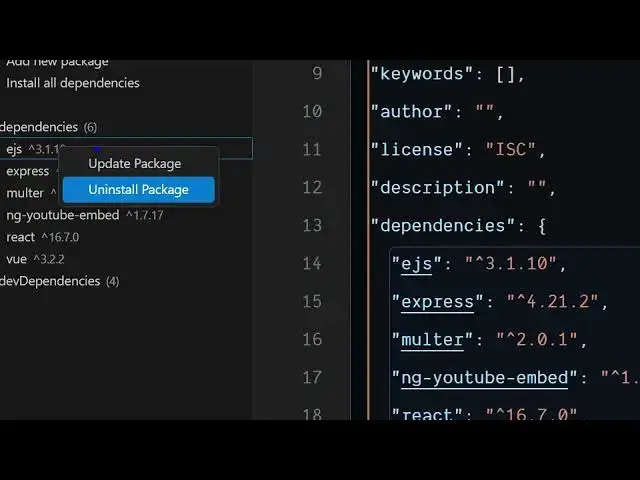
and you can just uh click on that right
1:03
click on individual package we have
1:05
these two options appearing you can
1:07
update a individual package or uninstall
1:09
this as well. So if I say uninstall it
1:12
will automatically uninstall this
1:14
package it will remove it. You also have
1:18
the option to install a new package.
1:20
Let's go click the add new package name
1:22
and then you can simply install
1:27
just enter the name of the package and
1:30
simply
1:33
enter and after that it will install
1:36
the actual package. Here you will see
1:38
that the package has been installed.
1:42
You can even change the version number.
1:44
Click update package. So it will update
1:47
this package to the latest version
1:49
automatically. So you will see that. So
1:52
just right click click update package.
1:56
So it's very easy to manage your NodeJS
1:59
packages using this extension. Simply
2:02
install this npm studio it is called.
2:04
It's fairly new extension but it will
2:07
save you a lot of time here. And uh
2:11
you also have list of scripts here which
2:14
you defined inside your package dojson
2:16
file. So we have the start script. So
2:18
simply click on that and then it will
2:20
start your application. You will see
2:21
that npm run start. So everything is
2:26
automated. So you can install new
2:28
packages, remove it, update it and also
2:30
execute all the scripts that you defined
2:33
inside your package.json file. So you
2:35
can see that you can run add new
2:38
packages as well. So you just need to
2:41
write
2:45
the package name then it will install
2:47
this.
2:53
Same goes with dev dependencies as well.
2:55
So this is the extension. Definitely
2:58
install it and start using it.
3:01
And also check out my website
3:04
freemediattools.com
3:05
uh which contains thousands of tools.
#Programming
#Software