0:00
uh hello guys welcome to this video so
0:02
in this video I will show you an XML
0:05
viewer or editor directly in vs code so
0:08
if you want to view your XML files there
0:10
is an extension for this by default vs
0:13
code doesn't support this feature by
0:17
default so if you have XML code right
0:19
here so by default you can't see the
0:22
live preview so we do need extension for
0:25
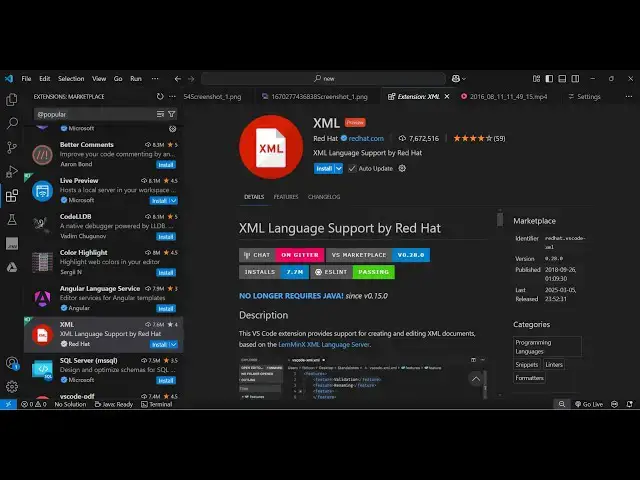
this so go to the extensions Tab and
0:28
just type this extension two extensions
0:31
rather so first of one is XML if you
0:34
just type this this is the XML language
0:37
support by red hat so you do need to
0:40
install this extension for some of the
0:43
features such as autocomplete and inance
0:47
for XML language so just activate this
0:49
extension first of all so 7 million
0:53
having and then the next one is this one
0:56
XML tools it's it's also having 6
0:59
million installs so this is used for
1:03
formatting your XML or finding out the
1:06
XML path xquery all these tools will be
1:09
supported so simply click the install
1:11
button and just also activate this
1:14
extension as well so we need these two
1:16
extensions this one XML and then this
1:18
XML tools so one by one just activate
1:21
this and if you now go to your XML file
1:25
right here so this is our file sample.
1:31
so now you will see you will see you
1:33
will be able to go to
1:36
the actual element inside XML and do the
1:41
formatting so if you make any sort of
1:43
mistake let's suppose in the
1:45
formatting you can simply right click
1:49
format document this option will
1:51
appear and then you need to configure it
2:05
so in this way so then we also have the
2:16
preview so it also supports minifying
2:20
your XML so there is a tool right here
2:22
control shift p just this is a shortcut
2:25
key and then type XML tools and you can
2:29
Minify your MML this is another tool
2:31
which is supported by this so if you
2:33
want to Minify or compress the XML you
2:39
option just type XML tools and you will
2:42
see all these options
2:44
supported and uh you can
2:50
see just type XML tools and you can
2:54
convert XML to text you can see you can
3:04
or you can convert your text to
3:11
XML so all these options are
3:16
there you can evaluate the X path as
3:19
so here you need to enter the cury here
3:22
which will evaluate it so all these
3:25
tools are supported guys you just need
3:27
these two extensions to get started
3:30
with XML in vs code by default it
3:33
doesn't support so you do need these two
3:35
extensions which are recommended and
3:38
also check out my website free mediat
3:40
tools.com which contains thousands of
3:42
tools regarding audio video and image
3:45
and I will be seeing you in the next