Up next in 10

Master JSON Instantly in VS Code — Uglify, Beautify, Escape & Unescape in One Click!
Mar 12, 2025

Get the full source code of application here:
Watch My Visual Studio Code IDE Setup Video For Fonts,Themes & Extensions
https://youtu.be/Bon8Pm1gbX8
Hi Join the official discord server to resolve doubts here:
https://discord.gg/cRnjhk6nzW
Visit my Online Free Media Tool Website
https://freemediatools.com/
Buy Premium Scripts and Apps Here:
https://procodestore.com/
Show More Show Less View Video Transcript
0:00
uh hello guys welcome to this video so
0:02
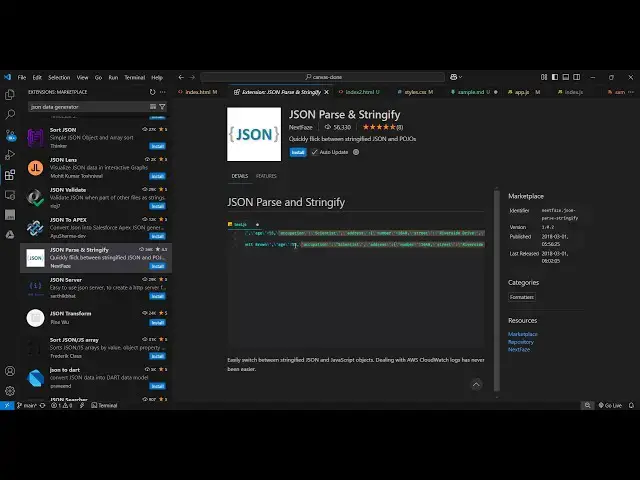
in this video I will show you a vs code
0:05
extension which actually does all the
0:07
job related to Json uh it can actually
0:10
format the Json it can beautify the Json
0:13
it can compress the Json uglify Escape
0:17
unescape Json so if you go to the
0:19
extensions tab just write here
0:23
Json or you can directly type here vs
0:27
code Das Json so this is actually the
0:30
extension which will come right here vs
0:32
code Json it's installed by 248,000
0:36
people and you just need to activate
0:39
this by clicking the install button so
0:41
simply activate this extension and as
0:44
soon as you activate this
0:46
now let me show you a very simple
0:50
sample. Json file so we have the sample.
0:53
Json file so if you want to access those
0:55
options you can open your command pallet
0:58
and here you if you you want to ugly
1:00
file this you simply type here vs code
1:03
Json and ugly file this option will come
1:06
and as soon as you do this you need to
1:08
first of all select this and then open
1:12
and
1:16
type and we have all these set of
1:20
options vs code Json
1:23
so we can
1:28
beautify then we can can validate this
1:31
as well so if
1:35
you so it will show
1:38
you the status here invalid Json
1:46
so just make sure that you remove all
1:49
the comment here from
1:54
this so you can see that so now it
1:57
actually compressed the Json it actually
1:59
moove all the white space which is there
2:02
so in this easy way you can select your
2:04
Json and then control shift p and enter
2:07
the command pet and just we all these
2:10
set of options which comes right here
2:12
uglify validate pey Escape un Escape so
2:17
this is all in one extension and it will
2:20
save you a lot of time as well so if you
2:23
want to compress it you will look
2:24
something like this and now if you want
2:26
to format this you will select the beyy
2:29
section and now if you see it has
2:35
actually converted your
2:38
Json and it formatted this so all these
2:41
options are there control shift p and if
2:45
you want to compress it you will select
2:47
this option and if you want to
2:50
select this beyy
2:55
option so it will format this from the
2:58
compress Json so we have all these
3:01
options and we can even check the
3:03
validity of Json as well by choosing
3:05
this option validate so it will validate
3:08
your Json and it will return the status
3:10
that if it is valid or not so in this
3:13
case it's a valid Json file so just make
3:15
sure that you don't have any comment
3:17
right here because if there is any
3:19
comment that there will be returning
3:21
error so just remove all the comments
3:23
and then you will be able to access this
3:25
extension control shift p and we have
3:28
all these options and also we have the
3:30
Escape option as well if you want to ex
3:33
Escape your Json and then again if you
3:36
want to unescape it you will select this
3:39
option which
3:41
is unescape one so it will unescape all
3:45
the Json which is there so this is
3:47
allinone extension guys I personally use
3:50
it all the operations are there in one
3:52
extension so you should definitely
3:54
install it if you are working with Json
3:56
files and vs code thank you very much
3:58
for watching this video and also check
4:00
out my website free mediat tools.com
4:02
which contains thousands of tools
4:05
regarding audio video and image and I
4:07
will be seeing you in the next video
#Programming
#Software