Up next in 10


Get the full source code of application here:
Show More Show Less View Video Transcript
0:00
Uh hey guys, welcome to this video. So
0:02
in this video, I'll show you a very
0:03
useful Google Chrome extension which is
0:06
called as Leo AAI. Uh this is their
0:09
official website LWECO.AI.
0:12
So it's basically kind of a chat GPT
0:15
side by side inside your Google Chrome
0:18
browser. So if you get inside any sort
0:21
of mistake or any sort of thing that
0:23
you're not understanding, this AI
0:25
platform will uh right here in Google
0:27
Chrome will work. you simply click the
0:29
add extension button. Simply activate
0:31
this extension. So this is their
0:34
official website right here. You can
0:36
learn any topic here by asking this chat
0:39
assistant. So now to get started simply
0:42
login with your Google account. So this
0:44
you just need to do for the very first
0:45
time. So whenever you activate this
0:47
extension. So after you loging with
0:50
Google it will redirect you to their
0:53
dashboard area. And right here you can
0:56
actually
0:58
add a number here
1:04
and just
1:06
answer some basic questions and click
1:09
get started. After you get started, you
1:12
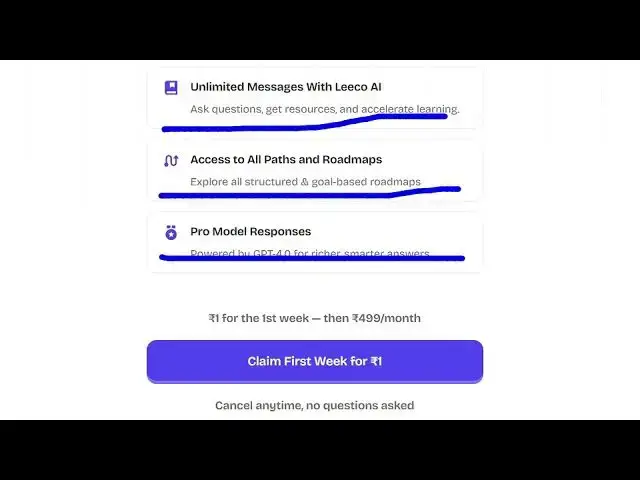
basically get this uh free trial for one
1:15
week. can cancel anytime and inside this
1:19
plan you get unlimited messages with
1:21
this AI platform access to all this.
1:24
So you can start this or skip with a
1:28
free plan and now it will the extension
1:30
will launch right here side by side and
1:34
you will be able to ask any question to
1:36
it.
1:38
So you have this chat interface.
1:42
So you can just open any website if you
1:46
are
1:47
are confused right here you can ask a
1:49
question side by side. So you can simply
1:52
say what is help me understand the
1:55
question. So it automatically answer
1:57
your question and this question can be
2:00
anything that suppose I say top
2:06
it can be a journal question as well. So
2:08
it will definitely answer right here
2:10
like chat GPT this is a sidebyside
2:14
solution for your Google Chrome browser.
2:16
So if you vis visit any website or you
2:19
are watching a YouTube video as well you
2:22
simply click on this uh extension. First
2:26
of all just uh activate this right here.
2:30
So this icon will appear. So simply
2:32
click on this icon and now the side by
2:34
side this chat window will appear and uh
2:37
right here you can
2:40
ask here
2:43
say what's
2:46
so if you're making any sort of Google
2:48
search right here.
2:59
So here you can select a text here.
3:03
Just select by your mouse here and
3:06
simply
3:10
explain this. So now it will based upon
3:14
whatever text that you selected you will
3:17
this AI platform will answer this. So in
3:21
this easy way if you are reading a
3:23
article or any sort of thing you are
3:25
doing. So this AI platform is completely
3:28
free here. So here you simply
3:34
select simply select and then explain
3:37
this.
3:41
So you can see that. So
3:45
so this is the AI platform Google Chrome
3:48
extension it provides you. Definitely
3:50
check out this and install this and also
3:54
check out my website freemediatools.com
3:57
uh which contains thousands of tools.
#Internet Software
#Distance Learning
#Computer Education