Up next in 10

🚀 INSANE Workik AI Copilot! Claude & Gemini VSCode Alternative to Code, Chat, & Deploy in Browser!
Jul 23, 2025

Get the full source code of application here:
Show More Show Less View Video Transcript
0:00
Uh hello guys, welcome to this video. So
0:02
in this video, I'll show you a VS code
0:03
extension which is an alternative to
0:05
GitHub copilot
0:08
to directly code right here in the VS
0:10
code. So go to the extensions tab and
0:13
just search for this extension which is
0:15
work
0:17
kick. This is the extension right here.
0:20
W K I K. So this extension will come
0:24
right here, workick. And uh it's got
0:27
almost 7,000 installs. And this is also
0:30
have their own website as well. So if
0:32
you just type here workick.com.
0:35
So this is the activate AI assistant for
0:38
programming or development in VS code.
0:41
So in the pricing section it's
0:43
completely free to try. So 20 request
0:45
upon sign up seven request daily. And
0:49
their pro plan start with $15 per month
0:51
and you will actually get unlimited AI
0:54
request 20 million standard AI tokens
0:58
with GPT, Gemini,
1:00
Claude, Llama, all these models.
1:06
So
1:08
they also have the 30
1:11
like this as well. So once you activate
1:13
this, click on install to activate this
1:15
extension. So after you activate this,
1:18
it will now be installed globally inside
1:21
your VS code and uh in the sidebar
1:25
section you will actually get it will
1:27
add it like this workick AI simply
1:31
activate this. So once you activate this
1:34
uh first of all you need to sign in
1:36
click on sign in with workkick and here
1:40
you can sign up with your Google
1:42
account. So simply select your Google
1:44
account and simply sign up and after
1:47
authenticating it, it will redirect you
1:49
to the VS code dashboard.
1:53
So just wait for the authentication to
1:55
complete and uh
2:04
so it's a great alternative to VS code
2:07
or sorry GitHub copilot. It can
2:10
basically assist you while you're
2:11
developing your application.
2:19
So you get this AI prompt right here.
2:21
Chat box directly in the sidebar section
2:24
here. You will
2:35
so let me first of all sign up right
2:37
here.
2:45
So once you sign up right here it's now
2:48
automatically sign up can click now.
2:59
So now once you sign up right here it
3:02
will activate this dashboard. So click
3:05
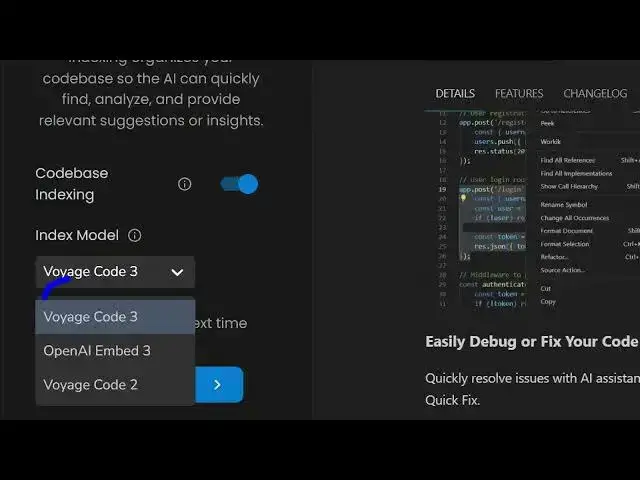
on get started and here you basically
3:07
select uh indexing index model just go
3:12
with the default model that is give
3:14
click on next and here you select your
3:17
default model all the models are there
3:19
for you GPT Gemini cloud deepca
3:26
model and select your project or simply
3:29
create a new project.
3:37
So right here also you can click create
3:39
project and simply create a sample
3:41
project right here.
3:43
So once you create the project it will
3:46
show right like this.
3:49
You can even access this uh right in the
3:53
browser also. You simply click create
3:56
from scratch and simply name the
3:57
workspace and uh this gives you this
4:00
chat window where you can automatically
4:02
interact. So you can basically give it a
4:05
title.
4:11
So you can basically
4:14
build a simple
4:17
calculator in HTML, CSS and JavaScript.
4:20
So you write this prompt and based upon
4:22
the prompt it will show you the source
4:24
code right here in the
4:28
can see it is using the latest model of
4:31
GPT.
4:32
It is generating the code for you.
4:47
So now you basically
4:50
select your project
4:53
and uh
4:56
select after that you basically you will
4:59
get this source code right in VS code
5:01
also. So you can copy this and if you
5:06
have a file you can paste that you can
5:08
even reference the file as well. Uh let
5:10
me just run this application.
5:14
So it basically generated this
5:16
calculator for you. You can see how
5:17
beautiful it is looking and you can
5:20
reference the file as well directly. You
5:22
can click this option of add file. So
5:25
click this and you can reference all the
5:27
files which are there in VS code. So I
5:29
can simply say please modify this code
5:33
to build the image to PDF
5:36
app and write the code and replace the
5:42
in file. So right here
5:46
it is actually now generating the image
5:48
to PDF right here. If you see
6:05
so it is you can see the speed of
6:07
generating the code here is tremendous.
6:09
It's similar to GitHub copilot but it's
6:11
totally free to use. There is no
6:14
subscription cost as opposed to GitHub
6:17
copilot and claude.
6:20
So once it generates uh I can simply
6:24
show to you how it looks like.
6:32
So you basically
6:35
copy this, paste it right here.
6:44
So this is the application it created.
6:46
You simply select uh
6:50
the file here. Let me just select
7:00
multiple files. Click on convert to PDF.
7:04
So you can see it built out this image
7:06
to PDF application. So in this easy way
7:09
you can try this AI and it also works
7:11
for autocomplete purpose as well. So
7:14
let's suppose if you are inside any file
7:17
and you're writing your code, it will
7:18
also suggest you suggestions.
7:32
So as you can see it is suggesting me
7:34
suggestions.
7:37
So this is also helpful for this as
7:39
well. So definitely try this AI
7:43
assistant tool guys. VS code extension
7:45
workkick. You can even access it cloud
7:48
or also in VS code as well. Great
7:50
alternative to uh GitHub copilot. Uh
7:54
thank you very much for watching this
7:55
video and also check out my website
7:57
freemediattools.com
7:59
uh which contains thousands of tools.
#Programming
#Software