Up next in 10


Get the full source code of application here:
Show More Show Less View Video Transcript
0:00
Uh, hey guys, welcome to this video. So,
0:02
in this video, I'll show you a very
0:03
popular extension for Google Chrome. If
0:06
you are specifically watching YouTube
0:08
videos, this is an open-source
0:10
extension. It doesn't cost you any sort
0:13
of money, but it will add some options
0:15
to your YouTube video. So, this is the
0:17
name of the extension, improve YouTube
0:19
for YouTube and videos. Simply go to the
0:22
extension tab. Just search for this.
0:24
This is their official website. You can
0:26
visit improved tube.com
0:30
and uh basically it's open source. Here
0:33
you can see since 2012 they have
0:36
developed this extension. It's
0:37
completely open source and available for
0:39
all the browser. So you simply click the
0:42
add to chrome button to install this
0:45
extension and it basically changes your
0:48
YouTube layout all these buttons it will
0:51
add right here in the video itself. So
0:53
after you enable this extension, go to
0:56
any YouTube video. I'll open my own
0:59
video. So simply
1:02
enable this and you will see this icon
1:04
appearing and just click this and you
1:07
basically get these bunch of buttons
1:09
right here. Journal, player, appearance,
1:11
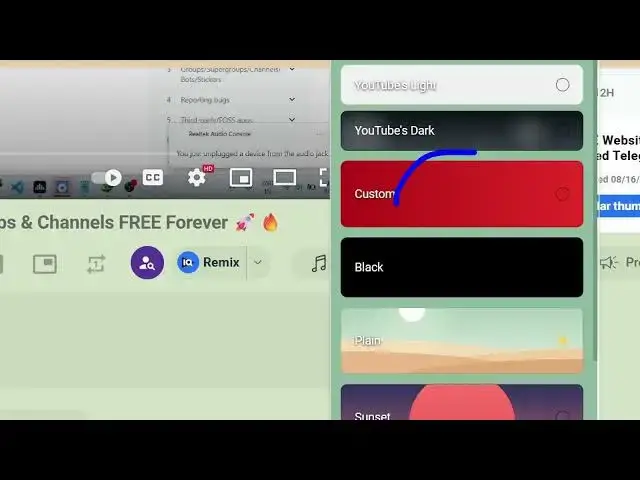
shortcuts, playlist, themes. If you say
1:15
themes, you can change this to any sort
1:19
of using the color picker.
1:23
And
1:25
you just need to refresh after you
1:27
enable this extension.
1:29
Uh
1:31
so right.
1:31
Hello guys, welcome to this video. So in
1:33
this video I'll show in this your
1:38
appearance have been successfully
1:39
changed here. So in this easy way
1:43
you can make it
1:46
related videos. Basically you can hide
1:48
this if you just click hidden. Now the
1:51
related videos will not be showing right
1:53
here. So it's an advanced extension. You
1:57
can control the appearance layout of
1:59
your YouTube videos. If you don't want
2:02
to see the trailer, you can even control
2:05
all these properties. The playlist
2:07
options are also there. You can reverse,
2:09
repeat, shuffle, pop-up player as well,
2:13
auto play as well.
2:16
And these are journal options right
2:18
here. YouTube search, remove related
2:21
search results, open in a new tab.
2:24
So all these options are available for
2:26
you and here you can control the themes.
2:31
You can see that now you can customize
2:33
your themes.
2:44
You can even make your custom team as
2:46
well. Simply click custom and then pick
2:48
your colors.
2:56
So in this easy way you can use these.
3:00
So these are journal options that you
3:02
have most mark videos track watch videos
3:07
hide
3:10
can change this to like this.
3:14
These are players options here as well.
3:17
So if you add these any of these, it
3:20
will add the buttons as well. So
3:22
definitely check out this uh extension
3:24
guys. If you want to take a screenshot,
3:27
the screenshot button will be added
3:28
right here. And now if you click this
3:32
screenshot button, a screenshot will be
3:35
taken at this moment of time and it
3:38
automatically will be saved inside your
3:40
machine. So, it's a very important, very
3:42
good extension for YouTube and uh
3:46
definitely install it. It's completely
3:49
open source and free to use and it
3:51
doesn't cost you any sort of money. Once
3:53
you enable this, simply refresh your
3:55
page and uh you basically see all these
3:58
options available for you. You can
4:00
enable.
4:05
So definitely check out this extension
4:07
guys and also check out my website
4:09
freemediatools.com
4:12
uh which contains thousands of tools.