Up next in 10


Get the full source code of application here:
Show More Show Less View Video Transcript
0:00
Uh hello guys, welcome to this video. So
0:01
in this video I'll show you how to
0:03
upgrade your Windows from home to
0:06
professional. So with a activation key.
0:09
So simply if you have the activation
0:11
key, you can simply upgrade this by
0:14
going to settings and right here you
0:17
will see on the left hand side the
0:19
system section. Simply click on that and
0:22
simply drag down where you see this
0:25
about section right here. So simply
0:27
click the about section and after that
0:30
you just need to drag down and until you
0:32
see this section right here in the
0:34
related section product key and activate
0:37
activation
0:39
simply click on that and after that once
0:42
you are there on this screen it will
0:44
show you the current
0:46
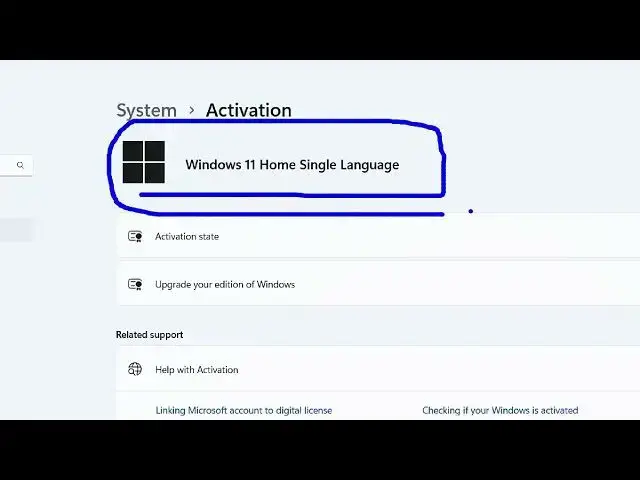
version of Windows that you are running
0:48
here. So in my case it is Windows 11
0:50
home single language. So it will tell
0:52
you the activation state. So currently
0:55
it is active.
0:57
So now if you want to upgrade this to a
0:59
professional so you have this button
1:01
here upgrade your addition of Windows.
1:03
So simply click on that and then we have
1:05
the option right here change product
1:08
key. So you have the button here of
1:10
change. As soon as you click this
1:12
button, you will be prompted with this
1:15
screen here where you will need to enter
1:17
the product key, license key of the
1:22
so you can need to paste that key here.
1:25
After that you click on next and then
1:27
the upgrade is you will be able to
1:30
upgrade your Windows. So for this you
1:32
need to have a license key which is
1:35
valid.
1:36
Just write this key here and then click
1:38
on next and automatically your windows
1:41
will be upgraded from home to
1:43
professional. So in this easy way you
1:46
can do this very easily inside windows.
1:49
So also check out my website
1:51
freemediattools.com
1:53
uh which contains thousands of tools.
#Software
#Operating Systems