Up next in 10

How to Uninstall & Remove Problematic Windows Updates in Terminal or Command Prompt
Jul 7, 2025

Get the full source code of application here:
Show More Show Less View Video Transcript
0:00
Uh hello guys, welcome to this video. So
0:02
in this video, I'll show you a command
0:05
inside your terminal or command prompt
0:07
which you can easily manage your windows
0:09
problematic updates which have recently
0:12
happened which is affecting your PC or
0:14
laptop. So just open your
0:18
command prompt and run this as
0:20
administrator.
0:21
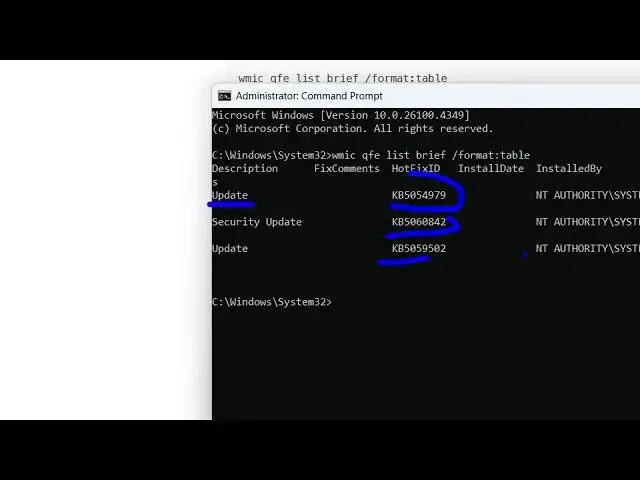
And there is a command here which you
0:23
can simply execute which is this command
0:26
wic
0:30
list brief
0:33
/format
0:35
colon table. So let me just zoom in. So
0:38
this command will list all the recent
0:40
Windows updates which have happened and
0:43
it will give you the names of the
0:46
updates as well in a tablo structure. If
0:48
you enter it, you will see all the
0:51
recent updates which are happened and it
0:53
will give you the date as well.
0:57
So if you just want to uninstall these
0:59
updates, there is this second command
1:01
that you can execute. So you can see
1:04
this is the dates that it also gives
1:06
you.
1:09
So if you just want to uninstall this
1:11
update, you simply say
1:14
W USA/ uninstall
1:19
and then you replace the number followed
1:22
by this KB and this number that is given
1:26
if you just want to uninstall these
1:28
updates. So simply paste this number and
1:30
just execute this command. So this will
1:32
remove that Windows update from your PC
1:36
and this way you can actually
1:39
manually
1:42
remove Windows updates and fix your PC.
1:46
So So this is the command. So thank you
1:50
very much for watching this video and
1:52
also check out my website
1:53
freemediatetools.com
1:55
uh which contains thousands of tools.
#Computer Security
#Operating Systems
#Software Utilities