Up next in 10


Get the full source code of application here:
Show More Show Less View Video Transcript
0:00
Uh hello guys, welcome to this video. So
0:02
in this video, I'll show you how to take
0:04
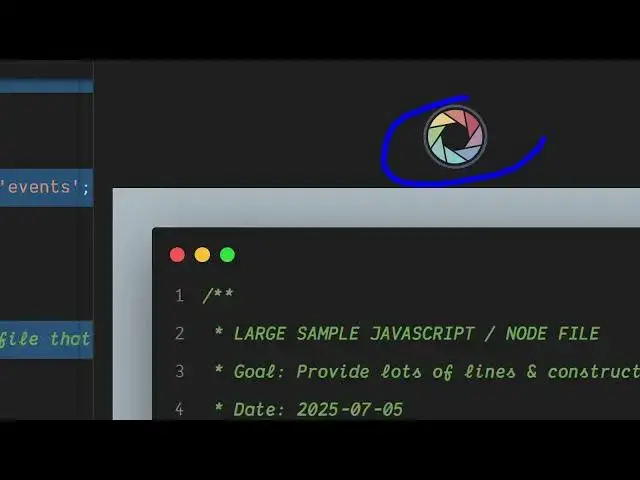
the screenshot of your source code as a
0:06
image file and export this inside VS
0:09
code directly. So there is a quite a
0:11
number of extensions which allows you to
0:13
do this. So if you just type your source
0:16
code image in the search bar, quite a
0:19
number of extensions will come right
0:21
here which lets you generate the
0:24
screenshot. You just need to write your
0:27
screenshot.
0:30
So one such extension is this code snap
0:34
polar code. You will see all these
0:35
extensions.
0:37
So you can take any of these extensions.
0:39
Let's suppose you install this extension
0:41
which has almost 3 million installs. So
0:44
it allows you to take beautiful
0:46
screenshots of your code. So click the
0:48
install button and as soon as you
0:51
install this extension.
0:54
So after that go to the file that you
0:57
want to take the screenshot.
1:02
It can be JavaScript, PHP, any sort of
1:05
file. So now inside this file simply
1:09
open the command pallet or you can go to
1:11
this command pallet and just type here
1:15
code snap.
1:18
You will see this option will appear
1:20
code snap. So enter and then
1:23
automatically on the right hand side the
1:25
screenshot will appear. You just need to
1:26
select the source code that you want to
1:29
highlight and on then on the right hand
1:31
side you will see automatically
1:35
the this will be the screenshot and then
1:38
just need to click this button to take
1:40
the screenshot and after that it will
1:43
take the screenshot and then it needs to
1:46
actually
1:51
save this screenshot at this location.
1:54
So
1:57
you can save it right here.
2:04
So So after you save this, you can check
2:06
out the screenshot.
2:11
You can see the screenshot have been
2:13
successfully saved.
2:16
This is your screenshot
2:18
as a PNG file you will see.
2:22
So it looks quite good. So this is one
2:24
extension but there are quite a number
2:26
of extensions which are available which
2:28
does the same thing but it has more
2:31
options as well. So one such extension
2:34
is this one as well.
2:41
So which also does the same thing which
2:44
also 1 billion downloads. So again you
2:46
click the install button and install
2:48
this extension.
2:52
So after installing it again press the
2:56
command pallet and just type polar code.
2:58
You'll see now this will also work.
3:01
Similarly, you simply select whichever
3:03
code.
3:09
You select the code and simply paste it
3:11
right here.
3:19
Then you have this button to actually
3:21
download this. So this is these are two
3:26
popular extensions for this job. But
3:29
there are quite a number of extensions
3:31
you can check out. Just type screenshot
3:33
in the search bar and quite a number of
3:34
extensions will come. So you can
3:37
basically check out all of them. So
3:39
thank you very much for watching this
3:40
video. Also check out my website
3:43
freemediatetools.com
3:45
uh which contains thousands of tools.
#Software